
1. Introducción
The Marantz CDR300 is a portable CD recorder designed for direct recording of audio, particularly spoken word, onto CD-R/RW media. This device combines the functionality of a professional portable recorder with the convenience of CD recording, allowing for immediate playback on standard CD players. Its robust design and versatile features make it suitable for various field recording applications.
2. Características principales
- Grabación directa: Records directly to blank CD-R/RW discs.
- Minute Track Mode: Automatically marks each minute of spoken word as a separate track for easy navigation during playback.
- Portabilidad: Transportable, tabletop operation with options for AC power or optional RPS300 battery system for up to four hours of recording.
- Integrated Audio Tools: Features a built-in microphone, internal speaker, microphone inputs (including XLR), Automatic Level Control (ALC), mic filtering, limiter, and programmable EQ for optimized stereo recording.
- CD-R/RW Compatibility: Supports standard CD-R and CD-RW media.
3. Producto terminadoview
3.1 Controles del panel frontal

Figura 1: Frente view of the Marantz CDR300 with its remote control.
The front panel provides access to all primary recording and playback functions. Key controls include:
- Ajustes de audio: BASS, MID, TREBLE knobs for tone control.
- Configuración de grabación: TEXT, PHANTOM (for external microphones), PROG, REPEAT, MENU/STORE buttons.
- Disc Operations: DISC MODE, SINGLE, A-B, CANCEL/DELETE buttons.
- Fuerza: POWER switch and STANDBY button.
- Mostrar: LCD screen showing status, track information, and settings.
- Bandeja de CD: Push ENTER button to open/close the CD tray.
- Recording/Finalizing: ERASE, FINALIZE, REC buttons.
- Controles de transporte: Play/Pause, Stop, Skip Forward/Backward buttons.
3.2 Conexiones del panel posterior
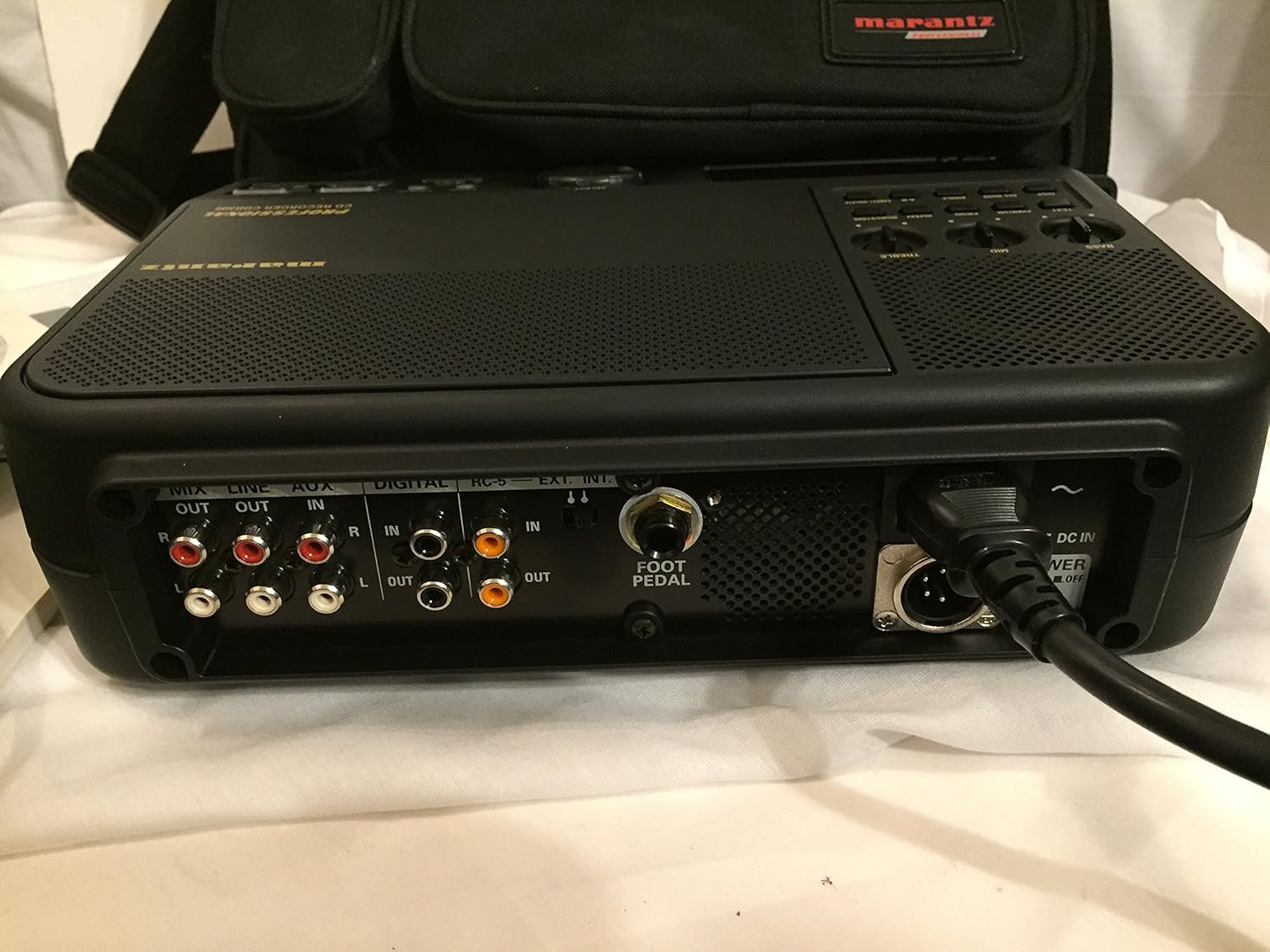
Figure 2: Rear panel connections of the Marantz CDR300.
The rear panel houses various input and output connections for external audio devices and power:
- Salidas de audio: MIX OUT (RCA), LINE OUT (RCA).
- Entradas de audio: LINE IN (RCA), AUX IN (RCA), DIGITAL IN (Coaxial/Optical).
- Puertos de control: RC-5, EXT. INT. (External/Internal microphone selector), FOOT PEDAL input.
- Entrada de energía: DC IN (4-pin connector for optional RPS300 battery or external DC power), AC POWER ON/OFF switch.
3.3 Remote Control (RC300CDR)
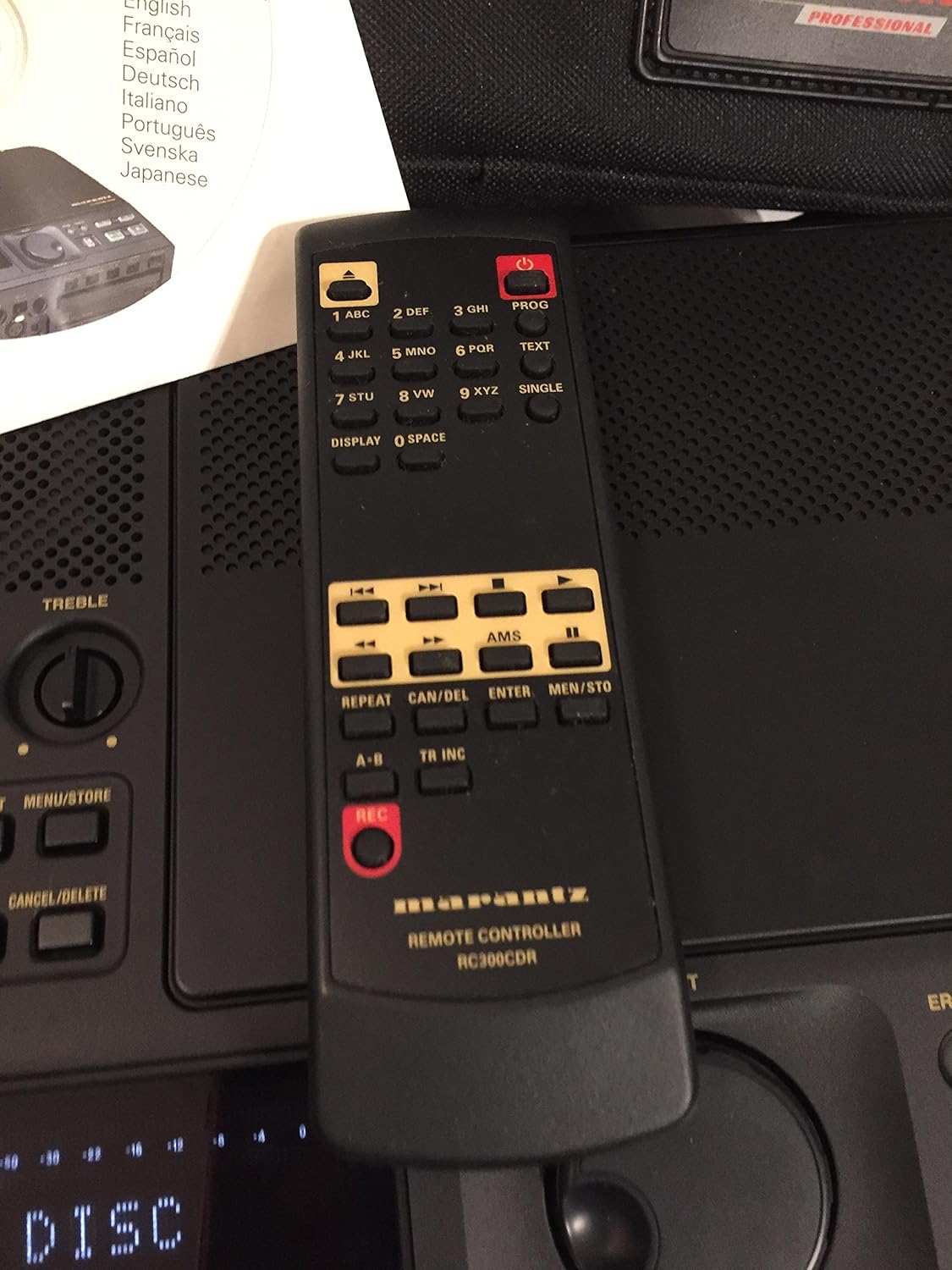
Figure 3: The RC300CDR remote control unit.
The included remote control provides convenient access to most functions from a distance. It includes buttons for power, numerical input, text entry, display options, AMS (Automatic Music Search), repeat functions, track increment, and full transport controls (REC, Play/Pause, Stop, Skip).
4. Configuración
4.1 Conexión de alimentación
- Connect the supplied AC power adapter to the AC POWER input on the rear panel and plug it into a standard wall outlet.
- Alternatively, for portable use, connect the optional RPS300 battery system to the 4-pin DC IN connector.
- Ensure the AC POWER ON/OFF switch on the rear panel is in the 'ON' position.
4.2 Carga de un disco
- Press the 'Push ENTER' button on the front panel to open the CD tray.
- Place a blank CD-R or CD-RW disc, label side up, into the tray.
- Press the 'Push ENTER' button again to close the tray. The display will show "READING DISC" then "READY" or "NO DISC" if no disc is detected or if the disc is incompatible.
4.3 Conexiones de audio
- Micrófonos externos: Connect professional microphones to the XLR inputs (if available, typically via an external mixer or pre-amp connected to Line In). Ensure PHANTOM power is enabled if required by your microphones.
- Dispositivos de nivel de línea: Connect audio sources like mixers, preamplifiers, or other playback devices to the LINE IN (RCA) or AUX IN (RCA) ports.
- Fuentes digitales: For digital audio input, connect compatible devices to the DIGITAL IN (Coaxial or Optical) port.
- Escucha: Connect headphones to the headphone jack for private monitoring or connect external speakers to the LINE OUT (RCA) ports.
5. Instrucciones de funcionamiento
5.1 Grabación básica
- Power on the unit and insert a blank CD-R or CD-RW disc.
- Select your desired input source (internal microphone, external microphone via LINE IN, or other line/digital inputs). Use the EXT. INT. switch on the rear panel for microphone selection.
- Adjust input levels using the ALC (Automatic Level Control) or manually set levels and apply mic filtering, limiter, or programmable EQ as needed via the menu.
- Presione el REC Botón para comenzar a grabar. El indicador REC se iluminará.
- Para detener la grabación, presione el DETENER botón.
5.2 Minute Track Mode (for Spoken Word)
The "Minute Track Mode" is ideal for recording interviews, lectures, or meetings, as it automatically creates a new track marker every minute. This allows for quick navigation to specific points during playback.
- Before recording, activate "Minute Track Mode" through the unit's menu settings. Refer to the on-screen display for navigation.
- Proceed with recording as described in Section 5.1. The unit will automatically insert track markers every 60 seconds.
5.3 Reproducción
- Insert a recorded CD into the tray.
- Presione el REPRODUCIR/PAUSA para iniciar la reproducción.
- Use the Skip Forward/Backward buttons to navigate between tracks. If "Minute Track Mode" was used, these buttons will jump to the next or previous minute marker.
- Presione el DETENER Botón para finalizar la reproducción.
5.4 Finalizing a Disc
After recording, a CD-R disc must be finalized to be playable on standard CD players. CD-RW discs do not always require finalizing for playback on the CDR300 itself, but it is recommended for universal compatibility.
- Ensure the disc contains all desired recordings.
- Presione el FINALIZAR botón en el panel frontal.
- Follow the on-screen prompts to confirm the finalization process. This process is irreversible.
6. Mantenimiento
- Limpieza: Utilice un paño suave y seco para limpiar el exterior de la unidad. No utilice limpiadores líquidos ni disolventes.
- Manejo del disco: Sujete siempre los discos por los bordes. Guárdelos en estuches para evitar rayones y acumulación de polvo.
- Almacenamiento: Guarde la unidad en un lugar fresco y seco, alejado de la luz solar directa y de temperaturas extremas.
7. Solución de problemas
This section addresses common issues you might encounter with the Marantz CDR300.
- "NO DISC" displayed:
- Ensure a disc is properly inserted, label side up.
- Verify the disc is a compatible CD-R or CD-RW.
- Clean the disc if it appears dirty or scratched.
- No recording audio:
- Compruebe todas las conexiones del cable de audio.
- Asegúrese de que esté seleccionada la fuente de entrada correcta.
- Verify input levels are not set too low or muted.
- If using external microphones, confirm phantom power is supplied if needed.
- Disc not playable on other devices after recording:
- Ensure the disc has been finalized (see Section 5.4).
- Some older CD players may not be compatible with CD-R/RW media.
- La unidad no se enciende:
- Check AC power adapter connection and wall outlet.
- Verify the AC POWER ON/OFF switch on the rear panel is in the 'ON' position.
- If using battery power, ensure the battery is charged and properly connected.
8. Especificaciones

Figure 4: Bottom label with model and power specifications.
- Modelo: CDR300
- Compatibilidad de discos: CD-R, CD-RW
- Requisitos de energía:
- AC: 120V, 60Hz, 0.35A
- DC: 13.2V, 2.0A (for optional RPS300 battery system)
- Entradas: Line In (RCA), Aux In (RCA), Digital In (Coaxial/Optical), External Microphone (XLR via Line In), Foot Pedal.
- Salidas: Mix Out (RCA), Line Out (RCA), Headphone.
- Funciones integradas: Microphone, Speaker, Automatic Level Control (ALC), Mic Filtering, Limiter, Programmable EQ.
- Peso del artículo: Aproximadamente 21 libras (9.5 kg)
- Fecha de primera disponibilidad: 2 de octubre de 2001
9. Garantía y soporte
For warranty information, technical support, and service inquiries regarding your Marantz CDR300 Portable CD Recorder, please refer to the official Marantz website or contact your authorized Marantz dealer. Keep your purchase receipt as proof of purchase for warranty claims.