
Introducción
The Microsoft Optical Desktop Elite for Bluetooth provides a wireless keyboard and mouse solution designed for use with Windows PCs. This combo utilizes Bluetooth wireless technology for connectivity, offering enhanced range and reliability. It enables synchronization and information sharing between your PC and other Bluetooth-enabled devices.
¿Qué hay en la caja?
- Teclado Bluetooth de Microsoft
- Microsoft Bluetooth Optical Mouse
- USB Bluetooth Transceiver
- Baterías (preinstaladas o incluidas por separado)
- Documentación del producto

Image: The retail packaging for the Microsoft Optical Desktop Elite for Bluetooth, showing the keyboard, mouse, and USB transceiver.
Configuración
Instalar baterías
Ensure fresh batteries are installed in both the keyboard and the mouse. Refer to the battery compartment markings for correct polarity.
Connect USB Transceiver
Plug the included USB Bluetooth transceiver into an available USB port on your Windows PC. The system will typically install the necessary drivers automatically.
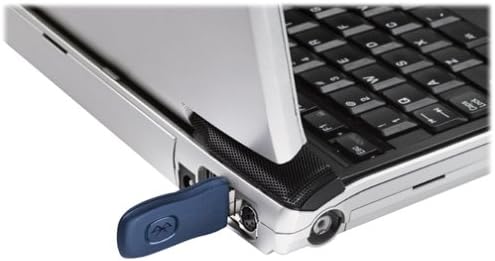
Image: A blue USB Bluetooth transceiver plugged into the side of a laptop computer.
Emparejar dispositivos
Follow the on-screen prompts or refer to your Windows Bluetooth settings to pair the keyboard and mouse with the transceiver. This usually involves pressing a connect button on the devices and the transceiver.
Install Software (Optional)
For advanced customization of keyboard shortcuts and mouse buttons, install the Microsoft IntelliPoint and IntelliType Pro software from the official Microsoft websitio o el CD incluido (si corresponde).
Instrucciones de funcionamiento
The Microsoft Optical Desktop Elite for Bluetooth offers a range of features for enhanced productivity.

Image: The Microsoft Optical Desktop Elite keyboard and mouse, showcasing their ergonomic design and wireless nature.
Características del teclado:
- Disposición QWERTY estándar: Full-size keyboard with a standard QWERTY layout.
- Programmable Hot Keys: Utilize the customizable hot keys for quick access to applications, documents, or web páginas.
- Controles de medios: Dedicated keys for volume control, play/pause, and track navigation.
- Desplazamiento de lado a lado: The keyboard features a scroll wheel or button for horizontal scrolling in documents and web páginas.
Características del mouse:
- Seguimiento óptico: Proporciona un control del cursor preciso y suave en diversas superficies.
- Rueda de desplazamiento: For vertical scrolling and button functionality.
- Desplazamiento de lado a lado: The mouse scroll wheel also supports horizontal scrolling.
- Botones programables: Customize side buttons for specific functions using the IntelliPoint software.
- Mayor duración de la batería: Designed for extended use between battery replacements.

Image: A detailed diagram highlighting various features and buttons on the Microsoft Optical Desktop Elite keyboard and mouse.
Mantenimiento
Limpieza:
- Teclado: Utilice un paño suave y sin pelusa ligeramente seco.ampLimpie con agua o una solución limpiadora suave. Evite la humedad excesiva.
- Ratón: Clean the optical sensor area on the bottom of the mouse with a dry cotton swab. Wipe the body with a soft, damp paño.
- Do not immerse devices in liquid.
Reemplazo de batería:
- When battery indicators on the keyboard or mouse signal low power, replace batteries promptly.
- Abra el compartimiento de la batería, retire las baterías viejas e inserte las nuevas, asegurándose de la polaridad correcta.
- Deseche las baterías viejas de acuerdo con las regulaciones locales.
Solución de problemas
- Devices not connecting or frequently disconnecting:
- Ensure the USB Bluetooth transceiver is securely plugged into a working USB port.
- Check battery levels in both the keyboard and mouse. Replace if low.
- Re-pair the devices with the transceiver. Refer to the "Pair Devices" step in the Setup section.
- Ensure no other strong wireless signals (e.g., Wi-Fi routers, other Bluetooth devices) are causing interference. Try moving the transceiver closer to the devices.
- Reinicie su computadora.
- El cursor del mouse es errático o no responde:
- Limpie el sensor óptico en la parte inferior del mouse.
- Asegúrese de usar el ratón sobre una superficie adecuada. Las superficies muy reflectantes o transparentes pueden causar problemas.
- Verifique los niveles de la batería.
- Keyboard keys are not responding:
- Verifique los niveles de la batería.
- Ensure the keyboard is paired correctly.
- Verify that the keyboard is not in a sleep mode. Press any key to wake it.
- Side-to-side scrolling not working:
- Ensure the IntelliPoint/IntelliType Pro software is installed and configured correctly.
- Verify that the application you are using supports horizontal scrolling.
Presupuesto
| Característica | Detalle |
|---|---|
| Marca | Microsoft |
| Modelo | Optical Desktop Elite for Bluetooth |
| Tecnología de conectividad | Bluetooth, USB, Inalámbrico |
| Dispositivos compatibles | Personal Computer (Windows OS) |
| Detección de movimiento | Optical (Mouse) |
| Disposición del teclado | QWERTY (105 Keys) |
| Fuente de poder | Funciona con pilas |
| Peso del artículo | 4 libras (aprox.) |
| Color | Negro/Azul |
Garantía y soporte
For warranty information and technical support, please refer to the documentation included with your product or visit the official Microsoft support webSitio. Conserve su comprobante de compra para reclamaciones de garantía.
Soporte en línea: support.microsoft.com