
Introducción
This manual provides detailed instructions for the proper setup, operation, and maintenance of your Kodak EasyShare M893IS Digital Camera. Please read this manual thoroughly before using your camera to ensure optimal performance and longevity.
1. Configuración
1.1. Instalación y carga de la batería
The Kodak EasyShare M893IS uses a rechargeable Lithium-Ion battery. Ensure the battery is fully charged before first use.
- Localice la puerta del compartimiento de la batería en la parte inferior o lateral de la cámara.
- Deslice el pestillo para abrir el compartimento.
- Insert the Li-Ion battery with the contacts facing inward, ensuring it clicks into place.
- Cierre bien la puerta del compartimiento de la batería.
- Connect the camera to a power source using the provided USB cable for in-camera charging. The charging indicator light will show the charging status.

Figura 1.1: Lado view of the camera, indicating the general location of the battery compartment.
1.2. Instalación de la tarjeta de memoria
La cámara admite tarjetas de memoria SD/SDHC (no incluidas). Se requiere una tarjeta de memoria para guardar fotos y vídeos.
- Open the battery compartment door. The memory card slot is usually located next to the battery.
- Insert the SD/SDHC card into the slot with the metal contacts facing the correct direction (refer to the diagram inside the compartment). Push until it clicks into place.
- Cierre la puerta del compartimiento de la batería.
2. Operación de la cámara
2.1. Controles de la cámaraview
Familiarize yourself with the main controls of your Kodak EasyShare M893IS camera.

Figura 2.1: Frente view of the camera. Key components include the lens, flash, and microphone.
- Botón de encendido: Located on the top panel, turns the camera on/off.
- Botón del obturador: Presione hasta la mitad para enfocar y completamente para capturar una fotografía.
- Palanca de zoom: Controls the 3x optical zoom and 5x digital zoom.
- Dial/botón de modo: Selects shooting modes (e.g., Auto, Program, Scene modes).
- Pantalla LCD: Pantalla de 2.7 pulgadas para encuadrar fotografías, reviewvisualizar imágenes y navegar por menús.
- Botón direccional/OK: Se utiliza para la navegación y selección del menú.
- Botón de menú: Accede a la configuración y opciones de la cámara.
- Review/Playback Button: Displays captured photos and videos.
- Botón Eliminar: Removes unwanted images or videos.
- Botón de compartir: For easy sharing options (if configured).
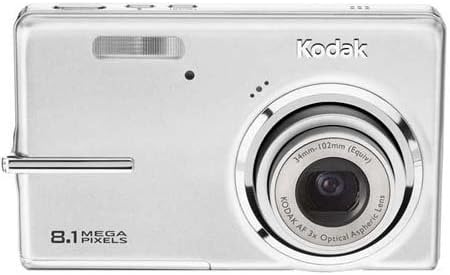
Figura 2.2: Posterior view of the camera, showing the 2.7-inch LCD and control buttons.
2.2. Tomar fotografías
- Turn on the camera by pressing the Power button.
- Select your desired shooting mode using the Mode dial/button. Common modes include:
- Auto: Camera automatically adjusts settings for most situations.
- Modos de escena: Specific settings for various scenarios like 'Night mode' or 'Sports'.
- Frame your shot using the LCD screen. Use the zoom lever to adjust the 3x optical zoom or 5x digital zoom.
- Press the Shutter button halfway down to allow the camera to focus (Contrast Detection Auto Focus, Multi-zone, Center Spot options available). A green frame indicates focus lock.
- Press the Shutter button fully to capture the image. The camera features optical image stabilization to reduce blur.
- For low-light conditions, adjust the flash mode (Auto, On, Off, Slow Synch) or utilize the High ISO (up to 1600) setting.
2.3. Grabación de vídeos
- Switch the camera to video recording mode (refer to your camera's mode dial/menu for the video icon).
- Encuadre el sujeto en la pantalla LCD.
- Press the Shutter button to start recording. Press it again to stop.
- Videos are recorded in VGA resolution (640 x 480 at 15 fps or 320 x 240 at 30 fps) in MJPEG format.
2.4. VolverviewGestión y gestión de medios
- Presione el Review/Playback button to view tus fotos y videos.
- Use the directional pad to scroll through your media.
- To delete an unwanted item, select it and press the Delete button. Confirm deletion when prompted.
- Connect the camera to a computer via USB to transfer files.
3. Mantenimiento
3.1. Limpieza de la cámara
- Lente: Utilice un paño suave y sin pelusa, especialmente diseñado para lentes de cámara. Limpie suavemente con movimientos circulares. Evite el uso de productos químicos agresivos.
- Pantalla LCD: Wipe with a soft, dry microfiber cloth. For stubborn smudges, slightly dampEnjuague el paño con agua o un limpiador de pantallas.
- Cuerpo de cámara: Utilice un paño suave y seco para limpiar el polvo y las huellas dactilares.
3.2. Cuidado de la batería
- Guarde la batería en un lugar fresco y seco cuando no esté en uso.
- Evite descargar completamente la batería con frecuencia para prolongar su vida útil.
- Si va a guardar la cámara durante un período prolongado, retire la batería.
3.3. Almacenamiento
Store the camera in a protective case or bag to prevent scratches and damage from dust or moisture. Avoid extreme temperatures.
4. Solución de problemas
| Problema | Posible causa | Solución |
|---|---|---|
| La cámara no se enciende. | La batería está descargada o insertada incorrectamente. | Charge the battery. Ensure the battery is inserted correctly with contacts aligned. |
| Las fotos están borrosas. | Movimiento de la cámara, movimiento del sujeto o enfoque incorrecto. | Hold the camera steady. Ensure the subject is within the camera's focus range. Use optical image stabilization. Increase ISO in low light. |
| Mensaje de "Error de tarjeta de memoria". | La tarjeta de memoria está llena, dañada o insertada incorrectamente. | Insert a new or empty SD/SDHC card. Reinsert the card. Format the card (this will erase all data). |
| El flash no dispara. | El flash está configurado en “Apagado” o la batería está baja. | Change flash mode to "Auto" or "On". Charge the battery. |
| No se pueden transferir fotos a la computadora. | Incorrect USB connection or driver issues. | Ensure USB cable is securely connected to both camera and computer. Try a different USB port. Check computer's device manager for driver issues. |
5. Especificaciones
| Característica | Detalle |
|---|---|
| Nombre del modelo | Easyshare M893IS |
| Resolución del sensor fotográfico | 8.1 MP |
| Zoom óptico | 3x |
| Zoom digital | 5x |
| Estabilización de imagen | Óptico |
| Tamaño de pantalla | LCD de 2.7 pulgadas |
| Apoyado File Formato | JPEG (Stills), MJPEG (Video) |
| Resolución de vídeo | 640 x 480 (15 fps), 320 x 240 (30 fps) |
| Sensibilidad ISO | ISO ampliado mínimo 80, ISO ampliado máximo 1600 |
| Velocidad mínima de obturación | 4 segundos |
| Velocidad máxima de obturación | 1/2000 segundos |
| Modos de flash | Auto, On, Off, Slow Synch |
| Tipo de batería | Iones de litio |
| Conectividad | USB |
| Compatible Flash Memory | SD, SDHC (hasta 32 GB) |
| Peso del artículo | 0.35 libras |
| Color | Plata |
6. Información de garantía
Your Kodak EasyShare M893IS Digital Camera is covered by a Garantía limitada de 1 año Desde la fecha de compra. Esta garantía cubre defectos de fabricación y mano de obra en condiciones normales de uso. No cubre daños causados por mal uso, accidentes, modificaciones no autorizadas ni causas externas.
Please retain your proof of purchase for warranty claims. For detailed terms and conditions, refer to the warranty card included with your product or visit the official Kodak support websitio.
7. Atención al cliente
If you encounter any issues not covered in the troubleshooting section or require further assistance, please contact Kodak Customer Support.
- Soporte en línea: Visit the official Kodak support webSitio para preguntas frecuentes, controladores y descargas de software.
- Soporte telefónico: Refer to your product packaging or the Kodak websitio para números de contacto regionales.
- When contacting support, please have your camera model (M893IS) and serial number ready.