
1. Introducción
This manual provides detailed instructions for the proper setup, operation, and maintenance of your Veho VMS-004 Discovery Deluxe USB Microscope. Please read this manual thoroughly before using the device to ensure optimal performance and longevity.
The Veho VMS-004 is a versatile USB microscope designed for detailed observation and digital capture of magnified images and videos. It features up to 400x magnification, a 2.0 Megapixel CMOS lens, and adjustable LED illumination, making it suitable for various applications including educational, hobbyist, and professional use.
2. Información de seguridad
- No desarmar: Attempting to disassemble or modify the microscope may cause damage and void the warranty.
- Evite la luz solar directa: No exponga el microscopio a la luz solar directa ni a altas temperaturas.
- Tratar con cuidado: The lens and internal components are delicate. Avoid dropping or subjecting the device to strong impacts.
- Mantener seco: Este dispositivo no es resistente al agua. Evite la exposición al agua o a la humedad alta.
- Fuente de energía: Use only the specified USB power source.
- Niños: Keep out of reach of small children. Adult supervision is recommended during use.
3. Contenido del paquete
Verifique que todos los artículos estén presentes en su paquete:
- Veho VMS-004 Discovery Deluxe USB Microscope
- Flexi Alloy Stand
- Software CD (for drivers and application)
- Manual de usuario (este documento)
4. Producto terminadoview
Familiarize yourself with the main components of the Veho VMS-004 microscope.

Figure 4.1: The Veho VMS-004 Discovery Deluxe USB Microscope mounted on its flexi alloy stand.
- Cuerpo del microscopio: Contains the lens, CMOS sensor, and illumination LEDs.
- Rueda de enfoque: Located on the microscope body, used to adjust the focus for clear images.
- Botón de instantánea: A button on the microscope body for capturing still images.
- LED Illumination Control: A small wheel or dial to adjust the brightness of the built-in LEDs.
- Cable USB: For connecting the microscope to your computer.
- Flexi Alloy Stand: Provides a stable base and adjustable positioning for the microscope.

Figura 4.2: Primer plano view of the focus wheel and magnification markings on the microscope body.

Figura 4.3: Frente view of the microscope lens, showing the integrated LED illumination ring.
5. Configuración
5.1 Montaje del soporte
The flexi alloy stand provides stability and allows for precise positioning of the microscope.
- Attach the microscope holder to the flexible arm of the stand.
- Secure the microscope into the holder. Ensure it is firmly seated but not overly tightened to avoid damage.
- Coloque el soporte sobre una superficie plana y estable.
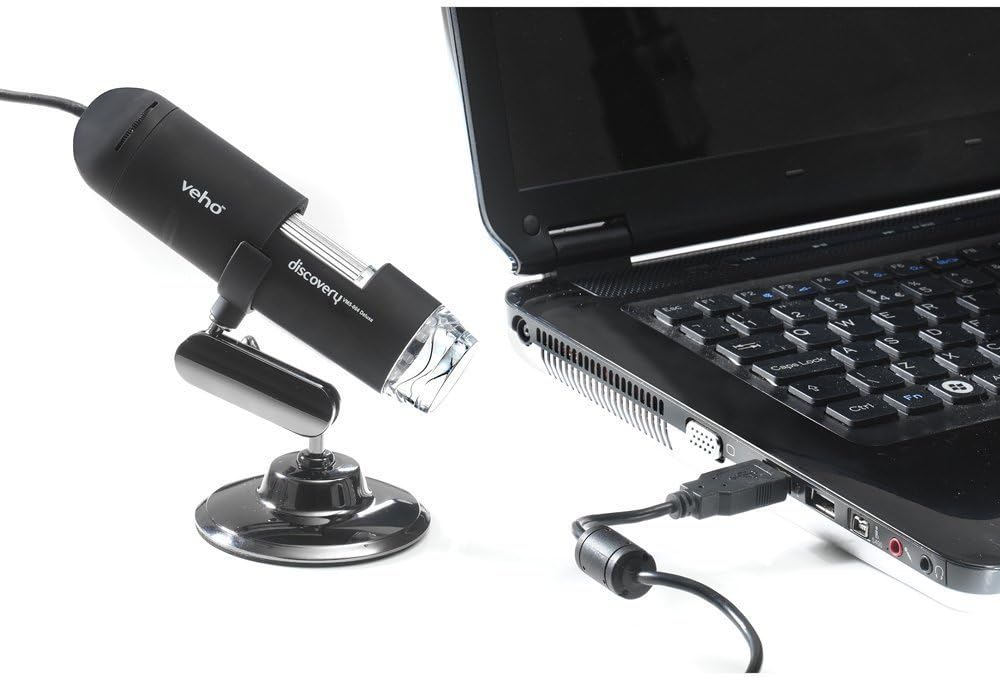
Figure 5.1: The microscope securely mounted on its flexi alloy stand.
5.2 Instalación del software
The Veho VMS-004 requires driver and software installation for full functionality on your computer (PC or Mac compatible).
- Insert the provided software CD into your computer's CD/DVD drive. If your computer does not have a CD drive, please visit the official Veho support website to download the necessary drivers and software.
- Follow the on-screen instructions to install the drivers and the accompanying application.
- Reinicie su computadora si se le solicita después de la instalación.
5.3 Conexión del microscopio
Once the software is installed, connect the microscope to your computer.
- Plug the USB cable of the microscope into an available USB port on your computer.
- The computer should automatically detect the device.
- Launch the installed microscope application. You should see a live feed from the microscope's camera.

Figure 5.2: The USB microscope connected to a laptop, ready for use.
6. Instrucciones de funcionamiento
6.1 Colocación del objeto
Position the object you wish to observe directly beneath the microscope lens. Adjust the flexible stand to bring the lens close to the object.

Figure 6.1: The microscope positioned over a coin for observation.
6.2 Ajuste de la ampliación y el enfoque
The microscope offers up to 400x digital magnification. To achieve a clear image:
- Adjust the distance between the microscope lens and the object using the flexible stand.
- Rotate the focus wheel on the microscope body until the image on your computer screen is sharp and clear.
- Nota: The effective magnification changes with the distance from the object and the focus setting.
6.3 LED Illumination Control
The microscope features built-in LEDs to illuminate your subject. To adjust the brightness:
- Locate the LED illumination control (a small wheel or dial) on the microscope cable or body.
- Rotate the control to increase or decrease the LED brightness as needed for optimal viewEn.
6.4 Captura de imágenes y vídeos
The included software allows you to capture still images and record videos.
- Imagen fija: Press the snapshot button on the microscope body or click the capture button within the software interface.
- Grabación de vídeo: Use the record function within the software application to start and stop video capture.
- Capturado files are typically saved to a default folder on your computer, which can usually be configured within the software settings.
6.5 Measurement Software
The accompanying software includes measurement capabilities. Refer to the software's help documentation for detailed instructions on how to calibrate and use the measurement tools. For accurate measurements, it is recommended to use a known reference scale in your image.
7. Mantenimiento
- Limpieza de la lente: Utilice un paño suave y sin pelusa, especialmente diseñado para lentes ópticas. No utilice limpiadores abrasivos ni disolventes.
- Limpieza del cuerpo: Limpie el cuerpo y el soporte del microscopio con un paño seco o ligeramente húmedo.amp, paño suave.
- Almacenamiento: Cuando no esté en uso, guarde el microscopio en un entorno limpio, seco y sin polvo.
- Actualizaciones de software: Periodically check the Veho official website for software and driver updates to ensure compatibility and optimal performance.
8. Solución de problemas
| Problema | Posible causa | Solución |
|---|---|---|
| No hay imagen en la pantalla / Dispositivo no detectado |
|
|
| La imagen está borrosa o desenfocada |
|
|
| La imagen es demasiado oscura o demasiado brillante |
|
|
| Magnification does not appear to be 400x |
|
|
9. Especificaciones
| Número de modelo | VMS-004D |
| Aumento | Up to x400 (digital) |
| Lente | 2.0 megapíxeles CMOS |
| Iluminación | On/Off LEDs (adjustable brightness) |
| Alojamiento | Tacton Rubber Touch |
| Pararse | Flexi Alloy Stand |
| Conectividad | USB |
| Compatibilidad | Compatible con PC y Mac |
| Dimensiones del producto | 13.46 x 10.92 x 22.35 cm |
| Peso del artículo | 159 gramos |
| Volumentage | 5 voltios (alimentado por USB) |
| Tipo de fuente de luz | Halógeno |
| Ángulo real de View | 30 grados |
10. Garantía y soporte
For warranty information, technical support, or service inquiries, please refer to the warranty card included with your product or visit the official Veho webSitio. Conserve su comprobante de compra para reclamaciones de garantía.
Veho Official Websitio: www.veho-world.com