
1. Introducción
This manual provides detailed instructions for the installation, operation, and maintenance of your AZZA Solano 1000R CSAZ-1000R Full Tower Computer Case. Please read this manual thoroughly before beginning installation to ensure proper setup and to maximize the performance and longevity of your system components.
2. Características del producto
- Optimized Thermal Management: Features multiple fans for superior cooling, including a 230mm top fan, a 230mm side fan, two 140mm front fans, and a 120mm rear fan.
- Bottom-Mounted Power Supply: Designed for improved thermal separation and stability, allowing installation facing up or down.
- Gestión avanzada de cables: Pre-drilled motherboard tray and ample space behind for organized cable routing, enhancing airflow and aesthetics.
- Tool-Less Design: Thumb screws for easy installation of optical drives and hard disk drives.
- E/S frontal conveniente: USB and audio ports, along with an eSATA port, located on the top panel for easy access.
- Interior espacioso: Full tower design accommodates large components, including extended graphics cards and tall CPU coolers.
- Diseño estético: Black exterior with a vibrant red painted interior and red LED fans.
3. Contenido del paquete
Por favor verifique que todos los artículos estén presentes en su paquete:
- AZZA Solano 1000R CSAZ-1000R Full Tower Case
- Caja de accesorios (que contiene tornillos, separadores, bridas, etc.)
- Manual de usuario (este documento)
4. Componente terminadoview
4.1 externo Views
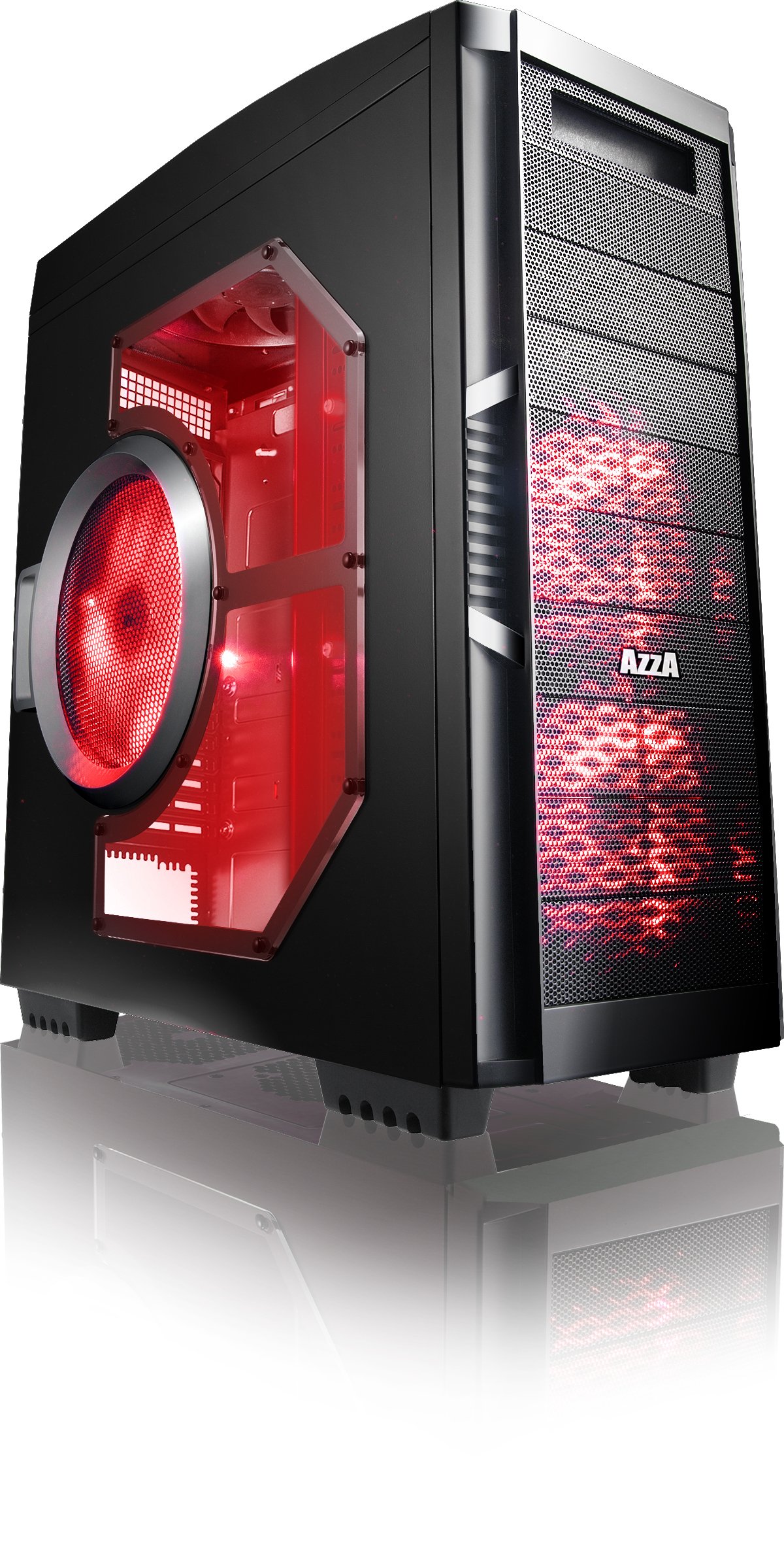
Figura 4.1: Lado frontal view of the AZZA Solano 1000R case, showcasing the red LED fans on the front and side panel.

Figura 4.2: Frente view of the AZZA Solano 1000R case, highlighting the two 140mm red LED intake fans behind the mesh panel.

Figura 4.3: Lado view of the AZZA Solano 1000R case, showing the large 230mm red LED side panel fan and the transparent window.

Figure 4.4: Top-front angled view of the AZZA Solano 1000R case, showing the top ventilation grille, front I/O panel with USB and audio ports, and power button.
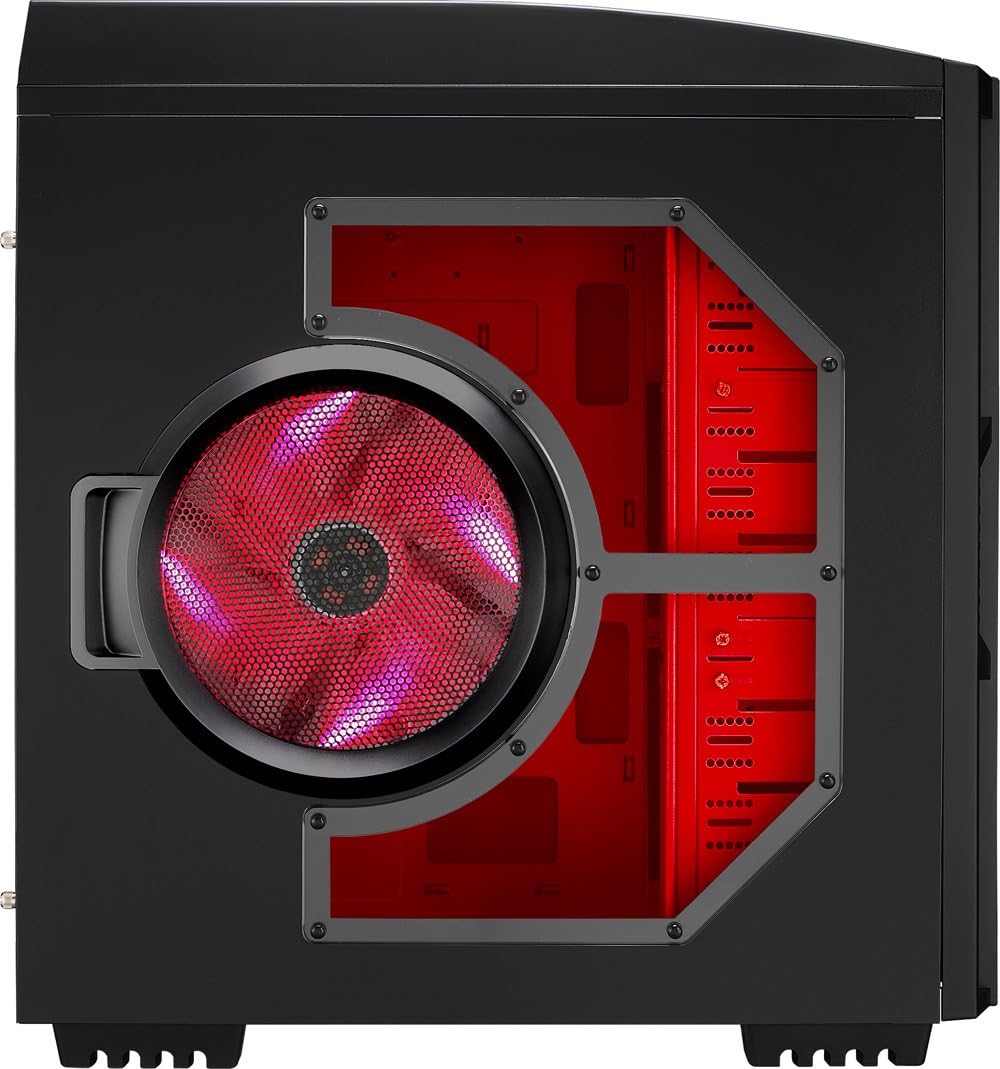
Figura 4.5: Lado trasero view of the AZZA Solano 1000R case, displaying the red interior, rear exhaust fan, and expansion slots.
4.2 Interno Views

Figura 4.6: Interior view of the AZZA Solano 1000R case with the left side panel removed, revealing the red painted motherboard tray, drive bays, and cable routing cutouts.

Figura 4.7: Interior en ángulo view of the AZZA Solano 1000R case, focusing on the multiple 5.25" and 3.5" drive bays.

Figura 4.8: Interior en ángulo view of the AZZA Solano 1000R case, showing the rear 120mm exhaust fan, expansion slots, and the extensive drive bay structure.

Figura 4.9: Interior view of the AZZA Solano 1000R case with the right side panel removed, showing the space behind the motherboard tray for cable management.
5. Guía de instalación
Antes de comenzar la instalación, asegúrese de que su espacio de trabajo esté limpio y sin electricidad estática. Se recomienda usar una pulsera antiestática.
5.1 Preparación del caso
- Coloque el estuche sobre una superficie plana y estable.
- Remove the side panels by unscrewing the thumb screws at the rear of the case and sliding the panels backward.
5.2 Instalación de la placa base
- Instale el protector de E/S provisto con su placa base en la abertura ubicada en la parte trasera de la carcasa.
- Align the motherboard with the pre-installed standoffs. If necessary, install additional standoffs according to your motherboard's form factor.
- Carefully place the motherboard onto the standoffs, ensuring the I/O ports align with the shield.
- Asegure la placa base con los tornillos apropiados de la caja de accesorios.
5.3 Instalación de la fuente de alimentación
- Position the power supply unit (PSU) in the bottom-rear compartment of the case. You can orient it with the fan facing up or down, depending on your cooling preference and PSU design.
- Secure the PSU to the case using the screws provided with your power supply.
5.4 Instalación de la unidad de almacenamiento (HDD/SSD)
- For 3.5" HDDs, slide the drive into an available drive bay until it clicks into place. Use the provided thumb screws for additional security if desired.
- For 2.5" SSDs, an adapter bracket (not included) may be required to fit into the 3.5" bays. Secure the SSD to the adapter, then install the adapter into a 3.5" bay.
- Connect the SATA data and power cables to your installed drives.
5.5 Optical Drive Installation
- Remove the desired 5.25" front bay cover from the case.
- Slide the optical drive into the bay from the front until it aligns with the screw holes.
- Secure the optical drive using the provided thumb screws.
- Connect the SATA data and power cables to the optical drive.
5.6 Instalación de la tarjeta de expansión
- Retire las cubiertas de las ranuras de expansión necesarias en la parte trasera de la carcasa.
- Insert your graphics card or other expansion card into the appropriate PCIe/PCI slot on your motherboard.
- Secure the card with the provided screw or tool-less latch mechanism.
5.7 Gestión de cables
Utilize the cutouts and space behind the motherboard tray to route and organize your cables. This improves airflow and gives your build a cleaner appearance. Use cable ties from the accessory box to bundle cables.
5.8 Conexión de E/S del panel frontal
Connect the front panel cables (USB, Audio, Power Switch, Reset Switch, Power LED, HDD LED) to the corresponding headers on your motherboard. Refer to your motherboard manual for exact header locations.
6. Operación
6.1 Encendido y apagado
Press the power button located on the top panel to turn your system on or off. A power LED will illuminate when the system is active.
6.2 Control del ventilador
The case features a fan speed control switch (L/M/H) at the rear, primarily for the top, side, and rear fans. Adjust this switch to balance cooling performance and noise levels according to your preference.
7. Mantenimiento
7.1 Limpieza
La limpieza regular ayuda a mantener un flujo de aire óptimo y la longevidad de los componentes.
- Exterior: Limpie las superficies exteriores con un paño suave, damp paño. Evite los limpiadores abrasivos.
- Filtros de polvo: The case includes mesh filters at the bottom. Periodically remove and clean these filters to prevent dust buildup.
- Interior: Use compressed air to remove dust from inside the case, especially from fans and heatsinks. Ensure the system is powered off and unplugged before cleaning the interior.
8. Solución de problemas
- El sistema no se enciende: Ensure all power cables (24-pin ATX, 8-pin CPU, GPU power) are securely connected. Verify the PSU switch is in the 'ON' position. Check front panel power switch connection to the motherboard.
- Los ventiladores no giran: Check fan power connections to the motherboard or fan controller. Ensure the fan speed switch is not set to 'Off' or 'Low' if fans are not spinning at all.
- Side Panel Not Closing: If a large CPU cooler or tall components prevent the side panel from closing, especially due to the side fan, consider relocating the side fan to the exterior of the panel if possible, or ensure your cooler fits within the case's clearance specifications.
- Cable Management Difficulty: If the rear panel bulges due to thick cables, try rerouting cables more efficiently or using flatter cables where possible.
9. Especificaciones
| Característica | Detalle |
|---|---|
| Número de modelo | CSAZ-1000R |
| Tipo de caso | Torre llena |
| Color | Negro/Rojo |
| Dimensiones del producto (L x An x Al) | 19.7 x 8.1 x 21.5 pulgadas (500 x 206 x 546 mm) |
| Peso del artículo | 24 libras (10.89 kg) |
| Método de enfriamiento | Aire |
| Tipo de montaje de la fuente de alimentación | Montaje inferior |
| Puertos USB totales | 2 (USB 2.0) + 1 (eSATA) |
| Compatibilidad con factores de forma de disco duro | 3.5 pulgadas |
| Ventiladores incluidos | 2x 230mm (Top, Side), 2x 140mm (Front), 1x 120mm (Rear) |
10. Garantía y soporte
For warranty information and technical support, please refer to the official AZZA webSitio web o contacte a su distribuidor local. Conserve su comprobante de compra para reclamaciones de garantía.