
1. Introducción
This manual provides detailed instructions for the installation, operation, and maintenance of the Eaton 4PORT Netxtreme II 1000 Express Ethernet Adapter. Please read this manual thoroughly before installing and using the product to ensure proper functionality and to prevent damage.
2. Producto terminadoview
The Eaton 4PORT Netxtreme II 1000 Express Ethernet Adapter is a high-performance, quad-port, copper Gigabit Ethernet network adapter designed for server environments. It supports both Network Interface Card (NIC) and TCP Offload Engine (TOE) functionalities, as well as iSCSI over a single network connection. This adapter is ideal for implementing virtualization solutions, providing the necessary density and capacity for numerous virtualized systems on a single server.
Las características principales incluyen:
- Quad-port copper Gigabit Ethernet connectivity.
- PCI Express 2.0 x4 interface for high bandwidth.
- Support for NIC/TOE and iSCSI.
- Optimized for virtualization environments.
- Network Technology: 10/100Base-TX.
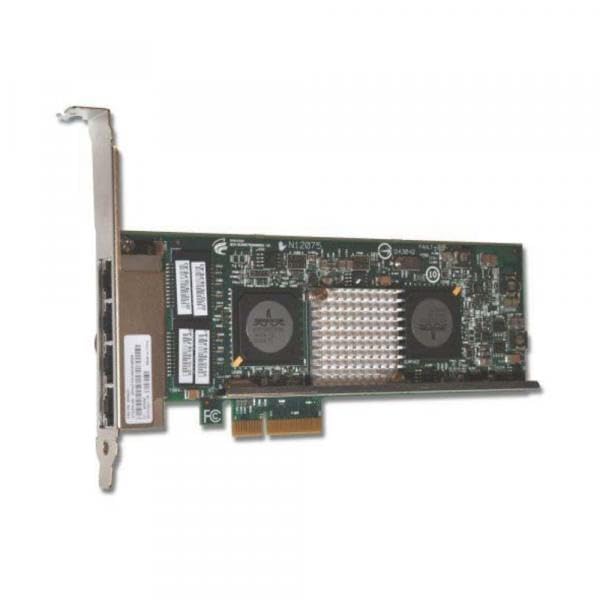
Figure 2.1: Eaton 4PORT Netxtreme II 1000 Express Ethernet Adapter. This image shows the network adapter with its four copper Gigabit Ethernet ports and PCI Express connector.
3. Configuración e instalación
Follow these steps to properly install the Eaton 4PORT Netxtreme II 1000 Express Ethernet Adapter into your server system.
3.1. Instalación del hardware
- Sistema de apagado: Ensure your server is completely powered off and disconnected from the power source before opening the chassis.
- Chasis abierto: Carefully open the server chassis to access the internal components.
- Localice la ranura PCI Express: Identify an available PCI Express 2.0 x4 (or larger, e.g., x8, x16) slot on your server's motherboard.
- Adaptador de inserción: Align the adapter with the chosen PCI Express slot and gently press it down until it is firmly seated. Ensure the bracket is secured to the chassis.
- Chasis cerrado: Close the server chassis and reconnect the power source.
3.2. Instalación del controlador
After hardware installation, you may need to install or update drivers for the operating system to recognize and utilize the adapter fully.
- Encender el sistema: Power on your server.
- Comprobar el Administrador de dispositivos: In your operating system, open Device Manager (or equivalent) to verify if the adapter is detected. It may appear under "Network Adapters" or "Other Devices" if drivers are not yet installed.
- Obtain Drivers: Visit the official Eaton or IBM (manufacturer) support website and download the latest drivers for the Netxtreme II 1000 Express Quad Port Ethernet Adapter (Model 49Y4220) compatible with your operating system.
- Instalar controladores: Follow the instructions provided with the driver package to install the drivers. This typically involves running an executable file.
- Verificar instalación: After installation, check Device Manager again to ensure the adapter is recognized correctly and functioning without errors.
3.3. Network Cable Connection
Connect standard RJ-45 Ethernet cables to the four available ports on the adapter and to your network switch or router. Ensure secure connections for optimal performance.
4. Instrucciones de funcionamiento
Once installed and drivers are configured, the Eaton 4PORT Netxtreme II 1000 Express Ethernet Adapter operates as a standard network interface card, providing high-speed Gigabit Ethernet connectivity.
- Standard Network Operation: The adapter will provide network access at speeds up to 1000 Mbps (Gigabit Ethernet) through each of its four ports.
- Virtualization Support: For virtualization environments, configure the adapter within your hypervisor software (e.g., VMware, Hyper-V) to assign network resources to virtual machines. The quad-port design allows for dedicated network paths or link aggregation for increased bandwidth and redundancy.
- NIC/TOE and iSCSI: The adapter's support for NIC/TOE (TCP Offload Engine) and iSCSI can be configured through your operating system's network settings or specialized utility software provided by the driver package. Refer to your operating system's documentation or the driver's user guide for specific configuration steps for these advanced features.
5. Mantenimiento
The Eaton 4PORT Netxtreme II 1000 Express Ethernet Adapter is designed for reliable operation with minimal maintenance. However, adhering to general best practices for server hardware can prolong its lifespan and ensure optimal performance.
- Mantenga el sistema limpio: Periodically clean the interior of your server chassis to prevent dust buildup on the adapter and other components. Dust can impede airflow and lead to overheating. Use compressed air for cleaning.
- Asegúrese de que haya una ventilación adecuada: Operate the server in an environment with adequate airflow and temperature control to prevent overheating of internal components, including the network adapter.
- Actualizaciones de controladores: Regularly check the Eaton or IBM support webSitio para controladores actualizados. Mantener los controladores actualizados puede mejorar el rendimiento, la estabilidad y la seguridad.
- Inspección física: During routine server maintenance, visually inspect the adapter for any signs of physical damage or loose connections.
6. Solución de problemas
This section provides solutions to common issues you might encounter with the Eaton 4PORT Netxtreme II 1000 Express Ethernet Adapter.
6.1. No Network Connectivity
- Comprobar cables: Ensure all Ethernet cables are securely connected to the adapter ports and the network switch/router.
- Verify Link Lights: Check the LED indicators on the adapter ports. A solid or blinking light usually indicates a successful link and activity. No lights may suggest a cable issue, port issue, or driver problem.
- Estado del conductor: Confirm that the drivers are correctly installed and the adapter is enabled in the operating system's Device Manager. Reinstall drivers if necessary.
- Configuración de la red: Verify IP address, subnet mask, gateway, and DNS settings in your operating system's network configuration.
6.2. Velocidad de red lenta
- Calidad del cable: Asegúrese de utilizar cables Ethernet Cat5e o Cat6 para velocidades Gigabit. Los cables Cat5 más antiguos pueden limitar la velocidad.
- Switch/Router Capability: Confirm that your network switch or router supports Gigabit Ethernet (1000 Mbps) on the connected ports.
- Configuración del controlador: Check the adapter's speed and duplex settings in the operating system's network adapter properties. Ensure it is set to "Auto Negotiation" or "1.0 Gbps Full Duplex".
- Carga del sistema: High CPU or disk usage on the server can impact network performance.
6.3. Adaptador no detectado
- Adaptador de reubicación: Power off the server, open the chassis, and reseat the adapter firmly in its PCI Express slot.
- Pruebe otra ranura: If available, try installing the adapter in a different PCI Express slot to rule out a faulty slot.
- Configuración de BIOS/UEFI: Check your server's BIOS/UEFI settings to ensure PCI Express slots are enabled and configured correctly.
7. Especificaciones
| Característica | Detalle |
|---|---|
| Marca | Comer |
| Número de modelo | 49Y4220 |
| Fabricante | IBM |
| Interfaz de hardware | PCI Express 2.0 x4, Ethernet |
| Protocolo de enlace de datos | Gigabit Ethernet |
| Velocidad de transferencia de datos | 1000 megabits por segundo |
| Tecnología de red | 10 / 100Base-TX |
| Número de puertos | 4 |
| Peso del artículo | 8 onzas |
| Código Postal | 883436078085 |
| ASIN | B0037717DM |
8. Garantía y soporte
Specific warranty information for the Eaton 4PORT Netxtreme II 1000 Express Ethernet Adapter (Model 49Y4220) is not provided in this document. For detailed warranty terms, conditions, and technical support, please refer to the official Eaton or IBM product support websites or contact their customer service directly.
Se recomienda registrar su producto, si corresponde, para recibir actualizaciones y notificaciones de soporte.