
1. Introducción
The SteelSeries Sensei Laser Gaming Mouse is designed for precision and customization, catering to both casual and competitive gamers. It features an advanced laser sensor, an ambidextrous design, and extensive customization options through its dedicated software. This manual provides detailed instructions for setup, operation, maintenance, and troubleshooting to ensure optimal performance of your device.

Imagen 1: De arriba hacia abajo view of the SteelSeries Sensei Laser Gaming Mouse, showcasing its sleek grey finish and central scroll wheel.
2. Contenido del paquete
Por favor verifique que todos los artículos estén presentes en su paquete:
- SteelSeries Sensei Laser Gaming Mouse
- Guía de inicio rápido (si está incluida)

Image 2: Retail packaging for the SteelSeries Sensei Laser Gaming Mouse, displaying the product name and brand logo.
3. Configuración
3.1 Conexión de hardware
- Unpack the SteelSeries Sensei Laser Gaming Mouse from its packaging.
- Connect the USB cable of the mouse to an available USB port on your computer. The mouse is plug-and-play compatible, and your operating system should automatically detect and install the necessary basic drivers.
3.2 Software Installation (SteelSeries Engine)
For full customization and advanced features, it is recommended to install the SteelSeries Engine software:
- Visit the official SteelSeries websitiosteelseries.com/motor) to download the latest version of the SteelSeries Engine software.
- Siga las instrucciones en pantalla para instalar el software.
- Once installed, launch the SteelSeries Engine to configure your mouse settings, including CPI, button assignments, macros, and lighting effects.
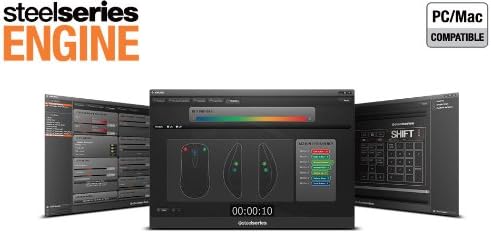
Imagen 3: Abajo view of the SteelSeries Sensei Laser Gaming Mouse, showing the laser sensor and product information label.
4. Operación del ratón
4.1 Diseño ambidiestro
The Sensei mouse features an ambidextrous shape, making it comfortable for both left-handed and right-handed users. The side buttons are mirrored on both sides to accommodate different grip styles and preferences.
4.2 botones programables
The mouse is equipped with 7 programmable buttons. These buttons can be customized using the SteelSeries Engine software to perform various functions, including:
- Standard mouse clicks (left, right, middle)
- Keyboard key assignments
- Complex macros
- CPI switching

Imagen 4: Lateral view of the SteelSeries Sensei Laser Gaming Mouse, highlighting the two programmable side buttons.
4.3 CPI Adjustment
The Sensei mouse allows for on-the-fly CPI (Counts Per Inch) adjustment. The dedicated CPI indicator button, typically located behind the scroll wheel, allows you to cycle between two user-defined CPI settings. These settings can be configured within the SteelSeries Engine software to match your preferred sensitivity levels for different tasks or games.
Iluminación 4.4
The mouse features three-zone illumination: the scroll wheel, the CPI indicator, and the SteelSeries logo. The color and lighting effects (e.g., steady, pulse) for these zones can be customized through the SteelSeries Engine software.
5. SteelSeries Engine Software
The SteelSeries Engine is a powerful software suite that unlocks the full potential of your Sensei mouse. Key functionalities include:
- Asignación de botones: Assign any function, keyboard key, or macro to any of the 7 programmable buttons.
- CPI Settings: Fine-tune and save multiple CPI profiles para diferentes aplicaciones o juegos.
- Editor de macros: Create and manage complex macros for in-game actions or productivity tasks.
- Tasa de votación: Ajuste la tasa de sondeo del mouse para lograr una capacidad de respuesta óptima.
- Control de iluminación: Customize LED colors and effects for the scroll wheel, CPI indicator, and logo.
- Profile Gestión: Crea y guarda varios prosfiles, allowing you to switch between different configurations quickly.
- Actualizaciones de firmware: Keep your mouse's firmware up-to-date for improved performance and new features.

Image 5: Screenshot of the SteelSeries Engine software interface, showing options for button mapping, CPI adjustment, and lighting customization.
6. Mantenimiento
To ensure the longevity and optimal performance of your SteelSeries Sensei mouse, follow these maintenance guidelines:
- Limpieza: Utilice un paño suave y seco para limpiar la superficie del ratón. Para la suciedad difícil, utilice un paño ligeramente seco.amp Se puede usar un paño, pero asegúrese de que no entre humedad en el ratón. Evite productos químicos agresivos o limpiadores abrasivos.
- Cuidado del sensor: Keep the laser sensor on the bottom of the mouse clean and free from dust or debris. Use a cotton swab or compressed air if necessary.
- Sistema de organización de cables: Evite dobleces bruscos o tirones excesivos del cable USB para prevenir daños.
7. Solución de problemas
If you encounter issues with your SteelSeries Sensei mouse, refer to the following common solutions:
- El ratón no responde:
- Asegúrese de que el cable USB esté conectado de forma segura a su computadora.
- Intente conectar el mouse a un puerto USB diferente.
- Reinicie su computadora.
- Seguimiento inconsistente:
- Limpie el sensor láser en la parte inferior del mouse.
- Asegúrese de utilizar el ratón sobre una superficie adecuada (por ejemplo, un mouse pad).
- Check for dust or debris on your mouse pad.
- Botones que no funcionan:
- Verify button assignments in the SteelSeries Engine software.
- Ensure the software is running correctly and profileLos s están cargados.
- Problemas de software:
- Update the SteelSeries Engine software to the latest version.
- Reinstall the SteelSeries Engine software.
- Check for any available firmware updates for your mouse within the software.
8. Especificaciones
| Característica | Detalle |
|---|---|
| Marca | Serie de acero |
| Número de modelo | 62150 |
| Tecnología de detección de movimiento | Láser |
| Tecnología de conectividad | USB |
| Color | Gris |
| Plataforma de hardware | PC |
| Compatibilidad del sistema operativo | All Major PC Operating Systems |
| Peso del artículo | 14.6 onzas |
| Dimensiones del producto (LxAnxAl) | 7.9 x 6.8 x 2.3 pulgadas |
| Botones programables | 7 |
| Illumination Zones | 3 (Scroll Wheel, CPI Indicator, Logo) |
9. Garantía y soporte
The SteelSeries Sensei Laser Gaming Mouse is covered by a manufacturer's warranty. For detailed information regarding warranty terms, conditions, and duration, please refer to the warranty card included with your product or visit the official SteelSeries website. For technical support, driver downloads, and frequently asked questions, please visit the SteelSeries support page.
SteelSeries Official Websitio: steelseries.com
SteelSeries Support: soporte.steelseries.com