
1. Introducción
The Tenda W322UA is a 300Mbps Wireless N Enhanced USB Adapter designed to provide wireless connectivity for desktop and laptop computers. This device allows your computer to connect to a wireless network at speeds up to 300Mbps, offering improved performance for online activities such as streaming and browsing. It features two external antennas for enhanced signal reception and supports various security protocols to protect your network.

Figure 1: Tenda W322UA Wireless N USB Adapter. This image shows the white USB adapter with its two adjustable external antennas extended upwards.
2. Características
- Wireless N Technology: Achieves wireless speeds up to 300Mbps, providing faster data transfer compared to older wireless G devices.
- Enhanced Wireless Reception: Equipped with two 3dBi external antennas that can be rotated and adjusted to optimize signal reception and performance.
- Soft AP Support: Allows the adapter to function as a virtual wireless access point, enabling other devices to connect to its network.
- Easy Security Setup: Supports Wi-Fi Protected Setup (WPS) for quick and simple encryption configuration.
- Compatibilidad con versiones anteriores: Fully compatible with 802.11b/g devices, allowing seamless integration into existing networks.
- Seguridad avanzada: Utilizes WPA/WPA2 encryption to protect your wireless network from unauthorized access.
3. Guía de configuración
Follow these steps to install and set up your Tenda W322UA USB Adapter:
3.1 Instalación del controlador
- Do Not Plug In Yet: Before plugging the W322UA adapter into your computer, install the necessary drivers.
- Inserte el CD del controlador: Insert the provided driver CD into your computer's CD-ROM drive. If your computer does not have a CD-ROM drive, download the latest drivers from the official Tenda websitiowww.tenda.com.cn).
- Configuración de ejecución: Navigate to the CD or downloaded driver folder and run the setup executable (e.g., "setup.exe" or "install.exe").
- Siga las instrucciones en pantalla: Siga las instrucciones para completar la instalación del controlador. Es posible que deba reiniciar el equipo después de la instalación.
- Linux/Raspberry Pi Users: For some Linux distributions, including Raspbian, drivers may be pre-installed. You can often plug in the adapter directly and verify its recognition using system commands.
3.2 Conexión de hardware
- Conectar adaptador: Once drivers are installed (and computer restarted if prompted), plug the Tenda W322UA USB Adapter into an available USB 2.0 port on your desktop or laptop computer.
- Ajustar antenas: Rotate and adjust the two external antennas to an upright position or an angle that provides the best signal reception.
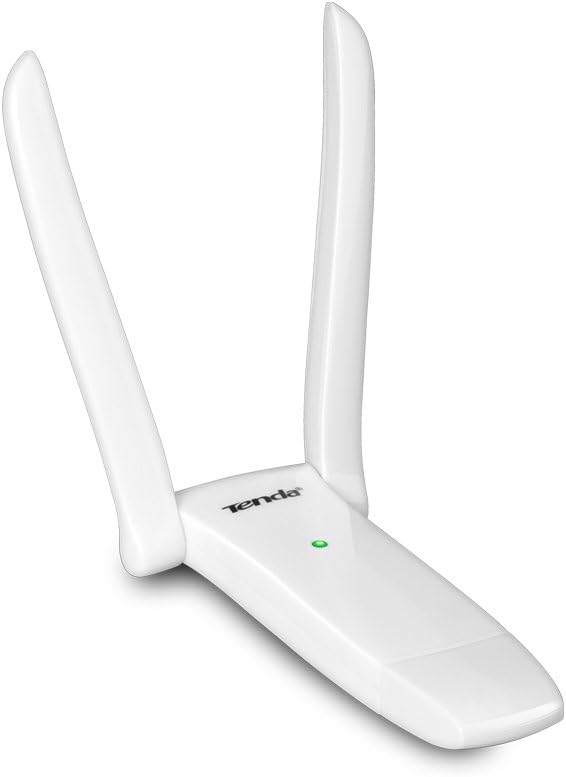
Figure 2: Tenda W322UA USB Adapter with antennas folded. This image shows the compact form factor of the adapter with its two adjustable external antennas folded down.
4. Instrucciones de funcionamiento
4.1 Conexión a una red inalámbrica
- Acceder a la configuración de red: On your computer, open the wireless network settings. This is typically found in the system tray (Windows) or menu bar (macOS).
- Seleccione la red: A list of available wireless networks (SSIDs) will appear. Select your desired network.
- Introducir contraseña: Si la red está protegida, ingrese la contraseña de Wi-Fi (clave de seguridad) cuando se le solicite.
- Conectar: Click "Connect" to establish the wireless connection. The adapter's LED indicator should show activity once connected.
4.2 Using Soft AP Mode
The Soft AP feature allows the W322UA to act as a virtual wireless access point, sharing your computer's internet connection with other Wi-Fi devices. This feature is typically enabled and configured through the Tenda utility software installed with the drivers.
- Launch Utility: Open the Tenda wireless utility software from your desktop or system tray.
- Habilitar Soft AP: Locate the "Soft AP" or "Access Point Mode" option within the utility.
- Configurar ajustes: Set an SSID (network name) and a password for your new wireless network.
- Start AP: Activate the Soft AP mode. Other devices can now connect to the network created by your adapter.
5. Mantenimiento
- Actualizaciones de controladores: Consulte periódicamente la información oficial de Tenda webSitio para obtener controladores actualizados para garantizar un rendimiento y compatibilidad óptimos.
- Cuidado físico: Mantenga el adaptador limpio y sin polvo. Evite exponerlo a temperaturas extremas o humedad.
- Conexión segura: Regularly update your Wi-Fi network password and ensure WPA2 encryption is enabled for maximum security.
- Posicionamiento de la antena: Adjust the antennas as needed to maintain the best possible signal strength.
6. Solución de problemas
6.1 No Wireless Connection
- Comprobar la instalación del controlador: Asegúrese de que los controladores estén correctamente instalados. Reinstálelos si es necesario.
- Verifique la conexión del adaptador: Make sure the adapter is securely plugged into a working USB port. Try a different USB port.
- Habilitar conexión inalámbrica: Confirm that your computer's wireless function is enabled.
- Estado del enrutador: Check if your wireless router is powered on and broadcasting a signal.
6.2 Velocidad de conexión lenta
- Intensidad de la señal: Check the signal strength indicator. Move closer to your wireless router or adjust the adapter's antennas for better reception.
- Interferencia: Reduce interference from other electronic devices (e.g., microwaves, cordless phones) operating on the same frequency.
- Configuración del enrutador: Ensure your wireless router is configured for 802.11n mode and using appropriate channels.
- Actualizaciones de controladores: Asegúrese de tener instalados los controladores más recientes para el adaptador.
6.3 Adaptador no reconocido
- Reinstale los controladores: Completely uninstall and then reinstall the drivers.
- Pruebe con otro puerto/computadora: Test the adapter on a different USB port or another computer to rule out a port or hardware issue.
- Comprobar el Administrador de dispositivos (Windows): In Windows Device Manager, check for any unknown devices or devices with error symbols.
7. Especificaciones
| Característica | Descripción |
|---|---|
| Número de modelo | W322UA |
| Marca | Tenda |
| Interfaz de hardware | USB 2.0 |
| Velocidad de transferencia de datos | 300 megabits por segundo (Mbps) |
| Dispositivos compatibles | Computadora de escritorio, computadora portátil |
| Antenas | Two 3dBi External Antennas |
| Estándares inalámbricos | IEEE 802.11n, IEEE 802.11g, IEEE 802.11b |
| Características de seguridad | WPA/WPA2, WPS |
| Peso del artículo | 0.2 libras |
| Certificaciones | Certificado CE y FCC |
8. Garantía y soporte
For warranty information and technical support, please refer to the documentation included with your purchase or visit the official Tenda website. Tenda provides customer support and resources for their products.
Tenda oficial Websitio: www.tenda.com.cn
You can also visit the Tenda Store on Amazon for product information and support resources: Tienda de Amazon Tenda