
Apogee JAM 96k
Manual de usuario de la interfaz de guitarra e instrumento Apogee JAM 96k
Model: JAM 96k

Figura 1.0: The Apogee JAM 96k Guitar and Instrument Interface.
1. Introducción
The Apogee JAM 96k is a high-quality digital audio interface designed for connecting guitars and other instruments directly to your Apple iPhone, iPad, or Mac. It allows users to capture the rich tone of their instrument with digital clarity, supporting recording resolutions up to 24-bit/96 kHz. The JAM 96k is optimized for use with music creation applications like GarageBand and Logic Pro, providing an inspiring tone for practicing, recording, or jamming.
2. Contenido del paquete
Verify that all items are present in your JAM 96k package:
- Apogee JAM 96k Interface
- Lightning Cable (for iOS devices)
- USB Cable (for Mac)
- Guía de inicio rápido (no incluida en este manual)
3. Requisitos del sistema
To ensure optimal performance, your device must meet the following minimum requirements:
Dispositivos iOS:
- Versión iOS: 6.1 y posteriores
- Dispositivos compatibles: iPhone 7 Plus, iPhone 7, iPhone SE, iPhone 6s Plus, iPhone 6s, iPhone 6 Plus, iPhone 6, iPhone 5s, iPhone 5c, iPhone 5, iPad Pro (9.7-inch), iPad Pro (12.9-inch), iPad Air 2, iPad Air, iPad (4th generation), iPad mini 4, iPad mini 3, iPad mini 2, iPad mini, iPad (4th generation), iPod touch (6th generation), iPad touch (5th generation)
Mac OS:
- Computadora: Mac with an Intel processor
- Memoria: 1 GB minimum of installed RAM, 2 GB recommended
- Mac OS Version: 10.7.5 o posterior
- Conexión: Any available USB port
Compatibilidad de software:
- Banda de garaje
- Lógica Pro
- Red eléctricatage
- Pro Tools (v. 9 or higher)
- Any Core Audio compatible application
4. Configuración
Follow these steps to connect your Apogee JAM 96k and begin using it:
4.1 Connecting to an iOS Device (iPhone/iPad)
- Locate the Lightning cable provided with your JAM 96k.
- Connect the small end of the Lightning cable to the AFUERA port on the JAM 96k.
- Connect the other end of the Lightning cable to your iPhone or iPad. The JAM 96k is bus-powered and will draw power directly from your iOS device.
- Connect your instrument (guitar, bass, or acoustic instrument with a pickup) to the IN jack on the JAM 96k using a standard 1/4-inch instrument cable.
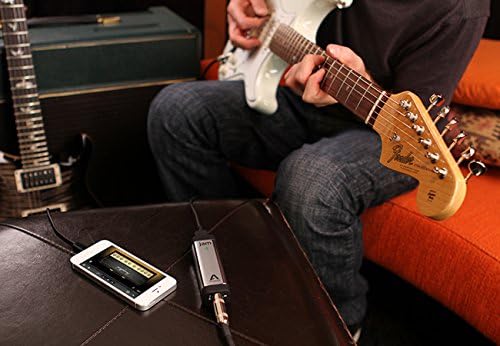
Figura 4.1: The Apogee JAM 96k connected to an iPhone, with a guitar cable plugged into the interface. This image illustrates the typical setup for mobile recording.
4.2 Connecting to a Mac
- Locate the USB cable provided with your JAM 96k.
- Connect the small end of the USB cable to the AFUERA port on the JAM 96k.
- Connect the other end of the USB cable to an available USB port on your Mac. The JAM 96k is bus-powered and will draw power directly from your Mac.
- Connect your instrument (guitar, bass, or acoustic instrument with a pickup) to the IN jack on the JAM 96k using a standard 1/4-inch instrument cable.

Figura 4.2: Un primer plano view of the Apogee JAM 96k's output port, labeled "OUT", where the Lightning or USB cable connects.
4.3 Ajuste de la ganancia de entrada
The JAM 96k features a gain control wheel on its side to adjust the input level of your instrument. This is crucial for achieving optimal sound quality and preventing clipping.
- LED verde: Indicates an optimal input level.
- LED rojo: Indicates that the input signal is too hot and clipping is occurring. Reduce the gain immediately.
While playing your instrument at its loudest, adjust the gain wheel until the LED indicator is consistently green, occasionally flickering red only on the loudest peaks. Avoid sustained red illumination.

Figura 4.3: Un ángulo view of the Apogee JAM 96k, highlighting the side-mounted gain control wheel and the LED indicator light.

Figura 4.4: Un detallado view of the Apogee JAM 96k's input jack, labeled "IN" with a guitar icon, where the instrument cable connects.
5. Operating the JAM 96k
Once connected, the JAM 96k acts as an audio input for your chosen music application. It is automatically recognized by Core Audio compatible applications on iOS and Mac.
5.1 Using with Music Applications
- Open your preferred music creation application (e.g., GarageBand, Logic Pro, MainStagmi).
- Ensure that the JAM 96k is selected as the audio input device within the application's audio settings.
- Create a new track and select an instrument input.
- Monitor your sound through headphones or speakers connected to your iOS device or Mac. The JAM 96k does not have a direct headphone output.
- Adjust the input gain on the JAM 96k as described in Section 4.3 to achieve a strong, clean signal without distortion.
5.2 Calidad de grabación
The JAM 96k supports high-definition recording up to 24-bit/96 kHz. This provides excellent fidelity for capturing the nuances of your instrument. The actual recording quality will also depend on the settings within your music application.
6. Mantenimiento
To ensure the longevity and optimal performance of your Apogee JAM 96k, follow these simple maintenance guidelines:
- Limpieza: Use a soft, dry cloth to clean the exterior of the device. Avoid using liquid cleaners or solvents, as these can damage the finish or internal components.
- Almacenamiento: When not in use, store the JAM 96k in a cool, dry place, away from direct sunlight and extreme temperatures.
- Manejo: Manipule el dispositivo con cuidado. Evite dejarlo caer o someterlo a impactos fuertes.
- cables: Inspeccione los cables regularmente para detectar cualquier signo de desgaste o daño. Reemplace los cables dañados inmediatamente para evitar problemas de conectividad.
7. Solución de problemas
If you encounter issues with your Apogee JAM 96k, refer to the following common problems and solutions:
7.1 No hay sonido o el volumen es bajo
- Comprobar conexiones: Ensure all cables (instrument, Lightning/USB) are securely connected to the JAM 96k and your device.
- Ajustar ganancia: Verify that the gain wheel on the JAM 96k is adjusted appropriately. The LED should be green during playing.
- Configuraciones de software: Confirm that the JAM 96k is selected as the input device in your music application's audio settings. Check the input level within the application.
- Volumen del dispositivo: Ensure the master volume on your iOS device or Mac is not muted or set too low.
- Comprobación del instrumento: Test your instrument directly with an amplifier to ensure it is functioning correctly.
7.2 Distorted or Clipping Sound
- Reducir ganancia: If the LED on the JAM 96k is consistently red, the input signal is too strong. Turn the gain wheel down until the LED remains green, only occasionally flickering red on the loudest peaks.
- Software Input Level: Check the input level within your music application and reduce it if necessary.
7.3 Latency (Delay in Sound)
- Software Buffer Size: In your music application's audio settings, try reducing the buffer size. Lower buffer sizes reduce latency but may require more processing power from your device.
- Cerrar otras aplicaciones: Close any unnecessary applications running in the background on your iOS device or Mac to free up system resources.
7.4 Dispositivo no reconocido
- Vuelva a conectar: Disconnect and reconnect the JAM 96k.
- Restart Application/Device: Close and reopen your music application, or restart your iOS device/Mac.
- Comprobar cables: Ensure the Lightning or USB cable is not damaged and is fully inserted. Try a different port if available.
- Compatibilidad del sistema: Verify that your operating system and device meet the minimum system requirements listed in Section 3.
8. Especificaciones
| Número de modelo | JAM 96k |
| Marca | Apogeo |
| Peso del artículo | 1.6 onzas |
| Dimensiones del producto | 3.75 x 0.9 x 1.2 pulgadas |
| Dispositivos compatibles | iPhone, iPad, iPod Touch, Mac |
| Tipo de conector | USB (Lightning and USB cables included) |
| Interfaz de hardware | USB |
| Software compatible | Core Audio compliant iOS apps, Core Audio compatible applications for Mac (e.g., GarageBand, Logic Pro, MainStage, Pro Tools v.9+) |
| Salida Wattage | 5 Watts (Bus-powered) |
| Sistema operativo | iOS, macOS |
| Fuente de poder | Bus Powered (from connected iOS device or Mac) |
| Tecnología de conectividad | USB |
| Número de canales | 1 |
| Resolución de grabación | Hasta 24 bits/96 kHz |
9. Garantía y soporte
Apogee provides a limited warranty for the JAM 96k. For detailed warranty information, including terms and conditions, please refer to the official Apogee websitio o la tarjeta de garantía incluida con su producto.
For technical assistance, troubleshooting beyond this manual, or warranty claims, please contact Apogee customer support directly through their official website. Ensure you have your product model and any relevant purchase information available when contacting support.
Official Apogee Websitio: apogeedigital.com/support
Ask a question about this manual
Ask about setup, troubleshooting, compatibility, parts, safety, or missing instructions. Manuals+ will review the question and use this page’s manual context to help answer it.