
1. Introducción
This manual provides essential instructions for the setup, operation, maintenance, and troubleshooting of your IBM Lenovo Preferred Pro USB Wired Keyboard and Mouse Set. Please read this manual thoroughly before using the product to ensure proper functionality and longevity.
2. Producto terminadoview
The IBM Lenovo Preferred Pro USB Wired Keyboard and Mouse Set offers a reliable input solution for your computer. The keyboard features a standard layout with a numeric keypad, while the mouse is a 2-button optical mouse with a scroll wheel. Both devices connect via a standard USB interface, providing plug-and-play compatibility with most operating systems.

Figura 2.1: Arriba view of the IBM Lenovo Preferred Pro USB Wired Keyboard.
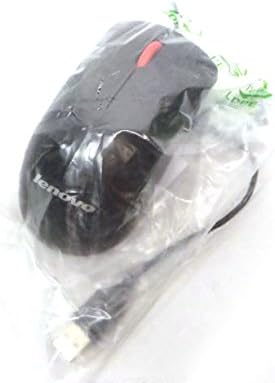
Figura 2.2: Arriba view of the Lenovo USB 2-Button Optical Mouse.
Características principales:
- USB Wired Connectivity: Ensures a stable and reliable connection.
- Plug-and-Play: No additional drivers typically required for basic functionality.
- Standard Keyboard Layout: Full-size keyboard with numeric keypad.
- Optical Mouse: Precise tracking with a scroll wheel for easy navigation.
3. Configuración
Follow these steps to connect your keyboard and mouse to your computer.
- Desembalaje de los dispositivos: Retire con cuidado el teclado y el ratón de su embalaje.
- Identify USB Connectors: Locate the USB connectors at the end of the keyboard and mouse cables.
- Conectar a la computadora: Insert the USB connector of the keyboard into an available USB port on your computer. Repeat this step for the mouse.
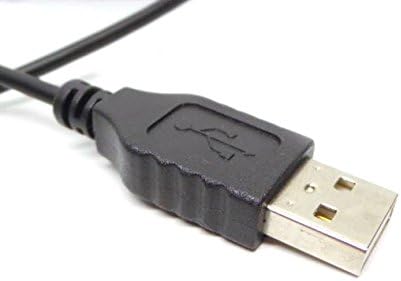
Figure 3.1: Close-up of a standard USB Type-A connector, used for connecting the keyboard and mouse.
Your computer should automatically detect and install the necessary drivers for the keyboard and mouse. No additional software installation is typically required for basic functionality.
4. Instrucciones de funcionamiento
4.1 Uso del teclado
- Mecanografía: Utilice las teclas alfanuméricas para ingresar texto.
- Teclas de función (F1-F12): These keys perform various functions depending on the application or operating system.
- Teclado numérico: Use the dedicated numeric keypad for efficient data entry. Ensure the "Num Lock" indicator light is on.
- Teclas especiales: Utilize keys like "Print Screen", "Scroll Lock", "Pause/Break", "Insert", "Home", "Page Up", "Delete", "End", and "Page Down" for their respective functions.
4.2 Uso del ratón
- Movimiento: Move the mouse across a flat surface to control the cursor on the screen.
- Click izquierdo: Presione el botón izquierdo para seleccionar elementos, abrir enlaces o activar funciones.
- Botón derecho del ratón: Press the right button to open context menus.
- Rueda de desplazamiento: Gire la rueda de desplazamiento hacia arriba o hacia abajo para navegar por los documentos o web páginas. La rueda de desplazamiento también puede funcionar como botón de clic central.
5. Mantenimiento
Proper care and maintenance will extend the life of your keyboard and mouse.
- Limpieza:
- Disconnect devices from the computer before cleaning.
- Utilice un paño suave y seco.amp cloth with a mild cleaning solution (e.g., water or isopropyl alcohol) to wipe surfaces.
- Avoid excessive moisture, especially near keycaps and optical sensors.
- Use compressed air to remove dust and debris from between keyboard keys.
- Almacenamiento: Guarde los dispositivos en un entorno limpio y seco, alejado de temperaturas extremas y de la luz solar directa.
- Evite derrames: Mantenga los líquidos alejados del teclado y el mouse para evitar daños.
6. Solución de problemas
If you encounter issues with your keyboard or mouse, refer to the following common problems and solutions:
| Problema | Posible causa | Solución |
|---|---|---|
| El teclado/ratón no responde | Conexión USB suelta, puerto USB defectuoso, problema con el controlador. |
|
| Las teclas no funcionan o se escriben incorrectamente | Debris under keys, software conflict, keyboard settings. |
|
| El cursor del ratón es errático o no se mueve | Dirty optical sensor, unsuitable surface, software issue. |
|
If the problem persists after trying these solutions, contact customer support or your reseller for further assistance.
7. Especificaciones
| Característica | Detalle |
|---|---|
| Keyboard Model Numbers | 54Y9400, 41A5289, SK-8825, KB1021 |
| Mouse Model Numbers | 45J4888, 25011476, 45J4889, M-U0025-O |
| Marca | IBM/Lenovo |
| Color | Negro |
| Tecnología de conectividad | USB con cable |
| Tipo de teclado | Preferred Pro USB Wired Keyboard |
| Tipo de ratón | 2-Button Black Red Scroll Wheel Optical Mouse |
| Dimensiones del paquete | 22 x 10.2 x 4.7 pulgadas (aproximadamente) |
| Peso del artículo | 1 libra (aproximadamente) |
| Fabricante | Lenovo |
8. Garantía y soporte
For warranty information, please refer to the documentation provided at the time of purchase or contact your reseller. IBM and Lenovo products typically come with a standard manufacturer's warranty.
For technical support or further inquiries, please contact the product's manufacturer or the authorized reseller from whom you purchased the item. Keep your purchase receipt and product model numbers handy for faster service.