
Intermec PB51B33004100
Intermec PB51 Mobile Receipt Printer User Manual
Modelo: PB51B33004100
Introducción
The Intermec PB51 is a rugged, 4-inch direct thermal mobile receipt printer designed for demanding field service, route accounting, and point-of-service applications. It offers fast, reliable printing performance to enhance productivity for mobile workers.
This manual provides essential information for the proper setup, operation, maintenance, and troubleshooting of your PB51 printer.
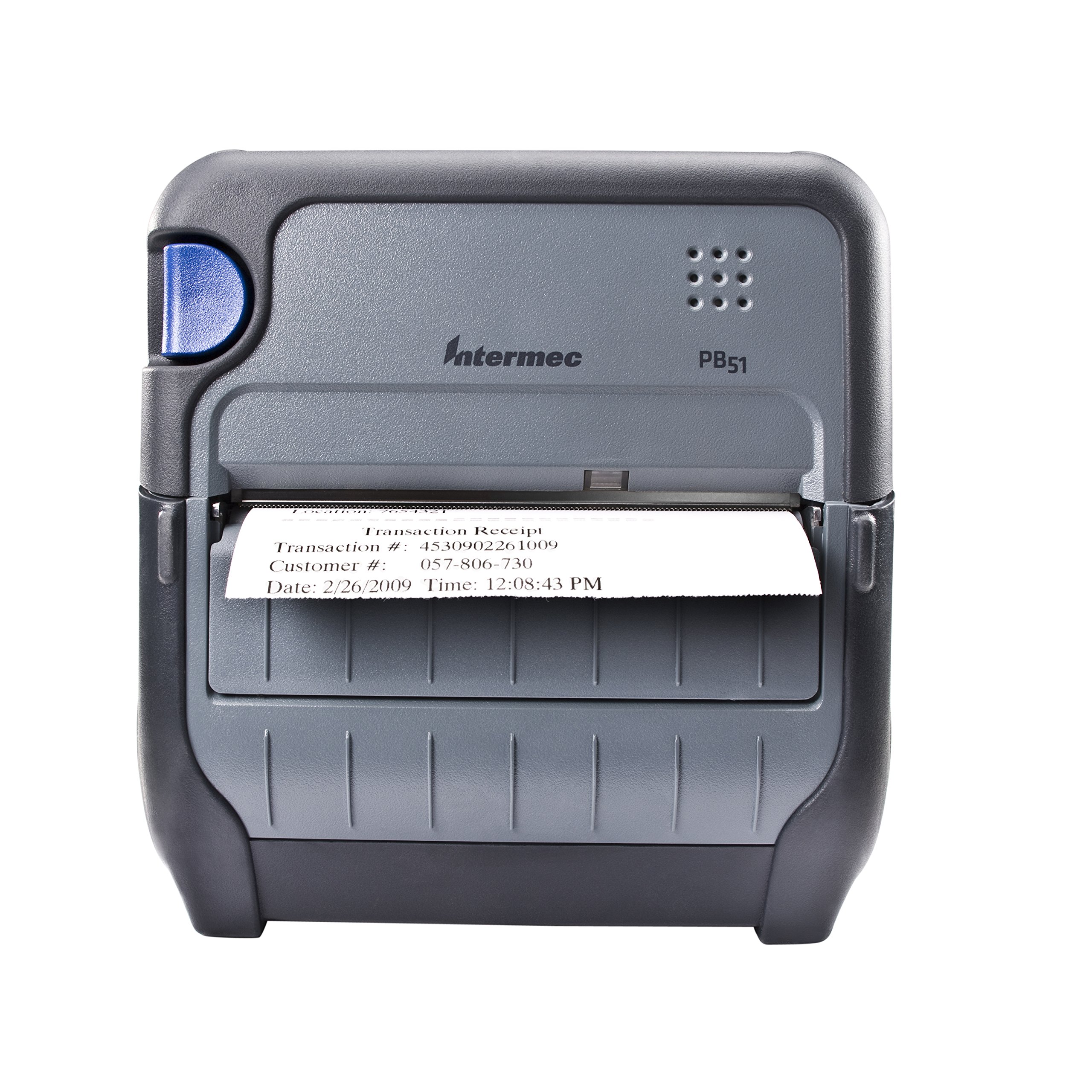
Figura 1: Frente view of the Intermec PB51 mobile receipt printer. A receipt is partially ejected from the front slot, displaying "Transaction Receipt", "Transaction #: 4530902261009", "Customer #: 057-806-730", and "Date: 2/26/2009 Time: 12:08:43 PM". The printer features a dark gray casing with a blue button on the left side and the "Intermec PB51" logo on the top panel.
Configuración
1. Desembalaje e inspección
- Retire con cuidado la impresora y todos los accesorios del embalaje.
- Verifique que todos los componentes enumerados en el albarán estén presentes.
- Inspect the printer for any visible damage. If damage is found, contact your supplier immediately.
2. Instalación y carga de la batería
- Asegúrese de que la impresora esté apagada.
- Localice el compartimiento de la batería en la impresora.
- Insert the battery, ensuring proper alignment with the contacts.
- Cierre bien el compartimento de la batería.
- Connect the AC adapter to the printer and a power outlet. The battery indicator light will show charging status. Allow the battery to fully charge before first use.
3. Carga de papel térmico
- Abra la tapa del compartimento del papel.
- Insert the thermal paper roll with the print-side facing the print head.
- Pull a small amount of paper out past the print mechanism.
- Close the paper compartment cover firmly until it latches.
- The printer's paper sensors will detect the paper, minimizing lost transactions.
4. Connectivity Setup (Bluetooth / USB / Serial)
- Bluetooth: Turn on the printer and enable Bluetooth on your host device (e.g., smartphone, tablet, or computer). Buscar available devices and select the PB51. Pair using the default PIN (refer to the printer's display or documentation for the specific PIN).
- USB: Connect the printer to your host device using a standard USB cable. Install the necessary printer drivers on your host device if prompted.
- De serie: Connect the printer to your host device using a serial cable. Configure the serial port settings (baud rate, data bits, parity, stop bits) on both the printer and the host device to match.
Instrucciones de funcionamiento
1. Encendido / apagado
- Para encender, mantenga presionado el botón de encendido hasta que se ilumine la pantalla.
- To power off, press and hold the power button until the display indicates shutdown, then release.
2. Impresión de un recibo
- Ensure the printer is powered on and connected to your host device.
- Open the application on your host device that generates receipts or invoices.
- Initiate the print command from your application. The PB51 is designed for 20-30% faster time-to-receipt printing.
- The printer will automatically feed and print the receipt.
- Tear off the receipt along the serrated edge.
3. Uso de la pantalla LCD
The standard LCD display provides important information about the printer's status, battery level, connectivity, and error messages. Use the navigation buttons (if present) to scroll through menu options and settings.
Mantenimiento
1. Limpieza del cabezal de impresión
- Apague la impresora y desconéctela de cualquier fuente de alimentación.
- Abra el compartimento del papel.
- Limpie suavemente la superficie del cabezal de impresión con un paño sin pelusa.ampenriquecido con alcohol isopropílico.
- Deje que el cabezal de impresión se seque completamente antes de cerrar la cubierta y encender la impresora.
- Perform this cleaning regularly, especially if print quality degrades.
2. Cuidado de la batería
- Para maximizar la vida útil de la batería, evite descargarla por completo con frecuencia.
- Store the printer and battery in a cool, dry place when not in use for extended periods.
- Use only genuine Intermec replacement batteries.
3. Limpieza General
Limpie el exterior de la impresora con un paño suave y húmedo.amp cloth. Do not use harsh chemicals or abrasive cleaners. Ensure no liquid enters the printer's openings.
Solución de problemas
| Problema | Posible causa | Solución |
|---|---|---|
| La impresora no se enciende | Low or dead battery; faulty power adapter; loose battery connection. | Charge the battery; check power adapter connection; re-seat the battery. |
| No hay salida de impresión | No paper; paper loaded incorrectly; connectivity issue; print head dirty. | Load paper correctly; check Bluetooth/USB/Serial connection; clean print head. |
| Mala calidad de impresión | Dirty print head; incorrect paper type; low battery. | Clean print head; ensure thermal paper is used; charge battery. |
| Problemas de conectividad | Incorrect pairing; driver issues; out of range. | Re-pair Bluetooth; reinstall drivers; move closer to host device. |
If the problem persists after attempting these solutions, please contact Intermec customer support.
Presupuesto
| Característica | Detalle |
|---|---|
| Nombre del modelo | PB51B33004100 |
| Tecnología de impresión | Térmica directa |
| Salida de impresora | Monocromo |
| Tamaño máximo de medios | 4 pulgadas |
| Tecnología de conectividad | USB, Serial, Bluetooth |
| Peso del artículo | 42 onzas (aprox. 2.63 libras) |
| Dimensiones del paquete | 10.2 x 10 x 5 pulgadas |
| Tipo de controlador | Android (compatible) |
| Fabricante | Intermec |
Garantía y soporte
Specific warranty information for the Intermec PB51 printer is not available in this document. Please refer to the warranty card included with your product or visit the official Intermec (now Honeywell) webSitio para conocer los términos y condiciones detallados de la garantía.
For technical support, service, or to purchase accessories, please contact your authorized Intermec/Honeywell dealer or visit their official support portal.
Ask a question about this manual
Ask about setup, troubleshooting, compatibility, parts, safety, or missing instructions. Manuals+ will review the question and use this page’s manual context to help answer it.