
Introducción
The CORSAIR M65 Pro RGB is a high-performance FPS gaming mouse engineered for precision and durability. It features a 12,000 DPI optical sensor for pixel-precise tracking and advanced surface calibration. Constructed with an aircraft-grade aluminum frame, it offers both lightweight design and robust build quality. The mouse includes an advanced weight tuning system for customizable balance and supports three-zone RGB backlighting, along with advanced button configuration and macro programming via CORSAIR Utility Engine (CUE) software.
Contenido del paquete
- CORSAIR M65 Pro RGB FPS Gaming Mouse (1)
- Manual de usuario (este documento)
- Guía de garantía
Configuración
- Conectar el ratón: Plug the USB connector of the CORSAIR M65 Pro RGB mouse into an available USB 2.0 port on your PC. The mouse is a wired device and does not require batteries for operation.
- Install CORSAIR Utility Engine (CUE) Software: For full customization of DPI settings, button assignments, macro programming, and RGB lighting, download and install the latest CORSAIR Utility Engine (CUE) software from the official Corsair websitiowww.corsair.com/downloads). Siga las instrucciones en pantalla para la instalación.
- Calibración de superficie: After installing the CUE software, utilize the surface calibration tuning utility to optimize the sensor precision and responsiveness for your specific gaming surface. This ensures optimal tracking performance.
Instrucciones de funcionamiento
Funciones de los botones
The CORSAIR M65 Pro RGB features eight strategically placed, programmable buttons for enhanced control and customization.
- Clic izquierdo/derecho: Standard mouse buttons for primary interactions.
- Rueda de desplazamiento: Used for vertical scrolling and acts as a clickable middle button.
- Botones de subir/bajar DPI: Located above the scroll wheel, these buttons allow for on-the-fly adjustment of the mouse's Dots Per Inch (DPI) sensitivity. You can program up to five different DPI settings via the CUE software.
- Botón de francotirador: Positioned on the left side, this dedicated button (often red with a target icon) temporarily lowers the DPI to a pre-set value (e.g., 400 DPI) for precise aiming in FPS games. Releasing the button returns the DPI to its previous setting.
- Botones de avance/retroceso: Located above the sniper button, these are typically used for navigating web pages or folders. They can be reprogrammed for other functions via CUE.
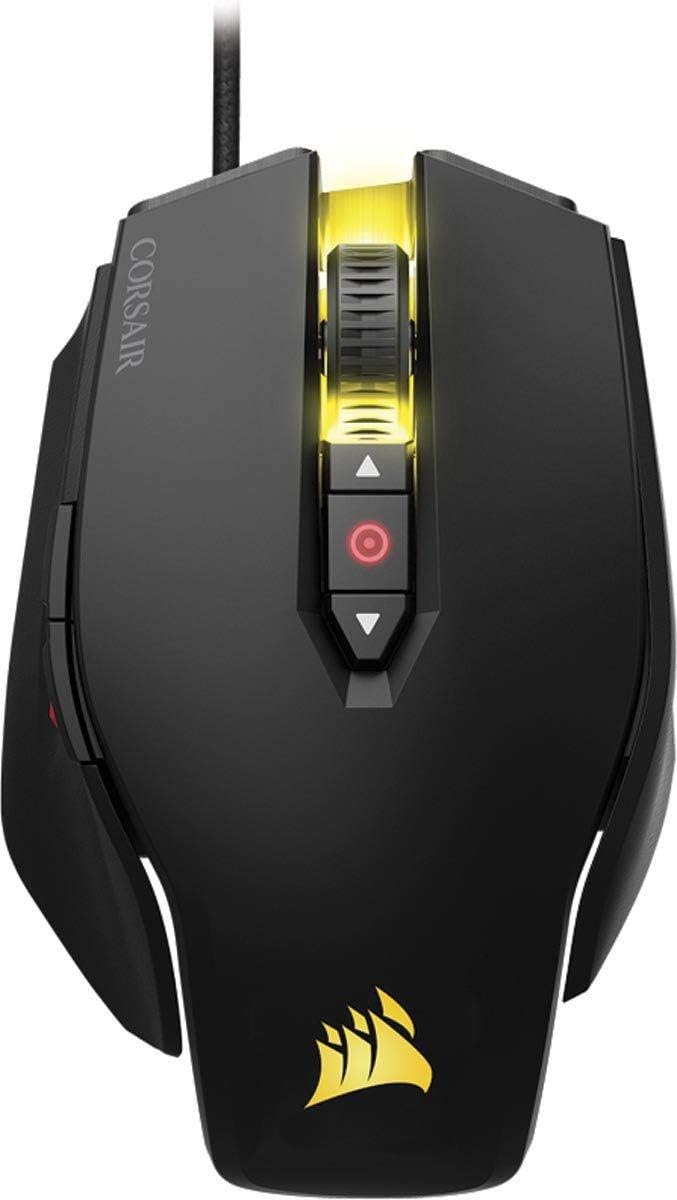
Figura 1: Lado view highlighting the sniper button and side buttons.

Figura 2: Arriba view highlighting the DPI adjustment buttons and scroll wheel.
Sistema de ajuste de peso
The M65 Pro RGB features an advanced weight tuning system allowing you to adjust the mouse's weight and center of gravity to match your preferred play style. The mouse comes with three removable weights located on the underside.
- To remove or add weights, use a coin or a flat-head screwdriver to unscrew the weight covers on the bottom of the mouse.
- Carefully remove or insert the desired weights.
- Vuelva a colocar las cubiertas y ajústelas firmemente.

Figure 3: Underside of the mouse with tunable weights visible.
Personalización de la retroiluminación RGB
The M65 Pro RGB features three-zone RGB backlighting, which can be fully customized using the CORSAIR Utility Engine (CUE) software. You can select from a wide range of colors and lighting effects to personalize your mouse.

Figura 4: Arriba view of the mouse showcasing Iluminación RGB.
Mantenimiento
- Limpieza: Utilice un paño suave y seco para limpiar el ratón. Para la suciedad difícil, utilice un paño ligeramente seco.amp Se puede usar un paño, pero asegúrese de que no entre humedad en el ratón. Evite productos químicos agresivos o materiales abrasivos.
- Cuidado de cables: Avoid sharp bends or excessive pulling on the braided USB cable to prevent damage. Utilize the included Velcro strap to manage excess cable length.
- Mantenimiento de sensores: Mantenga el sensor óptico en la parte inferior del mouse limpio y libre de polvo o residuos para un rendimiento de seguimiento óptimo.
Solución de problemas
- El ratón no responde:
- Asegúrese de que el cable USB esté conectado de forma segura a un puerto USB que funcione en su PC.
- Intente conectar el mouse a un puerto USB diferente.
- Reinicie su computadora.
- Problemas de seguimiento:
- Limpie el sensor óptico en la parte inferior del mouse.
- Asegúrese de utilizar una alfombrilla o superficie adecuada para el ratón.
- Perform surface calibration using the CORSAIR Utility Engine (CUE) software.
- CUE Software Not Detecting Mouse:
- Ensure the CUE software is updated to the latest version.
- Try reinstalling the CUE software.
- Check for any conflicting software that might interfere with CUE.
- La iluminación RGB no funciona:
- Verify lighting settings within the CUE software.
- Ensure the CUE software is running in the background.
Presupuesto
| Característica | Detalle |
|---|---|
| Marca | Corsario |
| Número de modelo | CH-9300011-NA |
| Tecnología de detección de movimiento | Óptico |
| DPI | 12,000 ppp |
| Tecnología de conectividad | Con cable (USB 2.0) |
| Plataforma de hardware | PC |
| Sistema operativo | Ventanas |
| Peso del artículo | 5.9 onzas |
| Dimensiones del producto (LxAnxAl) | 4.64 x 2.8 x 1.5 pulgadas |
| Color | Negro |
| Interruptores | High capacity Omron switches (rated for 20 million clicks) |
| Característica especial | Lightweight, Tunable Weights, RGB Backlighting |
Garantía y soporte
For detailed warranty information and technical support, please refer to the official CORSAIR User Guide (PDF) or visit the Corsair support websitio.
- Guía oficial del usuario: Descargar PDF
- Soporte de Corsair: Visita www.corsair.com/support Para preguntas frecuentes, controladores e información de contacto.