
1. Introducción
Thank you for choosing the MaxiAids EZ See Large Print Keyboard. This keyboard is designed to enhance visibility and typing efficiency for users who benefit from larger characters. It features extra-large, high-contrast legends on low-profile keys, making it an ideal solution for individuals with low vision or those who prefer easier-to-read keys. This manual provides essential information for setting up, operating, maintaining, and troubleshooting your new keyboard.
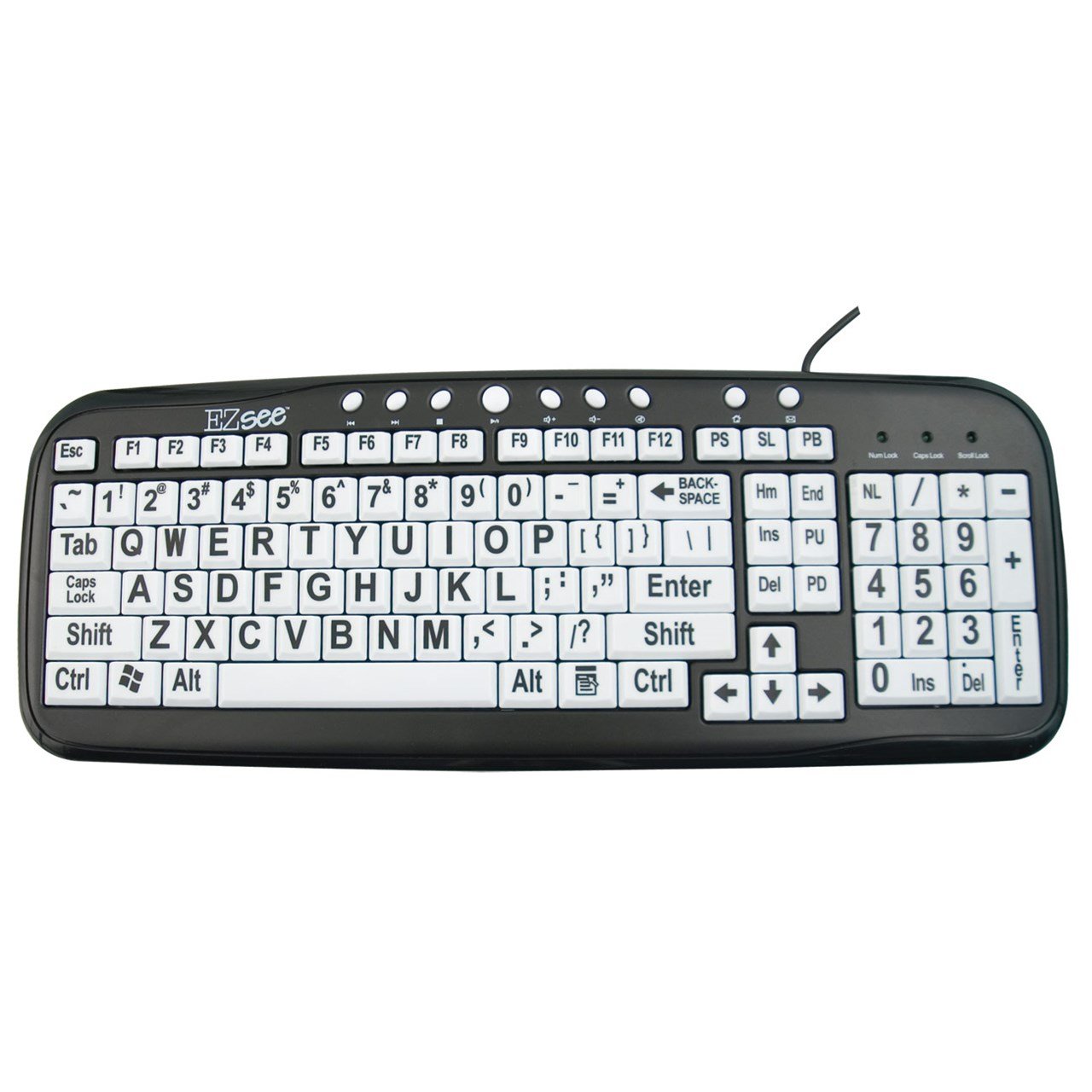
This image shows the MaxiAids EZ See Large Print Keyboard. It features white keys with oversized black characters for enhanced visibility, designed to assist users with low vision.
2. Configuración
The MaxiAids EZ See Large Print Keyboard is a plug-and-play device, requiring no special drivers for most operating systems. Follow these simple steps to connect your keyboard:
- Desembalaje del teclado: Retire con cuidado el teclado de su embalaje.
- Localizar un puerto USB: Identify an available USB port on your computer (desktop or laptop).
- Conecte el cable USB: Insert the USB connector from the keyboard cable firmly into the USB port on your computer.
- Reconocimiento del sistema: El sistema operativo debería detectar e instalar automáticamente los controladores necesarios para el teclado. Este proceso puede tardar unos instantes.
- Test the Keyboard: Open a text editor or any application that accepts text input and type a few characters to ensure the keyboard is functioning correctly.
If the keyboard does not respond, try connecting it to a different USB port or restarting your computer.
3. Funcionamiento del teclado
The EZ See Large Print Keyboard functions like a standard 104-key QWERTY keyboard, with the primary difference being the enhanced visibility of its keys.
- Diseño estándar: The keyboard features a familiar QWERTY layout, including a numeric keypad, function keys (F1-F12), and navigation keys.
- Teclas de letra grande: Each keycap is designed with oversized, high-contrast characters to reduce eye strain and improve typing accuracy for users with visual impairments.
- Baja Profile Llaves: The keys have a low-profile design, which can contribute to a comfortable typing experience.
- Caps Lock, Num Lock, Scroll Lock Indicators: Standard LED indicators are present to show the status of Caps Lock, Num Lock, and Scroll Lock functions.
Simply use the keyboard as you would any other, benefiting from the improved readability of the key legends.
4. Mantenimiento
Proper care and maintenance will ensure the longevity and optimal performance of your MaxiAids EZ See Large Print Keyboard.
- Limpieza: Para limpiar el teclado, desconéctelo del ordenador. Utilice un paño suave y sin pelusa ligeramente...ampened with water or a mild, non-abrasive cleaning solution. Avoid spraying liquids directly onto the keyboard or allowing moisture to seep between the keys.
- Eliminación de polvo: Utilice aire comprimido para eliminar el polvo y los residuos entre las teclas.
- Evite derrames: Mantenga el teclado alejado de líquidos para evitar daños. En caso de derrame, desconecte el teclado inmediatamente y deje que se seque por completo antes de volver a conectarlo.
- Almacenamiento: Cuando no utilice el teclado durante períodos prolongados, guárdelo en un entorno limpio y seco, alejado de temperaturas extremas.
5. Solución de problemas
Si tiene problemas con su teclado, consulte los siguientes pasos de solución de problemas comunes:
- El teclado no responde:
- Asegúrese de que el cable USB esté conectado de forma segura tanto al teclado como a la computadora.
- Intente conectar el teclado a un puerto USB diferente en su computadora.
- Reinicie su computadora.
- Test the keyboard on another computer, if available, to determine if the issue is with the keyboard or the computer.
- Teclas específicas que no funcionan:
- Check for any debris or obstructions under the non-functioning keys. Use compressed air to clear any particles.
- Asegúrese de que el teclado esté limpio y seco.
- El teclado numérico no funciona:
- Verify that the Num Lock indicator light is on. Press the 'Num Lock' key to toggle it on or off.
- Some older operating systems or specific software configurations might require additional settings for the numeric keypad. Consult your computer's operating system documentation.
- Slow or Delayed Input:
- This could be a system performance issue. Close unnecessary applications and check your computer's resource usage.
- Asegúrese de que el sistema operativo de su computadora esté actualizado.
If these steps do not resolve the issue, please contact MaxiAids customer support for further assistance.
6. Especificaciones
| Marca | MaxiAids |
| Número de modelo | 23570 |
| Tecnología de conectividad | USB |
| Dispositivos compatibles | Laptop (and Desktop Computers) |
| Descripción del teclado | Teclado USB |
| Característica especial | Ergonomic, Large Print |
| Color | Negro Blanco |
| Estilo | Clásico |
| Material | Plástico |
| Componentes incluidos | Teclado |
| Cantidad de botones | 104 |
7. Garantía y soporte
For information regarding the warranty period and terms for your MaxiAids EZ See Large Print Keyboard, please refer to the documentation included with your purchase or visit the official MaxiAids webSitio. Los detalles de la garantía pueden variar según la región y el minorista.
If you require technical support, have questions about product functionality, or need assistance with troubleshooting beyond what is covered in this manual, please contact MaxiAids customer service directly. Contact information can typically be found on the manufacturer's websitio o en el embalaje de su producto.