
1. Introducción
This manual provides detailed instructions for setting up, operating, and maintaining your Epson L485 Wi-Fi Inktank Printer. Please read this manual thoroughly to ensure proper use and to maximize the performance and longevity of your device.
Producto terminadoview
The Epson L485 is a versatile all-in-one printer offering print, scan, and copy functionalities with the added convenience of Wi-Fi Direct. It features an innovative ink tank system designed for high-volume printing with impressive page yields and a high print resolution for quality output.

Figura 1: Frente view of the Epson L485 Wi-Fi Inktank Printer.
¿Qué hay en la caja?
- Epson L485 Printer Unit
- Software CD
- Cable de alimentación
- Tarjeta de garantía
- Set of Original Epson Ink Bottles (Black, Cyan, Magenta, Yellow)
Vídeo 1: Un finalview of the Epson L485 Wi-Fi Inktank Printer's features and design.
2. Guía de configuración
Follow these steps to set up your Epson L485 printer for the first time.
Video 2: Step-by-step guide on how to set up your Epson InkTank Printer.
2.1 Initial Printer Preparation
- Desembalaje de la impresora: Retire con cuidado la impresora de su embalaje. Retire todas las cintas y materiales de protección.
- Check Valve Position: Locate the ink tank valve on the side of the printer. Ensure it is in the upright (printing) position.
- Open Ink Tank Unit: Gently unhook the ink tank unit from the side of the printer and open its lid to access the ink tanks.
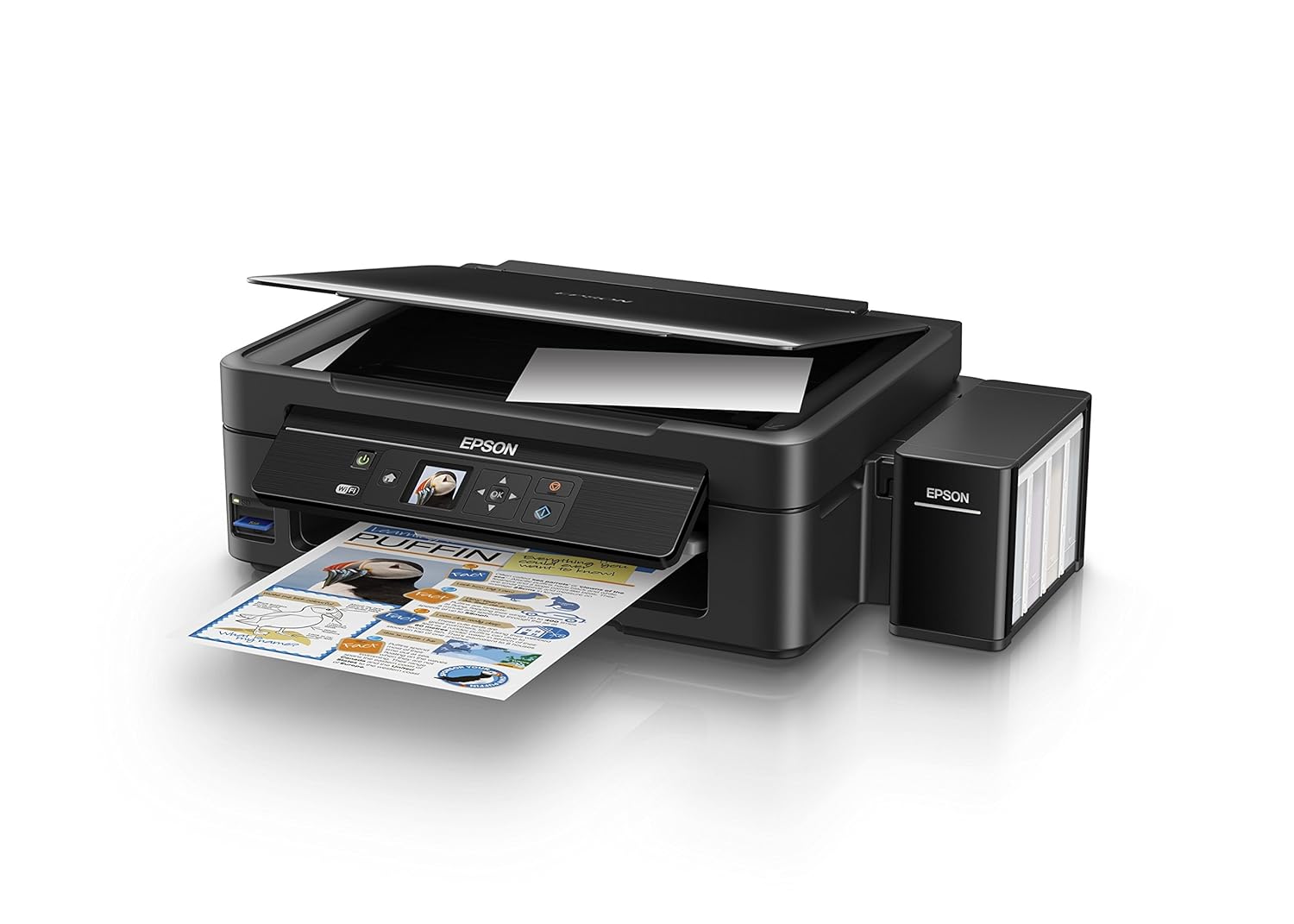
Figure 2: The ink tank unit unhooked and open, showing the ink reservoirs.
2.2 Llenado de los tanques de tinta
- Prepare Ink Bottles: Snap off the tip of each ink bottle and remove the cap.
- Llenar los tanques de tinta: Match the color of the ink bottle with the corresponding ink tank. Carefully pour the entire contents of each ink bottle into its respective tank. Do not overfill.
- Tapas seguras: Once all tanks are filled, replace the caps securely on the ink tanks.
- Close Ink Tank Unit: Close the lid of the ink tank unit and re-hook it to the printer.

Figure 3: Demonstrating the process of filling an ink tank with a yellow ink bottle.

Figure 4: The four color ink bottles used for the Epson L485 printer.
2.3 Power On and Ink Charging
- Conecte la electricidad: Conecte el cable de alimentación a la impresora y luego a una toma de pared.
- Encender la impresora: Presione el botón de encendido para encender la impresora.
- Initiate Ink Charge: Press and hold the 'Ink Charge' button (usually indicated by a droplet icon) for 3 seconds until the lights start blinking. The initial ink charging process takes approximately 20 minutes. Do not turn off or unplug the printer during this process.
- Terminación: The lights will stop blinking when ink charging is complete.
2.4 Instalación del controlador
- Insertar CD de software: Insert the provided Software CD into your computer's CD/DVD drive. If your computer does not have a CD drive, download the latest drivers from the official Epson support websitio.
- Siga las instrucciones en pantalla: Follow the prompts on your computer screen to install the printer drivers and utilities. Agree to the license agreement and select 'Start & Connection' for setup.
- Connect USB Cable (if prompted): If setting up via USB, connect the USB cable between the printer and your computer when prompted by the installation software.
2.5 Connectivity Setup
The Epson L485 supports both USB and Wi-Fi connectivity.
Conexión USB
Connect the USB cable from the printer to an available USB port on your computer. The printer should be recognized automatically after driver installation.
Configuración de Wi-Fi
The printer features an LCD screen for easy Wi-Fi setup without needing a PC.
- Access Wi-Fi Setup: On the printer's control panel, navigate to the 'Wi-Fi Setup' option using the arrow keys and press 'OK'.
- Seleccione la red: Choose your desired wireless network from the list and enter the password if required.
- Confirmar conexión: Once connected, the Wi-Fi indicator light will be solid, and the LCD screen will confirm the setup is complete.

Figure 5: Demonstrating wireless printing from a smartphone to the Epson L485 printer.
3. Funcionamiento de la impresora
3.1 Impresión
The Epson L485 delivers high-quality prints with a resolution of 5760 dpi. It offers print speeds of up to 33 ppm for black and 15 ppm for color documents.
- Carga de papel: Load paper into the rear paper feeder. Adjust the paper guides to fit the paper size.
- Seleccionar trabajo de impresión: Desde su computadora o dispositivo móvil, seleccione el documento o imagen que desea imprimir.
- Ajustar configuración: Choose your print settings (e.g., paper size, print quality, color/black & white) in the print dialog box.
- Imprimir: Haga clic en “Imprimir” para enviar el trabajo a la impresora.

Figure 6: The Epson L485 printer in action, producing a vibrant print.
3.2 Escaneo
The printer features a sheetfed scanner with an optical resolution of 1200 dpi x 2400 dpi for clear and detailed scans.
- Documento de lugar: Lift the scanner lid and place your document face-down on the scanner glass, aligning it with the corner mark.
- Iniciar escaneo: Desde su computadora, abra el software Epson Scan o utilice la función de escaneo en el panel de control de la impresora.
- Ajustar configuración: Select scan settings such as resolution, color mode, and destination folder.
- Iniciar escaneo: Begin the scanning process.

Figure 7: The scanner bed of the Epson L485 printer with the lid open.
3.3 Copia
Make copies directly from the printer's control panel.
- Documento de lugar: Place the document you wish to copy on the scanner glass.
- Seleccionar la función Copiar: On the printer's LCD screen, navigate to the 'Copy' option.
- Ajustar configuración: Select the number of copies, color or black & white, and other copy settings.
- Iniciar copia: Presione el botón “Iniciar” para comenzar a copiar.
3.4 Wi-Fi Direct
Wi-Fi Direct allows you to connect your mobile devices directly to the printer without a router, enabling convenient wireless printing.
- Habilitar Wi-Fi Direct: On the printer's control panel, go to 'Wi-Fi Setup' and select 'Wi-Fi Direct'. Follow the on-screen instructions to enable it and view el nombre de la red y la contraseña.
- Conectar dispositivo móvil: On your mobile device, go to Wi-Fi settings, find the printer's Wi-Fi Direct network, and connect using the provided password.
- Imprimir: Use an Epson printing app (e.g., Epson iPrint) or your device's native print function to print directly to the printer.
4. Mantenimiento
4.1 Recarga de tinta
When ink levels are low, refill the tanks using genuine Epson ink bottles. Refer to section 2.2 for detailed ink filling instructions. Always use the correct color ink for each tank.
4.2 Limpieza
La limpieza regular ayuda a mantener la calidad de impresión y prolonga la vida útil de su impresora.
- Limpieza exterior: Limpie el exterior de la impresora con un paño suave y húmedo.amp paño. Evite el uso de limpiadores abrasivos.
- Limpieza del cabezal de impresión: If print quality declines (e.g., missing lines, incorrect colors), perform a print head cleaning using the printer's utility software on your computer or through the printer's control panel menu.
- Prueba de los inyectores: Run a nozzle check pattern to diagnose print quality issues before performing a head cleaning.
5. Solución de problemas
Esta sección aborda problemas comunes que puede encontrar con su impresora Epson L485.
5.1 La impresora no responde
- Asegúrese de que la impresora esté encendida y conectada de forma segura a la toma de corriente.
- Check the USB cable connection to both the printer and computer, or verify the Wi-Fi connection status.
- Reinicie tanto la impresora como su computadora/dispositivo móvil.
5.2 Mala calidad de impresión
- Perform a nozzle check to identify clogged nozzles. If necessary, run a print head cleaning cycle.
- Verifique los niveles de tinta y rellene los tanques que estén bajos.
- Ensure you are using genuine Epson ink and appropriate paper types for your print job.
5.3 Atascos de papel
- Turn off the printer and carefully remove any jammed paper from the paper tray, output tray, or inside the printer.
- Asegúrese de que el papel esté cargado correctamente y no esté arrugado ni dañado.urlpublicado por
6. Especificaciones
| Marca | Epson |
| Nombre del modelo | L485 |
| Tecnología de conectividad | Wifi |
| Tecnología de impresión | Chorro de tinta |
| Característica especial | Ranura para tarjeta de memoria |
| Color | Negro |
| Salida de impresora | Color |
| Velocidad máxima de impresión (color) | 15 ppm |
| Velocidad máxima de impresión (monocromo) | 33 ppm |
| Peso del artículo | 6001 gramos |
| Tipo de impresora | Chorro de tinta |
| Tipo de escáner | Alimentado por hojas |
| Velocidad máxima de copia (blanco y negro) | 33 ppm |
| Tipo de pantalla | Pantalla LCD |
| Dispositivos compatibles | Teléfonos inteligentes |
| Color de tinta | Negro, Cian, Magenta, Amarillo |
| Resolución | 5760 x 5760 DPI |
| Funciones adicionales de la impresora | All In One (Print, Scan, Copy) |
| Tamaño máximo de medios | A4 |
| Tamaño del papel | A4 |
| Impresión a doble cara | No |
7. Garantía y soporte
Your Epson L485 Wi-Fi Inktank Printer comes with a free installation service and an onsite warranty.
7.1 Free Installation and Onsite Warranty
To avail free installation for your printer, please contact Epson support after receiving your product. The onsite warranty covers manufacturing defects and ensures professional assistance at your location.
7.2 Contactar con el soporte técnico
For installation, support, or any technical assistance, please contact Epson customer service:
- Teléfono: 1860 3000 1600 (Timings: 9 am - 6 pm)