
1. Producto terminadoview
The ADATA XPG EX500 is a tool-free external enclosure designed to convert any 2.5-inch SATA III hard disk drive (HDD) or solid state drive (SSD) into a portable storage solution. It supports USB 3.1 connectivity, offering fast data transfer speeds, and is backward compatible with USB 2.0 and USB 3.0. Its robust, shock-resistant design provides protection for your valuable data.
Características principales:
- Suitable for 2.5-inch SSD and 2.5-inch Hard Disk Drive
- Tool-less design for quick installation process
- Funcionalidad Plug and Play
- Shock resistant construction
- USB 3.1 connectivity (backward compatible with USB 3.0 and USB 2.0)
2. Contenido del paquete
Por favor verifique que todos los artículos estén presentes en su paquete:
- XPG EX500 External Enclosure
- Cable USB 3.1
- Manual de usuario (este documento)
3. Instrucciones de configuración
Installing a 2.5-inch Drive:
The XPG EX500 features a tool-free design for easy installation of your 2.5-inch SATA HDD or SSD.
- Abra el recinto: Gently slide the top cover of the XPG EX500 enclosure in the direction indicated by the arrows until it detaches.
- Inserte la unidad: Alinee su disco duro o SSD SATA de 2.5 pulgadas con el conector SATA dentro de la carcasa. Empuje con cuidado la unidad en el conector hasta que encaje firmemente. Asegúrese de que la unidad esté orientada correctamente.
- Cerrar el recinto: Place the top cover back onto the enclosure, aligning the tabs. Slide the cover until it clicks securely into place.
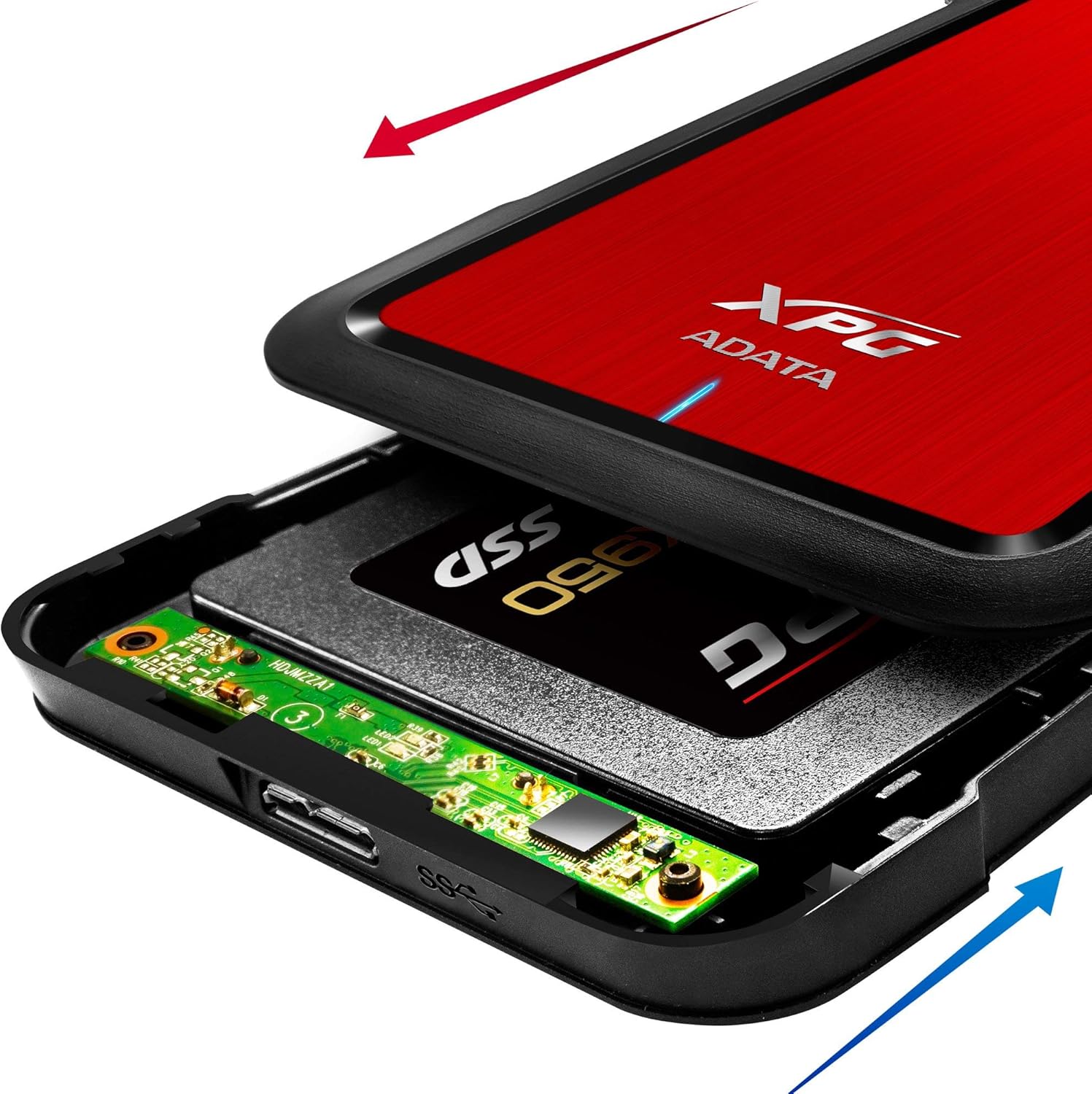
Image: The XPG EX500 enclosure shown open, with a solid state drive (SSD) being inserted into the internal SATA connector. Red and blue arrows indicate the sliding motion for opening and closing the cover.
4. Instrucciones de funcionamiento
Conexión a un dispositivo:
Once your drive is installed, connect the XPG EX500 to your computer or gaming console.
- Conecte el cable USB: Plug one end of the provided USB 3.1 cable into the USB port on the XPG EX500 enclosure.
- Conectarse al dispositivo host: Plug the other end of the USB cable into an available USB port on your PC, notebook, Mac, PlayStation 4, Xbox 360, or Xbox One. For optimal performance, use a USB 3.1 (or USB 3.0) port.
- Conectar y usar: The enclosure is plug-and-play. Your operating system should automatically detect the drive. If it's a new drive, you may need to initialize and format it through your operating system's disk management tools before use.
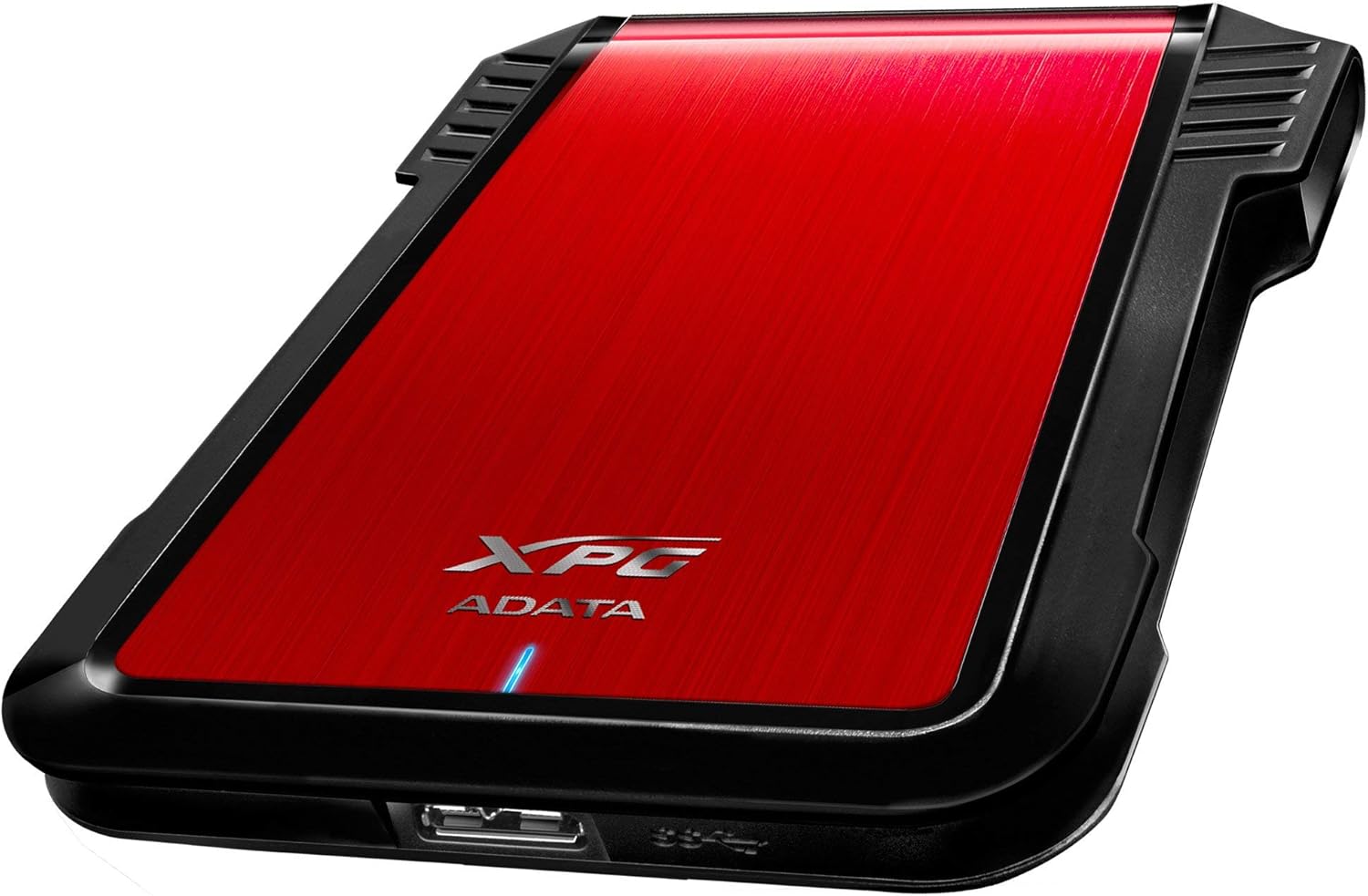
Imagen: Un lado view of the XPG EX500 external enclosure, highlighting the USB 3.1 port for connecting to a host device.
Transferencia de datos:
The XPG EX500 supports USB 3.1, providing high-speed data transfer. Actual speeds may vary depending on the connected device, the drive installed, and the type of data being transferred.
5. Mantenimiento
To ensure the longevity and optimal performance of your XPG EX500 enclosure:
- Limpieza: Utilice un paño suave y seco para limpiar el exterior de la carcasa. Evite usar limpiadores líquidos o disolventes.
- Manejo: While the enclosure is shock-resistant, avoid dropping it or subjecting it to severe impacts, as this can still damage the internal drive.
- Ambiente: Store and operate the enclosure in a dry environment, away from extreme temperatures, direct sunlight, and humidity.
- Desconexión: Siempre expulse de forma segura la unidad de su sistema operativo antes de desconectar el cable USB para evitar la corrupción de datos.
6. Solución de problemas
If you encounter issues with your XPG EX500, please refer to the following common solutions:
- Unidad no detectada:
- Ensure the USB cable is securely connected to both the enclosure and the host device.
- Intente conectarse a un puerto USB diferente en su computadora.
- Verify that the 2.5-inch drive is properly seated within the enclosure's SATA connector.
- If it's a new drive, check your operating system's Disk Management (Windows) or Disk Utility (macOS) to see if the drive needs to be initialized and formatted.
- Velocidades lentas de transferencia de datos:
- Ensure you are connected to a USB 3.1 or USB 3.0 port on your host device. USB 2.0 ports will result in significantly slower speeds.
- Check the condition of the USB cable. Try using a different USB 3.1 compatible cable if available.
- The performance of the internal drive itself can affect transfer speeds.
- El recinto se siente cálido:
- It is normal for the enclosure to feel warm during extended use, especially during heavy data transfers. Ensure adequate airflow around the device.
7. Especificaciones
| Característica | Especificación |
|---|---|
| Número de modelo | AEX500U3-CRD |
| Unidades compatibles | Disco duro/SSD SATA de 2.5 pulgadas |
| Interfaz | USB 3.1 (compatible con versiones anteriores USB 3.0, USB 2.0) |
| Velocidad de transferencia de datos | Hasta 1 Gigabits por segundo (máximo teórico USB 3.1) |
| Dispositivos compatibles | PC, Notebook, Mac, PlayStation 4, Xbox 360, Xbox One |
| Material | Plástico |
| Dimensiones del producto | 4.92 x 3.54 x 0.67 pulgadas (125 x 90 x 17 mm) |
| Peso del artículo | 2.43 onzas (0.07 kilogramos) |
8. Información de garantía
The ADATA XPG EX500 External Enclosure comes with a Garantía limitada de 1 años from the date of purchase. This warranty covers manufacturing defects and workmanship under normal use. It does not cover damage caused by misuse, accident, unauthorized modification, or external causes.
Please retain your proof of purchase for warranty claims. For detailed warranty terms and conditions, refer to the official ADATA websitio o póngase en contacto con el servicio de atención al cliente.
9. Soporte
For further assistance, technical support, or to download the latest drivers and firmware (if applicable), please visit the official ADATA websitio:
You may also contact ADATA customer service directly through the contact information provided on their websitio.