
Introducción
The Mercusys MW150US N150 Wireless Nano USB Adapter is a compact and convenient device designed to provide wireless internet connectivity to your desktop or laptop computer. With wireless speeds of up to 150 Mbps, it is suitable for essential internet activities such as web browsing, email, and stable online communication. Its miniature design allows it to remain connected to a USB port without obstruction.
This adapter also features a Soft AP function, enabling your computer to act as a Wi-Fi hotspot, sharing its wired internet connection with other wireless devices like smartphones and tablets.
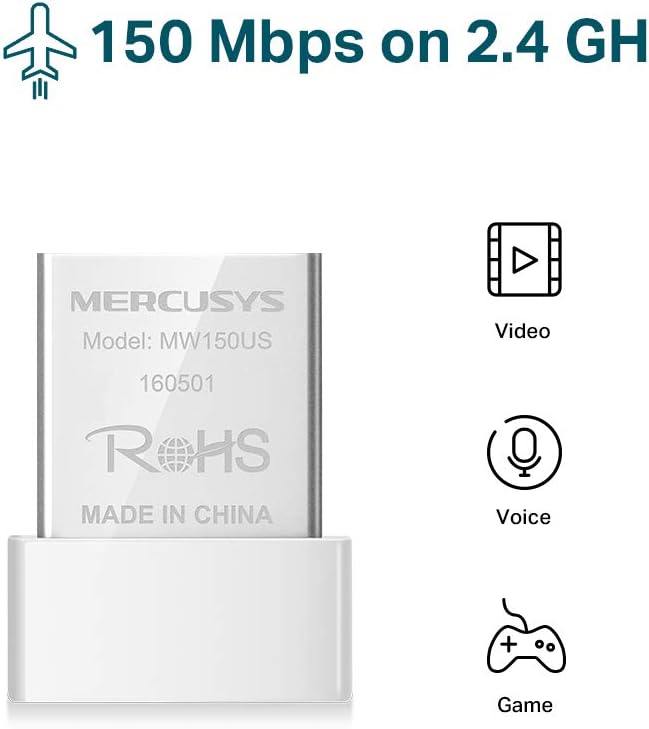
Image: The Mercusys MW150US N150 Wireless Nano USB Adapter, a compact device for wireless connectivity.
Guía de configuración
Follow these steps to install and set up your Mercusys MW150US N150 Wireless Nano USB Adapter:
- Inserte el adaptador: Carefully insert the MW150US adapter into an available USB port on your computer.
- Instalar controladores:
- Using the included CD: Insert the driver CD into your computer's CD-ROM drive and follow the on-screen instructions to install the necessary drivers.
- Downloading from Mercusys websitio: If your computer does not have a CD-ROM drive, or if you prefer the latest drivers, visit the official Mercusys websitio (por ejemplo, www.mercusys.com/en/download/MW150US) to download the drivers for your specific operating system.
- Nota para los usuarios de Windows 10: In many cases, Windows 10 may automatically install the necessary drivers upon insertion, making manual installation unnecessary.
- Conectar a una red: After driver installation, your computer should detect available Wi-Fi networks. Select your desired network from the list and enter the password to connect.

Image: Visual guide for the three easy setup steps: insert, install software, and connect to Wi-Fi.

Image: The Mercusys MW150US adapter is compatible with Windows 10, 8.1, 8, 7, and XP.
Instrucciones de funcionamiento
Conectarse a una red Wi-Fi
Once the adapter is installed and drivers are loaded, you can connect to any available Wi-Fi network.
- Click on the Wi-Fi icon in your computer's system tray (usually in the bottom-right corner for Windows).
- A list of available wireless networks will appear. Select the name (SSID) of your desired network.
- Click "Connect" and enter the network's security key or password when prompted.
- Once connected, the Wi-Fi icon will indicate a successful connection, and you can access the internet.
Using Soft AP Function (Wi-Fi Hotspot)
The Soft AP function allows your computer to share its wired internet connection wirelessly. This feature requires your computer to have a wired internet connection.
- Asegúrese de que su computadora esté conectada a Internet mediante un cable Ethernet.
- Open the Mercusys utility software (usually installed with the drivers).
- Localice y habilite la función “Soft AP” o “Hotspot” dentro de la utilidad.
- Configure the hotspot's name (SSID) and password.
- Other wireless devices can now connect to your computer's Wi-Fi hotspot using the configured SSID and password.
Mantenimiento
The Mercusys MW150US adapter is designed for durability and requires minimal maintenance.
- Manténlo limpio: Limpie periódicamente el adaptador con un paño suave y seco para eliminar el polvo. Evite usar limpiadores líquidos.
- Proteger de daños: While its nano size is convenient, avoid bending or applying excessive force to the adapter when it's plugged into a USB port.
- Almacenamiento: When not in use, store the adapter in a clean, dry place away from extreme temperatures.

Image: The miniature design of the Mercusys MW150US adapter, highlighting its compact size for portability and convenience.
Solución de problemas
If you encounter issues with your Mercusys MW150US adapter, refer to the following common solutions:
- Adaptador no detectado:
- Asegúrese de que el adaptador esté bien conectado a un puerto USB que funcione. Pruebe con otro puerto USB.
- Verify that the drivers are correctly installed. Check Device Manager (Windows) for any yellow exclamation marks next to the network adapter. Reinstall drivers if necessary.
- Reinicie su computadora.
- No se puede conectar a la red Wi-Fi:
- Verifique nuevamente la contraseña de Wi-Fi.
- Asegúrese de que su enrutador Wi-Fi esté encendido y transmitiendo una señal.
- Acérquese al enrutador Wi-Fi para mejorar la intensidad de la señal.
- Restart your Wi-Fi router and your computer.
- Velocidad lenta de Internet:
- Ensure you are within a reasonable range of your Wi-Fi router.
- Compruebe si hay posibles interferencias de otros dispositivos electrónicos (por ejemplo, microondas, teléfonos inalámbricos).
- Verifique que su proveedor de servicios de Internet (ISP) esté brindando la velocidad esperada.
- Update the adapter's drivers to the latest version from the Mercusys websitio.
Presupuesto
| Marca | MERCUSYS |
| Número de modelo | MW150US |
| Interfaz de hardware | USB |
| Velocidad de transferencia de datos | 150 Mbps |
| Dispositivos compatibles | Desktop, Laptop, Smartphone (for Soft AP) |
| Sistemas operativos compatibles | Windows (XP, 7, 8, 8.1, 10) |
| Peso del artículo | 50 gramos |
| Color | Rojo |
Información de garantía
The Mercusys MW150US N150 Wireless Nano USB Adapter comes with a 4 año de garantía directly from the manufacturer. Please retain your proof of purchase for warranty claims.
Apoyo
For technical assistance, driver downloads, or warranty inquiries, please contact Mercusys customer support directly. Support services are provided by the manufacturer.
You can typically find contact information and support resources on the official Mercusys websitio: www.mercusys.com.