
1. Producto terminadoview
The MERCUSYS MW300UM N300 Wireless Mini USB Adapter is designed to connect your desktop or laptop computer to a wireless network. It provides Wi-Fi connections up to 300Mbps, suitable for online gaming, HD streaming, and web browsing. Its compact, mini USB design ensures portability and convenience.
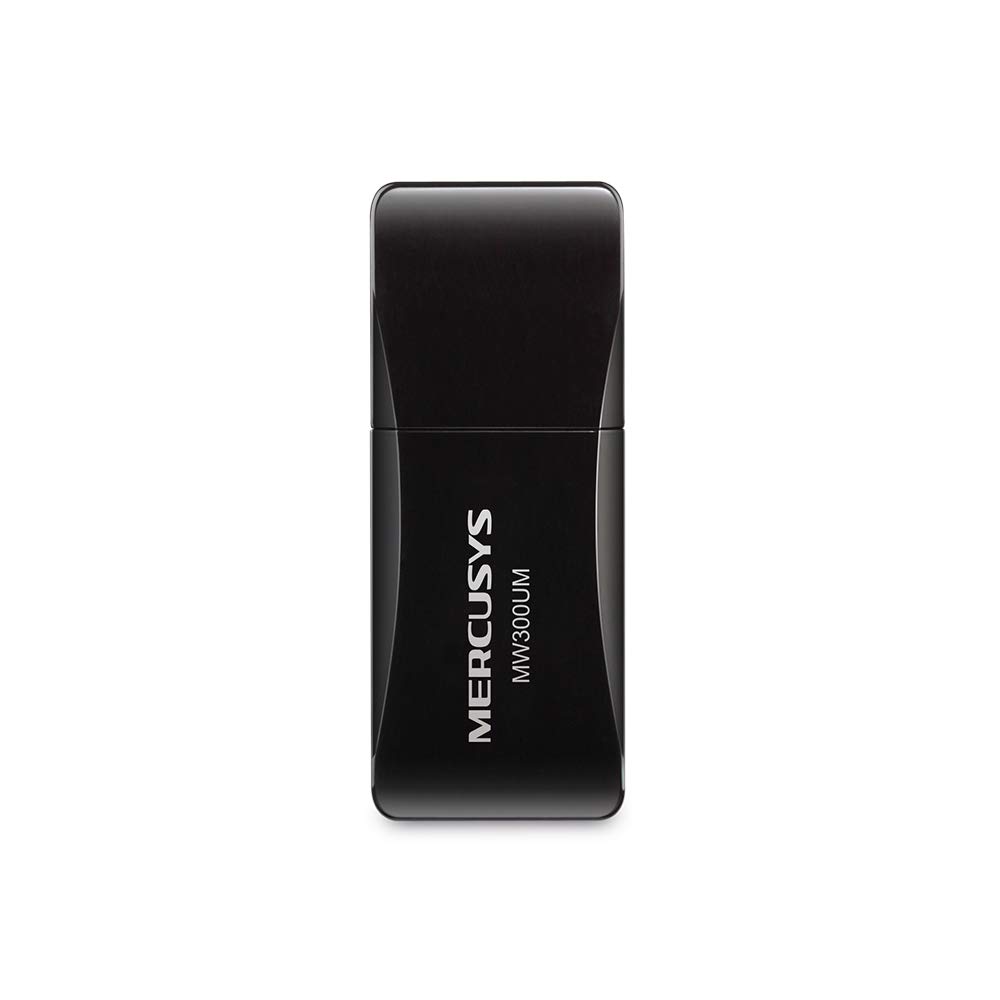
Figure 1: MERCUSYS MW300UM N300 Wireless Mini USB WiFi Adapter

Figure 2: Portable design for convenient use with laptops.
2. Contenido del paquete
Verifique que su paquete contenga los siguientes elementos:
- MERCUSYS MW300UM Wireless Mini USB Adapter
- Guía de instalación rápida
- CD de recursos (para controladores y utilidades)

Figure 3: MW300UM product packaging and contents.
3. Guía de configuración
Follow these steps to install and set up your MW300UM Wireless Mini USB Adapter:
- Inserte el adaptador: Plug the MW300UM adapter into an available USB port on your desktop or laptop computer.
- Instalar controladores:
- Insert the provided Resource CD into your computer's CD-ROM drive and follow the on-screen instructions to install the drivers and utility.
- Alternatively, if your computer does not have a CD-ROM drive or if you prefer the latest drivers, download them from the official MERCUSYS websitio. los website link is typically provided in the Quick Installation Guide.
- Conectarse a Wi-Fi: Once the drivers are installed, your computer will detect the adapter. Scan for available wireless networks, select your desired network, and enter the password to connect.

Figure 4: Easy setup process for the MW300UM adapter.
4. Instrucciones de funcionamiento
The MW300UM adapter provides reliable wireless connectivity and can also function as a Wi-Fi hotspot.
4.1 Conectividad inalámbrica
After successful driver installation, the adapter will enable your computer to connect to 2.4GHz wireless networks at speeds up to 300Mbps. This is suitable for various online activities including video streaming, voice calls, and online gaming.

Figure 5: MW300UM performance for various applications.
4.2 Soft AP Function
The MW300UM supports Soft AP (Access Point) functionality. If your computer has an existing wired internet connection, you can use the adapter to turn your PC or laptop into a Wi-Fi hotspot, allowing other wireless devices to connect to the internet through it. Refer to the utility software for instructions on enabling and configuring Soft AP mode.
4.3 Sistemas operativos compatibles
The MW300UM adapter is compatible with a wide range of Windows operating systems:
- Windows 11 (32/64 bits)
- Windows 10 (32/64 bits)
- Windows 8.1 (32/64 bits)
- Windows 8 (32/64 bits)
- Windows 7 (32/64 bits)
- Windows XP (32/64bit)

Figure 6: Supported Operating Systems.
5. Mantenimiento
To ensure optimal performance and longevity of your MW300UM adapter, follow these maintenance guidelines:
- Limpieza: Utilice un paño suave y seco para limpiar suavemente el adaptador. Evite usar limpiadores líquidos o disolventes, ya que podrían dañar el dispositivo.
- Almacenamiento: Cuando no esté en uso, guarde el adaptador en un lugar fresco y seco, lejos de la luz solar directa y de temperaturas extremas.
- Manejo: Evite dejar caer el adaptador o someterlo a impactos fuertes. No intente desmontarlo ni modificarlo.
- Puerto USB: Ensure the USB port on your computer is clean and free of debris before inserting the adapter.
6. Solución de problemas
If you encounter issues with your MW300UM adapter, refer to the following common problems and solutions:
- Adaptador no detectado:
- Asegúrese de que el adaptador esté bien conectado a un puerto USB que funcione. Pruebe con otro puerto USB.
- Reinicie su computadora.
- Verifique que los controladores estén correctamente instalados. Reinstálelos si es necesario.
- No se puede conectar a la red Wi-Fi:
- Compruebe si otros dispositivos pueden conectarse a la misma red Wi-Fi.
- Asegúrese de ingresar la contraseña de Wi-Fi correcta.
- Reinicie su enrutador/módem inalámbrico.
- Update the adapter's drivers to the latest version from the MERCUSYS websitio.
- Velocidad lenta de Wi-Fi:
- Ensure your computer is within a reasonable range of your wireless router.
- Compruebe si hay interferencias de otros dispositivos electrónicos (por ejemplo, microondas, teléfonos inalámbricos).
- Verify that your internet service plan supports the expected speeds.
- Update the adapter's drivers.
7. Especificaciones
| Característica | Especificación |
|---|---|
| Marca | MERCUSYS |
| Número de modelo | MW300UM |
| Interfaz de hardware | USB 2.0 |
| Protocolo de enlace de datos | IEEE 802.11n, IEEE 802.11g, IEEE 802.11b |
| Velocidad de transferencia de datos | 300 megabits por segundo |
| Sistemas operativos compatibles | Windows 11/10/8.1/8/7/XP (32/64bit) |
| Dimensiones del producto (L x An x Al) | 17L x 9W x 43H Milímetros |
| Color | Negro |
| Contenido de la caja | Wireless Mini USB Adapter, Quick Installation Guide, Resource CD |
8. Información de garantía
The MERCUSYS MW300UM Wireless Mini USB Adapter typically comes with a 3 año de garantía from the date of purchase. This warranty covers manufacturing defects and ensures the product functions as intended under normal use. Please retain your purchase receipt for warranty claims.
For detailed warranty terms and conditions, refer to the official MERCUSYS websitio o la tarjeta de garantía incluida en el embalaje de su producto.
9. Soporte
For further assistance, technical support, or to download the latest drivers and firmware, please visit the official MERCUSYS support websitio:
También puede encontrar información de contacto del servicio de atención al cliente de su región en website or in the Quick Installation Guide.