
1. Introducción
This manual provides detailed instructions for the installation, operation, and troubleshooting of your Aigital US4605A AC1200 Dual Band USB WiFi Adapter. This device is designed to provide high-speed wireless connectivity for your desktop computer or laptop, supporting both 2.4GHz and 5GHz frequency bands.
2. Contenido del paquete
Por favor verifique que todos los artículos estén presentes en su paquete:
- Aigital US4605A AC1200 Dual Band USB WiFi Adapter
- Driver CD (if included, otherwise drivers are typically downloaded or plug-and-play)
- Guía de instalación rápida (este documento sirve como guía completa)
3. Producto terminadoview
The Aigital US4605A is a compact and powerful USB WiFi adapter featuring dual-band capabilities and high-gain antennas for enhanced signal reception.

Image 3.1: Aigital US4605A AC1200 Dual Band USB WiFi Adapter. The adapter features a USB 3.0 connector, a main body with an indicator light, and two adjustable external antennas for improved signal reception.
Las características principales incluyen:
- AC1200 Doble Banda: Supports 867Mbps on the 5GHz band and 300Mbps on the 2.4GHz band for flexible and high-speed connections.
- Powerful 5dBi Antennas: Two high-gain antennas provide extended range and stable signal.
- Interfaz USB 3.0: Offers up to 10 times faster data transfer speeds compared to USB 2.0, while remaining backward compatible.
- Amplia compatibilidad: Supports Windows 11/10/8 and Mac OS 10.9~10.15, OS 11.0+.

Image 3.2: The adapter supports both 5GHz (up to 867Mbps for faster speed) and 2.4GHz (up to 300Mbps for longer range) bands, enhancing overall wireless performance.
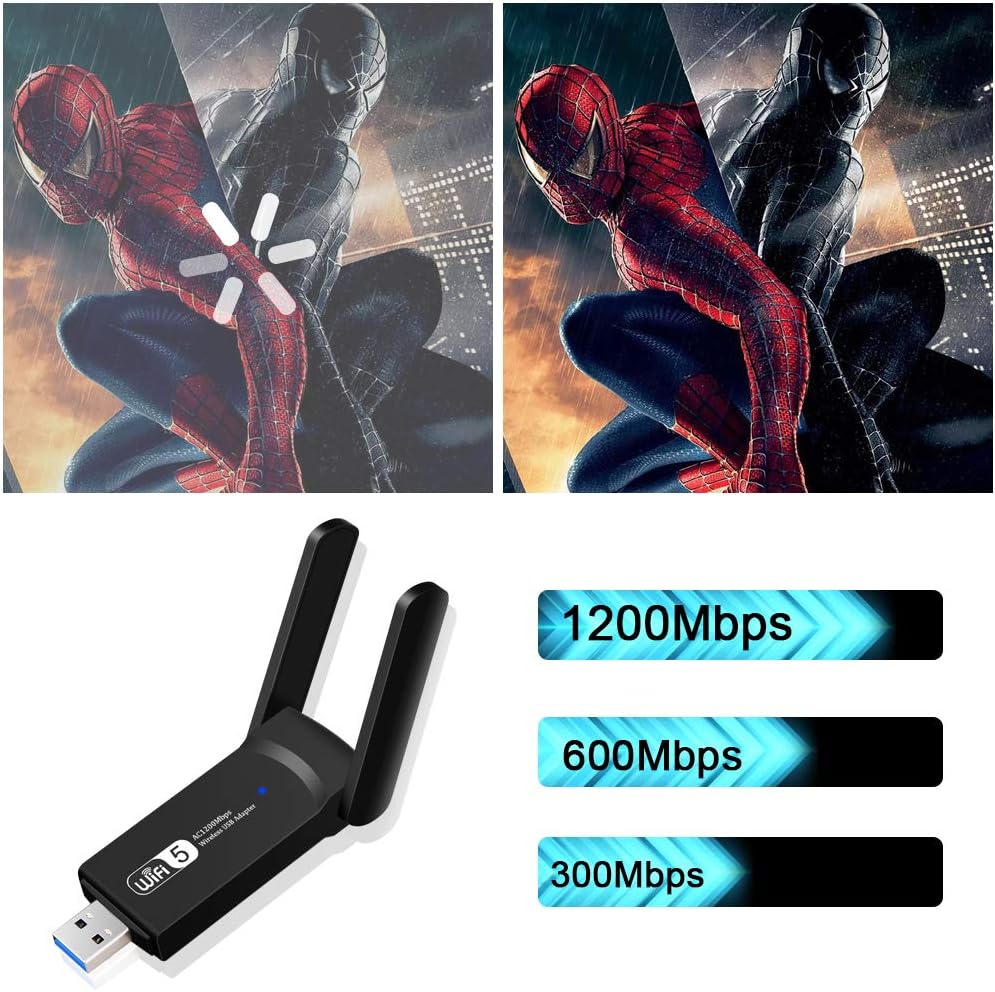
Image 3.3: The adapter supports a maximum combined speed of 1200Mbps, distributed across its dual bands.

Image 3.4: The USB 3.0 interface provides significantly faster data transfer rates compared to USB 2.0, ensuring optimal performance for the 1200Mbps WiFi adapter.
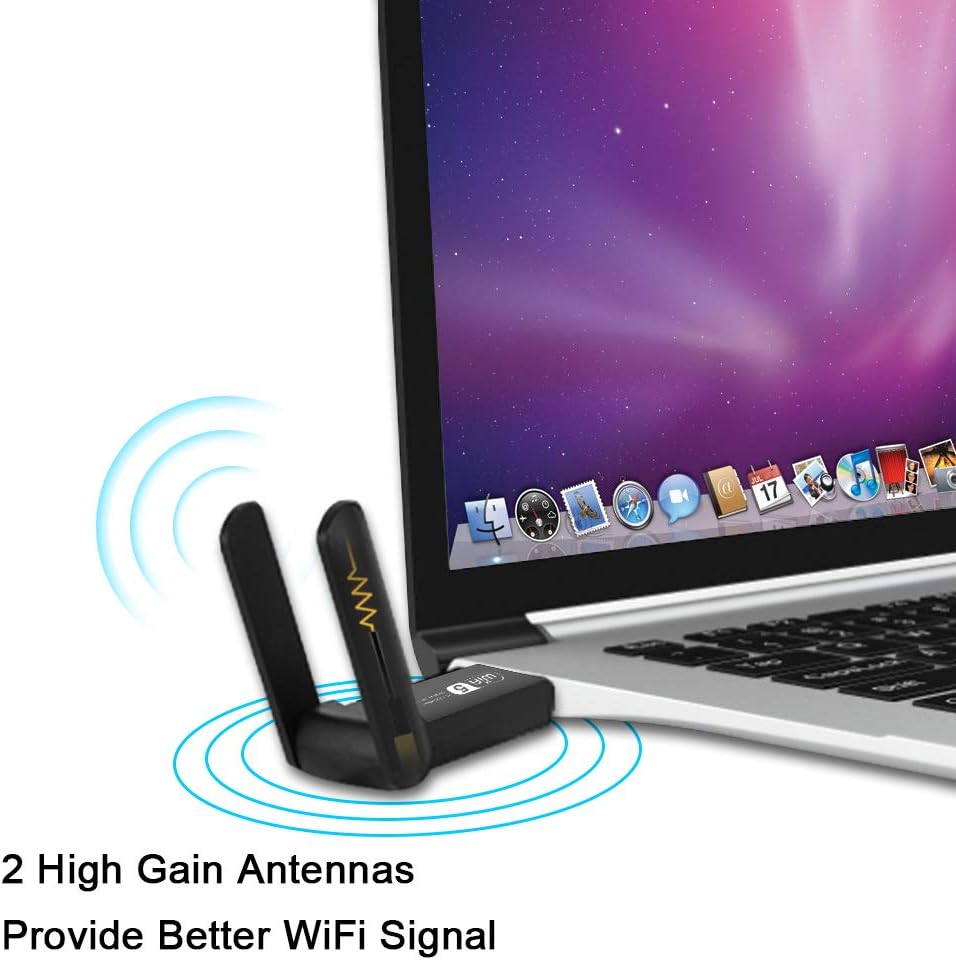
Image 3.5: The two external 5dBi high-gain antennas are designed to provide a stronger and more stable Wi-Fi signal.
4. Instalación y configuración
Follow these steps to install your Aigital US4605A USB WiFi Adapter.
4.1. Instalación del controlador
For optimal performance and full functionality, driver installation is required for most operating systems. For Windows 11/10, the adapter may be plug-and-play, but installing the latest drivers is recommended.
- NO conecte el adaptador todavía.
- Descargar controladores: Visit the official Aigital support website or use the provided driver CD (if applicable) to obtain the latest drivers for your operating system.
- Instalar controladores: Ejecute el programa de instalación del controlador descargado file and follow the on-screen instructions. Restart your computer if prompted.
- Conectar adaptador: Once the drivers are installed, plug the Aigital US4605A USB WiFi Adapter into an available USB 3.0 port on your computer. While compatible with USB 2.0, a USB 3.0 port is recommended for maximum speed.
- Verificar instalación: After connecting, the adapter's indicator light should illuminate, and your computer should recognize the device. You can verify this in Device Manager (Windows) or System Information (Mac).
Nota: For Windows 11/10, the system might automatically install a generic driver. If you experience connectivity issues or wish to utilize the full features, manually install the specific drivers from the manufacturer's websitio.
5. Modos de funcionamiento
The Aigital US4605A USB WiFi Adapter supports two primary operating modes:
5.1. Station Mode (Signal Receiver)
In Station Mode, the adapter allows your desktop computer or laptop to connect to an existing wireless network (Wi-Fi router).
- Asegúrese de que el adaptador esté conectado a su computadora.
- Open your computer's network settings (e.g., Wi-Fi icon in the taskbar for Windows, Wi-Fi menu in the menu bar for Mac).
- Seleccione la red Wi-Fi deseada de la lista de redes disponibles.
- Introduzca la contraseña de la red (si es necesaria) y haga clic en "Conectar".
- Una vez conectado, debería tener acceso a Internet.
5.2. AP Mode (Access Point / Hotspot)
In AP Mode, the adapter can create a wireless hotspot, allowing other devices (smartphones, tablets, other computers) to connect to your computer's internet connection (typically if your computer is connected via Ethernet).
- Ensure your computer has an active internet connection (e.g., via Ethernet cable).
- Plug in the Aigital US4605A adapter.
- Para Windows: Go to Settings > Network & Internet > Mobile hotspot. Turn on "Mobile hotspot" and configure the network name (SSID) and password. Select your Ethernet connection as the source.
- Para Mac: Go to System Settings > General > Sharing. Enable "Internet Sharing" and select your Ethernet connection as the source, then choose "Wi-Fi" for sharing with other computers. Configure Wi-Fi options (network name, security, password).
- Other devices can now search for and connect to the Wi-Fi hotspot created by your adapter.
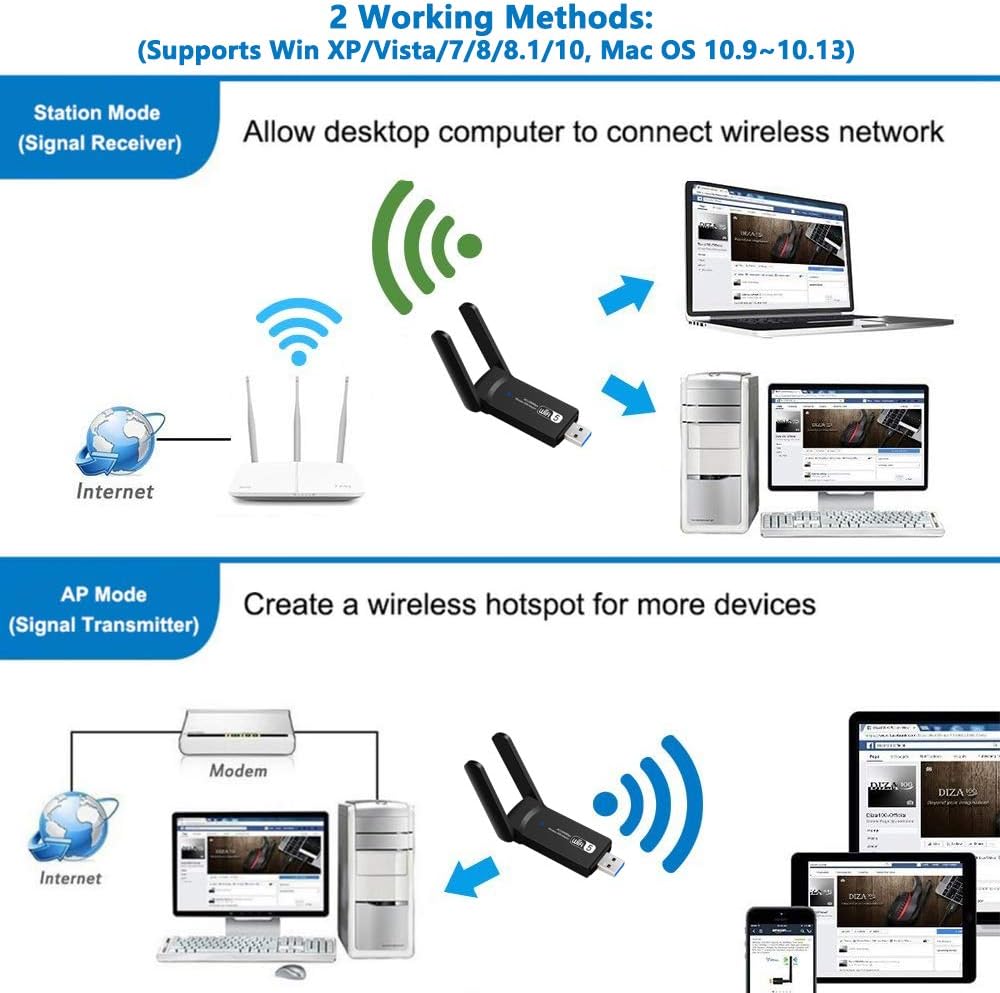
Image 5.1: Illustration of the two working methods: Station Mode (receiving Wi-Fi signal from a router) and AP Mode (creating a Wi-Fi hotspot from a wired connection).
6. Compatibilidad
The Aigital US4605A USB WiFi Adapter is compatible with a range of operating systems:
- Ventanas 11
- Ventanas 10
- Ventanas 8.1
- Ventanas 8
- Ventanas 7
- Windows Vista
- Windows XP
- Mac OS 10.9 to 10.15 (Catalina)
- Mac OS 11.0+ (Big Sur and later)
Nota: For Windows 11/10, the device may be plug-and-play. For other operating systems, driver installation is typically required. Always use the latest drivers from the manufacturer's website for best performance.
7. Especificaciones
| Característica | Detalle |
|---|---|
| Marca | aigital |
| Número de modelo | US4605A |
| Estándar inalámbrico | IEEE 802.11ac/b/g/n |
| Velocidad de transferencia de datos | Hasta 1200 Mbps (867 Mbps en 5 GHz, 300 Mbps en 2.4 GHz) |
| Bandas de frecuencia | 2.4 GHz y 5 GHz (banda dual) |
| Antenas | 2 antenas de alta ganancia de 5 dBi |
| Interfaz | USB 3.0 (compatible con versiones anteriores USB 2.0) |
| Sistemas operativos | Windows 11/10/8.1/8/7/Vista/XP, Mac OS 10.9~10.15, OS 11.0+ |
| Dimensiones (LxAnxAl) | 2.56 x 1.1 x 0.39 pulgadas (aprox.) |
| Peso | 0.8 onzas (aprox.) |
| Código Postal | 761780472738 |

Image 7.1: Physical dimensions of the Aigital US4605A adapter and icons indicating compatibility with Mac and Windows operating systems.
8. Solución de problemas
If you encounter issues with your Aigital US4605A USB WiFi Adapter, please refer to the following common problems and solutions:
- No se detectaron redes Wi-Fi:
- Asegúrese de que el adaptador esté conectado de forma segura a un puerto USB.
- Verify that drivers are correctly installed. Check Device Manager (Windows) or System Information (Mac) for any error indicators. Reinstall drivers if necessary.
- Comprueba si el Wi-Fi de tu enrutador está habilitado y transmitiendo.
- Intente conectar el adaptador a un puerto USB diferente.
- Velocidad de conexión lenta:
- Ensure the adapter is plugged into a USB 3.0 port for optimal performance.
- Confirm you are connected to the 5GHz band if your router supports it and you are within close range. The 5GHz band offers higher speeds but shorter range.
- Reduzca la interferencia alejando el adaptador o la computadora de otros dispositivos electrónicos (microondas, teléfonos inalámbricos).
- Actualice el firmware de su enrutador.
- Asegúrese de que su proveedor de servicios de Internet (ISP) ofrezca las velocidades esperadas.
- Desconexiones frecuentes:
- Check signal strength. If the signal is weak, try moving closer to the router or adjusting the adapter's antennas.
- Ensure power management settings are not turning off the USB device to save power. (Windows: Device Manager > USB Root Hub > Properties > Power Management > Uncheck "Allow the computer to turn off this device to save power").
- Actualice los controladores a la última versión.
- Reinicie el enrutador y la computadora.
- Adaptador no reconocido:
- Pruebe con un puerto USB diferente.
- Reinicie su computadora.
- Ensure drivers are installed correctly. If not, reinstall them.
- Check if the adapter is physically damaged.
9. Mantenimiento
To ensure the longevity and optimal performance of your Aigital US4605A USB WiFi Adapter, consider the following maintenance tips:
- Manténlo limpio: Limpie suavemente el adaptador con un paño seco y suave para eliminar el polvo. Evite usar limpiadores líquidos.
- Proteger de daños: Avoid dropping the adapter or exposing it to extreme temperatures or humidity.
- Almacenamiento adecuado: When not in use, store the adapter in a safe, dry place.
- Actualizaciones de controladores: Periodically check the Aigital support webSitio para controladores actualizados para garantizar la compatibilidad y mejoras de rendimiento.
10. Garantía y soporte
Aigital products typically come with a standard manufacturer's warranty. Please refer to the warranty card included with your product or visit the official Aigital webSitio para conocer los términos y condiciones detallados de la garantía.
For technical support, driver downloads, or further assistance, please visit the Aigital official support website or contact their customer service. Contact information can usually be found on the product packaging or the manufacturer's websitio.
Nota: Conserve su recibo de compra como comprobante de compra para reclamos de garantía.
11. Información del vídeo
No official product videos are available for embedding based on the provided product data.