
CYBERPOWERPC CGS480VR1318
CYBERPOWERPC Wyvern Gaming PC User Manual
Model: CGS480VR1318
1. Introducción
Welcome to the CYBERPOWERPC Wyvern Gaming PC user manual. This guide provides essential information for setting up, operating, maintaining, and troubleshooting your new desktop computer. Please read this manual thoroughly before using your PC to ensure proper function and longevity.
Your CYBERPOWERPC Wyvern (Model CGS480VR1318) is a high-performance gaming desktop designed for an immersive computing experience. It features an Intel Core i5-9400F processor, an Nvidia GeForce GTX 1650 graphics card, 8GB of DDR4 RAM, a 240GB SSD, and a 1TB HDD, all running on Windows 10 Home.
Pautas de seguridad
- Always connect the PC to a grounded power outlet.
- Do not open the PC case unless instructed by technical support, as it may void your warranty.
- Mantenga la PC alejada de líquidos, calor excesivo y luz solar directa.
- Asegúrese de que haya una ventilación adecuada alrededor del PC para evitar el sobrecalentamiento.
- Use only the power supply unit (PSU) provided with your system.

Imagen: Frente view of the CYBERPOWERPC Wyvern Gaming PC, showcasing its RGB-lit fans and sleek chassis design.
2. Configuración inicial
2.1 Desembalaje
Carefully remove your PC and all accessories from the packaging. Retain the original packaging for future transport or warranty claims.
2.2 Conexión de periféricos
- Monitor: Connect your monitor to the graphics card (Nvidia GeForce GTX 1650) ports (HDMI 2.0b, DVI-D, or DisplayPort v1.4) located at the rear of the PC. Do not connect to the motherboard's video outputs.
- Teclado y ratón: Connect your keyboard and mouse to the available USB ports. The PC has 4x USB 3.1 Gen 1 and 2x USB 2.0 ports.
- Fuerza: Connect the power cable to the power supply unit (PSU) at the rear of the PC, then plug it into a grounded electrical outlet.
- Red (opcional): For a wired connection, connect an Ethernet cable from your router to the RJ45 Ethernet port on the PC. For wireless, ensure the Wi-Fi antenna (if provided) is connected.
- Audio (opcional): Conecte los altavoces o auriculares a las tomas de audio del panel frontal o trasero.
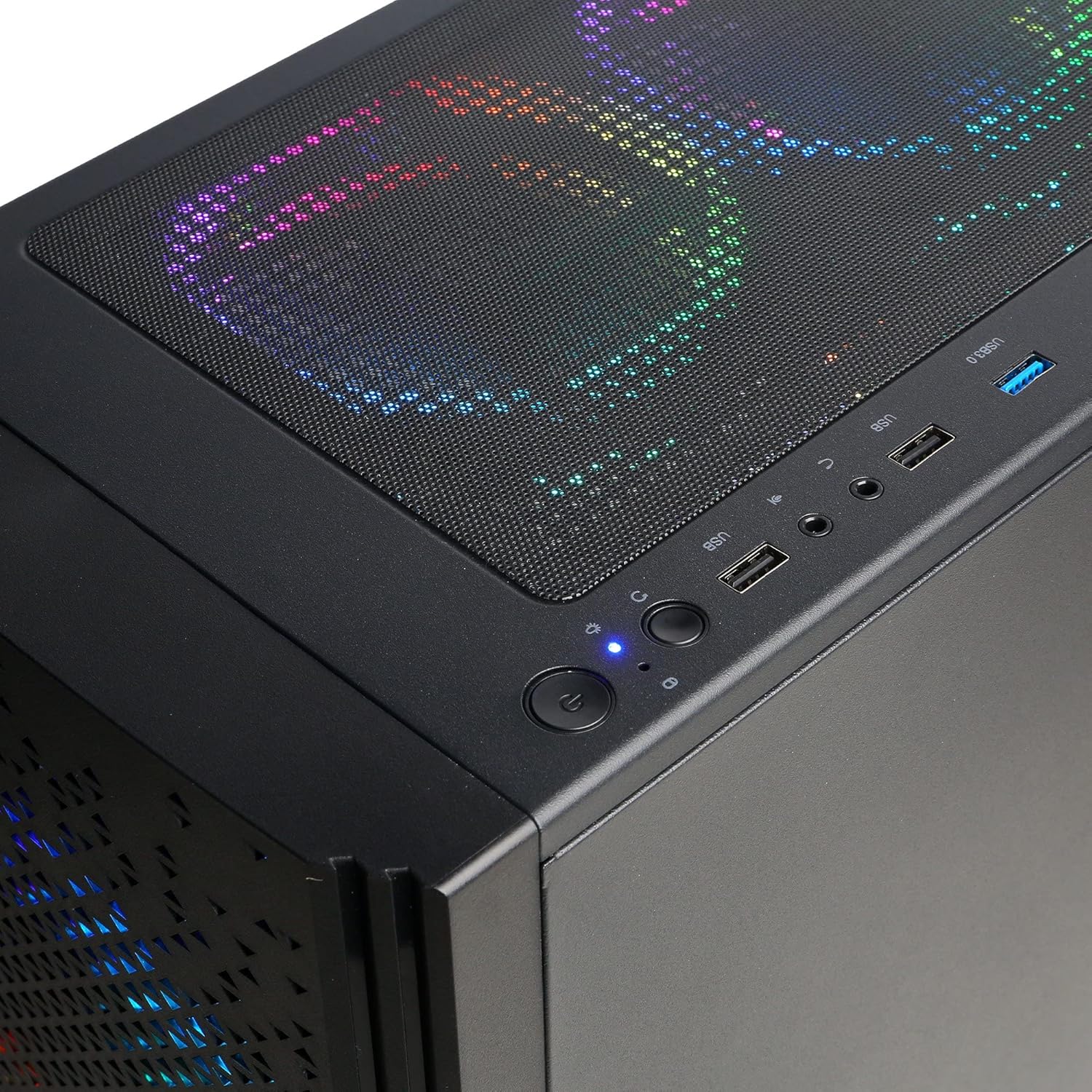
Image: Close-up of the top panel of the PC, illustrating the accessible USB ports, audio jacks, and power button for easy peripheral connection.
2.3 Primer arranque
Press the power button located on the top front of the PC. The system will boot into Windows 10 Home. Follow the on-screen instructions to complete the initial Windows setup, including language, region, and user account creation.
2.4 Conexión de red
- Wired: If you connected an Ethernet cable, your PC should automatically detect the network connection.
- Inalámbrico: Click the Wi-Fi icon in the Windows taskbar, select your network, enter the password, and connect. The PC supports 300Mbps 802.11n Wi-Fi.
3. Operación de su PC
3.1 Encendido y apagado
- Encendido: Press the power button on the top front of the case.
- Cerrar: Click the Windows Start button, then Power > Shut down. Avoid simply unplugging the PC to prevent data loss or system corruption.
- Reanudar: Click the Windows Start button, then Power > Restart.
3.2 Windows 10 Home
Your PC comes pre-installed with Windows 10 Home 64-bit. Familiarize yourself with the operating system's interface and features. Regular updates are recommended for security and performance.
3.3 Control de iluminación RGB
The Cooler Master Masterbox MB520 case features 4x RGB LED fans. These can typically be controlled via a dedicated button on the case or through software provided by the manufacturer. Refer to the case manufacturer's documentation for specific instructions on RGB customization.

Image: The front panel of the CYBERPOWERPC Wyvern PC, highlighting the vibrant RGB illumination of the three front fans.
4. Mantenimiento
4.1 Limpieza
- Exterior: Utilice un paño suave y seco.amp Paño para limpiar el exterior de la carcasa. Evite los limpiadores abrasivos.
- Polvo: Periodically clean dust from the fan vents and interior components using compressed air. Ensure the PC is powered off and unplugged before cleaning.
4.2 Actualizaciones de software
- Actualizaciones de Windows: Compruebe e instale periódicamente las actualizaciones de Windows para garantizar la estabilidad y la seguridad del sistema.
- Actualizaciones de controladores: Keep your graphics card drivers (Nvidia) and other component drivers updated for optimal performance. Visit the respective manufacturer's webSitios para los últimos controladores.
4.3 Copia de seguridad de datos
Realice copias de seguridad periódicas de sus datos importantes en una unidad externa o en un almacenamiento en la nube para evitar la pérdida de datos en caso de fallas de hardware u otros problemas imprevistos.
5. Solución de problemas
5.1 Sin energía
- Asegúrese de que el cable de alimentación esté conectado de forma segura tanto a la PC como a la toma de pared.
- Check if the power switch on the PSU (at the back of the PC) is in the 'On' position.
- Pruebe el tomacorriente de pared con otro dispositivo para confirmar que tenga energía.
5.2 No hay imagen en el monitor
- Verify that the monitor is powered on and the video cable is securely connected to the graphics card (Nvidia GTX 1650) ports on the PC.
- Asegúrese de que la fuente de entrada del monitor esté seleccionada correctamente (por ejemplo, HDMI, DisplayPort).
- Pruebe con un cable de vídeo o monitor diferente si está disponible.
5.3 Rendimiento lento
- Cierre las aplicaciones en segundo plano innecesarias.
- Busque e instale cualquier actualización pendiente de Windows o de controladores.
- Run a disk cleanup and defragmentation (for HDD) or optimization (for SSD).
- Analizar en busca de malware o virus.
5.4 Problemas de conectividad de red
- Wired: Check the Ethernet cable connection to both the PC and the router. Restart your router.
- Inalámbrico: Ensure Wi-Fi is enabled in Windows. Restart your router. Verify your Wi-Fi password.
5.5 Blue Screen Errors (BSOD)
Blue Screen of Death errors can indicate various issues. Note down the error code or message displayed. Common solutions include:
- Updating drivers, especially graphics and chipset drivers.
- Running Windows Memory Diagnostic to check for RAM issues.
- Checking disk health using Windows tools.
- Performing a system restore to a previous working state.
6. Especificaciones
| Componente | Detalle |
|---|---|
| Número de modelo | CGS480VR1318 |
| Procesador | Intel Core i5-9400F (6 Cores, 2.90GHz Base, 4.10GHz Turbo, 9 MB Cache) |
| Chipset de la placa base | H310 |
| Tarjeta gráfica | Nvidia GeForce GTX 1650 4GB (HDMI 2.0b, DVI-D, DisplayPort v1.4) |
| RAM | 8GB 2400MHz DDR4 RAM |
| Almacenamiento | 240GB SATA-III SSD + 1TB 7200RPM SATA-III HDD |
| Fuente de alimentación | 400W 80 Plus PSU |
| Sistema operativo | Windows 10 Home de 64 bits |
| Conectividad | 4x USB 3.1 Gen 1, 2x USB 2.0, 1x PS/2 Port, 1x RJ45 Ethernet (10/100/1000), 300Mbps 802.11n Wi-Fi, 5.1 Channel High Definition Audio |
| Caso | Cooler Master Masterbox MB520 Mid-Tower Gaming Case with 4x RGB LED Fans |
| Enfriamiento | Intel Standard Cooler |
| Dimensiones (L x An x Al) | 36 x 20.5 x 45 cm |
| Peso | 10.4 kilogramos |
7. Garantía y soporte
7.1 Información de garantía
Your CYBERPOWERPC Wyvern Gaming PC comes with a warranty of 2 años en piezas y 3 years on laborEsta garantía cubre defectos de fabricación y fallas de hardware en condiciones normales de uso.
El sistema también incluye Bullguard Internet Security for 1 year (3 devices), providing protection against online threats.
7.2 Soporte técnico
CYBERPOWERPC ofrece Soporte técnico de por vida for your product. If you encounter any issues that cannot be resolved using this manual's troubleshooting section, please contact CYBERPOWERPC customer support. Have your model number (CGS480VR1318) and purchase details ready when contacting support.
For the most up-to-date contact information and support resources, please visit the official CYBERPOWERPC websitio.
Ask a question about this manual
Ask about setup, troubleshooting, compatibility, parts, safety, or missing instructions. Manuals+ will review the question and use this page’s manual context to help answer it.