
Bytech BYTECH Wireless Optical Mouse
Manual de usuario del ratón óptico inalámbrico BYTECH
Model: BYTECH Wireless Optical Mouse
Introducción
This manual provides detailed instructions for the setup, operation, maintenance, and troubleshooting of your BYTECH Wireless Optical Mouse. Please read this manual thoroughly before using the device to ensure optimal performance and longevity.
Producto terminadoview
The BYTECH Wireless Optical Mouse is designed for comfortable and efficient navigation. It features a precise optical sensor, a scroll wheel, and a DPI adjustment button for customizable sensitivity. Its ergonomic design and wireless connectivity provide a clutter-free workspace.

Figura 1: De arriba hacia abajo view of the BYTECH Wireless Optical Mouse. The mouse is black with a silver stripe along its sides. A scroll wheel and a DPI button are visible on the top surface.
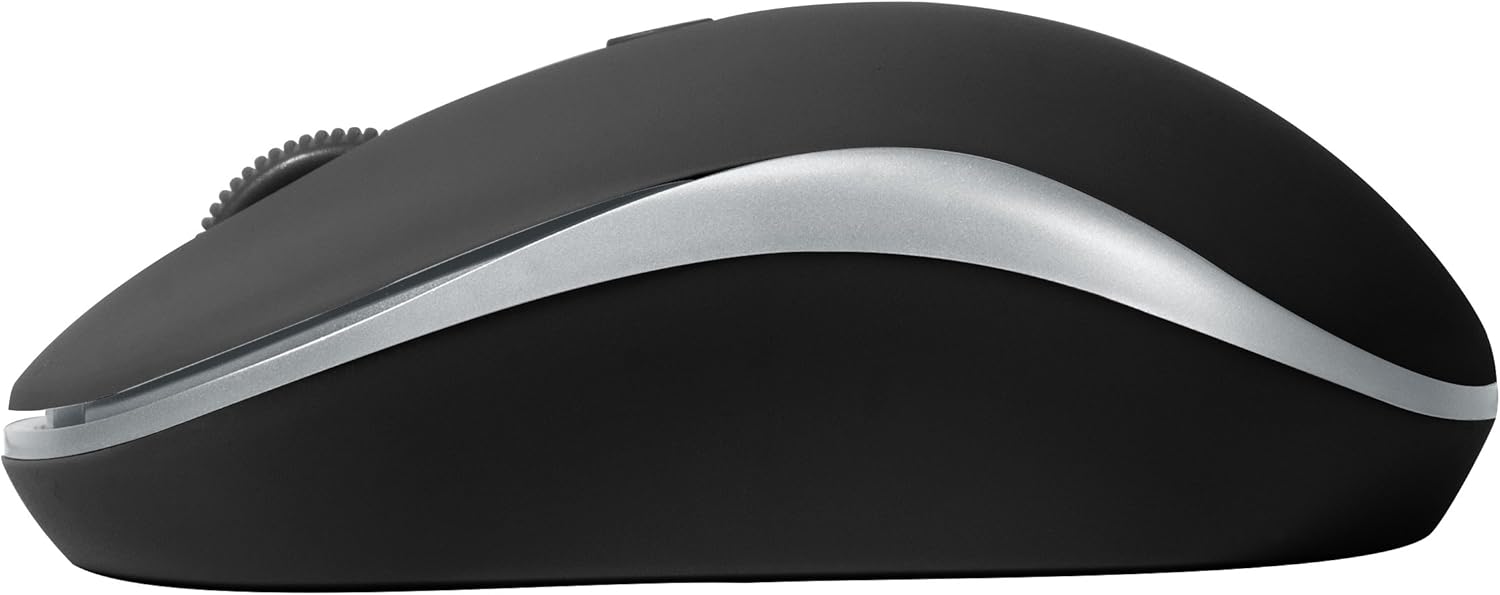
Figura 2: Lado view of the BYTECH Wireless Optical Mouse. This angle highlights the ergonomic curve and the silver accent line that runs along the side of the mouse.
Configuración
1. Instalación de la batería
- Ubique el compartimiento de la batería en la parte inferior del mouse.
- Abra la tapa del compartimiento de la batería.
- Insert one AA battery (not included) into the compartment, ensuring the correct polarity (+/-) as indicated inside.
- Cierre bien la tapa del compartimento de la batería.
2. Conexión del receptor USB
- Remove the USB receiver from its storage slot, usually located inside the battery compartment or near it.
- Conecte el receptor USB a un puerto USB disponible en su computadora o computadora portátil.
- Su sistema operativo debería detectar e instalar automáticamente los controladores necesarios. Esto puede tardar unos instantes.
3. Encendido
- Locate the On/Off switch on the underside of the mouse.
- Slide the switch to the "On" position. The mouse should now be ready for use.
Instrucciones de funcionamiento
Funciones básicas
- Click izquierdo: Presione el botón izquierdo para seleccionar elementos, abrir enlaces o activar funciones.
- Botón derecho del ratón: Presione el botón derecho para abrir menús contextuales o acceder a opciones adicionales.
- Rueda de desplazamiento: Gire la rueda hacia arriba o hacia abajo para desplazarse por los documentos o web pages. Press the scroll wheel for middle-click functionality (e.g., opening links in new tabs).
Ajuste de DPI
The mouse features a DPI (Dots Per Inch) button, typically located behind the scroll wheel. Press this button to cycle through different sensitivity settings. Each press will change the cursor speed, allowing you to find the optimal setting for your task.
- Presione el Botón DPI once to switch to the next sensitivity level.
- Repeat until you find your preferred cursor speed.
Modo de ahorro de energía
To conserve battery life, the BYTECH Wireless Optical Mouse is designed to automatically enter a sleep mode after a period of inactivity. To wake the mouse, simply move it or click any button.
Mantenimiento
Limpieza
- Asegúrese de que el mouse esté apagado antes de limpiarlo.
- Utilice un paño suave y sin pelusa ligeramente seco.amplimpiado con agua o una solución de limpieza suave.
- Limpie la superficie del ratón con cuidado. Evite la humedad excesiva.
- Para el sensor óptico, utilice un hisopo de algodón seco para eliminar con cuidado el polvo o los residuos.
- No utilice limpiadores abrasivos, alcohol o disolventes, ya que pueden dañar la superficie.
Reemplazo de batería
When the mouse performance degrades or the cursor becomes erratic, it may be time to replace the battery. Follow the battery installation steps outlined in the "Setup" section.
Almacenamiento
When not in use for an extended period, it is recommended to turn off the mouse to conserve battery life. The USB receiver can be stored in its dedicated slot on the mouse's underside to prevent loss.
Solución de problemas
- El ratón no responde:
- Asegúrese de que el mouse esté encendido.
- Verifique el nivel de la batería y reemplácela si es necesario.
- Verifique que el receptor USB esté conectado correctamente a un puerto USB que funcione. Pruebe con otro puerto USB.
- Reinicie su computadora.
- Cursor erratic or jumping:
- Limpie el sensor óptico en la parte inferior del mouse.
- Asegúrese de usar el ratón sobre una superficie adecuada (antirreflectante y no transparente). Se recomienda usar una alfombrilla.
- Compruebe si hay interferencias electromagnéticas fuertes de otros dispositivos.
- Problemas de conectividad:
- Reducir la distancia entre el ratón y el receptor USB.
- Remove any large metal objects or electronic devices that might be obstructing the wireless signal.
- If using a USB hub, try connecting the receiver directly to the computer.
Presupuesto
| Característica | Detalle |
|---|---|
| Marca | Tecnología de bytes |
| Modelo | BYTECH Wireless Optical Mouse |
| Tecnología de conectividad | Inalámbrico (receptor USB) |
| Tecnología de detección de movimiento | Óptico |
| Color | Negro |
| Fuente de poder | Funciona con pilas (1 pilas AA, no incluidas) |
| Compatibilidad del sistema operativo | macOS, Android (and generally Windows) |
| Peso del artículo | 3.56 onzas |
| Dimensiones del producto (LxAnxAl) | 1 x 1 x 1 pulgadas (aproximadamente) |
Nota: las especificaciones están sujetas a cambios sin previo aviso.
Garantía y soporte
Bytech products are manufactured to the highest quality standards. For information regarding warranty coverage, technical support, or service, please refer to the warranty card included with your product or visit the official Bytech webSitio. Conserve su recibo de compra como comprobante para reclamaciones de garantía.
For further assistance, please contact Bytech customer support through their official channels.
Ask a question about this manual
Ask about setup, troubleshooting, compatibility, parts, safety, or missing instructions. Manuals+ will review the question and use this page’s manual context to help answer it.