
1. Introducción
This manual provides essential information for the safe and efficient use of your ZTE Trek 2 HD K88 Tablet. The ZTE Trek 2 HD K88 is an 8-inch tablet featuring an HD display, an Octa-core processor, 2GB RAM, 16GB internal storage (expandable), and a 4600mAh battery. It operates on Android 6.0 Marshmallow and supports Wi-Fi and 4G-LTE connectivity.
Please read this manual thoroughly before operating your device to ensure proper functionality and to understand its features.

Imagen 1.1: Espalda view of the ZTE Trek 2 HD K88 Tablet, showing the AT&T logo and product labels.
2. Configuración
2.1. Carga de la batería
Before first use, fully charge the tablet's battery. Connect the included power adapter to the tablet's charging port and then to a power outlet. The battery indicator on the screen will show charging status.
- Use only the power adapter provided with your device.
- Una carga completa puede tardar varias horas.
2.2. Encendido / apagado
- Para encender: Mantenga presionado el botón de encendido hasta que aparezca el logotipo de ZTE.
- Para apagar: Mantenga presionado el botón de Encendido hasta que aparezca el menú de opciones de energía, luego seleccione "Apagar".
2.3. Configuración inicial
Al encenderlo por primera vez, siga las instrucciones en pantalla para configurar los ajustes básicos:
- Seleccione su idioma preferido
- Conectarse a una red Wi-Fi.
- Inicia sesión con tu cuenta de Google o crea una nueva.
- Review y acepta los términos y condiciones.
2.4. Inserción de una tarjeta microSD (opcional)
The tablet supports expandable memory up to 128GB via a microSD card. Locate the microSD card slot, typically on the side of the device. Carefully insert the card with the gold contacts facing down until it clicks into place.

Imagen 2.1: Lateral view of the ZTE Trek 2 HD K88 Tablet, illustrating its thin design. The microSD slot is typically located on one of the side edges.
3. Instrucciones de funcionamiento
3.1. Navegación básica
The ZTE Trek 2 HD K88 features a responsive touchscreen. Use the following gestures:
- Grifo: Para seleccionar un elemento o abrir una aplicación.
- Tocar y sostener: Para acceder a menús contextuales o mover elementos.
- Golpe fuerte: Para desplazarse por pantallas o listas.
- Pellizco: To zoom in or out on content like photos or web páginas.
3.2. Home Screen and Apps
The home screen displays your favorite apps, widgets, and notifications. Swipe left or right to access additional home screens. Tap the "Apps" icon to view todas las aplicaciones instaladas.

Imagen 3.1: Frente view of the ZTE Trek 2 HD K88 Tablet with the display active, showing the Android home screen with various application icons.
3.3. Conexión a Wi-Fi
- Ir a Ajustes > Wifi.
- Activar/desactivar Wi-Fi On.
- Seleccione la red que desee de la lista.
- Ingrese la contraseña si se le solicita y luego toque Conectar.
3.4. Uso de la cámara
The tablet is equipped with 5 MP front and rear cameras. Open the Camera app to capture photos and videos.
- Toque el botón del obturador para tomar una foto.
- Cambie entre la cámara frontal y trasera usando el ícono de alternancia de la cámara.
- Explore various modes and settings within the camera app.
3.5. Funciones de audio
The ZTE Trek 2 HD K88 features Dolby Audio powered dual front-facing speakers for an enhanced audio experience. Adjust volume using the physical volume buttons on the side of the tablet or through the on-screen volume controls.
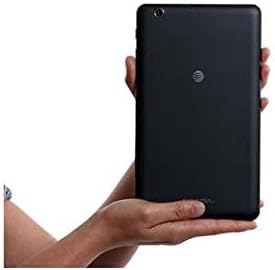
Image 3.2: The ZTE Trek 2 HD K88 Tablet held horizontally in two hands, demonstrating its comfortable and portable 8-inch form factor.
4. Mantenimiento
4.1. Limpieza del dispositivo
To clean your tablet, use a soft, lint-free cloth. For stubborn marks, slightly dampEnjuague el paño con agua. Evite usar productos químicos agresivos, limpiadores abrasivos o aerosoles, ya que pueden dañar la pantalla y el acabado.
4.2. Actualizaciones de software
Revise periódicamente las actualizaciones de software para asegurarse de que su tableta tenga las últimas funciones y parches de seguridad. Vaya a Ajustes > Acerca de la tableta > Actualizaciones del sistema.
4.3. Gestión del almacenamiento
Gestiona regularmente el almacenamiento de tu tableta para mantener un rendimiento óptimo. Elimina el almacenamiento innecesario. files, desinstale aplicaciones no utilizadas y mueva archivos multimedia grandes files a una tarjeta microSD o almacenamiento en la nube. Ir a Ajustes > Almacenamiento y USB a view Uso de almacenamiento.
4.4. Cuidado de la batería
Para prolongar la vida útil de la batería:
- Evite temperaturas extremas.
- No deje que la batería se descargue por completo con frecuencia.
- Desenchufe el cargador una vez que la batería esté llena.
- Adjust screen brightness and disable unused features like Wi-Fi or Bluetooth when not needed.
5. Solución de problemas
5.1. Problemas comunes y soluciones
| Asunto | Solución |
|---|---|
| La tableta no enciende | Asegúrese de que la batería esté cargada. Mantenga presionado el botón de encendido durante al menos 10-15 segundos para forzar el reinicio. |
| Problemas de conexión wifi | Reinicia la tableta y el router Wi-Fi. Olvida la red en la configuración Wi-Fi y vuelve a conectarte. |
| Las aplicaciones se bloquean o se congelan | Close and reopen the app. Clear the app's cache (Settings > Apps > [App Name] > Storage > Clear cache). Restart the tablet. |
| Rendimiento lento | Cierra las aplicaciones que no uses. Borra la caché. Libera espacio de almacenamiento. Reinicia la tableta. |
5.2. Restablecimiento de fábrica
If issues persist, a factory reset may resolve them. This will erase all data on your tablet, so back up important information first. Go to Ajustes > Copia de seguridad y restablecimiento > Restablecimiento de datos de fábrica.
6. Especificaciones
| Característica | Detalle |
|---|---|
| Marca | ZTE |
| Nombre del modelo | K88 |
| Sistema operativo | Android 6.0 Marshmallow |
| Tamaño de pantalla | 8 pulgadas |
| Resolución de pantalla | 1280 x 800 (alta definición) |
| Procesador | Qualcomm Snapdragon 617 Octa-core (1.5 GHz) |
| Memoria RAM | 2 GB |
| Capacidad de almacenamiento | 16 GB (ampliable hasta 128 GB con microSD) |
| Cámara trasera | 5 MP |
| Cámara frontal | 5 MP |
| Capacidad de la batería | 4600 mAh (up to 10 hours average life) |
| Conectividad | Wi-Fi (802.11n), 4G-LTE (AT&T) |
| Audio | Dolby Audio, Dual Front-Facing Speakers |
| Peso | 1.3 libras |
| Accesorios incluidos | Adaptador de corriente |
7. Garantía y soporte
7.1. Información de garantía
This ZTE Trek 2 HD K88 Tablet comes with a 90-day limited warranty. Please refer to your purchase documentation for specific terms and conditions regarding warranty claims.
7.2. Atención al cliente
For further assistance, technical support, or warranty inquiries, please contact the retailer or ZTE customer service. You may also visit the official ZTE support webSitio para preguntas frecuentes y recursos adicionales.