
1. Introducción
This manual provides detailed instructions for the installation, operation, and maintenance of the Aja KONA HDMI 4-Channel Capture Card (Model: KONA HDMI4R-R0). Please read this manual thoroughly before using the product to ensure proper setup and optimal performance. Retain this manual for future reference.
2. Producto terminadoview
The Aja KONA HDMI is a high-performance PCIe capture card designed for professional video workflows. It features four HDMI inputs, enabling multi-channel HD or dual-channel UltraHD video capture. This card is ideal for applications requiring reliable, low-latency video and image capture on compatible Mac OS systems.
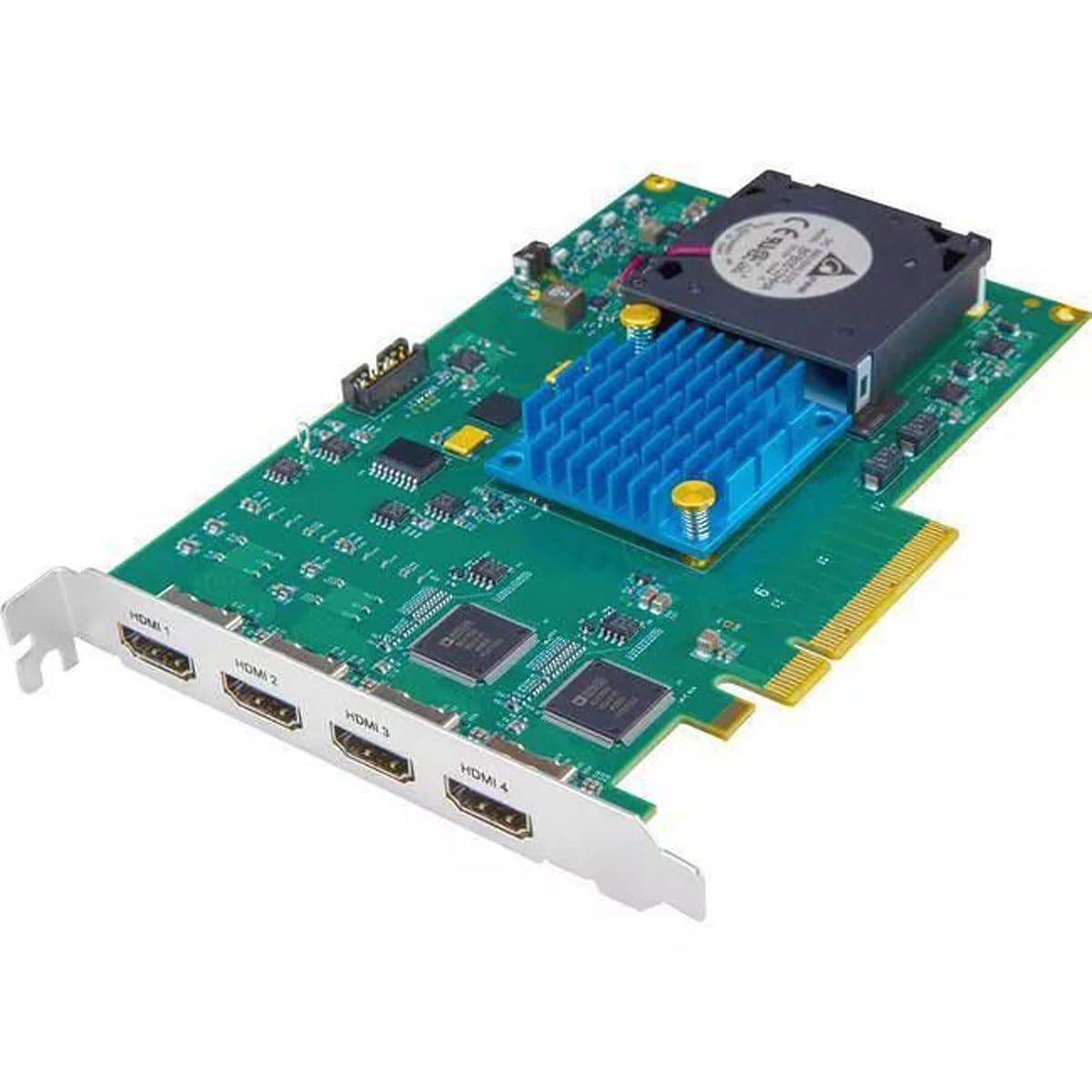
Figura 2.1: Aja KONA HDMI 4-Channel Capture Card. This image displays the overall structure of the PCIe card, including the cooling fan and heatsink, which are crucial for maintaining optimal operating temperatures during intensive video capture tasks.
3. Características principales
- 4K/UltraHD Capture: Supports high-resolution video capture for demanding professional applications.
- Multi-Channel HD: Capable of capturing multiple HD video streams simultaneously.
- Baja latencia: Designed for minimal delay between input and captured output, crucial for live production and monitoring.
- Fácil configuración: Streamlined installation process for quick integration into existing systems.
- Transmisión estable: Ensures consistent and reliable video stream delivery.
- Conectividad HDMI: Utilizes HDMI for versatile input compatibility with various cameras and video sources.
4. Requisitos del sistema
To ensure proper functionality of the KONA HDMI capture card, your system must meet the following minimum requirements:
- Sistema operativo: Mac OS X (specific version may vary, refer to Aja's official website for the latest compatibility).
- Hardware: Mac computer with an available compatible PCIe slot.
- Dispositivos compatibles: Cameras or other video sources with HDMI output.
5. Instrucciones de configuración
Follow these steps to install your Aja KONA HDMI capture card:
- Apagar y desconectar: Completely shut down your Mac computer and disconnect all power cables and peripherals.
- Caja de computadora abierta: Carefully open your computer's chassis to access the internal components. Refer to your computer's manual for specific instructions on opening the case.
- Localice la ranura PCIe: Identify an available PCIe slot compatible with the KONA HDMI card.
- Instalar la tarjeta: Gently insert the KONA HDMI card into the PCIe slot, ensuring it is seated firmly. Secure the card with the retaining bracket screw, if applicable.
- Cerrar caso y volver a conectar: Close the computer case and reconnect all power cables and peripherals.
- Instalar controladores: Power on your computer. Download and install the latest drivers and software from the official Aja websitioWww.aja.com/support). Follow the on-screen instructions for driver installation.
- Conecte fuentes HDMI: Connect your HDMI video sources to the HDMI input ports on the KONA HDMI card.

Figura 5.1: HDMI Input Ports. This image highlights the four distinct HDMI input ports (HDMI 1, HDMI 2, HDMI 3, HDMI 4) on the capture card, where external video sources are connected.
6. Instrucciones de funcionamiento
Once the KONA HDMI card is installed and drivers are in place, you can begin capturing video:
- Iniciar software de captura: Open your preferred video capture or editing software that supports Aja hardware (e.g., Adobe Premiere Pro, Final Cut Pro, OBS Studio).
- Select KONA HDMI: Within your software's settings, select the Aja KONA HDMI as your video input device.
- Configure Input Settings: Adjust resolution, frame rate, and audio settings to match your source material and desired output. The KONA HDMI supports various resolutions up to 4K/UltraHD.
- Start Capture: Initiate the capture process within your software. Monitor the input to ensure proper signal detection and quality.
- Multi-Channel/Dual-Channel Use: For multi-channel HD or dual-channel UltraHD capture, configure your software to utilize the multiple HDMI inputs as required. Refer to your software's documentation for specific multi-input setup procedures.
7. Mantenimiento
The Aja KONA HDMI card is designed for reliable operation with minimal maintenance. However, consider the following to ensure longevity:
- Mantenga los controladores actualizados: Regularly check the Aja website for the latest driver and firmware updates to ensure compatibility and optimal performance.
- Asegúrese de que haya una ventilación adecuada: Ensure your computer case has adequate airflow to prevent overheating, especially during prolonged capture sessions. The card's integrated fan and heatsink require clear space to function effectively.
- Limpieza: Periodically inspect the card for dust accumulation, particularly on the fan and heatsink. Use compressed air to gently clean dust from the components while the computer is powered off and disconnected.
8. Solución de problemas
If you encounter issues with your KONA HDMI card, refer to the following common problems and solutions:
- No se detectó señal:
- Verify that the HDMI cables are securely connected to both the source and the KONA HDMI card.
- Asegúrese de que la fuente de video esté encendida y emitiendo una señal.
- Check your capture software settings to confirm the KONA HDMI is selected as the input device and the correct input port is chosen.
- Confirm that the input resolution and frame rate from your source are supported by the KONA HDMI card.
- Poor Video Quality/Dropped Frames:
- Ensure your computer meets or exceeds the recommended system requirements, especially regarding CPU, RAM, and storage speed.
- Update your KONA HDMI drivers and firmware to the latest versions.
- Check for other applications consuming significant system resources.
- Verify the quality of your HDMI cables; try a different cable if necessary.
- Card Not Recognized by System:
- Ensure the card is properly seated in the PCIe slot. Power off, reseat the card, and power on again.
- Verify that the correct drivers for your operating system are installed.
- Check your computer's Device Manager (or System Information on Mac) to see if the card is listed.
For further assistance, please refer to the Aja support websitio o póngase en contacto con su soporte técnico.
9. Especificaciones
| Característica | Detalle |
|---|---|
| Marca | Aja |
| Nombre del modelo | KONA HDMI4R-R0 |
| Número de modelo | 4178729 |
| Interfaz de hardware | PCIe |
| Resolución de captura de video | Up to 4K/UltraHD, 1080p |
| Sistema operativo | Sistema operativo Mac X |
| Usos recomendados | Video Recording, Image Capture |
| Características especiales | 4K/UltraHD Capture, Low Latency, Easy Setup, Stable Streaming |
| Salida AV | HDMI (4 entradas) |
| Dispositivos compatibles | Camera, other HDMI video sources |
| Requisitos mínimos del sistema | Mac computer with a compatible PCIe slot |
| Dimensiones del artículo | 9 x 6 x 3 pulgadas |
| Código Postal | 812321031003 |
| GTIN | 812321031003 |
10. Garantía y soporte
Aja products are backed by a manufacturer's warranty. For detailed information regarding warranty coverage, terms, and conditions, please refer to the warranty card included with your product or visit the official Aja websitio.
For technical support, driver downloads, and additional resources, please visit the Aja support page: