
1. Introducción
The Xiaomi Mi Router 4A Gigabit Edition (Model: R4AC) is a high-performance dual-band wireless router designed for home and small office environments. It features Gigabit Ethernet ports and supports both 2.4GHz and 5GHz Wi-Fi bands, providing fast and stable internet connectivity for multiple devices. This manual provides detailed instructions for the proper setup, operation, and maintenance of your router.
2. Contenido del paquete
Antes de continuar con la configuración, verifique que todos los elementos estén presentes en su paquete:
- Xiaomi Mi Router 4A Gigabit Edition (Host)
- Adaptador de corriente
- Manual de usuario (este documento)

Image: Visual representation of the router, power cable, and instruction manual included in the package.
3. Producto terminadoview
The Xiaomi Mi Router 4A Gigabit Edition features a minimalist design with four external antennas for enhanced signal coverage. It includes multiple ports for wired connections and LED indicators for status monitoring.
Frente 3.1 View

Imagen: Frente view of the Xiaomi Mi Router 4A Gigabit Edition, showing its sleek white casing and four antennas.
3.2 en ángulo View con antenas

Imagen: En ángulo view of the Xiaomi Mi Router 4A, highlighting its four external antennas in an upright position.
3.3 Dimensiones
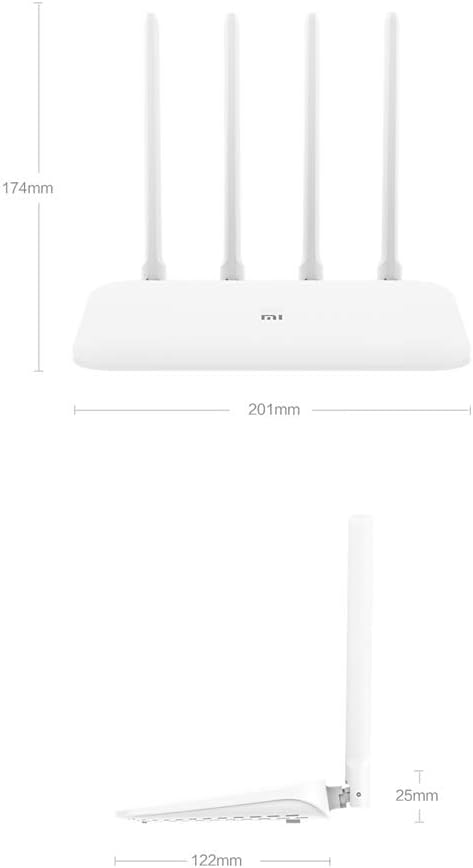
Image: Technical drawing displaying the dimensions of the Xiaomi Mi Router 4A, with measurements in millimeters.
3.4 Puertos e Indicadores
The router features:
- Puerto WAN: 1x 10/100/1000M adaptive port for connecting to your modem or internet service provider.
- Puertos LAN: 2x 10/100/1000M adaptive ports for connecting wired devices like computers or gaming consoles.
- Entrada de energía: Para conectar el adaptador de corriente.
- Botón de reinicio del sistema: Se utiliza para restaurar la configuración de fábrica.
- Indicadores LED: Two indicators for system status and network activity.
4. Configuración
4.1 Conexión de hardware
- Conecte el adaptador de corriente: Conecte el adaptador de corriente a la entrada de alimentación del enrutador y luego a una toma de corriente.
- Conectarse a Internet: Connect an Ethernet cable from your modem's LAN port to the router's WAN port.
- Conectar dispositivos cableados (opcional): For wired connections, connect Ethernet cables from your devices to the router's LAN ports.
4.2 Configuración inicial
Puede configurar el enrutador mediante un web browser or the Mi Wi-Fi mobile application.
- Conectarse al Wi-Fi del Router: On your computer or smartphone, connect to the default Wi-Fi network broadcast by the router. The network name (SSID) and password are usually found on a label on the bottom of the router.
- Access the Configuration Interface:
- Web Navegador: Abrir una web navegador e ingrese la dirección IP predeterminada (por ejemplo,
192.168.31.1ormiwifi.com) into the address bar. Follow the on-screen instructions to set up your internet connection and Wi-Fi network. - Mi Wi-Fi App: Download and install the Mi Wi-Fi app on your smartphone. Open the app and follow the prompts to detect and configure your new router.
- Web Navegador: Abrir una web navegador e ingrese la dirección IP predeterminada (por ejemplo,
- Set Up Wi-Fi Name and Password: During the initial setup, you will be prompted to create a new Wi-Fi network name (SSID) and a strong password for both the 2.4GHz and 5GHz bands. The router supports a unified Wi-Fi name for both frequencies, allowing devices to automatically switch to the optimal band.

Image: Diagram illustrating the unified Wi-Fi name feature, where both 2.4GHz and 5GHz bands share a single SSID for seamless connectivity.
5. Instrucciones de funcionamiento
5.1 Conexión de dispositivos
- Conexión Wi-Fi: On your wireless devices (smartphones, tablets, laptops), search for your Wi-Fi network name (SSID) and enter the password you set during configuration.
- Conexión Ethernet: For devices requiring a wired connection, plug an Ethernet cable from the device into one of the router's LAN ports.
5.2 Funciones de gestión de red
The router offers several features to manage and optimize your home network:
- Gestión de equipos: Control internet access times and accessible websitios para dispositivos específicos.
- Intelligent Speed Limit: Allocate bandwidth on demand to ensure a smooth online experience for critical applications.
- Optimización de Wi-Fi: Perform a one-click detection to improve network performance and resolve common Wi-Fi issues.
- Seguridad de la red: Active interception features help eliminate the risk of unauthorized access or network attacks.

Image: Icons representing various router features, including network management, speed measurement, bandwidth control, Wi-Fi optimization, and network security.
5.3 Capacidad del dispositivo
The Xiaomi Mi Router 4A Gigabit Edition is equipped with 128MB of DDR3 memory, supporting stable data transmission for up to 128 connected devices simultaneously. This makes it suitable for smart homes with numerous connected gadgets.

Image: Illustration showing the router's 128MB memory capacity, capable of supporting up to 128 connected devices, surrounded by various smart home devices.
6. Mantenimiento
6.1 actualizaciones de firmware
Verifique e instale periódicamente las actualizaciones de firmware para garantizar un rendimiento óptimo, seguridad y acceso a nuevas funciones. Las actualizaciones de firmware generalmente se pueden realizar a través del router. web interfaz o la aplicación Mi Wi-Fi.
6.2 Reinicio del enrutador
If you encounter persistent issues or wish to clear all configurations, you can perform a factory reset:
- With the router powered on, locate the System Reset Button (usually a small pinhole button).
- Use a paperclip or a similar pointed object to press and hold the reset button for approximately 5-10 seconds until the LED indicators change behavior.
- Suelte el botón. El router se reiniciará con la configuración predeterminada de fábrica. Deberá reconfigurarlo.
6.3 Consideraciones ambientales
To ensure the longevity and stable operation of your router, adhere to the following environmental guidelines:
- Temperatura de funcionamiento: 0 °C a 40 °C (32 °F a 104 °F)
- Humedad de funcionamiento: 10% a 90% HR (sin condensación)
- Temperatura de almacenamiento: -40 °C a 70 °C (-40 °F a 158 °F)
- Humedad de almacenamiento: 5% a 90% HR (sin condensación)
Evite colocar el enrutador bajo la luz solar directa, cerca de fuentes de calor o en áreas con alta humedad.
Image: Details on recommended operating and storage temperature and humidity ranges for the router.
7. Solución de problemas
This section addresses common issues you might encounter with your Xiaomi Mi Router 4A Gigabit Edition.
- Sin acceso a Internet:
- Compruebe si el cable del puerto WAN está conectado de forma segura a su módem.
- Verifique que su módem esté funcionando correctamente y tenga una conexión a Internet activa.
- Reinicie tanto el módem como el enrutador.
- Asegúrese de que la configuración de Internet del enrutador (por ejemplo, PPPoE, DHCP, IP estática) esté configurada correctamente según su ISP.
- Señal de Wi-Fi débil o inestable:
- Reubique el enrutador en una ubicación central, lejos de obstrucciones y fuentes de interferencia (por ejemplo, microondas, teléfonos inalámbricos).
- Ajuste las antenas del enrutador para obtener una dirección de señal óptima.
- Use the Wi-Fi Optimization feature in the router's interface or app.
- Ensure your devices are connecting to the appropriate 2.4GHz or 5GHz band.
- No se puede acceder a la página de configuración del enrutador:
- Asegúrese de que su dispositivo esté conectado a la red del enrutador (ya sea a través de Wi-Fi o Ethernet).
- Verifique que esté ingresando la dirección IP correcta (por ejemplo,
192.168.31.1) o dominio (miwifi.com). - Borre la memoria caché de su navegador o pruebe con un navegador diferente.
- Deshabilite temporalmente cualquier configuración de VPN o proxy en su dispositivo.
- Velocidad lenta de Internet:
- Verifique la velocidad de su proveedor de servicios de Internet.
- Ensure no other devices are consuming excessive bandwidth. Use the Intelligent Speed Limit feature if necessary.
- Perform a Wi-Fi Optimization scan.
- If using Wi-Fi, try connecting via Ethernet to determine if the issue is wireless-related.
8. Especificaciones
Detailed technical specifications for the Xiaomi Mi Router 4A Gigabit Edition:

Image: Table detailing the router's internal specifications, including processor, memory, Wi-Fi standards, and port configuration.
| Característica | Descripción |
|---|---|
| Número de modelo | R4AC |
| Procesador | MT7621A MPIS Dual Core 880MHz |
| memoria de sólo lectura | 16 MB |
| Product Memory (RAM) | 128MB DDR3 |
| 2.4G Wi-Fi | 2x2 (supports IEEE 802.11n protocol, up to 300Mbps) |
| 5G Wi-Fi | 2x2 (supports IEEE 802.11ac protocol, up to 867Mbps) |
| Antena de producto | 2x 2.4G (max gain 5dBi), 2x 5G (max gain 6dBi) |
| Interfaz de máquina | 1x 10/100/1000M adaptive WAN port (Auto MDI/MDIX), 2x 10/100/1000M adaptive LAN ports (Auto MDI/MDIX) |
| Indicador LED | 2 |
| Botón de reinicio del sistema | 1 |
| Interfaz de entrada de energía | 1 |
| Protocolo estándar | IEEE 802.11a/b/g/n/ac, IEEE 802.3/3u |
| Doble frecuencia | 2.4 GHz y 5 GHz |
| Canales inalámbricos (2.4 GHz) | 1, 2, 3, 4, 5, 6, 7, 8, 9, 10, 11, 12, 13 |
| Canales inalámbricos (5 GHz) | 36, 40, 44, 48, 149, 153, 157, 161, 165 |
| Sistema operativo | RouterOS (Custom Xiaomi firmware) |
| Color | Blanco |
| Dimensiones (L x An x Al) | 201mm x 122mm x 174mm (with antennas up) |
| Dispositivos compatibles | Computadora personal, computadora portátil, tableta, teléfono inteligente, consola de juegos |
| Uso recomendado | Hogar |
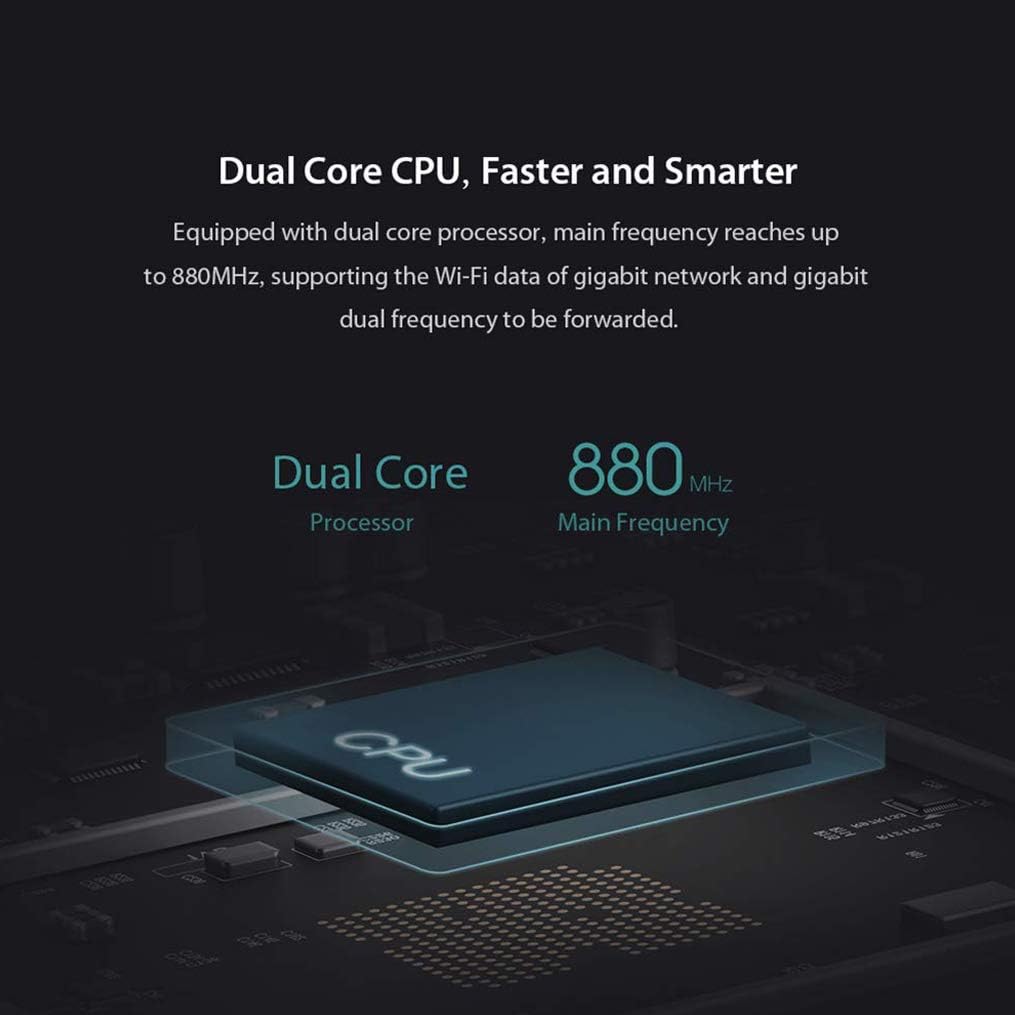
Image: Diagram illustrating the router's dual-core CPU with an 880MHz main frequency, emphasizing its processing capabilities.
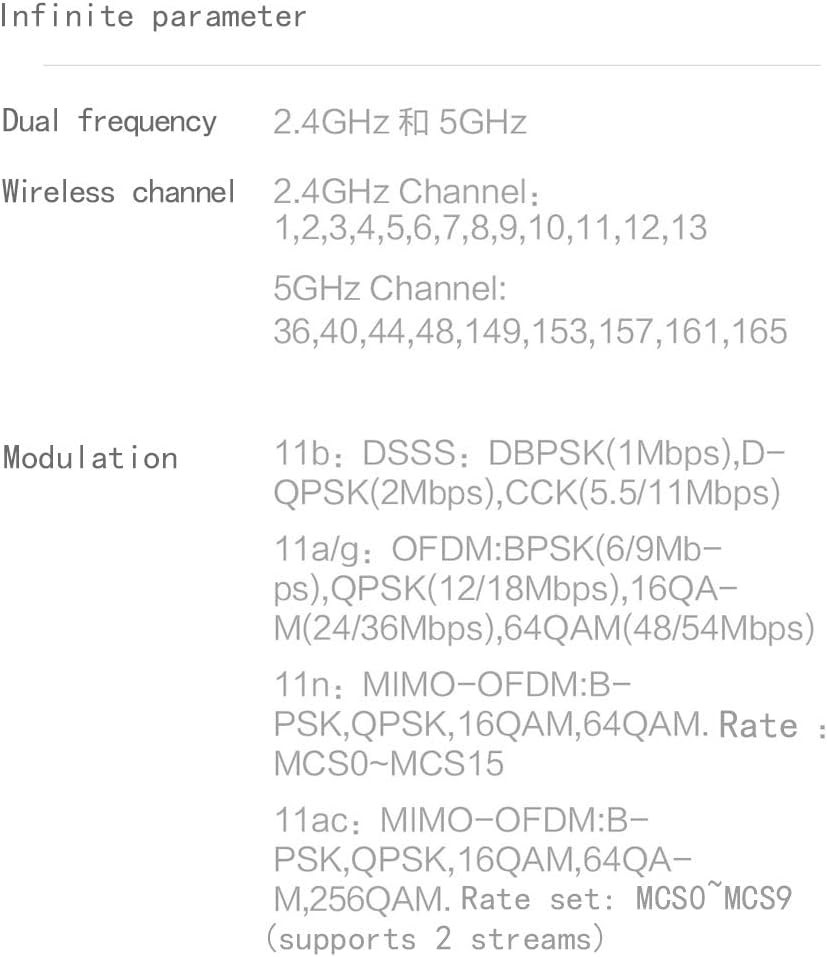
Image: Information on the specific wireless channels available for 2.4GHz and 5GHz bands, along with supported modulation types.
9. Garantía y soporte
Para obtener información sobre la garantía, consulte la tarjeta de garantía incluida con su producto o visite el sitio web oficial de Xiaomi. website for your region. Support resources, including FAQs and contact information, can also be found on the official Xiaomi support pages. Please retain your proof of purchase for warranty claims.