
Macally ACEBTKEY-US
Manual de instrucciones del teclado inalámbrico Bluetooth de Macally
Model: ACEBTKEY-US | Brand: Macally
Introducción
Thank you for choosing the Macally Wireless Bluetooth Keyboard. This multi-device keyboard is designed to enhance your productivity across various platforms, including Mac, iOS, Windows, and Android devices. Featuring 110 keys, 20 Mac OS shortcuts, and a numeric keypad, it offers a comfortable and efficient typing experience. Its ultra-slim design and rechargeable battery make it an ideal companion for both work and leisure.

Image: The Macally Wireless Bluetooth Keyboard, showcasing its full layout and sleek silver design.
Contenido del paquete
- Macally Wireless Bluetooth Keyboard
- Cable de carga
- Guía del usuario
Configuración
1. Carga del teclado
Before initial use, fully charge the keyboard using the included charging cable. Connect the cable to the keyboard's charging port and a USB power source. The LED indicator will show charging status.

Image: Illustration showing the keyboard connected to a charging cable, emphasizing its rechargeable nature.
2. Emparejamiento con dispositivos
The Macally Wireless Bluetooth Keyboard supports connecting up to three Bluetooth-enabled devices simultaneously. Follow these steps to pair your devices:
- Encienda el teclado con el interruptor de encendido.
- Press and hold one of the Bluetooth keys (BT1, BT2, or BT3) for a few seconds until the corresponding LED indicator starts blinking rapidly. This indicates pairing mode.
- On your device (computer, tablet, or smartphone), go to Bluetooth settings and search for available devices.
- Select "Macally Keyboard" (or similar name) from the list.
- If prompted, enter the pairing code displayed on your screen using the Macally keyboard and press Enter.
- Una vez emparejado, el indicador LED dejará de parpadear y permanecerá fijo durante unos segundos antes de apagarse.
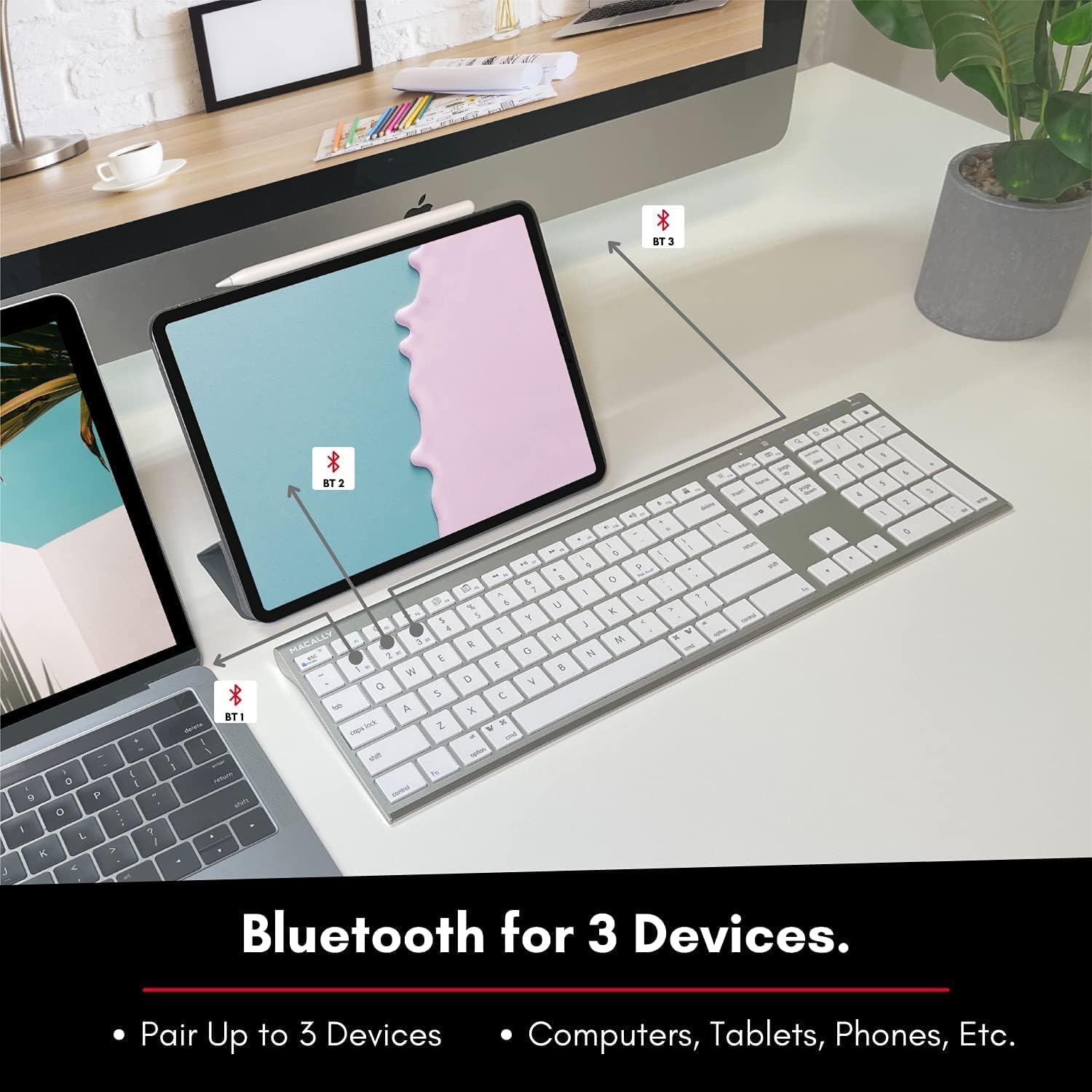
Image: The keyboard connected to a laptop and a tablet, illustrating its multi-device pairing capability.
Instrucciones de funcionamiento
Cambiar entre dispositivos
To switch between paired devices, simply press the corresponding Bluetooth key (BT1, BT2, or BT3) once. The keyboard will automatically connect to the selected device within a few seconds.

Image: Visual representation of the keyboard seamlessly switching between a smartphone, iMac, and laptop, highlighting the multi-sync feature.
Teclas de función y atajos
The keyboard features a full set of 110 keys, including a numeric keypad and 20 dedicated Mac OS shortcut keys. These shortcuts provide quick access to various functions such as brightness control, volume adjustment, media playback, and more. Refer to your device's operating system documentation for specific shortcut functionalities.
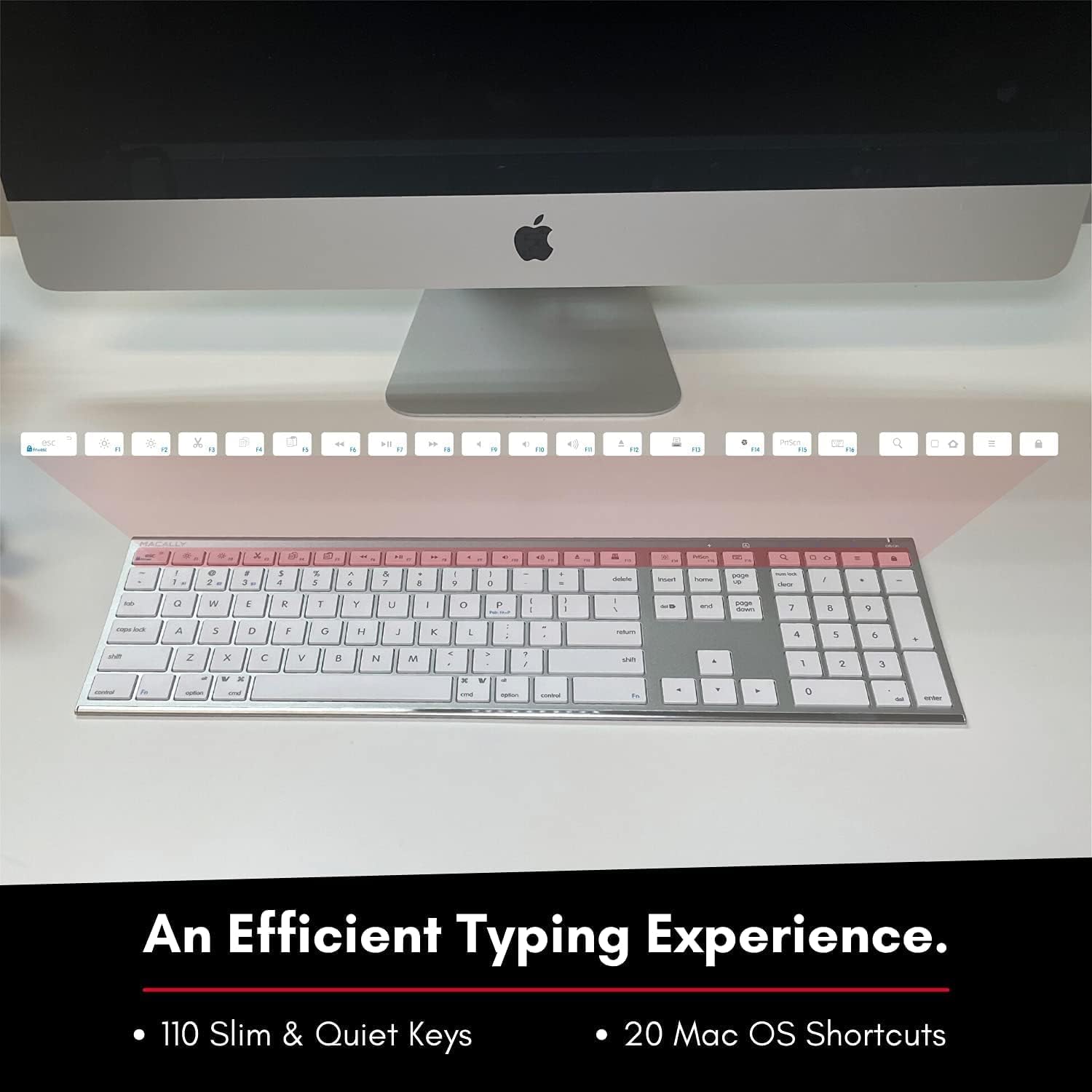
Image: Close-up of the keyboard's top row, highlighting the dedicated function and shortcut keys.
Compatibilidad
This keyboard is broadly compatible with a range of operating systems and devices, including:
- macOS
- Ventanas
- iOS (iPhone, iPad)
- Androide

Image: The keyboard positioned in front of an iMac, indicating its compatibility with Mac systems.
Mantenimiento
Para garantizar la longevidad y el rendimiento óptimo de su teclado inalámbrico Bluetooth Macally, siga estas pautas de mantenimiento:
- Limpieza: Use a soft, lint-free cloth to wipe the surface of the keyboard. For stubborn dirt, slightly dampEnjuague el paño con agua o una solución limpiadora suave. Evite la humedad excesiva.
- Cuidado de la batería: The keyboard features a built-in rechargeable battery. To maximize battery life, avoid fully discharging the battery frequently. Charge the keyboard when the low battery indicator appears.
- Almacenamiento: Cuando no lo use durante un tiempo prolongado, apague el teclado para conservar la batería. Guárdelo en un lugar fresco y seco, alejado de la luz solar directa y de temperaturas extremas.
- Evite derrames: Mantenga los líquidos alejados del teclado para evitar daños a los componentes internos.
Solución de problemas
Keyboard Not Responding or Typing Incorrectly
- Asegúrese de que el teclado esté cargado.
- Verify that the keyboard is powered on and the correct Bluetooth channel (BT1, BT2, or BT3) is selected for your device.
- Intente volver a emparejar el teclado con su dispositivo.
- Check if the Fn lock is active. On the top right, there should be a lock symbol with an FN in the lock. If there is a Blue LED light on the panel which is on the top right, then press and hold Fn y presione ESC to shut off the Fn lock.

Image: A troubleshooting tip for the Fn lock feature, showing the relevant keys.
Mouse Keys Issue (macOS)
- If your keyboard inputs are behaving like mouse movements, you may have "Mouse Keys" enabled.
- Go to System Preferences (or System Settings on newer macOS versions), then click on Accesibilidad. After that, scroll to Control de puntero y deshabilitar Habilitar las teclas del mouse.

Image: A troubleshooting tip for disabling Mouse Keys in system settings.
Problemas de conexión Bluetooth
- Asegúrese de que el Bluetooth de su dispositivo esté habilitado y sea detectable.
- Move the keyboard closer to your device to ensure a strong signal.
- Elimine cualquier fuente potencial de interferencia (por ejemplo, otros dispositivos inalámbricos, objetos metálicos grandes).
- Reinicie tanto el teclado como su dispositivo.
Presupuesto
| Marca | macally |
| Número de modelo | ACEBTKEY-US |
| Dimensiones del producto | 18.11 x 6.3 x 0.91 pulgadas |
| Peso del artículo | 14.9 onzas |
| Tecnología de conectividad | Bluetooth |
| Número de llaves | 110 |
| Dispositivos compatibles | MacOS, Windows, iOS, Android |
| Batería | 3 Lithium Polymer batteries (included, rechargeable) |
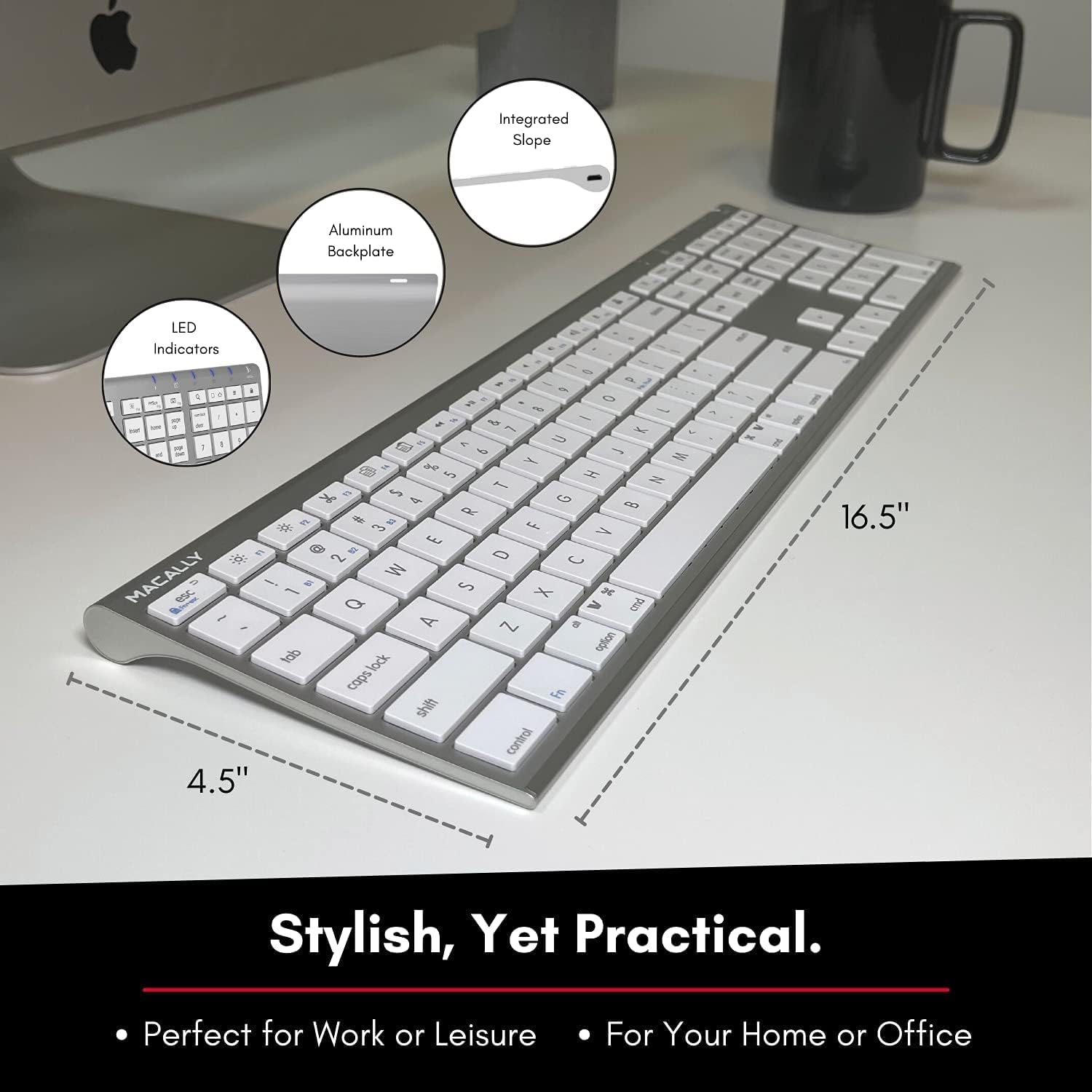
Image: Diagram illustrating the physical dimensions of the Macally Wireless Bluetooth Keyboard.
Garantía y soporte
Macally is committed to delivering high-quality, user-friendly workflow solutions. For any product inquiries, technical support, or warranty information, please visit the official Macally websitio o contacte con su servicio de atención al cliente. Puede encontrar más información y recursos de soporte en Tienda Macally en Amazon.
Ask a question about this manual
Ask about setup, troubleshooting, compatibility, parts, safety, or missing instructions. Manuals+ will review the question and use this page’s manual context to help answer it.