
Plugable UD-3900Z
Plugable USB 3.0 and USB-C Universal Laptop Docking Station
Model: UD-3900Z | Brand: Plugable
Introducción
This Plugable USB 3.0 and USB-C Universal Laptop Docking Station (Model UD-3900Z) is designed to expand the connectivity of your laptop, providing dual HD HDMI video outputs, wired Gigabit Ethernet, a 3.5mm combination audio jack, two USB 3.0 ports, and four USB 2.0 ports. It includes both USB 3.0 and USB-C cables for flexible host connectivity across various systems.
The docking station supports dual monitors with resolutions up to 1920x1200, including 1080p (1920x1080). It is compatible with Windows 11, 10, 8.x, and 7 systems, macOS 10.14+ (driver required), and ChromeOS 100+. Please note that this dock does not charge the connected computer and does not support HDCP, meaning it will not play back encrypted or copy-protected content.

Image: The Plugable UD-3900Z Universal Laptop Docking Station, showcasing its sleek black design and compact form factor, alongside its included USB-A and USB-C host cables.
Guía de configuración
Follow these steps to set up your Plugable UD-3900Z Docking Station:
- Desempaquetar el contenido: Carefully remove all items from the packaging. Verify that you have the docking station, power adapter, USB 3.0 cable, and USB-C cable.
- Conecte la electricidad: Connect the included power adapter to the "12V/2A" port on the back of the docking station and then plug it into a wall outlet.
- Conectarse a la computadora portátil anfitriona: Use either the provided USB 3.0 cable or USB-C cable to connect the docking station to your laptop's corresponding port.
- Install DisplayLink Driver (macOS and some Windows/ChromeOS systems):
For macOS, a DisplayLink driver must be manually installed for displays to function. For Windows and ChromeOS, drivers typically install automatically via Windows Update or are built-in. If not, manual installation may be required.
- Ir a plugable.com/displaylink.
- Choose the corresponding driver for your operating system.
- Descargue e instale el controlador.
- For macOS only: Navigate to Security & Privacy settings, allow the DisplayLink driver, and ensure "Screen recording permission" is enabled for DisplayLink Manager.
- Conectar periféricos: Connect your monitors to the HDMI ports, and other USB devices (keyboard, mouse, flash drives) to the available USB 3.0 and USB 2.0 ports. Connect an Ethernet cable for wired network access.

Image: Contents of the Plugable UD-3900Z package, including the docking station, power cable, USB-C cable, and USB 3.0 cable.
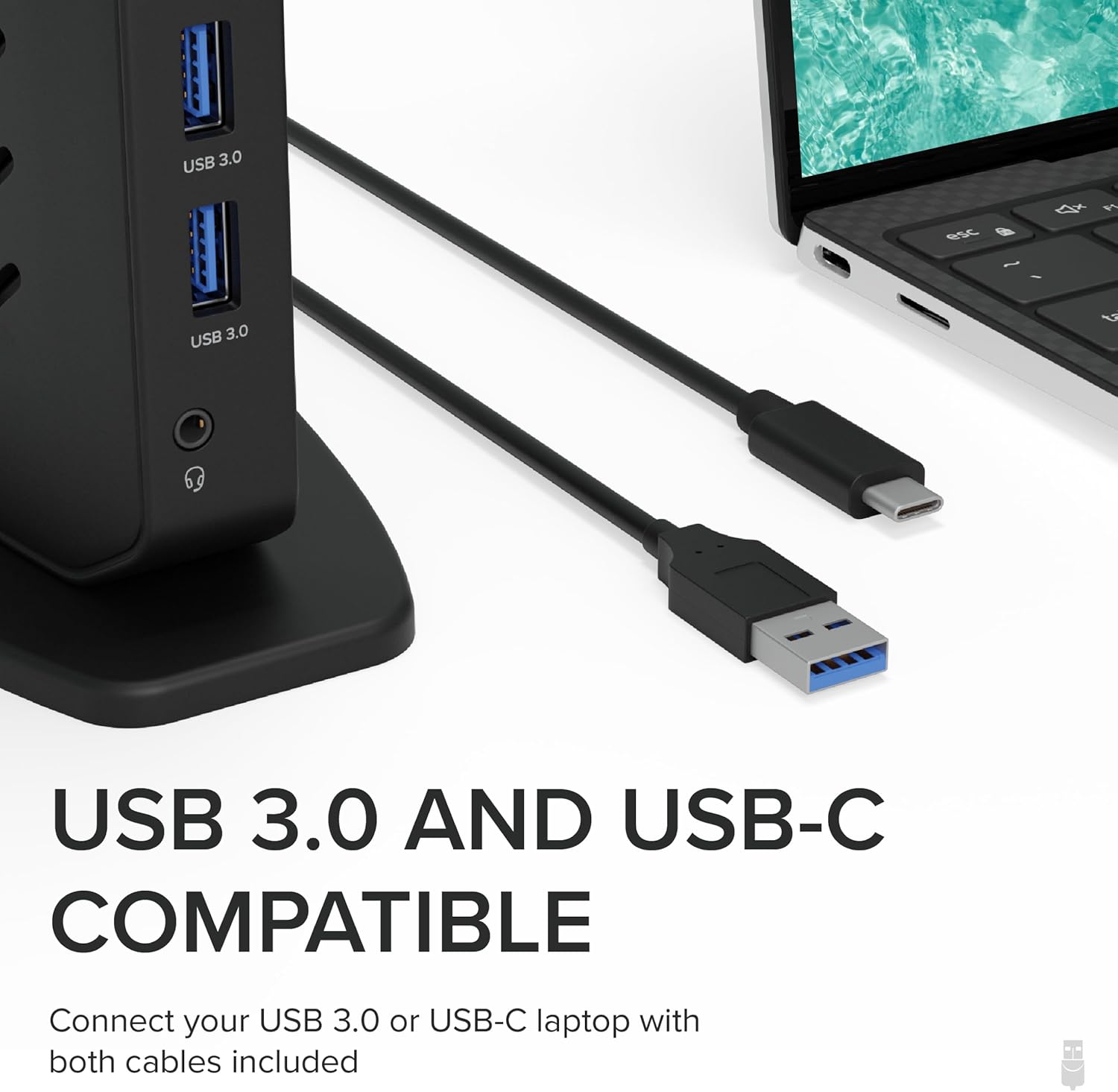
Image: Close-up of the USB 3.0 and USB-C host cables included with the docking station, highlighting their compatibility with various laptop ports.

Image: A visual guide detailing the four steps to download and install the DisplayLink driver, including specific macOS security settings.

Imagen: Detallada view of the Plugable UD-3900Z docking station's ports, including USB 2.0, Ethernet, HDMI 1, HDMI 2, USB 3.0 (host connection), power input, and front-facing USB 3.0 and audio ports.
Instrucciones de funcionamiento
Configuración de monitor doble
The docking station allows for easy connection of two external HDMI monitors. Once the DisplayLink driver is installed (if required), your operating system should automatically detect and configure the displays. You can then adjust display settings (resolution, orientation, extended/mirrored mode) through your computer's display settings.
- Connect your primary monitor to HDMI 1 and your secondary monitor to HDMI 2.
- Supported resolutions for dual monitors are up to 1920x1200.

Image: A diagram illustrating the various ports on the Plugable UD-3900Z, including 2x USB 3.0, 4x USB 2.0, Ethernet, 2x HDMI, Audio In/Out, and connections for host and power.
Conectividad USB
Utilize the six USB ports (two USB 3.0 on the front, four USB 2.0 on the back) to connect various peripherals such as keyboards, mice, external hard drives, and flash drives. The front USB 3.0 ports are easily accessible for frequently connected devices.
Network and Audio
- Gigabit Ethernet: Conecte un cable Ethernet al puerto RJ45 para obtener una conexión de red cableada estable y rápida.
- Conector de audio: The 3.5mm combination audio jack on the front supports both headphones and microphones.
Consideraciones importantes
- No cargar la computadora portátil: This docking station does not provide power delivery to charge your connected laptop. Your laptop's original power adapter must be used for charging.
- HDCP Not Supported: The docking station does not support HDCP (High-bandwidth Digital Content Protection), which means it cannot be used to play back encrypted or copy-protected content from sources like Blu-ray players or streaming services that require HDCP.
- Compatibilidad: The docking station is universally compatible with a wide range of operating systems and devices.

Image: A visual representation clarifying that the docking station does not charge the laptop, indicating that an external power supply is required for the host system.

Image: A chart detailing the compatibility of the docking station with various OS versions (macOS 11+, Windows 10+, ChromeOS 100+) and connection types (USB-A, Thunderbolt, USB-C, USB4), along with examples of compatible laptop models.
Mantenimiento
To ensure the longevity and optimal performance of your docking station, consider the following maintenance tips:
- Limpieza: Utilice un paño suave, seco y sin pelusa para limpiar el exterior de la estación de acoplamiento. Evite el uso de limpiadores abrasivos, disolventes o aerosoles.
- Ventilación: Ensure the docking station is placed in a well-ventilated area to prevent overheating. Do not block the ventilation slots.
- Almacenamiento: Cuando no utilice la estación de acoplamiento durante períodos prolongados, guarde la estación de acoplamiento en un lugar fresco y seco, alejado de la luz solar directa y de temperaturas extremas.
- Sistema de organización de cables: Avoid sharp bends or excessive tension on the cables connected to the docking station to prevent damage.
Solución de problemas
Si tiene problemas con su estación de acoplamiento, consulte los siguientes pasos de solución de problemas comunes:
- Sin salida de pantalla:
- Asegúrese de que la estación de acoplamiento esté encendida y que el adaptador de corriente esté conectado de forma segura.
- Verify that the host cable (USB 3.0 or USB-C) is firmly connected to both the docking station and your laptop.
- Check that the HDMI cables are securely connected to both the docking station and your monitors.
- For macOS users, confirm that the DisplayLink driver is installed and that "Screen recording permission" is enabled for DisplayLink Manager in Security & Privacy settings.
- Intente reiniciar su computadora portátil y la estación de acoplamiento.
- Dispositivos USB no reconocidos:
- Asegúrese de que el dispositivo USB esté insertado correctamente en el puerto USB de la estación de acoplamiento.
- Try connecting the USB device to a different USB port on the docking station or directly to your laptop to isolate the issue.
- Verify that the docking station is receiving power.
- Problemas de conectividad de red:
- Verifique la conexión del cable Ethernet entre la estación de acoplamiento y su enrutador/módem.
- Ensure your network drivers are up to date on your laptop.
- El audio no funciona:
- Verify that your headphones/speakers are correctly plugged into the 3.5mm audio jack.
- Verifique la configuración de sonido de su computadora para asegurarse de que esté seleccionado el dispositivo de salida de audio correcto (DisplayLink Audio).
Para una solución de problemas más detallada, consulte el sitio web oficial Guía de solución de problemas (PDF) provided by Plugable.
Presupuesto
| Característica | Detalle |
|---|---|
| Número de modelo | UD-3900Z |
| Marca | Enchufable |
| Dimensiones del producto | 5.31 x 2.76 x 7.48 pulgadas |
| Peso del artículo | 11.7 onzas (333 gramos) |
| Color | Negro |
| Interfaz de hardware | USB 3.1 Type A, USB 3.1 Type C, USB Docking Station, USB Type C |
| Puertos USB totales | 6 (2 USB 3.0, 4 USB 2.0) |
| Puertos HDMI totales | 2 |
| Resolución máxima | 1920x1200 (Dual Monitors) |
| Ethernet | Gigabit Ethernet |
| Audio | Conector de audio combinado de 3.5 mm |
| Entrada de potencia | 12 V/2 A (24 W) |
| Dispositivos compatibles | macOS (with DisplayLink driver installation) 10.14+, Windows 7/8/8.1/10/11, ChromeOS 100+ |
Garantía y soporte
Every Plugable product, including the UD-3900Z Docking Station, is covered by a Cobertura de 2 año contra defectos a partir de la fecha de compra.
Plugable also provides Soporte de por vida for its products. If you have any questions, require assistance with setup, or encounter any issues, you can contact their North American-based support team. For contact information and further details, please visit the official Plugable website or refer to the Quick Start Guide included with your product.
Ask a question about this manual
Ask about setup, troubleshooting, compatibility, parts, safety, or missing instructions. Manuals+ will review the question and use this page’s manual context to help answer it.