
1. Introducción
The Plugable USB-C Hub 7-in-1 is a versatile multiport adapter designed to expand the connectivity of your USB-C or Thunderbolt 3/4 enabled laptop, tablet, or smartphone. This compact and driverless hub provides essential ports for enhanced productivity and convenience.
It features a 4K HDMI display output, three USB 3.0 ports for high-speed data transfer, dedicated SD and microSD card readers, and a USB-C Power Delivery charging port, allowing you to charge your host device while using the hub.

Image: The Plugable USB-C 7-in-1 Hub showcasing its various connectivity options with connected peripherals.
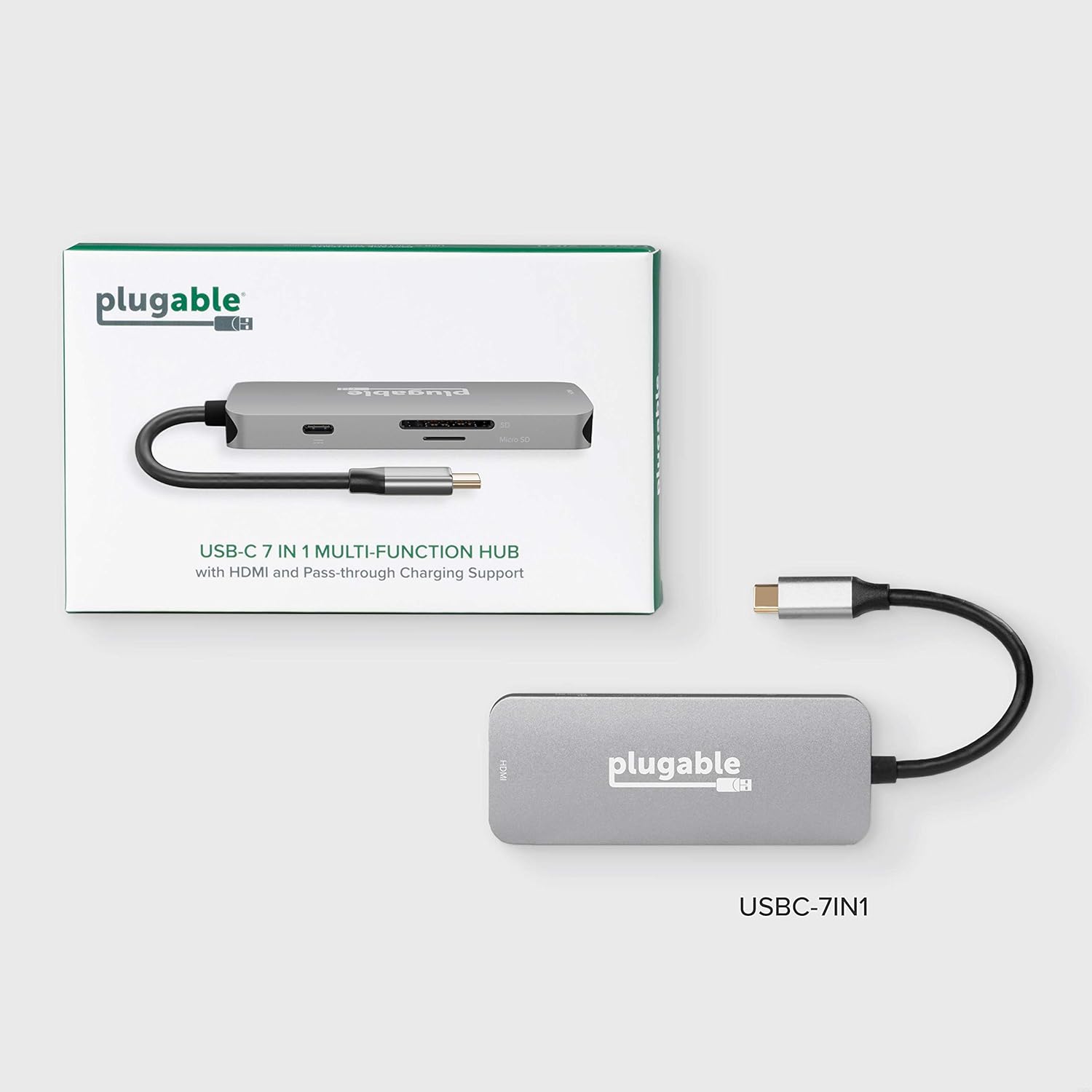
Image: The compact design of the Plugable USB-C Hub, highlighting its portability for on-the-go use.
2. Configuración y conexión
Follow these steps to set up your Plugable USB-C Hub:
- Conectarse al dispositivo host: Plug the integrated USB-C cable from the hub into an available USB-C or Thunderbolt 3/4 port on your laptop, tablet, or smartphone. The hub is driverless and should be recognized automatically by your operating system (Windows, macOS, ChromeOS, etc.).
- Conectar la alimentación (opcional): If your host device requires charging or if you are connecting power-intensive peripherals, connect your original USB-C power adapter to the USB-C Power Delivery (PD) port on the hub. The hub supports up to 100W pass-through charging.
- Conecte la pantalla HDMI: Connect an HDMI cable from your monitor or TV to the HDMI port on the hub. Ensure your display is set to the correct input source. The hub supports resolutions up to 4K at 30Hz. For 4K 60Hz, your host device must support DisplayPort 1.4.
- Conecte dispositivos USB: Plug your USB peripherals (e.g., mouse, keyboard, external hard drive, USB flash drives) into the three USB 3.0 ports on the hub. These ports offer data transfer speeds up to 5Gbps.
- Insertar tarjetas de memoria: Insert your SD or microSD cards into the corresponding slots on the hub for data access.

Image: A detailed diagram illustrating the various ports available on the Plugable USB-C 7-in-1 Hub.

Image: Illustration of the pass-through USB-C charging feature, allowing your laptop to charge while connected to the hub.
3. Instrucciones de funcionamiento
Once connected, the Plugable USB-C Hub operates seamlessly with your device. Here are key functionalities:
- Salida de pantalla HDMI: Use the HDMI port to extend or mirror your desktop to an external display. This is ideal for presentations, multitasking, or enjoying media on a larger screen. Ensure your display settings are configured correctly in your operating system.
- Transferencia de datos USB 3.0: The three USB 3.0 ports provide high-speed data transfer for external storage devices, ensuring quick file transfers. They are also suitable for connecting standard USB peripherals like keyboards, mice, and weblevas.
- SD and MicroSD Card Readers: Access photos, videos, and other files directly from your camera's memory cards. The hub supports simultaneous reading of both SD and microSD cards.
- La entrega de energía: The USB-C PD port allows your laptop to receive power through the hub, eliminating the need for a separate power connection to your laptop's dedicated charging port.
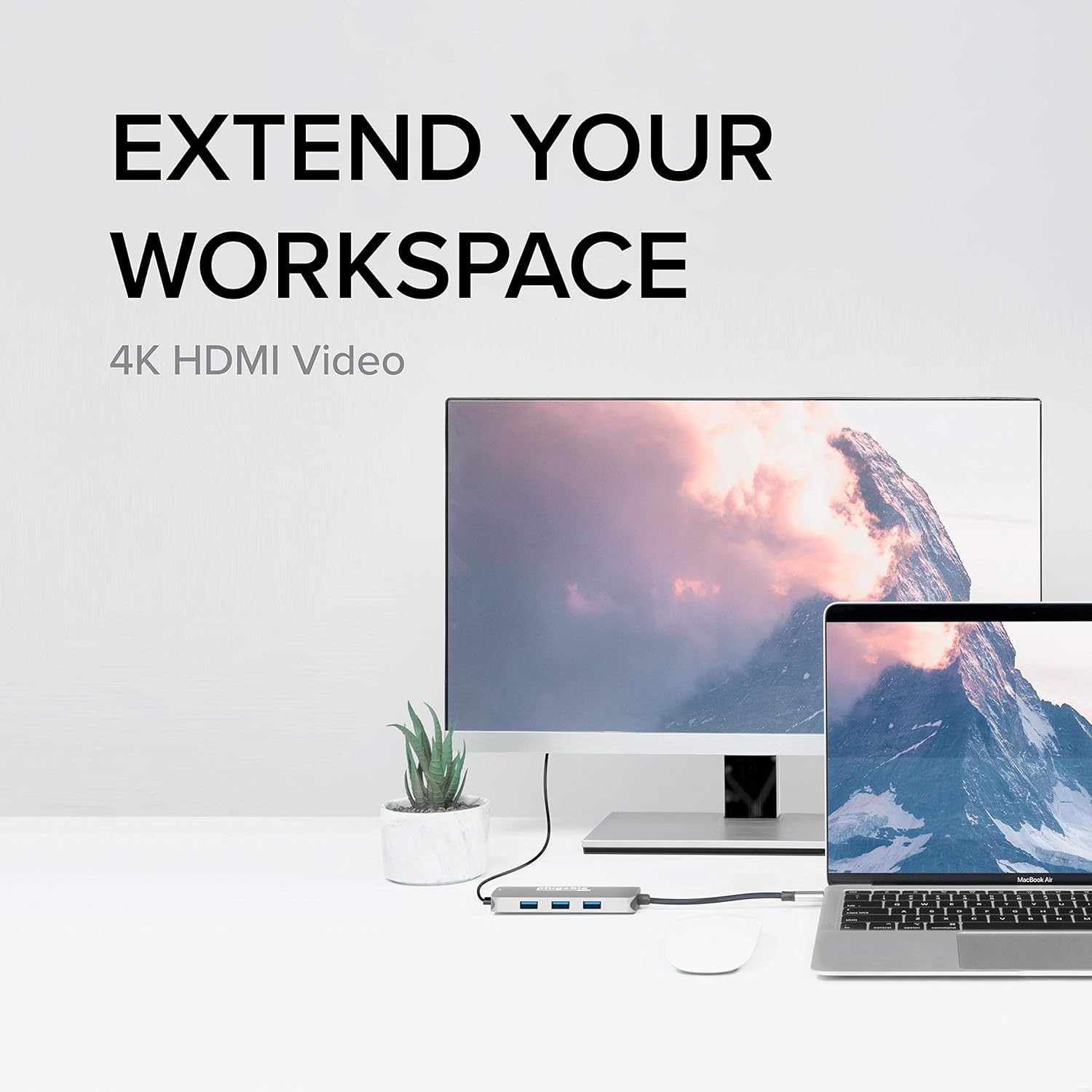
Image: The hub enabling an extended workspace by connecting a laptop to an external 4K HDMI monitor.
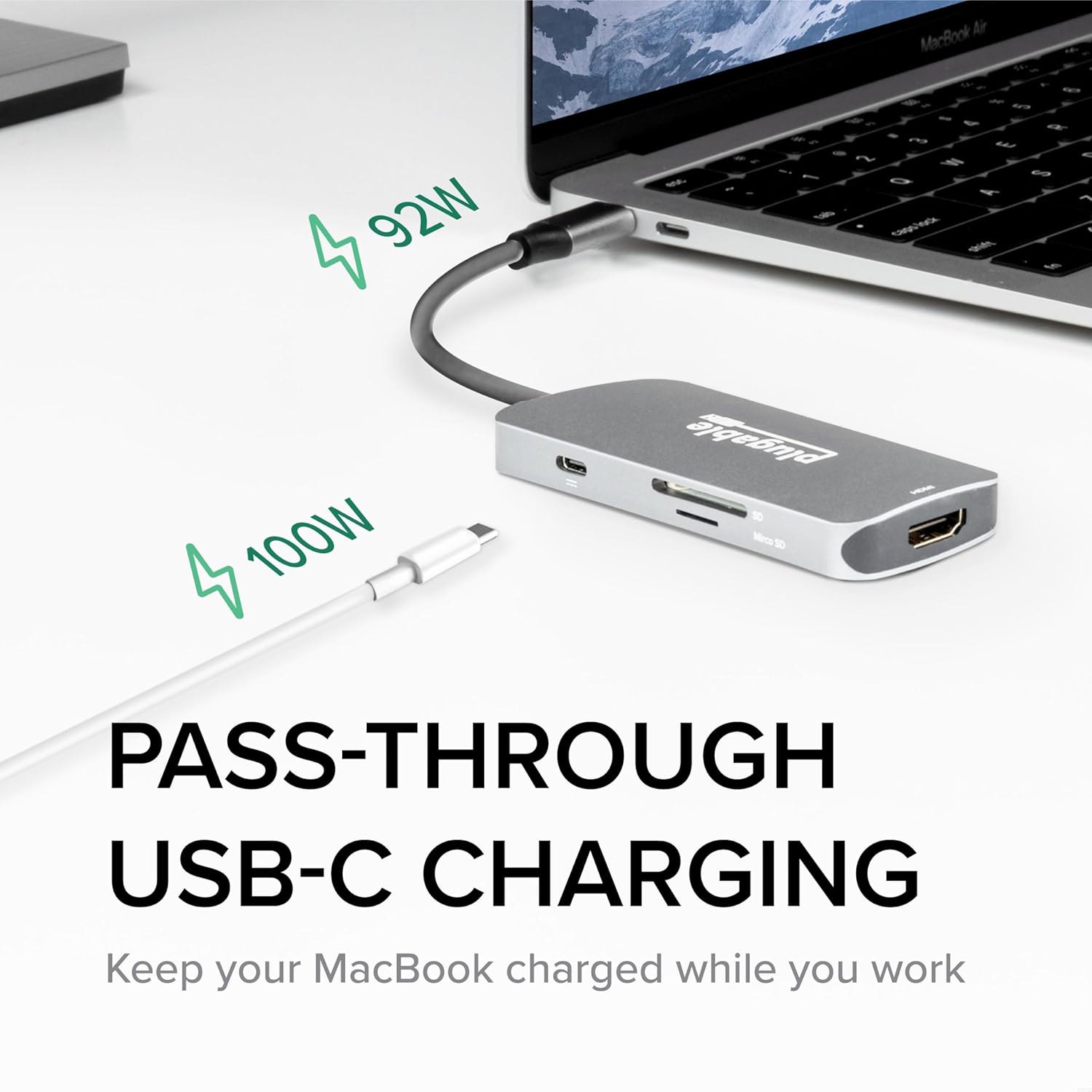
Image: The three USB 3.0 ports on the hub, capable of 5Gbps data transfer speeds, shown with USB drives connected.
4. Mantenimiento
To ensure the longevity and optimal performance of your Plugable USB-C Hub, follow these simple maintenance guidelines:
- Limpieza: Use a soft, dry, lint-free cloth to gently wipe the surface of the hub. Avoid using liquid cleaners, aerosols, or abrasive materials, as these can damage the device.
- Almacenamiento: Cuando no esté en uso, guarde el concentrador en un lugar fresco y seco, alejado de la luz solar directa y de temperaturas extremas.
- Manejo: Avoid dropping the hub or subjecting it to strong impacts. Do not bend or excessively pull the integrated USB-C cable.
- Ventilación: Ensure the hub has adequate ventilation, especially during prolonged use, to prevent overheating.
5. Solución de problemas
If you encounter issues with your Plugable USB-C Hub, refer to the following common troubleshooting tips:
- Sin salida de pantalla a través de HDMI:
- Asegúrese de que el cable HDMI esté conectado de forma segura tanto al concentrador como al monitor.
- Verify that your monitor is set to the correct HDMI input source.
- Check your computer's display settings to ensure the external display is detected and configured (e.g., extended, mirrored).
- If attempting 4K 60Hz, confirm your host device supports DisplayPort 1.4 over USB-C. The hub supports 4K 30Hz universally.
- Pruebe con un cable HDMI o monitor diferente para descartar problemas con componentes externos.
- Dispositivos USB no reconocidos:
- Asegúrese de que el dispositivo USB esté completamente insertado en el puerto del concentrador.
- Try connecting the USB device to a different port on the hub or directly to your computer to confirm functionality.
- For some older USB-A 2.0 devices, if connectivity is intermittent, try flipping the USB-A plug's orientation. This is a known characteristic of some USB-A/USB-C connections.
- If using power-intensive USB devices (e.g., external hard drives), ensure your host device is connected to power via the hub's PD port.
- Problemas de carga:
- Verify that your USB-C power adapter is connected to the hub's PD port and is functioning correctly.
- Asegúrese de que su adaptador de corriente proporcione suficiente agua.tage for your laptop and connected devices.
- Conectividad intermitente:
- Ensure the hub's integrated USB-C cable is firmly seated in your host device's port.
- Intente desconectar y volver a conectar el concentrador.
- Reinicie su dispositivo host.
If these steps do not resolve your issue, please refer to the "Warranty and Support" section for further assistance.
6. Especificaciones
| Característica | Detalle |
|---|---|
| Número de modelo | USBC-7IN1 |
| Dimensiones del producto | 6.3 x 3.94 x 0.71 pulgadas |
| Peso del artículo | 3.52 onzas |
| Salida HDMI | Up to 4K 30Hz (4K 60Hz with DisplayPort 1.4 host) |
| Puertos USB | 3 x USB 3.0 (transferencia de datos de 5 Gbps) |
| Lectores de tarjetas | SD and microSD |
| Suministro de energía USB-C | Up to 100W pass-through charging |
| Interfaz de hardware | USB tipo C |
| Dispositivos compatibles | USB-C Chromebooks, Thunderbolt 3/4 MacBooks (M1/M2/M3 and Intel-based), USB-C Microsoft Surface line, HP Spectre x360, Dell XPS, Lenovo Thinkpad T series, Huawei Matebook Pro, LG Gram, Samsung Galaxy TabPro S, iPhone 15 Pro/Plus/Max |
| Fabricante | Enchufable |
| País natal | Porcelana |
7. Garantía y soporte
Plugable stands behind the quality of its products. The Plugable USB-C Hub 7-in-1 is backed by a Garantía de 2 años.
For technical assistance, troubleshooting, or warranty claims, please contact Plugable's NA-Based Technical Support team. You can find contact information and additional resources on the official Plugable websitio:
Visit Plugable Support Websitio
Plugable is committed to providing excellent customer service and support, as evidenced by positive customer feedback regarding their responsiveness and willingness to assist with product issues.