
Introducción
Welcome to the Uniqcell UNI X Cell Phone user manual. This guide provides comprehensive instructions to help you set up, operate, maintain, and troubleshoot your new device. Please read this manual carefully to ensure proper use and to maximize your phone's performance and longevity.

Imagen: Anverso y reverso view of the Uniqcell UNI X Cell Phone, showcasing su diseño y exhibición.
1. Configuración
1.1 Desempaquetado del dispositivo
Al abrir el paquete, asegúrese de que todos los elementos estén presentes:
- Uniqcell UNI X Phone
- Guía del usuario
- Herramienta SIM
- Cargador
- Cable USB
1.2 Instalación de la tarjeta SIM
To install your Nano SIM card:
- Localice la bandeja de la tarjeta SIM en el costado del teléfono.
- Inserte la herramienta SIM provista en el pequeño orificio al lado de la bandeja para expulsarla.
- Coloque la(s) tarjeta(s) Nano SIM en la bandeja con los contactos dorados hacia abajo. Asegúrese de que la orientación sea correcta.
- Vuelva a insertar con cuidado la bandeja en el teléfono hasta que encaje en su lugar.
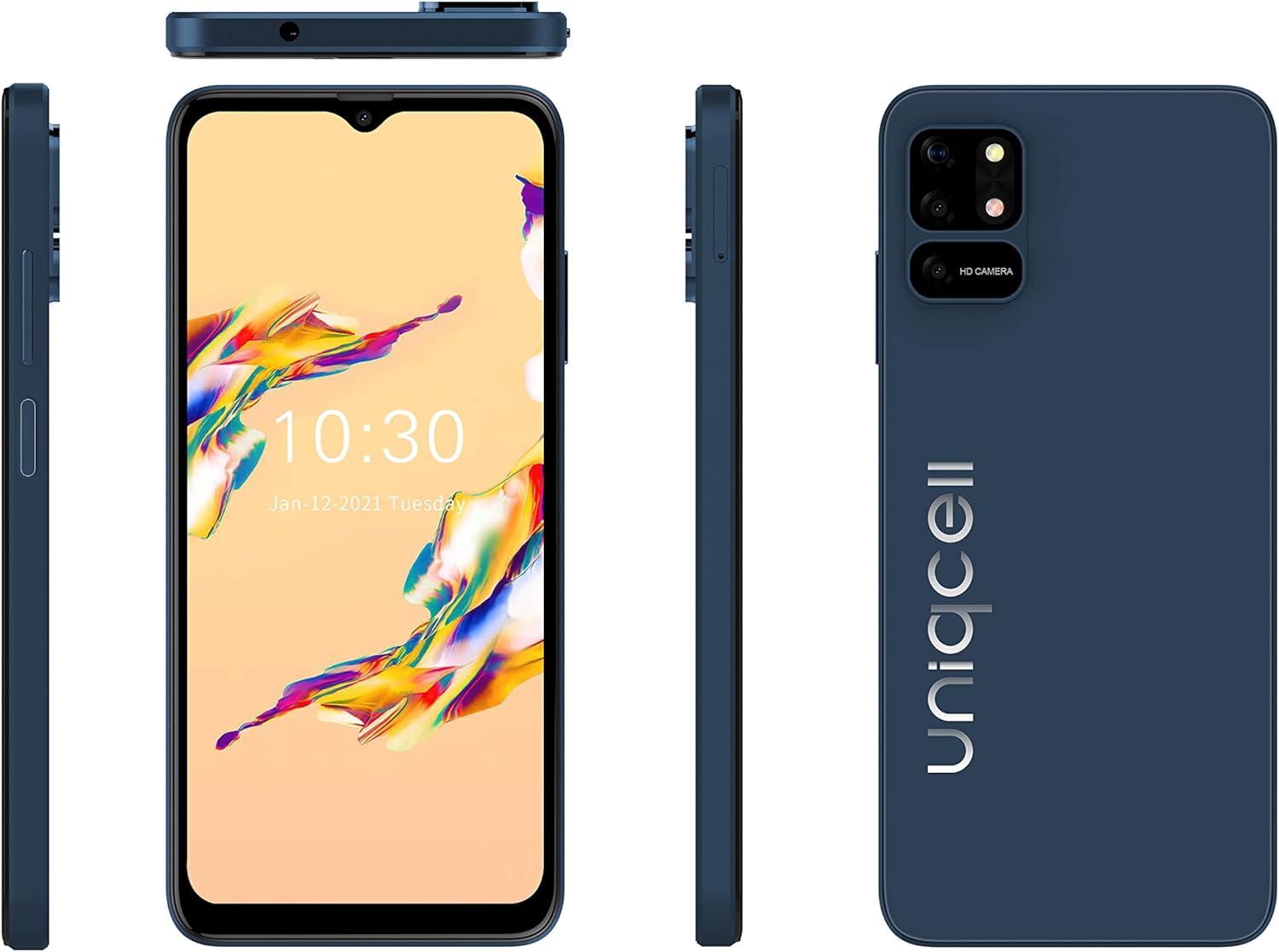
Imagen: Múltiple views of the Uniqcell UNI X, illustrating the phone's sides where the SIM tray is typically located.
1.3 Encendido y carga inicial
Before first use, it is recommended to fully charge your phone.
- Connect the USB cable to the charger and then to the phone's USB Type C port.
- Conecte el cargador a una toma de corriente.
- Once charged, press and hold the Power button (located on the side) for a few seconds until the Uniqcell logo appears to turn on the device.
- Siga las instrucciones en pantalla para completar la configuración inicial, incluida la selección de idioma, la conexión Wi-Fi y la configuración de la cuenta Google.
2. Operar su dispositivo
2.1 Navegación básica
The Uniqcell UNI X features an intuitive Android operating system with a responsive touchscreen interface.
- Pantalla táctil: Toque para seleccionar, deslice para desplazarse, pellizque para hacer zoom.
- Botón de encendido: Pulsa para activar/desactivar la pantalla. Mantén pulsado para apagar o reiniciar.
- Botones de volumen: Ajuste el volumen de los medios, el volumen de las llamadas y el volumen de las notificaciones.
2.2 Funciones de visualización
Your UNI X phone is equipped with a 6.517" HD+INCELL Waterdrop display, offering clear visuals for all your content.

Imagen: Frente view of the Uniqcell UNI X with its display active, alongside side profiles.
Sistema de cámara 2.3
The UNI X features a versatile camera system:
- Cámara trasera: 16MP AF + 5MP + 2MP for high-resolution photos and detailed shots.
- Cámara frontal: 8MP FF for clear selfies and video calls.
To use the camera, open the Camera app from your home screen or app drawer. Tap the shutter button to take a photo, or switch to video mode to record.

Imagen: Detallada view of the Uniqcell UNI X's rear camera module, highlighting the multiple lenses.
2.4 Desbloqueo por huella dactilar
The UNI X includes a side-mounted fingerprint sensor for secure and convenient unlocking.
- Ir a Configuración > Seguridad y privacidad > Huella digital.
- Siga las instrucciones en pantalla para registrar su huella digital.
- Once registered, simply place your finger on the sensor to unlock your phone.
2.5 Gestión de la batería
Your phone is equipped with a 4200mAh Lithium-Ion battery. To optimize battery life:
- Avoid using the phone for extended periods in high-temperature environments or while charging, as this can affect battery health.
- Adjust screen brightness, close unused apps, and enable battery saver mode when needed.
2.6 Conectividad
The UNI X supports 4G cellular technology and Wi-Fi for internet access. It is unlocked for all carriers.
- Wifi: Ir a Configuración > Red e Internet > Wi-Fi para conectarse a redes disponibles.
- Datos móviles: Asegúrese de que su tarjeta SIM esté activa y que los datos móviles estén habilitados. Ajustes > Red e Internet > Red móvil.
- Bluetooth: Para conectar accesorios inalámbricos, vaya a Configuración > Dispositivos conectados > Bluetooth.
3. Mantenimiento
3.1 Limpieza del dispositivo
Para mantener tu teléfono limpio y en buen estado:
- Utilice un paño suave que no suelte pelusa para limpiar la pantalla y el cuerpo.
- Evite utilizar productos químicos agresivos, limpiadores abrasivos o aerosoles.
- Asegúrese de que los puertos estén libres de polvo y residuos.
3.2 Actualizaciones de software
Regularly check for and install software updates to ensure your phone has the latest features, security patches, and performance improvements. Go to Configuración > Sistema > Actualización del sistema.
3.3 Gestión del almacenamiento
Your phone comes with 64GB of internal storage. To manage storage effectively:
- Eliminar periódicamente lo innecesario files, fotos y videos.
- Desinstala las aplicaciones que ya no utilizas.
- Consider using cloud storage services for backups.
4. Solución de problemas
If you encounter issues with your Uniqcell UNI X, try the following solutions:
4.1 Problemas comunes y soluciones
- El teléfono no enciende: Asegúrese de que la batería esté cargada. Conéctela al cargador durante al menos 15 minutos y luego intente encenderla de nuevo.
- La pantalla no responde: Restart the phone by holding the Power button until it reboots.
- Problemas de red (sin señal/datos): Check if your SIM card is properly inserted. Ensure mobile data is enabled in settings. Try restarting the phone.
- Las aplicaciones se bloquean: Limpiar el caché de la aplicación problemática (Configuración > Aplicaciones > [Nombre de la aplicación] > Almacenamiento y caché > Borrar caché). Si el problema persiste, intenta reinstalar la aplicación.
- La batería se agota rápidamente: Review uso de la batería en Configuración> Batería to identify power-hungry apps. Reduce screen brightness and disable unnecessary features like GPS or Bluetooth when not in use.
4.2 Restablecimiento de fábrica
Si los problemas persisten, un restablecimiento de fábrica puede resolverlos. Advertencia: Esto borrará todos los datos de tu teléfono. Haz una copia de seguridad de los datos importantes antes de continuar.
- Ir a Configuración > Sistema > Opciones de reinicio > Borrar todos los datos (restablecimiento de fábrica).
- Confirme su decisión e ingrese su PIN/contraseña si se le solicita.
- The phone will restart and restore to its original factory settings.
5. Especificaciones
Key technical specifications for the Uniqcell UNI X Cell Phone:
| Característica | Especificación |
|---|---|
| Marca | Uniqcell (Generic) |
| Nombre del modelo | UNIX |
| Sistema operativo | Androide |
| Procesador | 2.0 GHz de cuatro núcleos |
| RAM | 4 GB |
| Almacenamiento interno | 64 GB |
| Tamaño de pantalla | 6.517 inches HD+INCELL Waterdrop |
| Resolución de pantalla | 1280x720 |
| Cámara trasera | 16MP AF + 5MP + 2MP |
| Cámara frontal | 8MP de gran angular |
| Capacidad de la batería | Iones de litio de 4200 mAh |
| Seguridad biométrica | Reconocimiento de huellas dactilares laterales |
| Conectividad | 4G, Wi-Fi, Bluetooth, USB Type C |
| Tipo de tarjeta SIM | Nano SIM (Single SIM) |
| Color | Negro |

Image: Uniqcell UNI X phone displayed alongside a list of its core specifications.
6. Garantía y soporte
For warranty information and customer support, please refer to the warranty card included in your product packaging or visit the official Uniqcell webSitio. Conserve su recibo de compra como comprobante para reclamaciones de garantía.
If you require further assistance or have questions not covered in this manual, please contact Uniqcell customer service.