
SYSTEMTREFF 20192505-a
Manual del usuario de SYSTEMTREFF PC AMD Ryzen 7 5700G
Model: Ed2505 (20192505-a)
Introducción
This manual provides essential information for setting up, operating, maintaining, and troubleshooting your SYSTEMTREFF PC AMD Ryzen 7 5700G. Please read this manual thoroughly before using your new computer to ensure proper functionality and longevity.

Imagen: Frontal view of the SYSTEMTREFF PC, showcasing its transparent side panel and illuminated internal components.
Guía de configuración
Follow these steps to set up your SYSTEMTREFF PC.
1. Desempaquetado y colocación
- Carefully remove the PC from its packaging. Retain all packaging materials for future transport or service.
- Place the PC on a stable, flat surface with adequate ventilation. Ensure there is sufficient space around the computer for airflow, especially at the front, rear, and top vents.
- Avoid placing the PC near heat sources, in direct sunlight, or in areas with excessive dust or humidity.

Imagen: Varias views of the PC case illustrating its physical dimensions for proper placement.
2. Conexión de periféricos
Connect your monitor, keyboard, mouse, and other devices to the appropriate ports.
- Monitor: Connect your monitor to the HDMI or DVI-D port on the rear of the PC. Ensure the cable is securely fastened.
- Teclado y ratón: Connect your USB keyboard and mouse to any available USB ports (USB 2.0 or USB 3.0/3.2). PS/2 ports are also available for compatible devices.
- Audio: Connect speakers or headphones to the audio output jack (green) and a microphone to the microphone input jack (pink) on the rear or front panel.
- Red: For a wired connection, connect an Ethernet cable from your router to the RJ45 LAN port on the rear. For wireless connectivity, ensure the included USB Wi-Fi stick is connected.
- Fuerza: Conecte el cable de alimentación a la unidad de fuente de alimentación (PSU) en la parte posterior de la PC, luego conecte el otro extremo a una toma eléctrica con conexión a tierra.

Imagen: Detallada view of the available front and rear ports for connecting various peripherals.
Instrucciones de funcionamiento
1. Primer arranque y configuración inicial
- After connecting all peripherals, press the power button located on the top front of the PC.
- The system will boot into Windows 10 Pro. Follow the on-screen instructions to complete the initial Windows setup, including region, language, and user account creation.
- Drivers for all components are pre-installed, ensuring a plug-and-play experience.
2. Uso básico
- Encendido/apagado: Presione el botón de encendido para encender. Para apagar, haga clic en el botón Inicio en Windows y seleccione Inicio > Apagar.
- Reanudar: Para reiniciar el sistema, haga clic en el botón Inicio, luego seleccione Energía > Reiniciar.
- Modo de sueño: To put the system into sleep mode, click the Start button, then select Power > Sleep.
- Conectividad: The PC supports Wi-Fi and Bluetooth for wireless connections. Use the Windows settings to connect to wireless networks or pair Bluetooth devices.

Imagen: Examples of typical usage scenarios for the PC, including productivity, entertainment, and gaming.
Mantenimiento
Regular maintenance helps ensure the optimal performance and longevity of your PC.
1. Limpieza
- Exterior: Utilice un paño suave y seco.amp Paño para limpiar el exterior de la carcasa. Evite los limpiadores abrasivos.
- Polvo: Periodically clean dust from the vents and fans using compressed air. Ensure the PC is powered off and unplugged before cleaning. The case features a mesh front and side panel for improved airflow and dust filtration.

Image: Features of the PC case designed for efficient cooling and maintenance access.
2. Actualizaciones de software
- Compruebe e instale periódicamente las actualizaciones de Windows para garantizar la estabilidad y la seguridad del sistema.
- Keep your graphics drivers updated for optimal performance, especially for gaming and multimedia applications.
Solución de problemas
Esta sección aborda problemas comunes que podrías encontrar.
Sin poder
- Asegúrese de que el cable de alimentación esté conectado de forma segura tanto a la PC como a la toma de corriente eléctrica.
- Verify that the power switch on the back of the power supply unit (PSU) is in the 'On' position.
- Pruebe el tomacorriente con otro dispositivo para confirmar que funciona.
No hay pantalla en el monitor
- Check that the monitor is powered on and its video cable is securely connected to the PC's HDMI or DVI-D port.
- Ensure the monitor input source is correctly selected (e.g., HDMI 1, DVI).
- If you have multiple display outputs, try connecting to a different port.
Ralentización o congelamiento del sistema
- Cierre las aplicaciones innecesarias que se ejecutan en segundo plano.
- Check for sufficient free space on your drives, especially the C: drive (SSD).
- Ejecute un análisis de virus para comprobar si hay malware.
- Asegúrese de que el PC tenga ventilación adecuada y no se sobrecaliente.
Presupuesto
Detailed technical specifications of your SYSTEMTREFF PC.
| Componente | Especificación |
|---|---|
| Procesador | AMD Ryzen 7 5700G (8 Cores, up to 4.6 GHz Turbo) |
| Gráficos | Integrated AMD Radeon RX Vega 8 (4GB, 2000 MHz, DirectX 12.1) |
| RAM | 32 GB DDR4 3200 MHz |
| Almacenamiento | SSD M.1 NVMe de 2 TB + disco duro de 2 TB |
| Sistema operativo | Windows 10 Pro (64-bit, pre-installed) |
| Fuente de alimentación | 500 vatios |
| Conectividad | Wi-Fi, Bluetooth, Gigabit LAN (RJ45) |
| Puertos frontales | 1x USB 3.0, 2x USB 2.0, entrada/salida de audio |
| Puertos traseros | HDMI 4K HD, DVI-D, PS/2, 4x USB 3.2, 2x USB 2.0, HD 7.1 Sound, RJ45 LAN |
| Dimensiones (Alto x Ancho x Profundidad) | 45 x 20.5 x 38.5 cm |
| Peso | 12 kilogramos |

Image: Visual summary of the PC's core performance components.


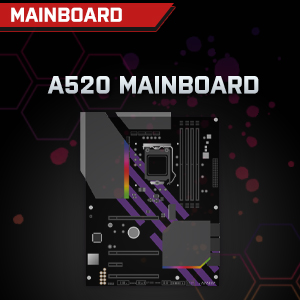

Image: Individual component representations for CPU, RAM, Graphics, Storage, Mainboard, and Power Supply.
Garantía y soporte
SYSTEMTREFF is committed to providing excellent customer service.
- Garantía del fabricante: Your SYSTEMTREFF PC comes with a 36-month (3-year) manufacturer's warranty. This warranty covers defects in materials and workmanship under normal use.
- Control de calidad: All individually assembled PCs undergo a quality control check before shipment.
- Devoluciones: In case of issues, SYSTEMTREFF offers free returns.
- Contactar con soporte: For technical assistance, warranty claims, or any other inquiries, please contact SYSTEMTREFF customer support. Contact details can typically be found on the manufacturer's official websitio o la documentación incluida con su compra.

Image: Information regarding warranty, ease of setup, and customer support availability.
Ask a question about this manual
Ask about setup, troubleshooting, compatibility, parts, safety, or missing instructions. Manuals+ will review the question and use this page’s manual context to help answer it.