
Introducción
This manual provides detailed instructions for the setup, operation, maintenance, and troubleshooting of your Macally BTWKEYMB-ES Extended Wireless Bluetooth Keyboard. Please read this manual thoroughly to ensure proper use and to maximize the performance of your device.
The Macally BTWKEYMB-ES is an elegant and ultra-thin (17 mm thick) wireless Bluetooth keyboard with a brushed metallic finish. It is specifically designed for Mac, iPad, iPhone, PC, and Android devices with Bluetooth capability. It features a stable and reliable radio connection, allowing for a clean, wireless workspace. This keyboard supports connection to up to three Bluetooth devices simultaneously, with direct switching via the Quick-Switch function. It includes 110 flat keys with a scissor-lift mechanism for sensitive and responsive typing, 21 function buttons for easy access to Mac functions, and a 17-key numeric keypad to boost productivity. The keyboard features a Spanish layout.

De arriba hacia abajo view of the Macally BTWKEYMB-ES keyboard, showcasing its full Spanish QWERTY layout with numeric keypad and function keys.
Configuración
1. Carga del teclado
Before first use, ensure the keyboard is fully charged. Connect the included USB charging cable to the keyboard's charging port and to a USB power source (e.g., computer USB port, USB wall adapter). The charging indicator light will show the charging status.
2. Emparejamiento Bluetooth
- Encienda el teclado utilizando el interruptor de encendido, generalmente ubicado en el costado o en la parte posterior.
- Press and hold one of the Bluetooth channel keys (e.g., B1, B2, B3) for a few seconds until the corresponding indicator light starts blinking rapidly. This indicates the keyboard is in pairing mode.
- On your device (Mac, PC, iPad, iPhone, Android), go to Bluetooth settings.
- Buscar available Bluetooth devices. The keyboard should appear as "Macally BTWKEYMB-ES" or similar.
- Select the keyboard from the list to initiate pairing. Follow any on-screen prompts, such as entering a code displayed on your screen.
- Once paired, the indicator light for that channel will stop blinking and remain solid, indicating a successful connection.
3. Quick-Switch Pairing (Multi-Device Connection)
The keyboard supports connecting up to three devices. To connect additional devices, repeat the Bluetooth pairing steps using a different Bluetooth channel key (B2 or B3). Once multiple devices are paired, you can switch between them instantly by simply pressing the corresponding Bluetooth channel key (B1, B2, or B3).

The Macally BTWKEYMB-ES keyboard in a workspace setting, connected wirelessly to a desktop monitor and a tablet, demonstrating its multi-device capability.
Instrucciones de funcionamiento
Teclas de función
The keyboard features 21 function keys (F1-F12 and additional media/system control keys) that provide quick access to various functions on your Mac or other compatible devices. These include brightness control, mission control, media playback, volume control, and more. For specific functions, refer to your device's operating system documentation.
Teclado numérico
The integrated 17-key numeric keypad allows for efficient data entry and calculations. Ensure Num Lock is enabled if necessary for your operating system.
Experiencia de mecanografía
The scissor-lift key mechanism provides a comfortable and responsive typing experience with a satisfying tactile feedback. The Spanish layout includes specific characters and key placements relevant to the Spanish language.
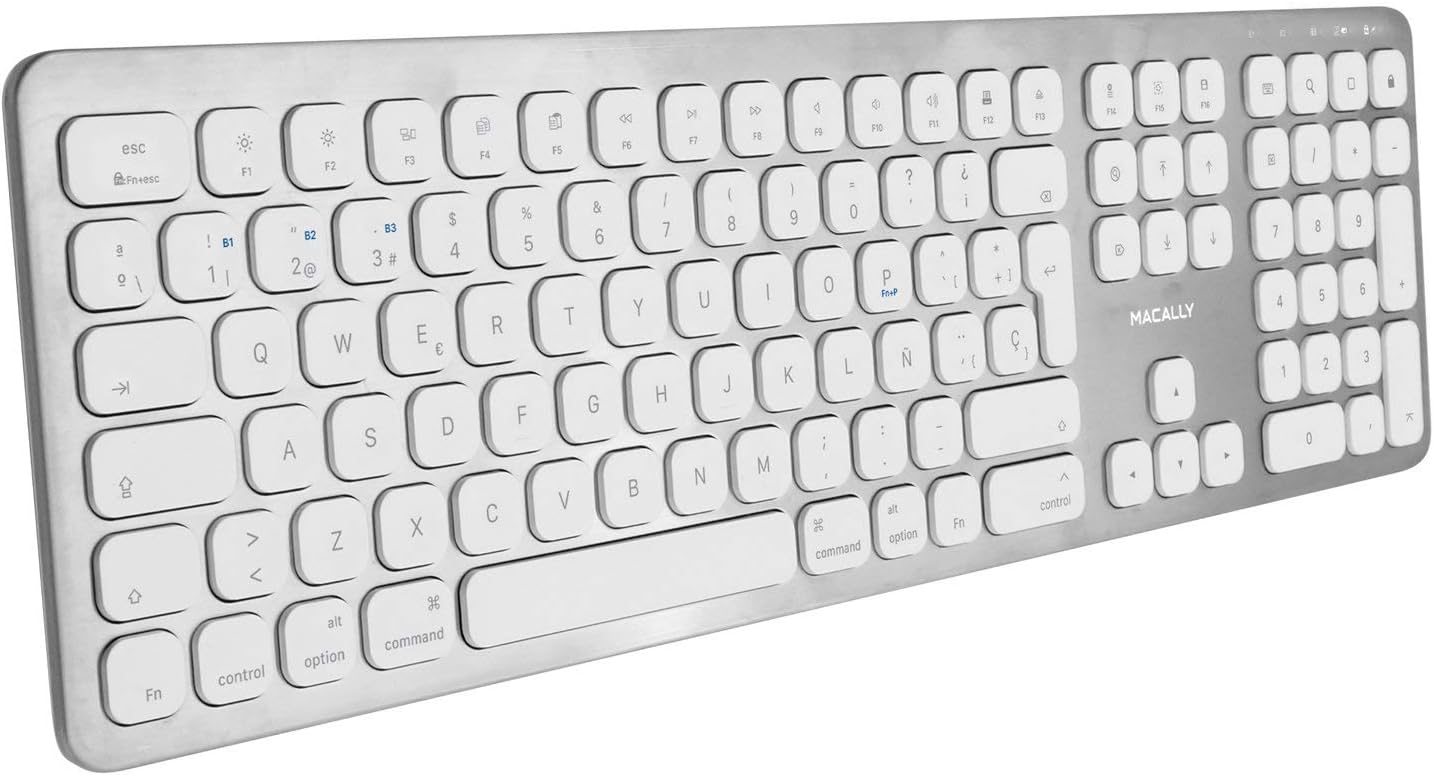
Overhead angled view of the Macally BTWKEYMB-ES keyboard, providing a clear look at all keys and the overall layout.
Mantenimiento
Limpieza
To clean the keyboard, first turn it off. Use a soft, lint-free cloth slightly dampened with water or a mild cleaning solution. Avoid using harsh chemicals, abrasive cleaners, or excessive moisture. Do not spray liquid directly onto the keyboard. For dust and debris between keys, use compressed air.
Almacenamiento
Cuando no lo use durante un período prolongado, guarde el teclado en un lugar fresco y seco, alejado de la luz solar directa y de temperaturas extremas. Asegúrese de que el teclado esté apagado para prolongar la vida útil de la batería.
Solución de problemas
El teclado no se conecta ni se empareja
- Asegúrese de que el teclado esté encendido y completamente cargado.
- Asegúrese de que Bluetooth esté habilitado en su dispositivo.
- Acerque el teclado a su dispositivo para asegurarse de que esté dentro del alcance de Bluetooth.
- Intente desvincular el teclado de la configuración de Bluetooth de su dispositivo y luego volver a vincularlo.
- Reinicie tanto el teclado (apague y encienda) como su dispositivo.
- Asegúrese de que ningún otro dispositivo Bluetooth esté causando interferencias.
Las teclas no responden
- Compruebe si el teclado está conectado correctamente a través de Bluetooth.
- Ensure the battery is not critically low. Charge the keyboard if needed.
- Limpie el teclado para eliminar cualquier residuo que pueda estar obstruyendo las teclas.
- Test the keyboard with another device to determine if the issue is with the keyboard or the original device.
Entrada retrasada o retardada
- Reduce la distancia entre el teclado y tu dispositivo.
- Minimiza la interferencia de otros dispositivos inalámbricos (enrutadores Wi-Fi, otros dispositivos Bluetooth).
- Asegúrese de que el sistema operativo de su dispositivo y los controladores de Bluetooth estén actualizados.
Presupuesto
| Número de modelo | BTWKEYMB-ES |
| Tecnología de conectividad | Bluetooth |
| Característica especial | Recargable |
| Dispositivos compatibles | PC, teléfono inteligente, tableta |
| Número de llaves | 110 |
| Disposición del teclado | QWERTY (español) |
| Number of Buttons (Function) | 21 |
| Fabricante | macally |
Información de garantía
Specific warranty details for the Macally BTWKEYMB-ES keyboard are typically provided with the product packaging or on the manufacturer's official webSitio. Consulte estas fuentes para conocer los términos y condiciones completos de la garantía.
Apoyo
For technical support, frequently asked questions, or additional assistance, please visit the official Macally support website. Contact information for customer service may also be found on the product packaging or the manufacturer's websitio.