
Introducción
This manual provides comprehensive instructions for the beyerdynamic FOX Professional USB Studio Microphone and its accompanying Microphone Suspension Boom Scissor Arm. It covers essential information regarding product setup, operation, maintenance, and troubleshooting to ensure optimal performance and longevity of your equipment. Please read this manual thoroughly before using the product.
Información de seguridad
Please observe the following safety instructions to prevent damage to the device, injury to yourself, or damage to other property:
- Do not expose the microphone to moisture, rain, or extreme temperatures.
- Evite dejar caer el micrófono o someterlo a impactos fuertes.
- No intente desmontar ni modificar el micrófono. Encargue cualquier reparación a personal cualificado.
- Keep the microphone and boom arm away from strong magnetic fields.
- Asegúrese de que el brazo de la pluma esté bien sujeto.amped to a stable surface to prevent accidental falls.
- Use only the specified power source (USB connection) for the microphone.
Contenido del paquete
Verifique que todos los artículos que se enumeran a continuación estén presentes en su paquete:
- beyerdynamic FOX Professional USB Studio Microphone
- Microphone Suspension Boom Scissor Arm with 3/8-Inch-16 Threading (Black)
- Cable USB
- Desk Stand (for microphone)
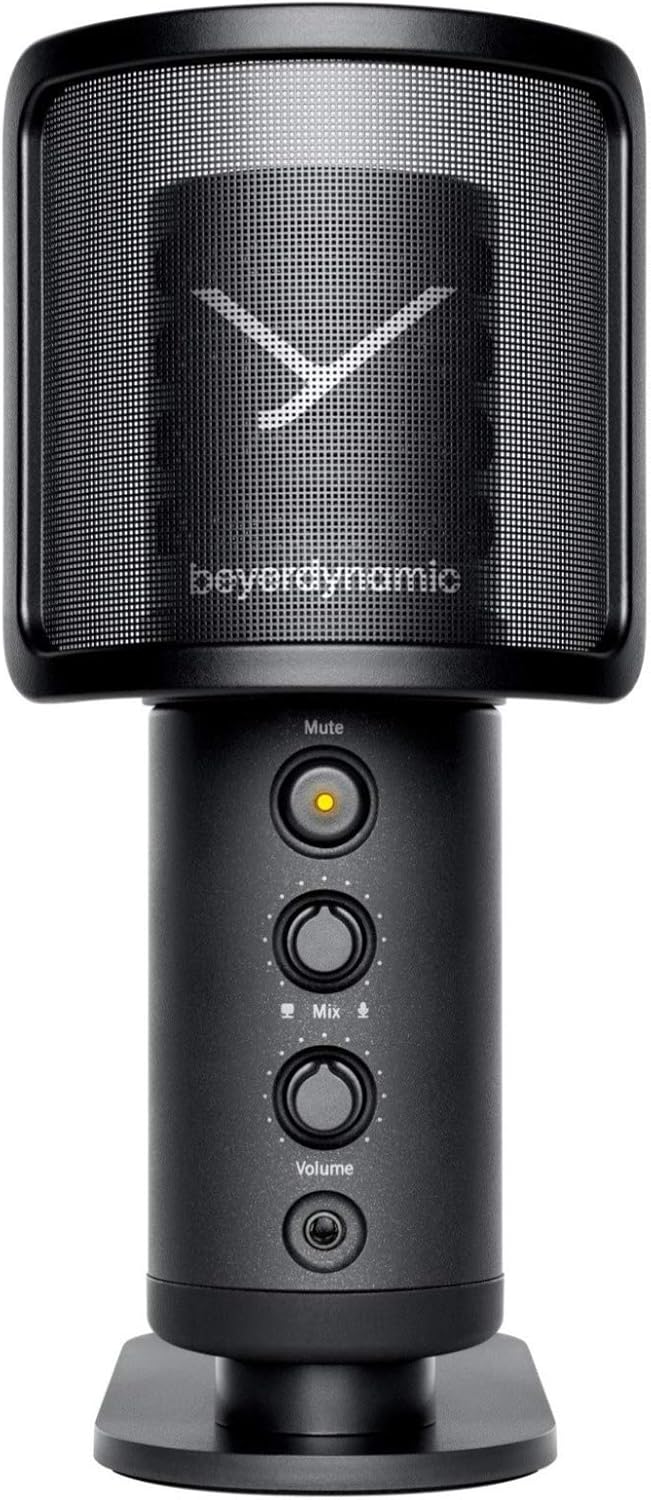
Image: The beyerdynamic FOX USB Studio Microphone and the included boom arm, showcasing el paquete completo.
Producto terminadoview
Características principales:
- Audio de alta resolución: 24-bit / 96 kHz studio-grade quality for professional recordings.
- Large Condenser Capsule: Ensures accurate signal conversion and low inherent noise.
- Patrón polar cardioide: Focuses on sound directly in front of the microphone, reducing unwanted background noise.
- Monitoreo de latencia cero: Integrated headphone output allows real-time monitoring of your audio.
- Botón de silencio: Instantly mutes the microphone for privacy or to prevent unwanted sounds from being recorded.
- Interruptor de ganancia: Adjustable gain for recording various sound sources, including loud instruments.
- Conectividad USB: Simple plug-and-play connection to PC, Mac, or compatible smartphones/tablets.
Componentes del micrófono:
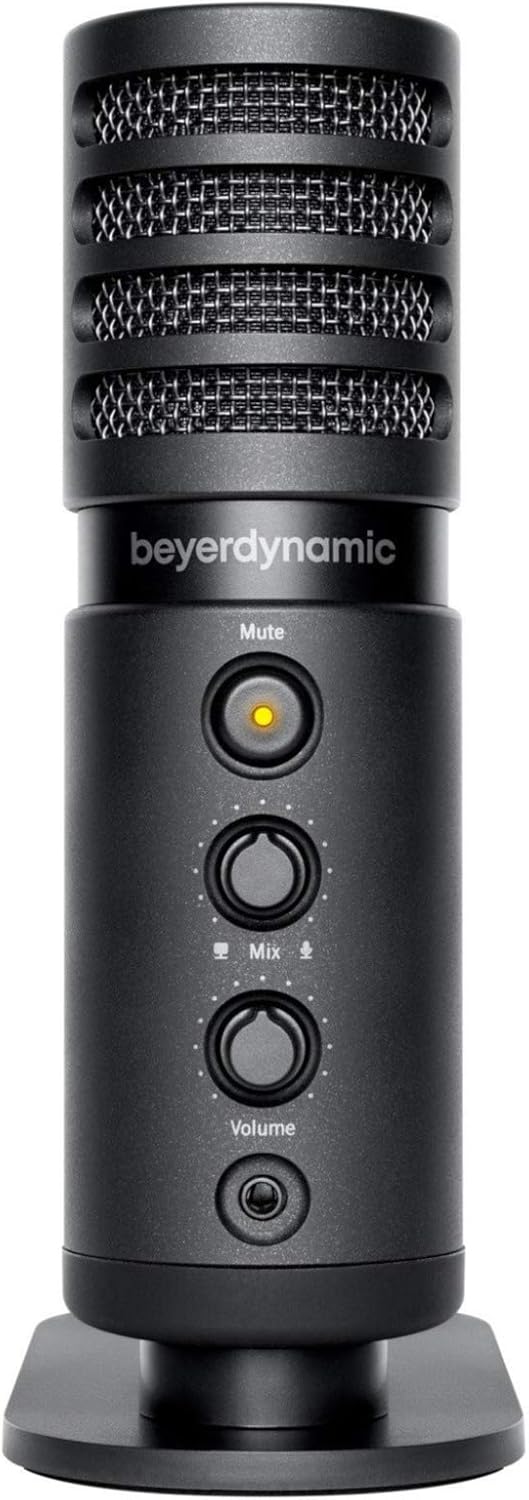
Imagen: Frente view of the beyerdynamic FOX microphone, highlighting the mute button, mix control, and volume knob.
- Rejilla del micrófono: Protects the condenser capsule.
- Botón de silencio: Press to mute/unmute the microphone. An indicator light will show status.
- Control de mezcla: Adjusts the balance between microphone input and computer playback in your headphones.
- Perilla de volumen: Controls the headphone output volume.
- Toma de auriculares (3.5 mm): Para conectar auriculares de monitorización.
- Puerto USB-C: For connecting the microphone to your computer or mobile device.
- Montaje roscado: For attaching to the desk stand or boom arm.
Configuración
1. Assembling the Boom Arm:
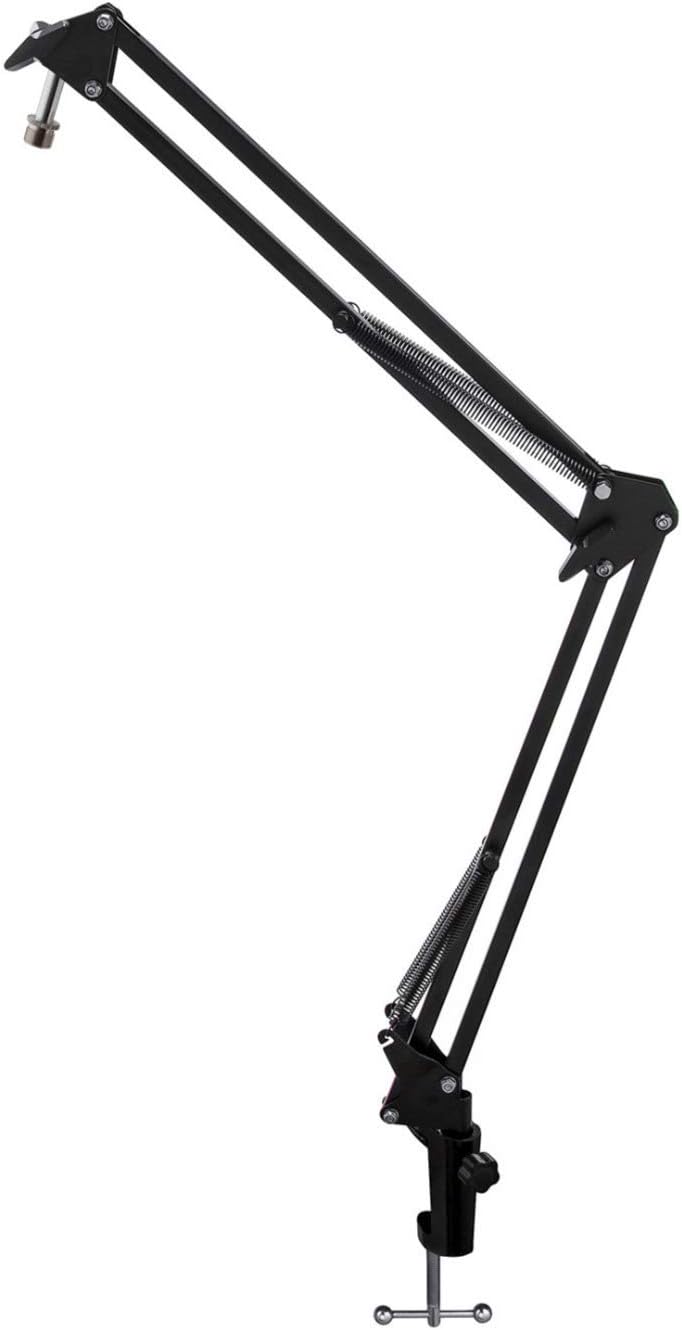
Image: The Microphone Suspension Boom Scissor Arm, showing its adjustable joints and desk clamp.
- Adjuntar organizador de escritorioamp: Fije firmemente el soporte del escritorio.amp to the edge of a sturdy desk or table. Ensure it is tight to prevent movement.
- Insertar brazo de la pluma: Inserte la base del brazo de la pluma en el orificio del soporte del escritorio.amp. Apriete el tornillo de bloqueo en el clamp para mantener el brazo en su lugar.
- Ajustar posición: Adjust the boom arm to your desired height and reach. The springs will help balance the microphone's weight.
2. Conexión del micrófono:
- To Boom Arm: Screw the beyerdynamic FOX microphone onto the 3/8-inch-16 threaded mount at the end of the boom arm. Ensure it is finger-tight.
- Using Desk Stand (Optional): If not using the boom arm, screw the microphone onto its included desk stand.
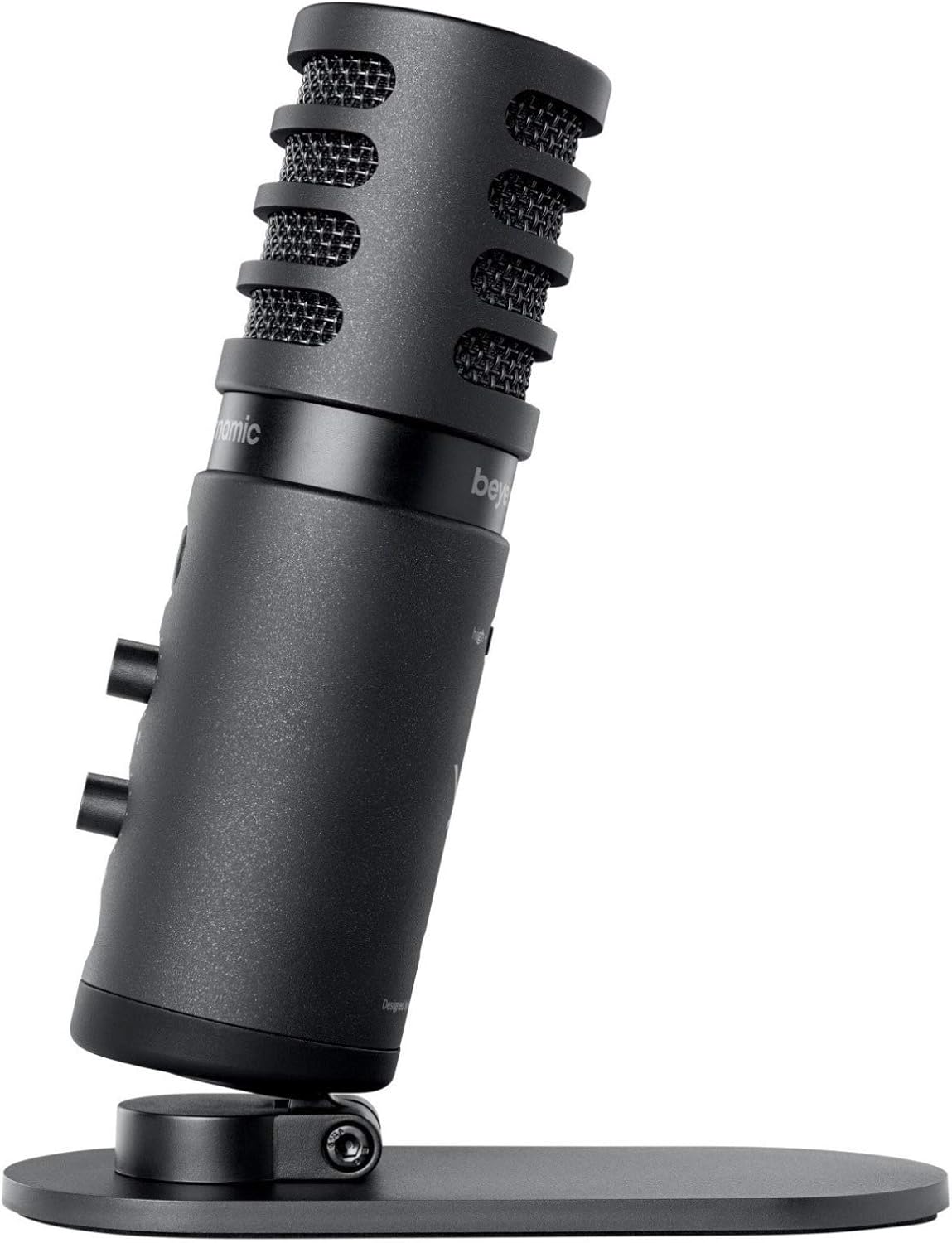
Image: The beyerdynamic FOX microphone mounted on its compact desk stand, ready for use.
3. Conexión a su dispositivo:
- Connect the supplied USB cable to the USB-C port on the microphone.
- Connect the other end of the USB cable to an available USB port on your computer (PC/Mac) or compatible smartphone/tablet (adapter may be required for some mobile devices).
- El micrófono es plug-and-play y su sistema operativo debería reconocerlo automáticamente.
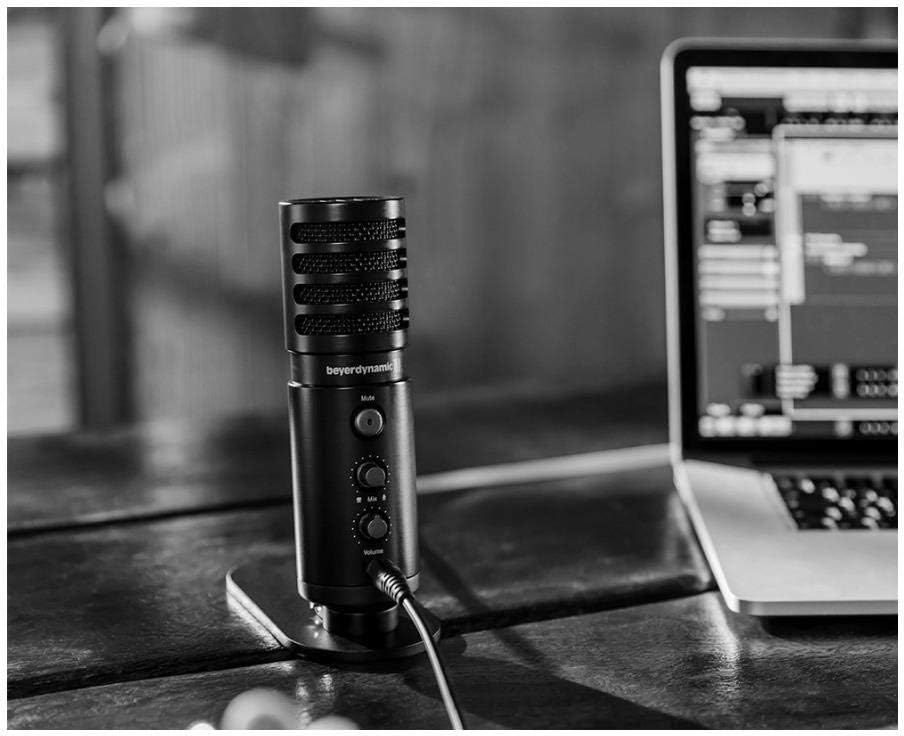
Image: The beyerdynamic FOX microphone in use, connected via USB to a laptop on a wooden desk.
Instrucciones de funcionamiento
1. System Recognition:
- Once connected, your operating system (Windows, macOS, Android, iOS) should automatically detect the beyerdynamic FOX as an audio input and output device.
- You may need to select "beyerdynamic FOX" as your default input/output device in your system's sound settings or within your recording software.
2. Using the Mute Button:
- Presione el Silenciar button on the front of the microphone to toggle between active and muted states.
- An indicator light will typically show the microphone's status (e.g., green for active, red/orange for muted).
3. Adjusting Gain (Input Level):
- The FOX microphone features a gain switch (often labeled "Gain" or represented by a symbol like a microphone with a "+" or "-").
- Use this switch to adjust the microphone's sensitivity. For quiet sources (e.g., soft vocals), use a higher gain setting. For loud sources (e.g., instruments, loud speaking), use a lower gain setting to prevent distortion.
- Monitor your recording software's input levels to ensure they are not peaking (clipping).
4. Zero-Latency Monitoring:
- Connect headphones to the 3.5mm headphone jack on the microphone.
- Utilice el Volumen knob to adjust the headphone listening level.
- El Mezcla control allows you to blend the microphone's direct input with the audio playback from your computer. Turn towards the microphone icon to hear more of your live input, and towards the speaker icon to hear more of your computer's audio.
- This feature allows you to hear your voice or instrument in real-time without delay, which is crucial for accurate performance.
Mantenimiento
- Limpieza: Utilice un paño suave y seco para limpiar el exterior del micrófono. No utilice limpiadores líquidos ni disolventes.
- Almacenamiento: Cuando no esté en uso, guarde el micrófono en un entorno seco y sin polvo.
- Brazo articulado: Periodically check the boom arm's clamps and joints for tightness. Lubricate moving parts if necessary with a small amount of silicone-based lubricant.
- Cuidado de cables: Avoid sharp bends or kinks in the USB cable. Store it neatly to prevent damage.
Solución de problemas
| Problema | Posible causa | Solución |
|---|---|---|
| No hay sonido del micrófono |
|
|
| Distorted or clipping sound |
|
|
| No hay sonido en los auriculares |
|
|
| Boom arm is unstable |
|
|
Presupuesto
| Característica | Detalle |
|---|---|
| Número de modelo | FOXUSBMIC_K5 |
| Factor de forma del micrófono | Table Array (with included desk stand) |
| Tecnología de conectividad | USB |
| Tipo de conector | USB |
| Patrón polar | Unidireccional (cardioide) |
| Resolución | 24 bits / 96 kHz |
| Relación señal a ruido | 78 dB |
| Plataforma de hardware | ordenador, teléfono inteligente |
| Dispositivos compatibles | Headphone, Personal Computer, Smartphone |
| Fuente de poder | Eléctrico con cable (alimentado por USB) |
| Peso del artículo (micrófono) | 16 onzas (1 libra) |
| Dimensiones del producto | 16.2 x 8.3 x 6.8 inches (overall bundle dimensions) |
| Color | Negro |
| Código Postal | 040962932483 |
Garantía y soporte
Para obtener información sobre la garantía y soporte técnico, consulte el sitio web oficial de beyerdynamic. webSitio web o contacte directamente con el servicio de atención al cliente. Conserve su comprobante de compra para reclamaciones de garantía.
Oficial Websitio: www.beyerdynamic.com