
Introducción
This manual provides comprehensive instructions for setting up, operating, and maintaining your Macally Bluetooth Keyboard. Designed for multi-device compatibility, this wireless keyboard features a built-in stand, a rechargeable battery, and 78 keys for efficient typing across various devices including tablets, smartphones, and computers.

Image: The Macally Bluetooth Keyboard in white, with a tablet securely docked in its integrated stand, showcasing su diseño compacto y funcionalidad.
¿Qué hay en la caja?
Upon unboxing your Macally Bluetooth Keyboard, please ensure all the following items are present:
- Macally Bluetooth Keyboard
- Cable de carga USB
- Manual de usuario (este documento)
If any items are missing or damaged, please contact Macally customer support.
Características del producto
The Macally Bluetooth Keyboard is designed for versatility and convenience, offering several key features:
- Conectividad multidispositivo: Seamlessly switch between up to 3 Bluetooth-enabled devices (e.g., tablet, smartphone, computer).
- Soporte de dispositivo integrado: Features a built-in 10.5-inch slot to securely hold your smartphone or tablet.
- Compacto y portátil: Small enough to fit into most bags, making it ideal for on-the-go use.
- Batería recargable: Equipado con una batería recargable de 280 mAh para un uso prolongado.
- Disposición eficiente: Includes 78 quiet scissor-switch keys and 13 convenient shortcut/media keys for enhanced productivity.

Image: The keyboard demonstrating seamless Bluetooth connectivity with a 30ft wireless range, compatible with Apple, Windows, iOS, and Android operating systems.

Image: A visual representation of the keyboard's multi-device capability, showing it paired with a laptop, a desktop computer, and a smartphone simultaneously.

Image: The keyboard positioned on a desk, with both a tablet and a smartphone docked in its integrated 10.5-inch stand, highlighting its "setup anywhere" convenience.
Configuración
Cargando el teclado
Before first use, fully charge your Macally Bluetooth Keyboard. Connect the provided USB charging cable to the keyboard's charging port and the other end to a USB power source (e.g., computer USB port, USB wall adapter). The charging indicator light will show the charging status.

Image: The keyboard with its charging cable connected, illustrating the rechargeable 280mAh battery and the included charging cable.
Emparejamiento Bluetooth
Follow these steps to pair your keyboard with a device:
- Ensure the keyboard is charged and powered on. The power switch is located on the top right of the keyboard.
- En su dispositivo (tableta, teléfono inteligente, computadora), habilite Bluetooth.
- Mantenga pulsado el Fn tecla y una de las teclas del canal Bluetooth (B1, B2, o B3) simultaneously for a few seconds until the corresponding Bluetooth indicator light starts blinking rapidly. This indicates the keyboard is in pairing mode.
- On your device, search for "Macally Keyboard" or a similar name in the Bluetooth device list and select it to connect.
- Once connected, the indicator light will stop blinking and remain solid for a moment before turning off, indicating successful pairing.
To pair additional devices, repeat steps 3-5 using a different Bluetooth channel key (B1, B2, or B3).
Instrucciones de funcionamiento
Cambiar entre dispositivos
Para cambiar entre dispositivos emparejados, simplemente presione el Fn tecla junto con la clave del canal Bluetooth correspondiente (B1, B2, o B3) para el dispositivo deseado. El teclado se conectará rápidamente al dispositivo seleccionado.
Uso de teclas de acceso directo
The keyboard features 13 dedicated shortcut/media keys for quick access to common functions. These keys are typically located on the top row (F1-F12 and an additional key). Functions may vary slightly depending on the operating system of your connected device.
Common shortcut functions include:
- Controles de reproducción de medios (reproducir/pausa, pista siguiente/anterior)
- Control de volumen (silencio, subir/bajar volumen)
- Ajuste del brillo de la pantalla
- Home screen/desktop access
- Función de búsqueda
Refer to your device's operating system documentation for specific compatibility and functionality of these keys.

Imagen: Un detalle view of the keyboard's layout, emphasizing its 78 quiet scissor-switch keys and the 13 dedicated shortcut/media keys for efficient use.
Mantenimiento
Para garantizar la longevidad y el rendimiento óptimo de su teclado Bluetooth Macally, siga estas pautas de mantenimiento:
- Limpieza: Utilice un paño suave, seco y sin pelusa para limpiar la superficie del teclado. Para la suciedad persistente, limpie ligeramenteampEnjuague el paño con agua o un limpiador suave no abrasivo. Evite la humedad excesiva.
- Almacenamiento: Cuando no utilice el teclado durante períodos prolongados, guárdelo en un lugar fresco y seco, alejado de la luz solar directa y de temperaturas extremas.
- Cuidado de la batería: To preserve battery life, avoid fully discharging the keyboard frequently. Recharge it when the low battery indicator appears. If storing for a long time, charge it to about 50% every few months.
- Evite derrames: Keep liquids away from the keyboard to prevent internal damage.
Solución de problemas
If you encounter issues with your Macally Bluetooth Keyboard, try the following solutions:
| Problema | Posible solución |
|---|---|
| El teclado no se enciende. | Asegúrese de que el teclado esté cargado. Conéctelo a una fuente de alimentación mediante el cable USB. |
| Unable to pair the keyboard. |
|
| El teclado se desconecta con frecuencia. |
|
| Las teclas no responden. |
|
If these solutions do not resolve the issue, please contact Macally customer support for further assistance.
Presupuesto
| Característica | Detalle |
|---|---|
| Número de modelo | BTTABKEYBAT |
| Tecnología de conectividad | Bluetooth |
| Número de llaves | 78 |
| Tipo de batería | 1 batería de iones de litio (incluida) |
| Peso del artículo | 1.92 libras |
| Dimensiones del paquete | 13.98 x 7.91 x 2.48 pulgadas |
| Fabricante | Mace Group Inc / Periféricos Macally |
| Dispositivos compatibles | PC, Tablet, Apple devices, Windows Desktop/Laptop, Surface, Chromebook, Smartphones, TVs (any device with Bluetooth) |
| Usos recomendados | Office, School, Everyday Use, Personal, Education, Business |
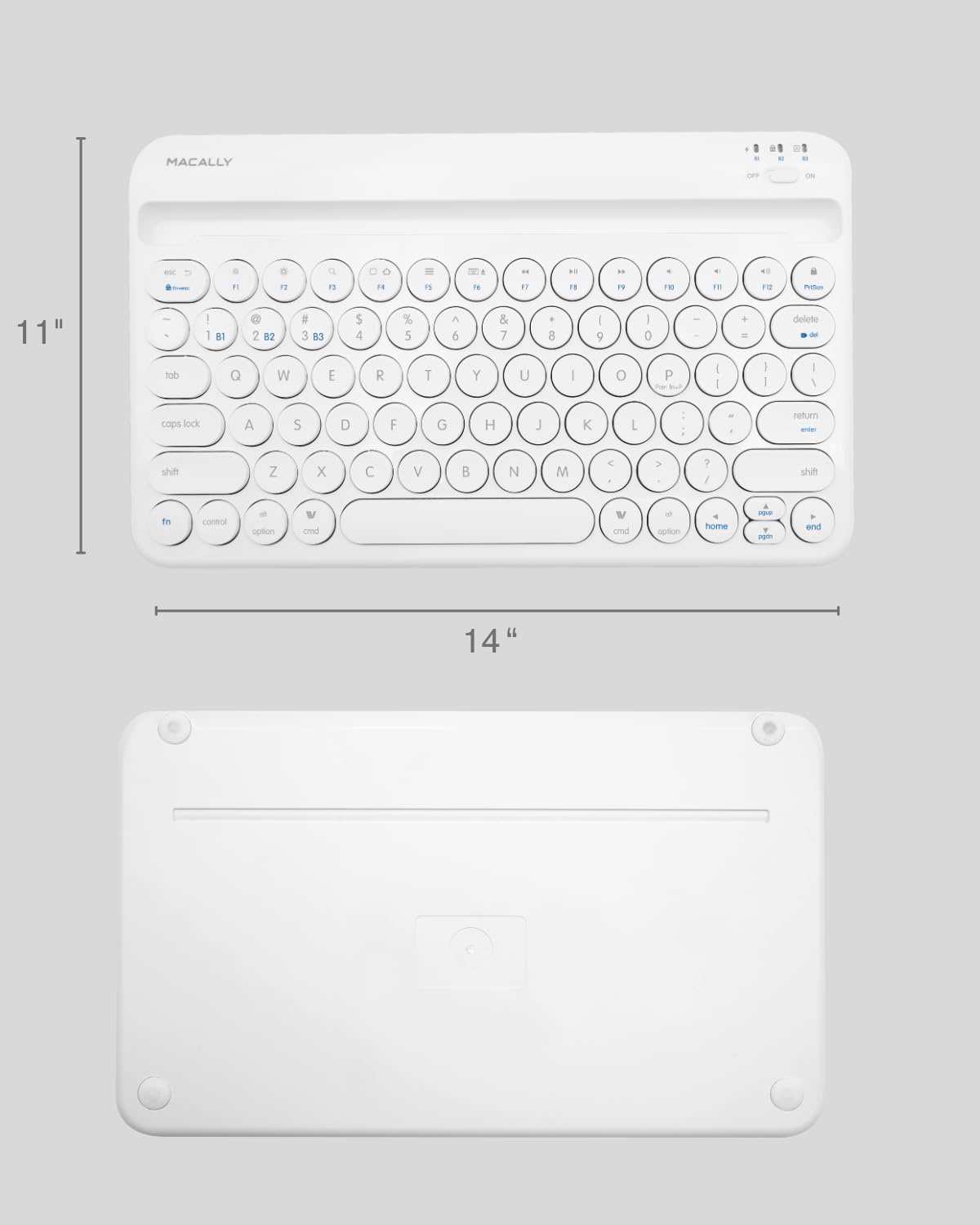
Image: The physical dimensions of the keyboard, measuring approximately 11 inches in width and 14 inches in length.

Image: The keyboard fitting easily into a backpack, demonstrating its compact size and suitability for travel and on-the-go use.
Garantía y soporte
Macally products are designed for quality and reliability. For information regarding product warranty, technical support, or service, please visit the official Macally webSitio web o contacte con el departamento de atención al cliente. Conserve su recibo de compra como comprobante para reclamaciones de garantía.
Puede encontrar más información y soporte en Tienda Macally en Amazon.