
Meross MSS560
Meross Smart Dimmer Switch (MSS560) User Manual
Modelo: MSS560
Introducción
The Meross Smart Dimmer Switch (MSS560) is designed to provide intelligent control over your lighting. This single-pole dimmer switch allows you to remotely control, dim, and schedule your lights using the Meross app, Apple HomeKit, Amazon Alexa, or Google Assistant. It requires a neutral wire for installation and operates on a 2.4GHz Wi-Fi network.
Información de seguridad
- Cable neutro requerido: Ensure your electrical box has a neutral wire (typically white) before installation. If unsure, consult a qualified electrician.
- Apague antes de la instalación: Always turn off power at the circuit breaker before installing or servicing the switch to prevent electrical shock.
- Single Pole Setup Only: This switch is designed for single pole configurations only. It is not compatible with 3-way or multi-way switch setups.
- Compatibilidad de bombilla: Works with non-smart dimming bulbs. Maximum wattage: 400W for incandescent (INC), 150W for CFL & LED bulbs. Do not use with smart bulbs.
- Requisito de Wi-Fi: Supports 2.4GHz Wi-Fi networks only. 5GHz Wi-Fi is not supported. No hub is required.
- Material ignífugo: The switch housing is made of PC+ABS fire-retardant material for safety.
- Protección contra sobrecarga: Certified by FCC/ETL, the device includes protection against electrical overload.
¿Qué hay en la caja?
- Meross Smart Dimmer Switch (MSS560)
- Guía de instalación rápida
- Tuercas de alambre
- Tornillos de montaje
- Faceplate (standard size)
Configuración
Lista de verificación previa a la instalación
- Verify your electrical box has a neutral wire (white).
- Ensure you have a 2.4GHz Wi-Fi network.
- Confirm your setup is single pole (not 3-way).
- Check bulb compatibility (non-smart dimmable LED/CFL/INC).

Image: Diagram illustrating the necessity of a neutral wire and compatible bulb types (LED, CFL, INC) with wattage limits, and incompatibility with smart bulbs.

Image: Important notes on switch compatibility, including single pole setup, 2.4GHz Wi-Fi, neutral wire, and non-smart dimming bulb support.
Instalación de hardware
- Apagar la energía: Localice el disyuntor y apague el interruptor que va a reemplazar. Verifique que la energía esté apagada usando un voltimetro.tage probador.
- Quitar el interruptor antiguo: Carefully remove the faceplate and unscrew the existing switch from the electrical box. Pull the switch outward without touching any wires.
- Identificar cables: Identify the Live (black/red), Load (brown/black), Neutral (white), and Ground (green/bare copper) wires. Label them if necessary.
- Conectar nuevo conmutador: Use the provided wire nuts to connect the corresponding wires of the Meross Smart Dimmer Switch to your home's electrical wires. Ensure all connections are secure.
- Interruptor seguro: Carefully push the wires and the new switch into the electrical box. Screw the switch to the box and attach the faceplate.
- Restaurar energía: Turn on the power at your circuit breaker.
Video: Official Meross guide on how to install the HomeKit smart dimmer switch, demonstrating the wiring process and safety precautions.
App Setup & Pairing
- Descargar la aplicación Meross: Descargue la aplicación Meross desde la App Store o Google Play.
- Agregar dispositivo: Open the Meross app, tap the '+' icon to add a new device, and select the Smart Dimmer Switch. Follow the in-app instructions.
- Conectarse a Wi-Fi: Connect the switch to your 2.4GHz Wi-Fi network.
- Configuración de HomeKit (opcional): If using Apple HomeKit, scan the HomeKit setup code located on the device or its packaging. You may need to manually enter the 8-digit code.
- Calibrate Dimming Range: Use the app to set the maximum and minimum light levels for optimal dimming performance with your specific bulbs.
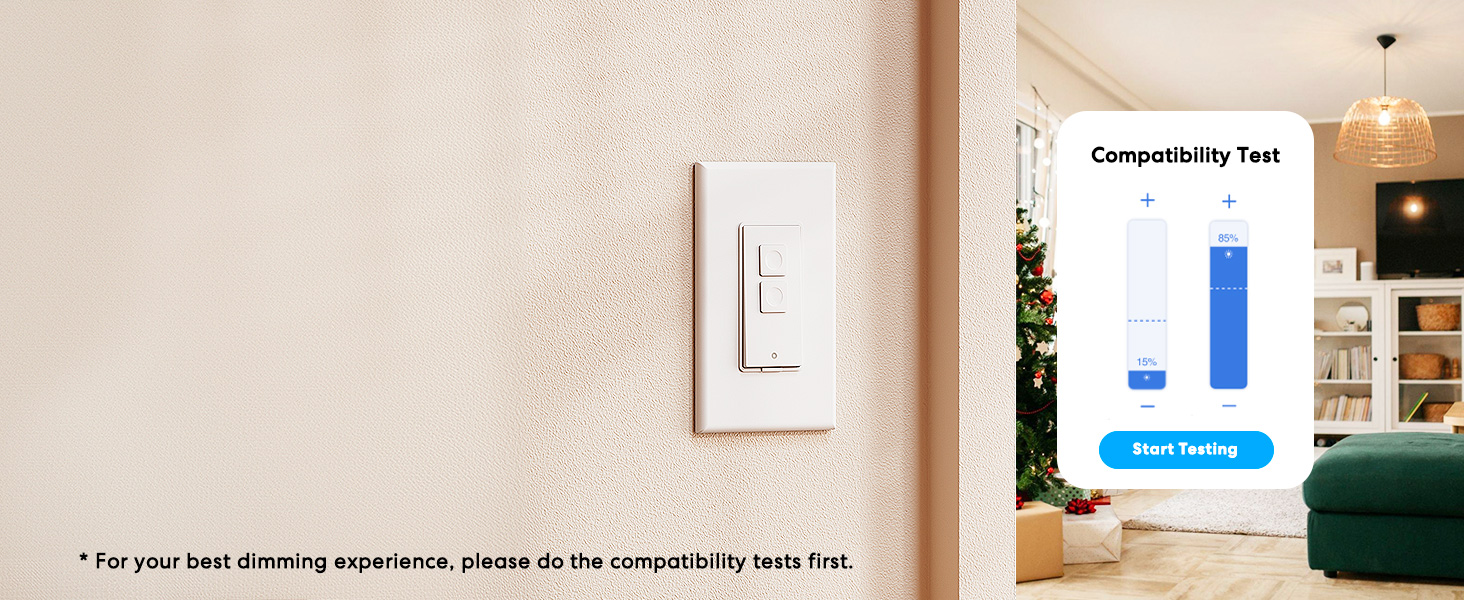
Image: Meross app interface demonstrating the dimming compatibility test to optimize light levels.
Instrucciones de funcionamiento
Control manual
The Meross Smart Dimmer Switch features physical buttons for direct control:
- Botón de encendido/apagado: Press the main button to turn lights on or off.
- Botones de atenuación: Use the smaller up/down buttons to adjust brightness levels.
Control de aplicaciones
Control your lights from anywhere with internet access using the Meross app:
- Encendido/apagado remoto: Tap the switch icon in the app to toggle lights.
- Atenuación: Use the slider in the app to precisely adjust brightness from 0% to 100%.

Image: A user controlling lights remotely via the Meross app on a smartphone.
Control de voz
The Meross Smart Dimmer Switch is compatible with leading voice assistants:
- Apple HomeKit/Siri: Say "Hey Siri, turn on the light" or "Hey Siri, dim the light to 50%".
- Amazon Alexa: Say "Alexa, turn on the light" or "Alexa, dim the light to 20%".
- Asistente de Google: Say "Hey Google, turn on the light" or "Hey Google, dim the light to 90%".

Image: Visual representation of voice commands for Siri, Alexa, and Google Assistant to control light brightness.
Scheduling & Scenes
Automate your lighting to suit your lifestyle:
- Horarios: Set specific times for lights to turn on/off or dim automatically. Supports sunrise and sunset settings.
- Escenas: Create custom scenes for different moods or activities (e.g., "Movie Night" with dimmed lights).

Image: Meross app interface displaying options for setting scenes, timers, and schedules for automated lighting control.
Mantenimiento
- Limpieza: Wipe the switch and faceplate with a soft, dry cloth. Do not use liquid cleaners or aerosols.
- Actualizaciones de firmware: Regularly check the Meross app for firmware updates to ensure optimal performance and security.
Solución de problemas
- El interruptor no responde: If the switch is unresponsive or the indicator light is red, try pressing the small power reset button located at the bottom of the switch.
- Problemas de conexión Wi-Fi: Ensure your smartphone is connected to a 2.4GHz Wi-Fi network during setup. If the switch loses connection, verify your router is functioning correctly and the switch is within range.
- Problemas de atenuación: If lights flicker or do not dim correctly, re-calibrate the dimming range in the Meross app. Ensure you are using compatible non-smart dimmable bulbs.
- Control remoto HomeKit: For remote control via HomeKit, an additional networked Apple device (HomePod, Apple TV 4K/HD, or iPad) must be set up as a HomeKit bridge and remain online.
Presupuesto
| Característica | Especificación |
|---|---|
| Modo de operación | ENCENDIDO APAGADO |
| Calificación actual | 4 Amps |
| Vol de funcionamientotage | 120 voltios |
| Tipo de contacto | Normalmente abierto |
| Tipo de conector | Clamp |
| Terminal | Cuchilla |
| Dimensiones del artículo (largo x ancho x alto) | 4.7 x 2.8 x 1.5 pulgadas |
| Tipo de circuito | Unipolar (unipolar) |
| Tipo de actuador | Botón pulsador |
| Material de contacto | Cobre |
| Calificación de protección internacional | IP00 |
| Número de posiciones | 1 |
| Clasificación de temperatura superior | 40 grados centígrados |
| Tipo de controlador | Amazon Alexa, Apple HomeKit, Asistente de Google |
| Método de control | Voz, Aplicación |
| Protocolo de conectividad | Wi-Fi (solo 2.4 GHz) |
| Color | Blanco |
| Quétage | 400 watts (INC), 150 watts (CFL & LED) |
| Material | Plastic (PC+ABS fire-retardant) |
Garantía y soporte
Garantía
The Meross Smart Dimmer Switch typically comes with a 1-year warranty. Please refer to your product packaging or the Meross webSitio para conocer los términos y condiciones específicos de la garantía.
Apoyo
If you have any questions regarding your switch type, installation, or Wi-Fi connections, please contact Meross customer support. You can usually find contact information within the Meross app or on the official Meross websitio.
información adicional
Vídeo: Un overview of Meross smart home products, showcasing various features and benefits of integrating smart devices into your home.
Ask a question about this manual
Ask about setup, troubleshooting, compatibility, parts, safety, or missing instructions. Manuals+ will review the question and use this page’s manual context to help answer it.