
Introducción
The Hyper Drive GEN2 12-in-1 USB-C Docking Station is designed to expand the connectivity of your USB-C enabled laptop or tablet. This docking station provides a comprehensive solution for connecting multiple peripherals, external displays, and power delivery through a single USB-C port. It supports high-speed data transfer, multiple 4K video outputs, and efficient power charging for enhanced productivity.
Características del producto
The Hyper Drive GEN2 12-in-1 USB-C Docking Station offers a wide array of ports and capabilities:
- Dual HDMI 4K60Hz HDR: Connect up to two external displays with stunning 4K resolution at 60Hz, supporting High Dynamic Range (HDR) for vibrant visuals.
- DisplayPort 4K60Hz: Connect an additional external display via DisplayPort, also supporting 4K resolution at 60Hz.
- USB-C Power Delivery (PD) 100W: Charge your host laptop or tablet with up to 100W of power through the dedicated USB-C PD port.
- 2x USB-A 10Gbps (USB 3.1 Gen 2): Experience ultra-fast data transfer speeds for compatible USB-A devices.
- 2x USB-A 2.0: Connect standard USB peripherals such as keyboards, mice, or printers.
- Gigabit Ethernet: Enjoy stable and high-speed wired network connectivity.
- MicroSD UHS-II (300MB/s): Fast data transfer for MicroSD cards, ideal for photographers and videographers.
- SD UHS-II (300MB/s): Fast data transfer for standard SD cards.
- Conector de audio de 3.5 mm: Conecte auriculares o altavoces para la salida de audio.

Figura 1: Frente view of the Hyper Drive GEN2 12-in-1 USB-C Hub, highlighting MicroSD, SD, 3.5mm Audio, and two USB-A 10Gbps ports.
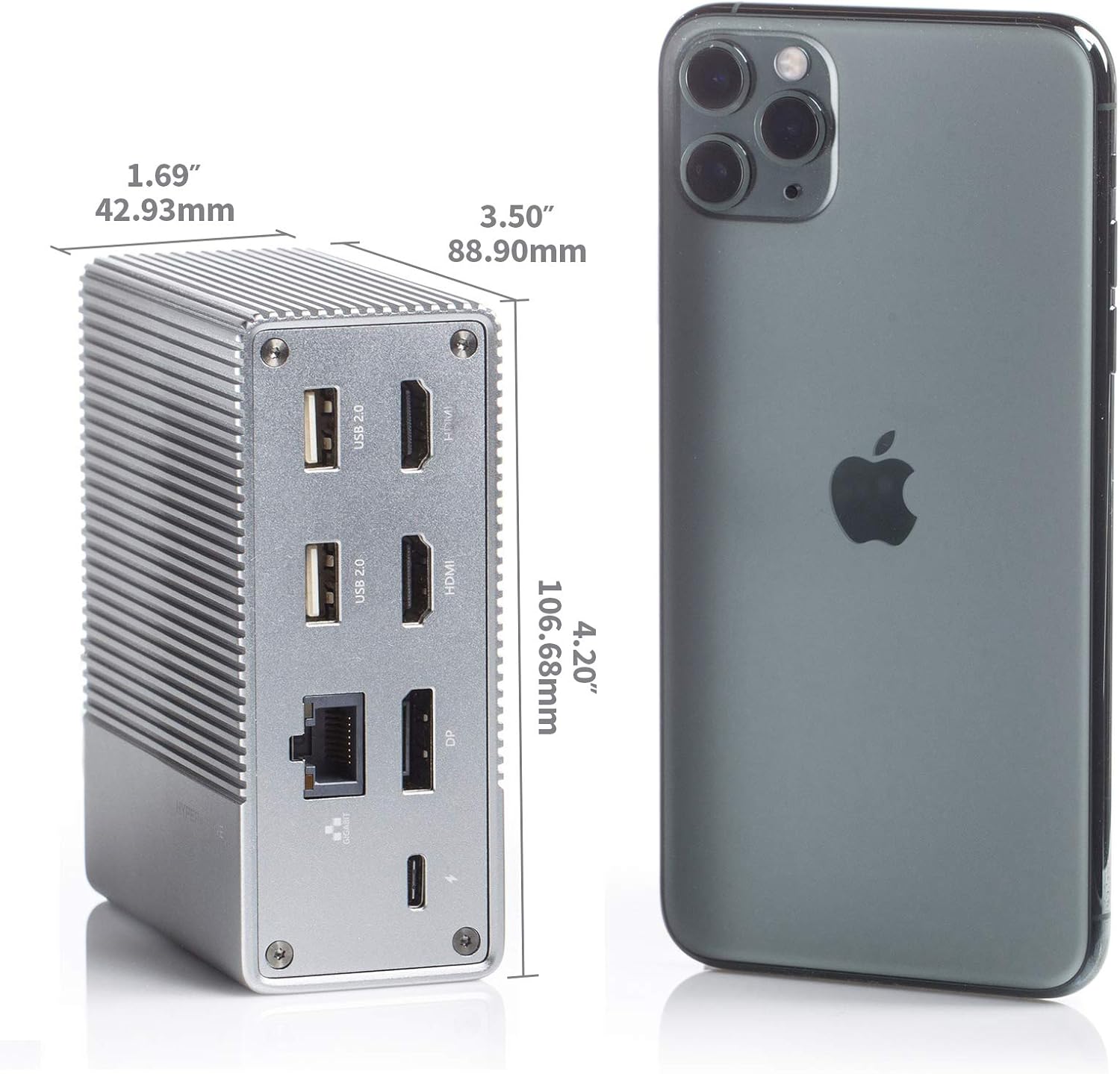
Figura 2: Posterior view of the Hyper Drive GEN2 12-in-1 USB-C Hub, highlighting USB-C Power Delivery, Gigabit Ethernet, DisplayPort, two HDMI, and two USB-A 2.0 ports.
Guía de configuración
- Conectarse al dispositivo host: Plug the integrated USB-C cable from the docking station into an available USB-C port on your laptop or tablet. Ensure the USB-C port on your host device supports DisplayPort Alternate Mode (Alt Mode) and Power Delivery for full functionality.
- Conexión de alimentación (opcional pero recomendada): For optimal performance and to charge your host device, connect your laptop's USB-C power adapter to the USB-C PD port on the docking station. The docking station supports up to 100W power delivery.
- Conectar pantallas externas:
- Conecte sus monitores HDMI a los puertos HDMI en la estación de acoplamiento.
- Conecte su monitor DisplayPort al DisplayPort en la estación de acoplamiento.
Nota: For macOS, only one extended display is supported with the same image on all external displays at 4K60Hz. Windows/Chrome OS supports Multi-Stream Transport (MST) for up to three extended displays.
- Conectar periféricos: Plug your USB devices (keyboard, mouse, external drives), Ethernet cable, and audio devices into the corresponding ports on the docking station.
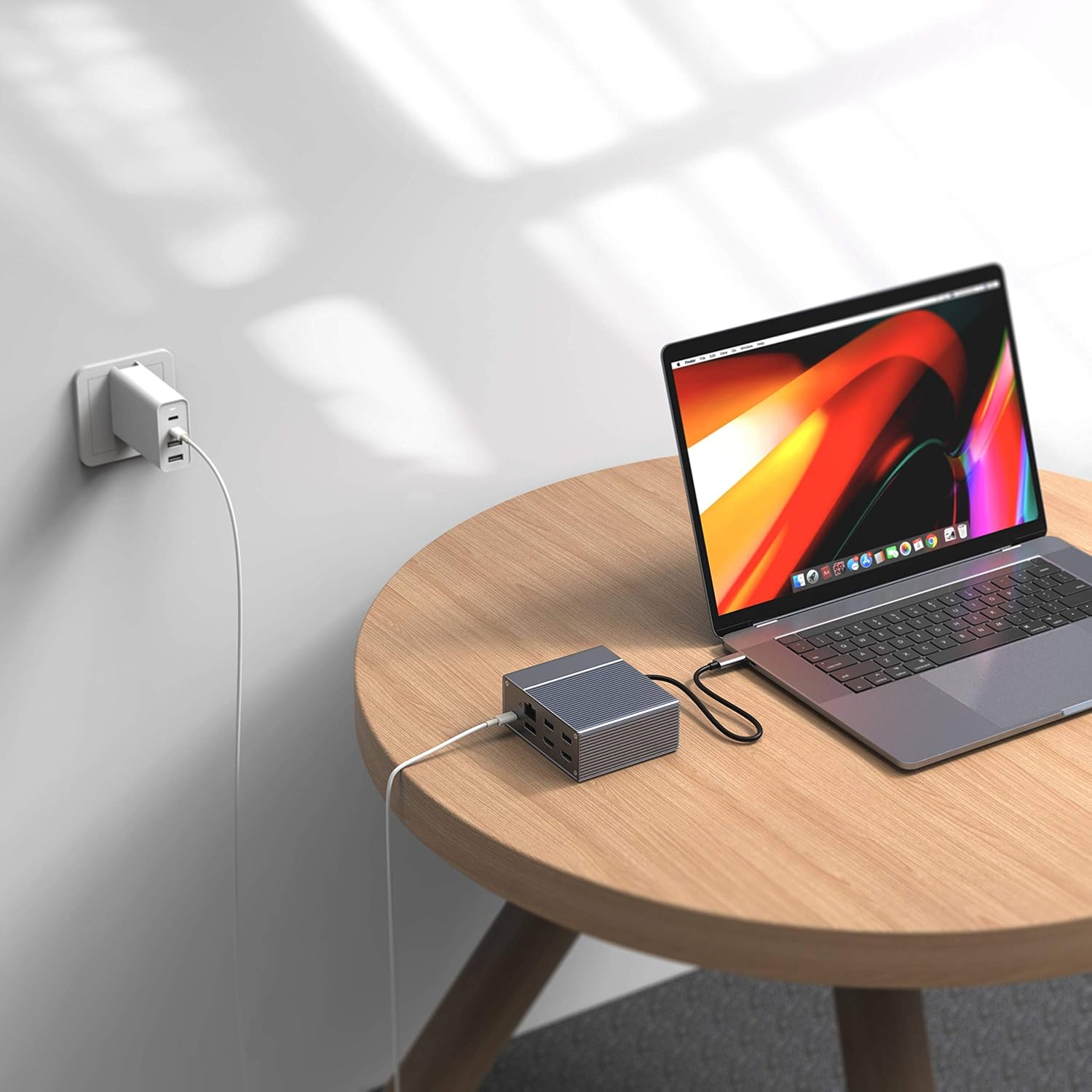
Figure 3: Laptop connected to the docking station and a power adapter for charging.
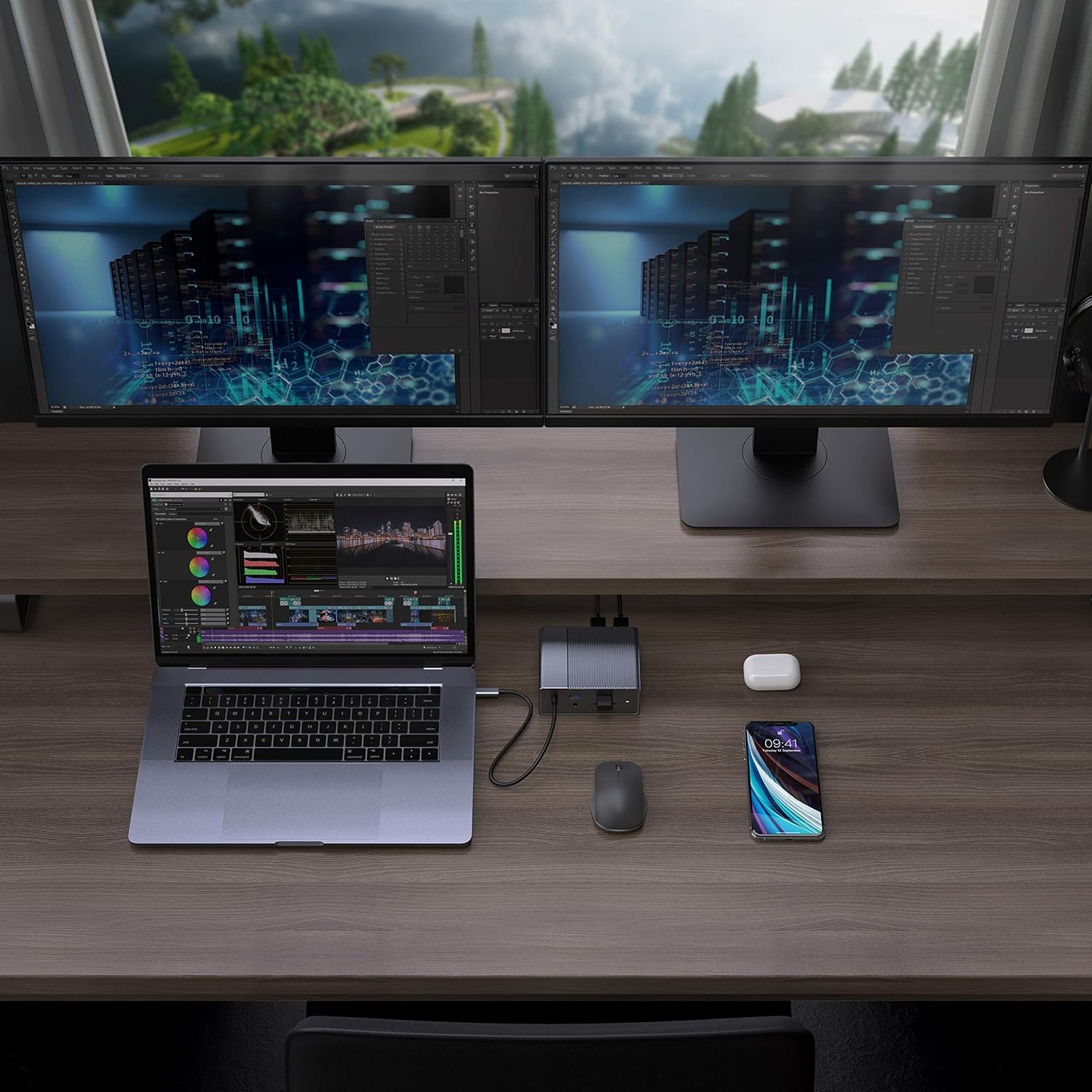
Figure 4: A typical setup showing a laptop connected to the docking station with multiple peripherals and external displays.
Instrucciones de funcionamiento
Modos de visualización
La estación de acoplamiento admite varias configuraciones de pantalla según su sistema operativo:
- Mac OS: Supports one extended display with the same image mirrored across all external displays at 4K60Hz. macOS does not support Multi-Stream Transport (MST) for independent extended displays.
- Sistema operativo Windows/Chrome: Supports Multi-Stream Transport (MST), allowing for up to three extended displays with independent content at 4K60Hz.

Figure 5: Illustration of display modes for macOS (mirror mode) and Windows (mirror and extended modes) using the docking station.
Data Transfer and Power Delivery
- USB-A 10Gbps Ports: Use these ports for high-speed data transfer with compatible external hard drives, SSDs, or other USB 3.1 Gen 2 devices.
- Puertos USB-A 2.0: Ideal for connecting standard peripherals like keyboards, mice, or USB flash drives where high-speed data transfer is not critical.
- Ranuras para tarjetas SD/MicroSD: Insert your memory cards for quick access and transfer of photos and videos at up to 300MB/s (UHS-II speeds).
- Puerto USB-C PD: Connect your laptop's power adapter to this port to charge your laptop while using the docking station. This port also supports data transfer.
Vídeo 1: Fin oficialview of the HyperDrive GEN2 USB-C Hub, demonstrating its speed, power, and various port functionalities.
Mantenimiento
- Mantenga la estación de acoplamiento en un entorno limpio y seco.
- Evite exponer el dispositivo a temperaturas extremas o a la luz solar directa.
- Limpie el exterior con un paño suave y seco. No utilice limpiadores líquidos ni aerosoles.
- Asegúrese de que haya una ventilación adecuada alrededor del dispositivo para evitar el sobrecalentamiento.
Solución de problemas
- No display output or flickering screen:
- Asegúrese de que el puerto USB-C de su dispositivo host admita el modo alternativo DisplayPort.
- Verifique todas las conexiones de cables (USB-C al host, HDMI/DP a los monitores).
- Pruebe con un cable HDMI o DisplayPort diferente.
- Verify your monitor input settings are correct.
- For macOS, remember that only one extended display is supported, with other external displays mirroring the extended one.
- Dispositivos USB no reconocidos:
- Reconnect the USB device to the docking station.
- Pruebe con un puerto USB diferente en la estación de acoplamiento.
- Ensure the docking station is properly connected to your host device.
- If using high-power USB devices, ensure the docking station is connected to a power source via its USB-C PD port.
- La computadora portátil no se carga:
- Ensure your laptop's original USB-C power adapter is connected to the USB-C PD port on the docking station.
- Verifique que su computadora portátil admita USB-C Power Delivery.
- Compruebe el adaptador de corriente y el cable para detectar posibles daños.
Presupuesto
| Característica | Especificación |
|---|---|
| Modelo | GEN2 12-in-1 USB-C Hub |
| Marca | Hiper |
| Puertos HDMI | 2x HDMI 4K60Hz HDR |
| Puerto de visualización | 1x DisplayPort 4K60Hz |
| Puerto USB-C PD | 1x suministro de energía USB-C 100W |
| Puertos de datos USB-A | 2x USB-A 10Gbps (USB 3.1 Gen 2), 2x USB-A 2.0 |
| Ethernet | 1x Gigabit Ethernet |
| Lectores de tarjetas | 1x MicroSD UHS-II (300MB/s), 1x SD UHS-II (300MB/s) |
| Conector de audio | 1 conector de audio de 3.5 mm |
| Sistema operativo compatible | macOS, Windows, Chrome OS |
| Peso del artículo | 480.8 gramos |
| Código Postal | 817110014519 |
Garantía y soporte
For warranty information and technical support, please refer to the official Hyper webSitio web o contacte con el servicio de atención al cliente. Conserve el recibo de compra para reclamaciones de garantía.
Soporte en línea: www.hyper.com/support