
Introducción
The Verizon G3100 Router is designed to provide high-speed internet connectivity using Wi-Fi 6 technology. It supports both 2.4GHz and 5GHz bands with 11ax 4x4 capabilities, offering extended Wi-Fi range and efficient network performance. This manual will guide you through the installation, operation, and maintenance of your G3100 router to ensure optimal performance.
¿Qué hay en la caja?
Upon unboxing your Verizon G3100 Router, verify that all components are present.
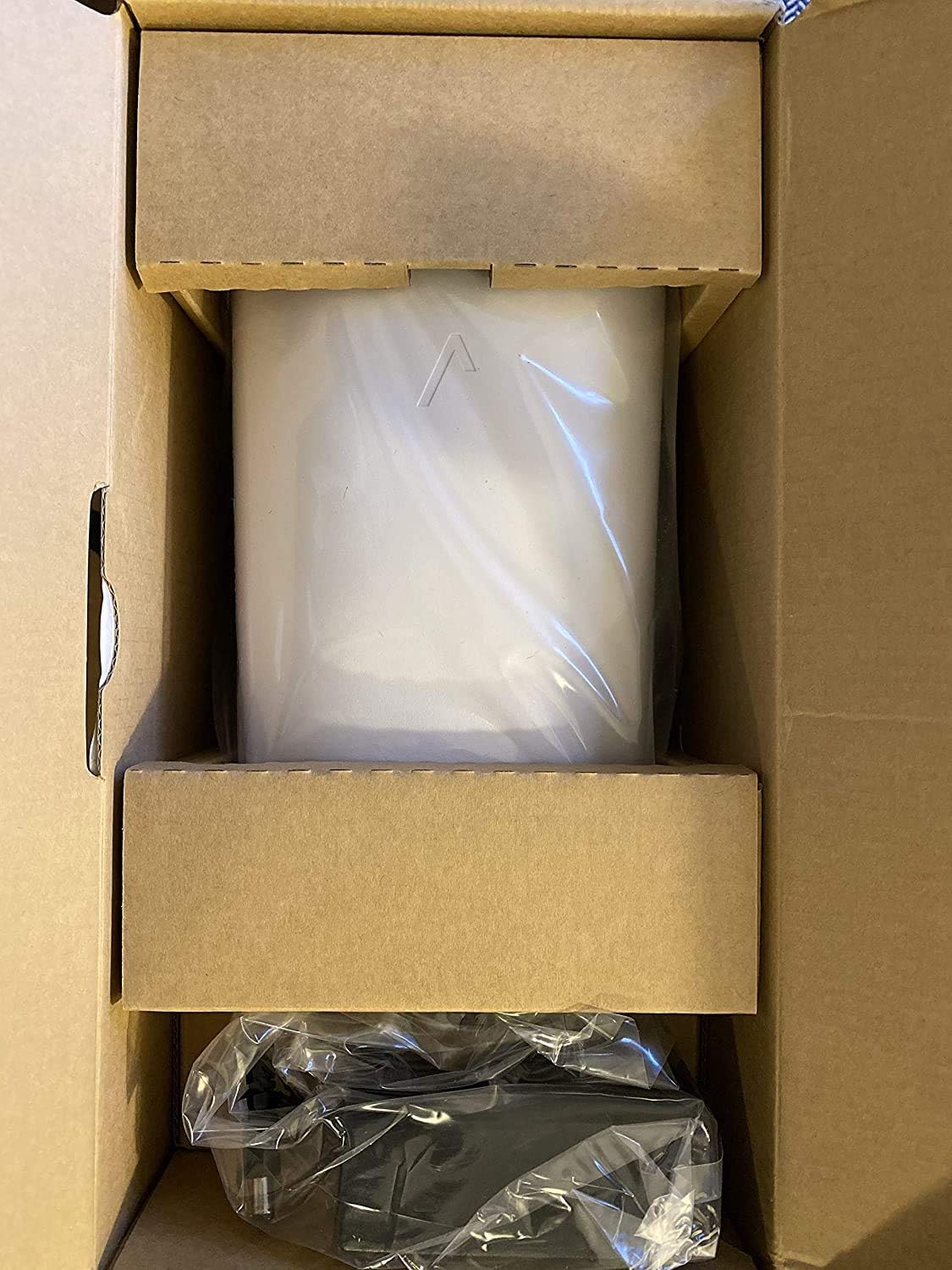
Image: The Verizon G3100 Router securely packaged in its cardboard box, wrapped in protective plastic.
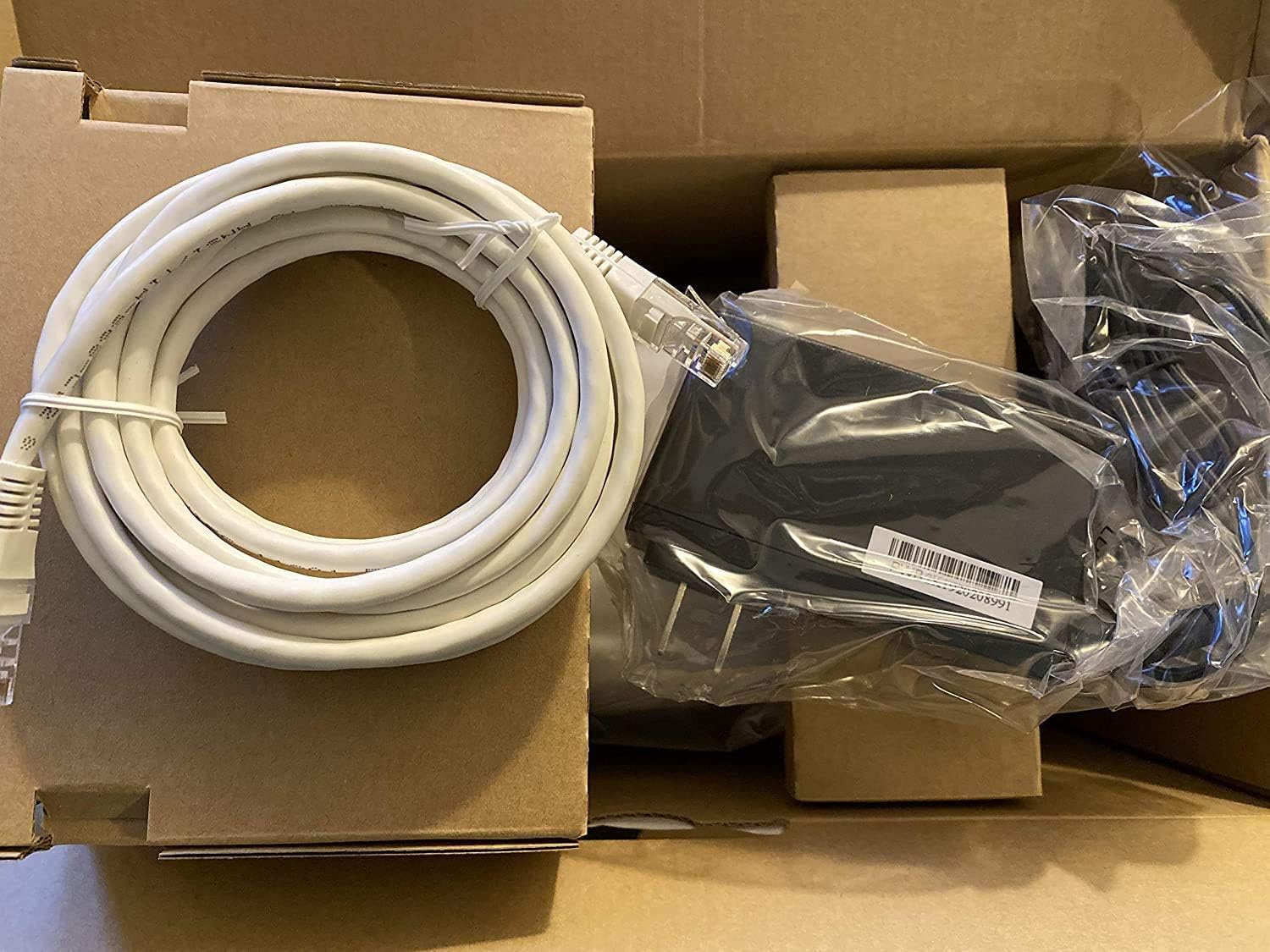
Image: The Verizon G3100 Router unboxed, showing the main unit, a coiled white Ethernet cable, and the power adapter.
- Verizon G3100 Router Unit
- Adaptador de corriente
- Cable Ethernet
Guía de configuración
Follow these steps to set up your Verizon G3100 Router:
- Colocación: Elija una ubicación central en su hogar, lejos de obstrucciones y otros dispositivos electrónicos que puedan causar interferencias.
- Conecte la electricidad: Plug the power adapter into the router's power port and then into an electrical outlet.
- Conectarse a Internet Fuente:
- If using an Ethernet connection from your Optical Network Terminal (ONT) or modem, connect one end of the provided Ethernet cable to the WAN port (usually labeled "WAN" or "Internet") on the router and the other end to your ONT/modem.
- If using a Coaxial (MoCA) connection, connect a coaxial cable from your wall outlet to the MoCA port on the router.
- Conectar dispositivos (opcional): For wired connections, use Ethernet cables to connect your devices (computers, gaming consoles, etc.) to any of the four Gigabit LAN ports on the back of the router.
- Encendido: Wait for the router to power on and initialize. The indicator light on the front of the router will typically turn solid white or green when it's ready.
- Conectarse a Wi-Fi:
- Locate the Wi-Fi network name (SSID) and password on the label on the bottom or back of your router.
- On your device (smartphone, tablet, computer), select the Wi-Fi network name and enter the password.
- Activar servicio: Follow any specific activation instructions provided by Verizon, which may involve visiting a website or using a mobile app.
Instrucciones de funcionamiento
The Verizon G3100 Router is designed for ease of use and high performance.
- Cambio automático de banda: The router automatically switches between the 2.4GHz and 5GHz Wi-Fi bands to provide the best connection for your devices, optimizing speed and range.
- Wi-Fi 6 (802.11ax): This advanced Wi-Fi standard offers faster speeds, lower latency, and increased capacity for multiple devices compared to older Wi-Fi standards.
- Puertos Gigabit Ethernet: Utilize the four Gigabit LAN ports for high-speed wired connections to devices requiring maximum bandwidth, such as desktop computers or network-attached storage (NAS).
- MoCA 2.5: The router supports MoCA 2.5 for high-speed data transmission over coaxial cables, which can be useful for extending network coverage in your home.
- Router Interface: Access the router's administrative interface via a web browser (usually by typing
192.168.1.1into the address bar) to customize settings, manage connected devices, and view network status. Refer to your router's label for default login credentials. - Control de aplicaciones móviles: Manage your router settings and network from your smartphone using the official Verizon Fios app.
Mantenimiento
El mantenimiento regular ayuda a garantizar la longevidad y el rendimiento óptimo de su enrutador.
- Actualizaciones de firmware: The router typically receives automatic firmware updates from Verizon. Ensure your router remains connected to the internet to receive these updates, which provide security enhancements and performance improvements.
- Limpieza: Periodically clean the exterior of the router with a soft, dry cloth. Ensure ventilation slots are free from dust to prevent overheating. Do not use liquid cleaners or abrasive materials.
- Reiniciando: Si experimenta problemas menores de red, reiniciar el router suele solucionarlos. Desconecte el adaptador de corriente, espere 30 segundos y vuelva a conectarlo.
- Seguridad: Regularly change your Wi-Fi password and router administration password to strong, unique combinations to protect your network from unauthorized access.
Solución de problemas
If you encounter issues with your Verizon G3100 Router, refer to the following common solutions:
- Sin conexión a Internet:
- Check all cable connections (power, WAN/Internet, MoCA). Ensure they are securely plugged in.
- Restart your router and ONT/modem.
- Verify that your Verizon service is active.
- Velocidad lenta de Wi-Fi:
- Ensure your router is placed centrally and away from interference sources.
- Confirm your devices are connected to the appropriate Wi-Fi band (5GHz generally offers faster speeds over shorter distances).
- Perform a speed test to verify your internet speed.
- Consider reducing the number of active devices or upgrading your internet plan if speeds are consistently below expectations.
- Wi-Fi Signal Drops:
- Relocate the router to improve signal coverage.
- Compruebe si hay actualizaciones de firmware.
- If you have a large home, consider adding a Wi-Fi extender compatible with the G3100.
- No se puede acceder a la configuración del enrutador:
- Asegúrese de que su dispositivo esté conectado a la red Wi-Fi del enrutador o mediante un cable Ethernet.
- Verifique que esté escribiendo la dirección IP correcta (por ejemplo,
192.168.1.1) en su navegador. - Use the correct username and password. If forgotten, a factory reset may be necessary (refer to the router's documentation for reset procedures, which will erase all custom settings).
Presupuesto
| Característica | Detalle |
|---|---|
| Marca | Verizon |
| Nombre del modelo | G3100 |
| Clase de banda de frecuencia | Doble banda (2.4 GHz, 5 GHz) |
| Estándar de comunicación inalámbrica | 802.11ax (Wi-Fi 6) |
| Puertos LAN | LAN de 4 Gigabit |
| Puerto WAN | 1 Gigabit WAN |
| Soporte de MoCA | MoCA 2.5 + LAN MoCA 1.1 WAN |
| Tipo de antena | Internal (4 antennas) |
| Automatic Band Switching | Sí |
| Peso del artículo | 3 libras |
| Método de control | Aplicación |
| Velocidad de transferencia de datos | 1 Gigabits Per Second (LAN) |
| Protocolo de seguridad | WPS |
| Router Firewall Security Level | Básico |
| Código Postal | 600164709797 |
Garantía y soporte
For warranty information, technical support, or to access additional resources, please refer to the official Verizon documentation included with your product or visit the Verizon support websitio. Guarde su recibo de compra para reclamos de garantía.
Puedes visitar el Verizon Store on Amazon Para más información.