
Introducción
The GMK NucBox KB1 is an ultra-compact mini PC designed for various computing needs, from home entertainment to office tasks. Powered by an Intel Celeron J4125 processor, it offers efficient performance in a palm-sized form factor. This manual provides essential information for setting up, operating, maintaining, and troubleshooting your NucBox KB1.

Figure 1: GMK NucBox KB1 Mini PC highlighting its compact size, Intel Celeron J4125 processor, 8GB RAM, 128GB SSD, Intel UHD Graphics 600, Ultra-Stable Bluetooth, 867Mb/s Dual Band WiFi, 4K UHD Video Output, and Textured Metal Design.
Vídeo 1: Vídeo oficial de presentación del productoasing the GMK NucBox Mini PC's features, including its compact size, processor, storage, ports, and thermal design.
Configuración
Follow these steps to set up your GMK NucBox KB1 Mini PC:
- Conectar a la pantalla: Use an HDMI cable to connect the NucBox to your monitor or TV. The device supports 4K resolution at 60Hz via HDMI.
- Conectar periféricos: Conecte su teclado y mouse USB en los puertos USB 3.0 disponibles.
- Encendido: Connect the USB-C power adapter to the NucBox and a power outlet. Press the power button located on the front of the device.
- Arranque inicial: The NucBox will boot into Windows 11. Follow the on-screen instructions to complete the initial setup of the operating system.
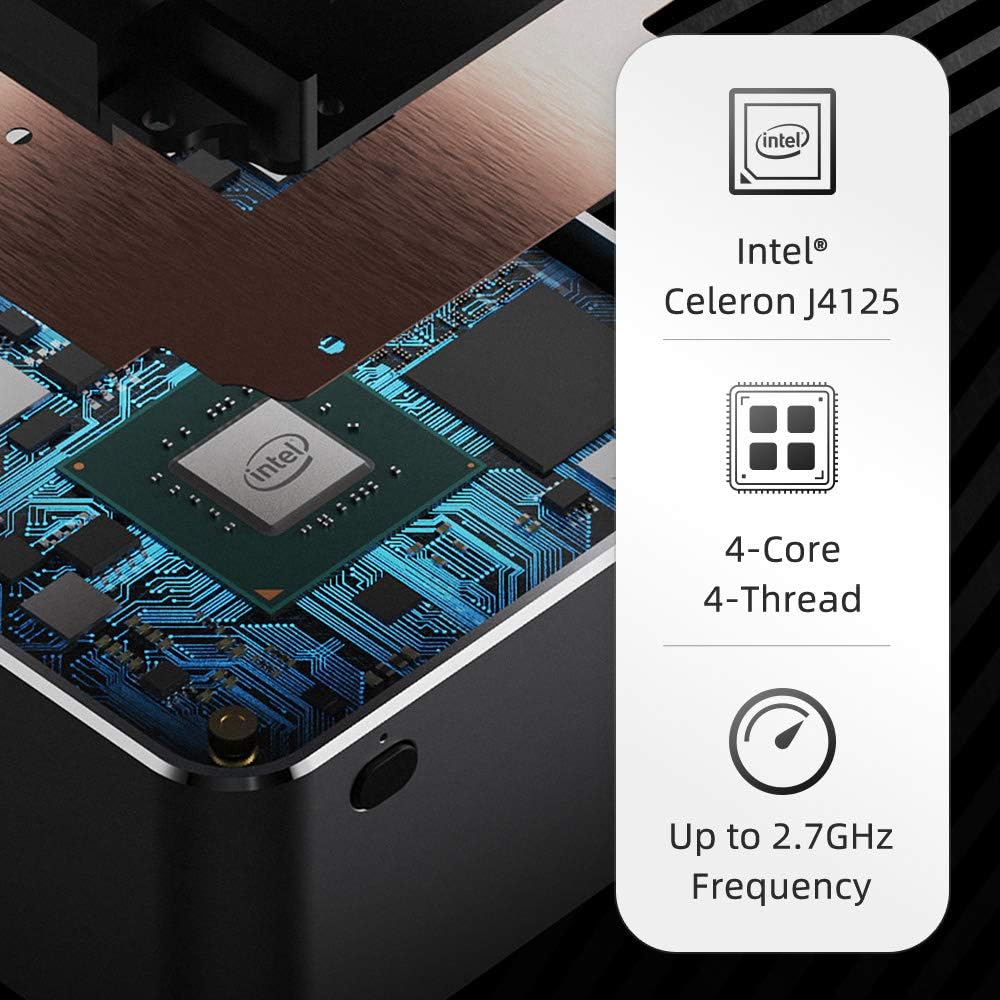
Figura 2: Posterior view of the GMK NucBox KB1 Mini PC showing its ports: Micro SD 3.0 slot, 3.5mm Audio Jack, USB-C (DC IN Only via AC Charger), 2x USB-A 3.0 ports, and HDMI (4K@60Hz) output.
Operante
The GMK NucBox KB1 comes pre-installed with Windows 11 (64-bit), providing a familiar and versatile operating environment. It is suitable for a range of tasks including web browsing, document editing, and 4K video playback.
- Daily Computing: The Intel Celeron J4125 processor and 8GB DDR4 RAM ensure smooth performance for everyday applications and multitasking.
- Salida de vídeo 4K: Connect to a 4K display via HDMI for high-definition visual experiences. Note that while it supports 4K, HDR output is not supported by the Gemini Lake chips.
- Conectividad: Utilize Dual Band Wi-Fi for fast wireless internet access and Bluetooth 4.2 for connecting wireless peripherals like headphones or speakers.

Figure 3: The GMK NucBox KB1 Mini PC connected to a 4K television, demonstrating its capability for high-resolution home entertainment.
Mantenimiento
To ensure optimal performance and longevity of your NucBox KB1, consider the following maintenance tips:
- Actualización de almacenamiento: The internal 128GB SSD (M.2 2242 SSD) can be upgraded. To access it, carefully remove the four screws on the bottom panel. This allows for increased storage capacity if needed.
- Enfriamiento: The NucBox features a cooling fan. Ensure the top ventilation grille is not obstructed to allow for proper airflow. The metal casing also aids in heat dissipation.
- Actualizaciones de software: Regularly update Windows 11 and device drivers to maintain system stability and security.

Figura 4: Una explosión view of the NucBox KB1, illustrating the internal DDR4 8GB memory and the M.2 2242 SSD (128GB/512GB options), which can be upgraded.
Solución de problemas
If you encounter issues with your NucBox KB1, refer to the following common problems and solutions:
- No Display/Video Output Issues:
- Ensure the HDMI cable is securely connected to both the NucBox and the display.
- Verifique que la pantalla esté configurada en la fuente de entrada correcta.
- Pruebe con un cable HDMI o una pantalla diferente si es posible.
- Some users have reported video output instability, especially under heavy load or with certain 4K displays. If issues persist, try reducing the display resolution.
- El dispositivo no se enciende:
- Check that the USB-C power adapter is correctly connected and the power outlet is functional.
- Mantenga presionado el botón de encendido durante unos segundos.
- If the unit remains unresponsive, unplug the power, wait a few moments, and plug it back in.
- Excessive Fan Noise/Heat:
- Ensure the NucBox is placed in a well-ventilated area and the top fan grille is clear of obstructions.
- High CPU usage can lead to increased fan activity and heat. Monitor background processes.
Presupuesto
| Característica | Especificación |
|---|---|
| Procesador | Intel Celeron J4125 (2.7 GHz, 4 Cores) |
| Coprocesador gráfico | Gráficos Intel UHD 600 |
| RAM | 8 GB DDR4 |
| Almacenamiento | 128 GB M.2 2242 SSD (upgradable) |
| Sistema operativo | Windows 11 (64 bits) |
| Resolución máxima de pantalla | 3840 x 2160 píxeles (4K) |
| Salida de vídeo | HDMI v1.4 (4K@60Hz) |
| Puertos USB | 2x USB 3.0, 1x USB-C (Power Only) |
| Otros puertos | Micro SD 3.0 slot, 3.5mm Audio Jack |
| Conectividad inalámbrica | Dual Band Wi-Fi (867Mbps), Bluetooth 4.2 |
| Dimensiones (LxAnxAl) | 2.44 x 2.44 x 1.65 pulgadas |
| Peso | 15.8 onzas |
Garantía y soporte
For warranty information and technical support, please refer to the documentation included with your purchase or visit the official GMK website. It is recommended to keep backups of your data, especially for mission-critical tasks, as some users have reported varied experiences with product reliability and customer service responsiveness.