
Brook X one SE Adapter - Type C Version
Brook Xone SE Adapter Instruction Manual
Model: X one SE Adapter - Type C Version
1. Producto terminadoview
The Brook Xone SE Adapter (Type-C Version) is designed to enhance your gaming experience by allowing Xbox One Elite Series 2 and Xbox Series X/S controllers to be used across multiple platforms, including Xbox Series X/S, Nintendo Switch, PlayStation 4, and PC (XID, Steam). This adapter integrates seamlessly, providing features such as motion control, turbo function, button remapping, and audio support.

Figure 1: Brook Xone SE Adapter (Type-C Version) and retail packaging.

Figura 2: Frente view of the Xone SE Adapter, showing the function buttons and Brook branding.
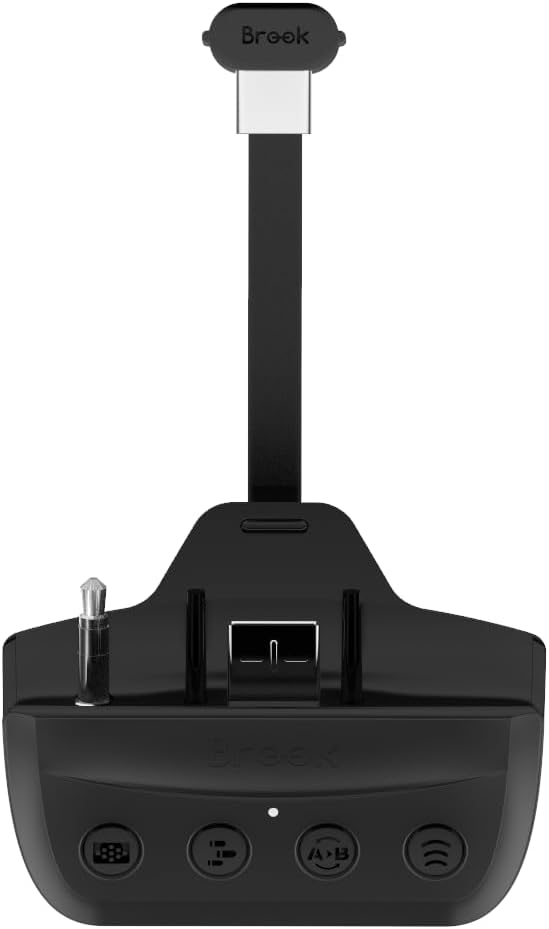
Figura 3: Lado view of the Xone SE Adapter, highlighting its compact design.
2. Configuración e instalación
Follow these steps to properly set up your Brook Xone SE Adapter with your controller and gaming console.
2.1 Attaching the Adapter to Your Controller
- Ensure your Xbox One Elite Series 2 or Xbox Series X/S controller is powered off.
- Align the Type-C connector of the Xone SE Adapter with the USB-C port on your controller.
- Gently push the adapter firmly into the controller's port until it is securely seated. Ensure the 3.5mm audio jack on the adapter also aligns with the controller's audio port.

Figure 4: The Xone SE Adapter securely attached to an Xbox controller, ready for use.
Video 1: Demonstrates how to ensure the adapter is fully inserted into your controller for proper connection.
2.2 Initial Connection to Consoles/PC
The adapter supports various platforms. The connection method may vary slightly depending on the target system.
- Interruptor de Nintendo:
- Switch the toggle switch button on the adapter to "NS" mode.
- Wake up the controller and press and hold the "Bluetooth" button on the Xone SE Adapter for 2 seconds.
- The LED on the adapter will blink red and blue alternately. Wait for a few seconds until the LED turns blue, indicating a successful connection.
Video 2: Guide on wirelessly connecting the Xone SE Adapter to a Nintendo Switch.
Video 3: Guide on wired connection of the Xone SE Adapter to a Nintendo Switch.
- PlayStation 4:
- Switch the toggle switch button on the adapter to "PS4" mode.
- Connect the adapter to your PS4 via a USB cable (not included) or follow wireless pairing instructions if applicable.
- Compatible PS4 games are playable on PS5 consoles. PS5-specific games are not supported.
- PC (XID, Steam):
- Connect the adapter to your PC via a USB cable. The system should recognize it as an XID device.
- For Steam, ensure your controller settings are configured to recognize the connected device.
- Xbox Series X/S & Xbox One:
- The adapter allows your Xbox controllers to connect to these consoles. Ensure the adapter is properly attached to the controller.
3. Instrucciones de funcionamiento y características
The Xone SE Adapter provides several advanced functions to enhance your gameplay.
3.1 Control de movimiento
The adapter supports motion control for PlayStation 4 and Nintendo Switch games, adding an immersive layer to your gaming experience.

Figure 5: Motion control functionality enabled by the Xone SE Adapter on compatible consoles.
Video 4: Official trailer showcasing the features of the Brook Xone Adapter SE, including motion control.
3.2 Turbo and Remap Functions
The adapter allows for easy setup of Turbo and Remap functions for PS4, Switch, and PC, providing customizable control options.
- Función turbo: Press the dedicated Turbo button on the adapter to activate or adjust the turbo speed.
- Función de reasignación: Use the Remap button to reassign controller inputs. Refer to the specific instructions on the Brook website for detailed remapping procedures.
- Button Hold Function: This feature allows a button to be held down automatically.

Figure 6: The function buttons on the Xone SE Adapter for activating Turbo and Remap features.
Video 5: Demonstrates how to set up and cancel remap functions on the Xone SE Adapter.
3.3 Función de audio
The 3.5mm microphone headset jack on the adapter supports audio for PS4 and Xbox One consoles, allowing you to use your preferred headset.
Video 6: Illustrates the use of the simulated touchpad function on the Xone SE Adapter.
3.4 Emulate PS4 Touch Pad
The adapter can emulate the PS4 touchpad via a dedicated Function Key, providing full compatibility with PS4 games.
4. Mantenimiento
To ensure the longevity and optimal performance of your Xone SE Adapter, please follow these maintenance guidelines:
- Limpieza: Utilice un paño suave y seco para limpiar el adaptador. Evite utilizar productos químicos agresivos o materiales abrasivos.
- Almacenamiento: Guarde el adaptador en un lugar fresco y seco, alejado de la luz solar directa y de temperaturas extremas.
- Manejo: Manipule el adaptador con cuidado. Evite dejarlo caer o someterlo a impactos fuertes.
- Actualizaciones de firmware: Consulte periódicamente el Brook oficial website for firmware updates. Updates can improve compatibility, add new features, and resolve potential issues. It is recommended to update the firmware before initial use.
5. Solución de problemas
If you encounter any issues with your Xone SE Adapter, please refer to the following common troubleshooting steps:
| Problema | Posible causa | Solución |
|---|---|---|
| Adapter not recognized by console/PC. | Incorrect mode selected, loose connection, outdated firmware. |
|
| Motion control not working or inaccurate. | Not supported on current platform, calibration needed, interference. |
|
| Audio not working through headset. | Headset not fully plugged in, incorrect audio settings, not supported on platform. |
|
| El controlador se desconecta con frecuencia. | Low controller battery, wireless interference, adapter not fully seated. |
|
6. Especificaciones
- Modelo: X one SE Adapter - Type C Version
- Marca: Arroyo
- Controladores compatibles: Xbox One Elite Series 2, Xbox Series X/S Controllers
- Plataformas compatibles: Xbox Series X/S, Nintendo Switch, PlayStation 4, PC (XID, Steam), Xbox One
- Conectividad: USB-C (to controller), Wireless (Bluetooth)
- Características: Motion Control (PS4/Switch), Turbo, Remap, Button Hold, Audio Function (3.5mm headset for PS4/Xbox One), PS4 Touchpad Emulation
- Dimensiones: 2.36 x 1.77 x 0.79 pulgadas
- Peso: 2.12 onzas
- Color: Negro
- País natal: Taiwán
7. Garantía y soporte
For warranty information, technical support, and the latest firmware updates, please visit the official Brook websitio:
You can also refer to the official User Manual PDF provided by the manufacturer for additional details: