
JIFAR E16
Manual del usuario del proyector JIFAR E16 1080P
Modelo: E16
Introducción
This user manual provides comprehensive instructions for the setup, operation, maintenance, and troubleshooting of your JIFAR E16 1080P Projector. Please read this manual thoroughly before using the projector to ensure proper functionality and to extend the product's lifespan. Keep this manual for future reference.
Instrucciones de seguridad
Para evitar incendios o descargas eléctricas, no exponga este aparato a la lluvia ni a la humedad. No abra elasing to avoid electric shock. Refer all servicing to qualified service personnel.
- No bloquee las aberturas de ventilación.
- Utilice únicamente accesorios especificados por el fabricante.
- Desenchufe el proyector durante tormentas eléctricas o cuando no lo utilice durante períodos prolongados.
- Evite la exposición directa de los ojos a la lente del proyector cuando elamp Está encendido.
- Asegúrese de que haya una ventilación adecuada alrededor del proyector para evitar el sobrecalentamiento.
¿Qué hay en la caja?
Al abrir el paquete, verifique que estén incluidos todos los siguientes elementos:
- Cubierta de la lente del proyector
- Cable HDMI
- AV Cable
- Mando a distancia
- Cable de alimentación
- Manual de usuario (este documento)

Image: The JIFAR E16 projector shown with its included carrying case, highlighting the compact design and portability.
Producto terminadoview
Frontal y lateral View
Imagen: Frontal y lateral view of the JIFAR E16 Projector, showing the lens, ventilation, and control buttons on top.
Panel trasero y puertos

Image: Rear panel of the JIFAR E16 Projector, illustrating the HDMI, USB, AV, and audio ports for various connections.
Mando a distancia

Image: The remote control for the JIFAR E16 Projector, showing buttons for power, navigation, source selection, and volume.
Configuración
1 Colocación
Coloque el proyector sobre una superficie plana y estable. Para una óptima viewing, position the projector perpendicular to the screen or wall. The projection distance and screen size can vary; refer to the specifications section for recommended distances.
2. Conexión de alimentación
- Conecte el cable de alimentación a la entrada de alimentación del proyector.
- Conecte el otro extremo del cable de alimentación a una toma de corriente.
- La luz indicadora de encendido del proyector se iluminará.
3. Encendido inicial
Press the power button on the projector or the remote control to turn on the device. The projector will display the startup screen.
4. Enfoque y ajuste trapezoidal
Adjust the focus ring on the projector lens until the projected image is clear. Use the keystone correction dial (if available) to correct any trapezoidal distortion, ensuring a rectangular image.
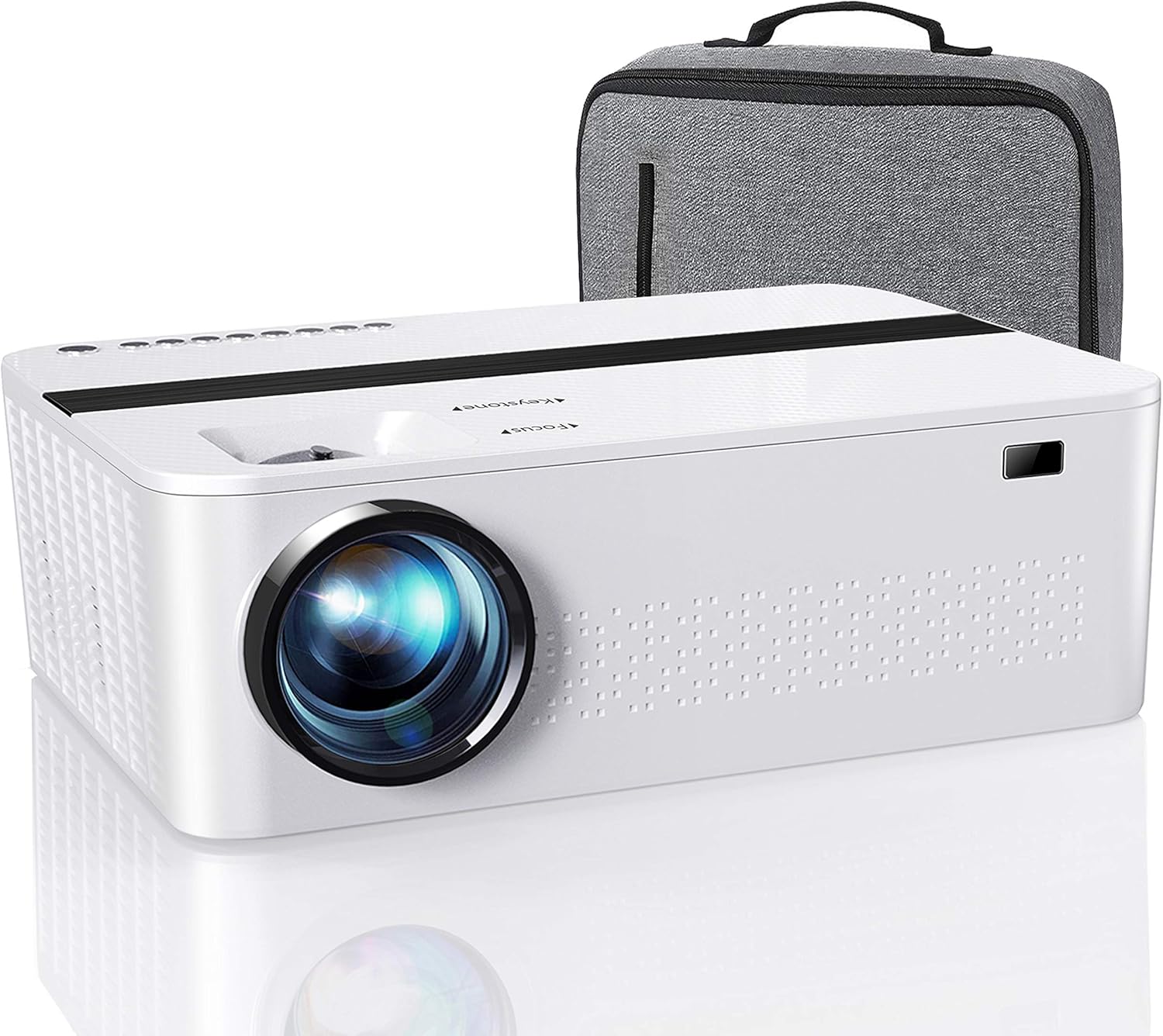
Image: A visual representation of the projector in a home theater setup, demonstrating the clarity and size of the projected image after focus and keystone adjustments.
Funcionamiento del proyector
1. Conexión de dispositivos
The JIFAR E16 projector supports various input sources:
- HDMI: Connect laptops, gaming consoles, Blu-ray players, or TV sticks using an HDMI cable.
- USB: Insertar unidades USB para reproducir medios files directamente.
- AV: Utilice el cable AV proporcionado para conectar dispositivos más antiguos como reproductores de DVD.
- Tarjeta TF: Insert a TF card for direct media playback.
After connecting a device, press the "Source" button on the remote or projector to select the corresponding input source (e.g., HDMI1, USB, AV).

Image: Diagram illustrating the versatile connectivity of the projector, showing connections to smartphones, tablets, and laptops via various methods.
2. Wireless WiFi Connection (Screen Mirroring)
The projector supports 2.4G and 5G WiFi for screen mirroring from iOS and Android devices.

Image: Visual comparison demonstrating the faster and smoother performance of 5G WiFi connectivity compared to 2.4G for streaming content to the projector.
Para dispositivos iOS:
- Select "Screen Mirroring" as the input source on your projector.
- Connect your projector to your WiFi network.
- En su dispositivo iOS, abra el Centro de control y toque "Duplicación de pantalla".
- Select your projector's name (e.g., LZS-XXXXXXX) from the list to connect.

Image: Step-by-step guide for connecting an iOS device to the projector via screen mirroring, showing menu selections and connection process.
Note: Due to copyright restrictions, streaming services like Netflix, Amazon Prime, and Disney+ do not support screen mirroring. For these services, please use an HDMI connection with a compatible streaming device (e.g., TV Stick, Chromecast).
3. Conexión Bluetooth
The projector features built-in Bluetooth for connecting external audio devices such as Bluetooth speakers or headphones.
- Navegue a la configuración de Bluetooth en el menú del proyector.
- Habilite Bluetooth y busque dispositivos disponibles.
- Select your desired Bluetooth speaker or headphone from the list to pair.
Note: The projector's Bluetooth function is for audio output only. It does not support data transfer from smartphones via Bluetooth.
Mantenimiento
1. Limpieza de la lente
Use a professional lens cleaning cloth or lens paper to gently wipe the projector lens. Avoid using abrasive cleaners or cloths that could scratch the lens surface.
2. Limpieza del cuerpo del proyector
Limpie el exterior del proyector con un paño suave y seco. Para manchas difíciles, utilice un paño ligeramente seco.amp Se puede usar un paño y luego un paño seco. No utilice productos químicos agresivos ni disolventes.
3. Almacenamiento
When not in use for extended periods, store the projector in a cool, dry, and dust-free environment. Use the provided lens cover to protect the lens from dust and scratches.
Solución de problemas
| Problema | Posible causa | Solución |
|---|---|---|
| Sin poder | Power cord not connected; Power outlet issue; Projector in standby mode. | Ensure power cord is securely connected. Try a different outlet. Press power button on projector or remote. |
| Sin imagen | Incorrect input source selected; Cable not connected properly; Device not outputting signal. | Select correct input source. Check HDMI/USB/AV cable connections. Ensure source device is on and outputting. |
| Imagen borrosa | Focus not adjusted; Keystone not adjusted; Projector too close/far. | Adjust focus ring. Adjust keystone correction. Reposition projector within recommended distance. |
| Sin sonido | Volumen demasiado bajo; Silenciado; Dispositivo de audio externo no conectado/emparejado. | Increase volume. Unmute projector. Check Bluetooth connection or audio cable. |
| Screen Mirroring Issues (Netflix/Prime Video) | Copyright protection on streaming apps. | Connect a streaming device (e.g., Fire TV Stick, Roku) via HDMI to play copyrighted content. |
Presupuesto
| Característica | Detalle |
|---|---|
| Resolución nativa | 1280 x 720P (Supports 1920 x 1080P) |
| Relación de contraste | 6000:1 |
| Brillo | 350 lúmenes ANSI / 12000 L |
| Tecnología de conectividad | HDMI, USB, AV, TF Card, WiFi (2.4G/5G), Bluetooth |
| Dimensiones del producto | 9.26 x 5.5 x 3 pulgadas |
| Peso del artículo | 4.55 libras |
| Resolución de pantalla | 1920 x 1080 (Supported Input) |
| Usos recomendados | Montaje de mesa |
| Característica especial | Altavoces incorporados |
| Diagonal de pantalla visible | Hasta 450 pulgadas / 1143 cm |
Garantía y soporte
JIFAR is committed to providing excellent products and customer service. Your JIFAR E16 Projector comes with the following support:
- 6-Month Money Back & New Replacement Guarantee: If any problems occur, contact us immediately for a refund or a new replacement within 6 months of purchase.
- 2-Year Professional Technical Support: We offer professional technical assistance for two years from the date of purchase.
- Piezas faltantes o rotas: If you receive a package with missing parts or a broken item, we will send a new one to you free of charge.
For any inquiries or support, please contact JIFAR customer service through the platform where you purchased the product or refer to the contact information provided on the official JIFAR websitio.