
Macally BTERGOKEY
Manual de usuario del teclado ergonómico inalámbrico Macally
Model: BTERGOKEY
Introducción
Thank you for choosing the Macally Wireless Ergonomic Keyboard. This manual provides detailed instructions for setting up, operating, maintaining, and troubleshooting your new keyboard. Please read this manual thoroughly to ensure optimal performance and longevity of your device.

Figure 1: Macally Wireless Ergonomic Keyboard (Model BTERGOKEY)
Configuración
Contenido del paquete
- Macally Wireless Ergonomic Keyboard
- Micro USB to USB-A Charging Cable
- Guía del usuario (este documento)
Cargando el teclado
The keyboard features a built-in 500mAh rechargeable battery. Before initial use, or when the battery is low, charge the keyboard using the included Micro USB to USB-A cable.
- Locate the Micro USB port on the keyboard.
- Connect the Micro USB end of the cable to the keyboard.
- Conecte el extremo USB-A del cable a una fuente de alimentación USB compatible (por ejemplo, puerto USB de computadora, adaptador de pared USB).
- El indicador LED mostrará el estado de carga.

Figure 2: Keyboard connected to charging cable.
Figure 3: Close-up of the charging port and On/Off switch.
Emparejamiento Bluetooth
The Macally BTERGOKEY keyboard can pair with up to three Bluetooth devices simultaneously.
- Ensure the keyboard is charged and the On/Off switch is in the "On" position.
- To initiate pairing, press and hold the Fn key, and while holding it, press the Number 1, 2, or 3 key on the number row. Release both keys. This selects the Bluetooth channel.
- A continuación, mantenga pulsado Fn again, and while holding it, press the "PAG" key. Release both keys. The LED light for the selected channel (B1, B2, or B3) will flash rapidly, indicating it is in pairing mode.
- En tu Mac, iPad o iPhone, ve a Preferencias del sistema (Mac) o Ajustes (iOS), then navigate to Bluetooth.
- Select "Macally BTERGOKEY" from the list of available devices.
- Follow any on-screen prompts to complete the pairing process. The LED light will stop flashing rapidly once successfully paired.
Figure 4: Bluetooth connectivity with multiple Apple devices.
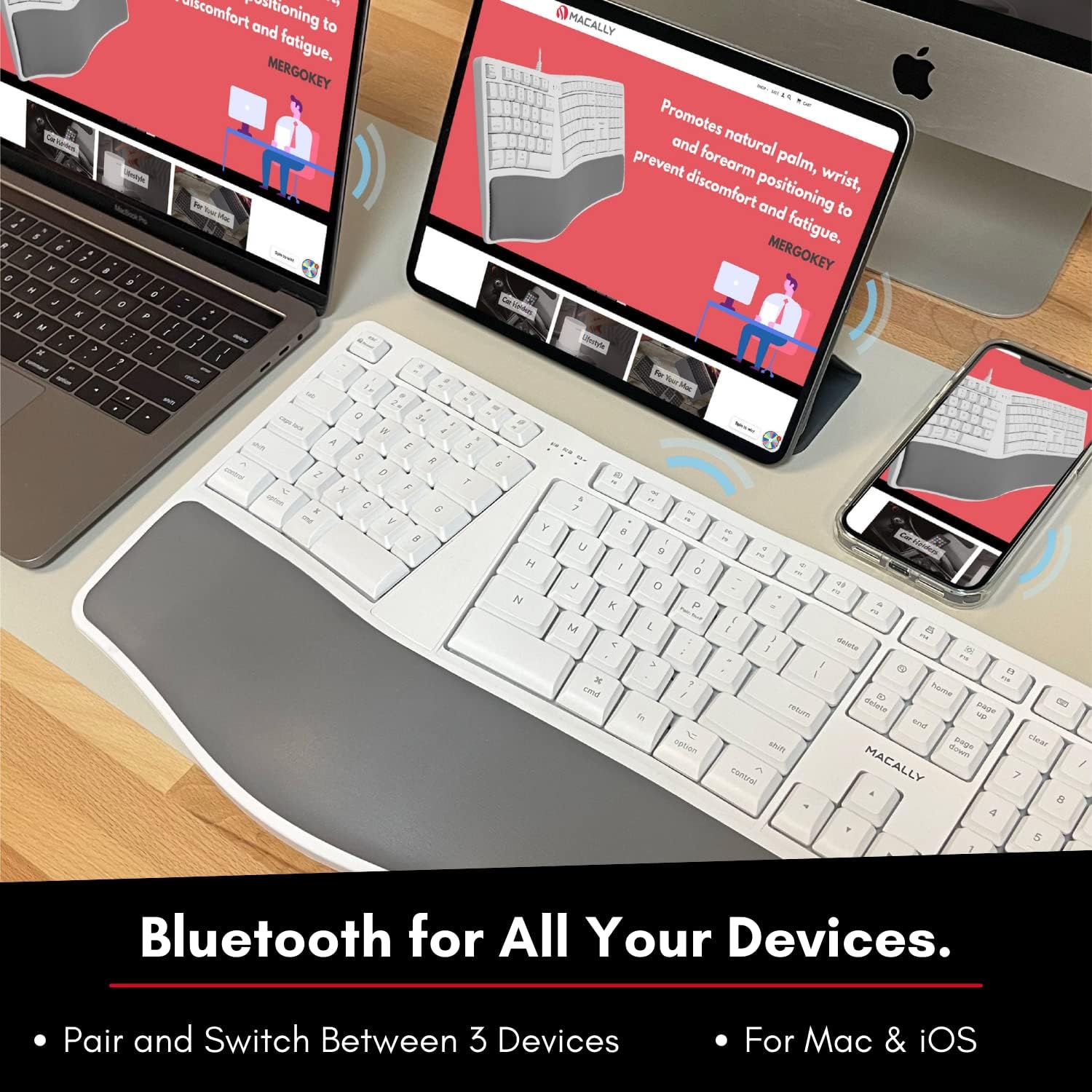
Figure 5: The keyboard supports Bluetooth connection to Mac, iPad, and iPhone.
Instrucciones de funcionamiento
Cambiar entre dispositivos emparejados
To quick-switch between your paired Bluetooth devices (B1, B2, or B3), simply press and hold the Fn key and then press the corresponding Number 1, 2, or 3 on the number row. Release both keys. The keyboard will connect to the selected device.
Ergonomic Design and Typing
The Macally BTERGOKEY features a split ergonomic design with keys in two zones and at an angle to promote natural arm and wrist posture. It includes a padded wrist cushion for enhanced comfort.

Figure 6: The keyboard's design promotes neutral arm resting position and sloped comfort.
The keyboard's layout includes two dedicated typing zones and a space bar for each hand, which can help improve typing speed and reduce strain.

Figure 7: The keyboard features two distinct typing zones for improved efficiency.
It may take a few days to adjust to the unique layout of this ergonomic keyboard. Consistent use will help you adapt and experience the full benefits.

Figure 8: Adjustment period for the ergonomic layout.
MacOS Shortcut Keys
The keyboard features a 110-key Mac-specific layout with 21 MacOSX shortcut keys to enhance your productivity. These keys provide quick access to common functions.

Figura 9: Sobreview of the 21 MacOS shortcut keys.
Mantenimiento
Limpiar tu teclado
To maintain the cleanliness and functionality of your keyboard, follow these guidelines:
- Apague siempre el teclado antes de limpiarlo.
- Utilice un paño suave y sin pelusa ligeramente seco.ampLimpiar con agua o una solución de limpieza suave, no abrasiva.
- Evite rociar limpiadores directamente sobre el teclado.
- No utilice productos químicos agresivos, disolventes ni materiales abrasivos.
- Elimine periódicamente el polvo y los residuos de entre las teclas utilizando aire comprimido.
Cuidado de la batería
To prolong the life of the rechargeable battery:
- Evite descargar completamente la batería con frecuencia.
- Cargue el teclado periódicamente, especialmente si no lo utilizará durante un período prolongado.
- Guarde el teclado en un lugar fresco y seco cuando no esté en uso.
Solución de problemas
Problemas de emparejamiento
- LED light flashing rapidly: This indicates the keyboard is actively searching for a device to pair with. Ensure Bluetooth is enabled on your host device and it is discoverable.
- LED light flashing slowly: This means the keyboard is attempting to reconnect to a previously paired device. Ensure the paired device's Bluetooth is on and within range.
- Keyboard not appearing in Bluetooth list:
- Asegúrese de que el teclado esté cargado y encendido.
- Asegúrese de que el teclado esté en modo de emparejamiento (LED parpadeando rápidamente).
- Try restarting both the keyboard and your host device.
- Clear existing Bluetooth connections on your host device if you have too many.
Number Pad Not Working
If your number pad is not functioning, and there is no dedicated "Num Lock" key, you may need to adjust a setting in your macOS:
- Ir a Preferencias del sistema en tu Mac.
- Hacer clic en Accesibilidad.
- Desplácese hacia abajo y seleccione Control de puntero.
- Desactivar the "Enable Mouse Keys" option. This setting can sometimes interfere with the number pad's functionality.
Problemas generales de conectividad
- Ensure the keyboard is within the effective range of your Bluetooth device (typically up to 33 feet or 10 meters).
- Minimiza la interferencia de otros dispositivos inalámbricos (por ejemplo, enrutadores Wi-Fi, teléfonos inalámbricos).
- If issues persist, try unpairing and re-pairing the keyboard with your device.
Presupuesto
| Característica | Detalle |
|---|---|
| Dimensiones del producto | 19 x 9.85 x 1.5 pulgadas |
| Peso del artículo | 2.89 libras |
| Número de modelo | BTERGOKEY |
| Tecnología de conectividad | Bluetooth |
| Dispositivos compatibles | Apple Mac Pro/Mini, Macbook Pro/Air, iMac, iPad, iPhone |
| Número de llaves | 110 |
| Batería | Batería recargable de 500 mAh |
| Características especiales | Split Ergonomic Design, Padded Wrist Cushion, Multi-sync Bluetooth, 21 MacOS Shortcut Keys, Adjustable Kickstand |
Garantía y soporte
Macally products are designed with quality and reliability in mind. For warranty information and technical support, please visit the official Macally websitio o póngase en contacto con su servicio de atención al cliente.
Websitio: www.macally.es
Please have your product model number (BTERGOKEY) and purchase information ready when contacting support.
Ask a question about this manual
Ask about setup, troubleshooting, compatibility, parts, safety, or missing instructions. Manuals+ will review the question and use this page’s manual context to help answer it.