
1. Introducción
This manual provides detailed instructions for the proper use and maintenance of your Tera D5100Y USB Wired 1D 2D QR Barcode Scanner. Designed for efficiency and durability, this scanner offers fast and precise scanning for a wide range of barcode symbologies. Please read this manual thoroughly before operating the device to ensure optimal performance and longevity.

Image: The Tera D5100Y USB Wired 1D 2D QR Barcode Scanner, featuring its ergonomic design and USB cable.
2. Contenido del paquete
Al abrir el paquete, verifique que todos los elementos enumerados a continuación estén presentes y en buenas condiciones:
- Tera D5100Y Barcode Scanner (x1)
- Cable USB (integrado)
- Manual de usuario (x1)

Image: A visual representation of the Tera D5100Y scanner, its USB cable, and the included user manual, as found in the product box.
3. Características principales
- Diseño ergonómico: The scanner features a curved, extended, and thickened handle, specifically designed for comfortable grip during prolonged use. The smooth, flat trigger enhances user experience.
- Mayor durabilidad: Equipped with an orange anti-shock silicone protective cover, the scanner is designed to withstand drops from up to 6.56 feet (2 meters). Its IP54 rating provides protection against dust and splashing water.
- Conectividad Plug and Play: The Tera D5100Y is a wired 2D barcode scanner that connects via a standard USB cable. No driver or software installation is required, allowing for immediate use upon connection.
- Amplia compatibilidad: Compatible with Windows, Mac OS, Linux, iOS, and Android operating systems. It works seamlessly with common software applications such as Word, Excel, and Novell.
- Soporte multi-idioma: Supports approximately 25 languages, including English, Spanish, German, French, Italian, and Japanese. The factory default language is English. Ensure the scanner's language setting matches your computer's keyboard language for correct output.
- Versatile Scanning Capabilities: Decodes both printed and digital 1D, 2D, and QR barcode symbologies. This includes UPC-A, EAN-13, Code 128, QR Code, Data Matrix, PDF417, Aztec code, and Maxicode.

Image: A hand comfortably holding the Tera D5100Y scanner, illustrating its ergonomic shape and trigger placement for ease of use.
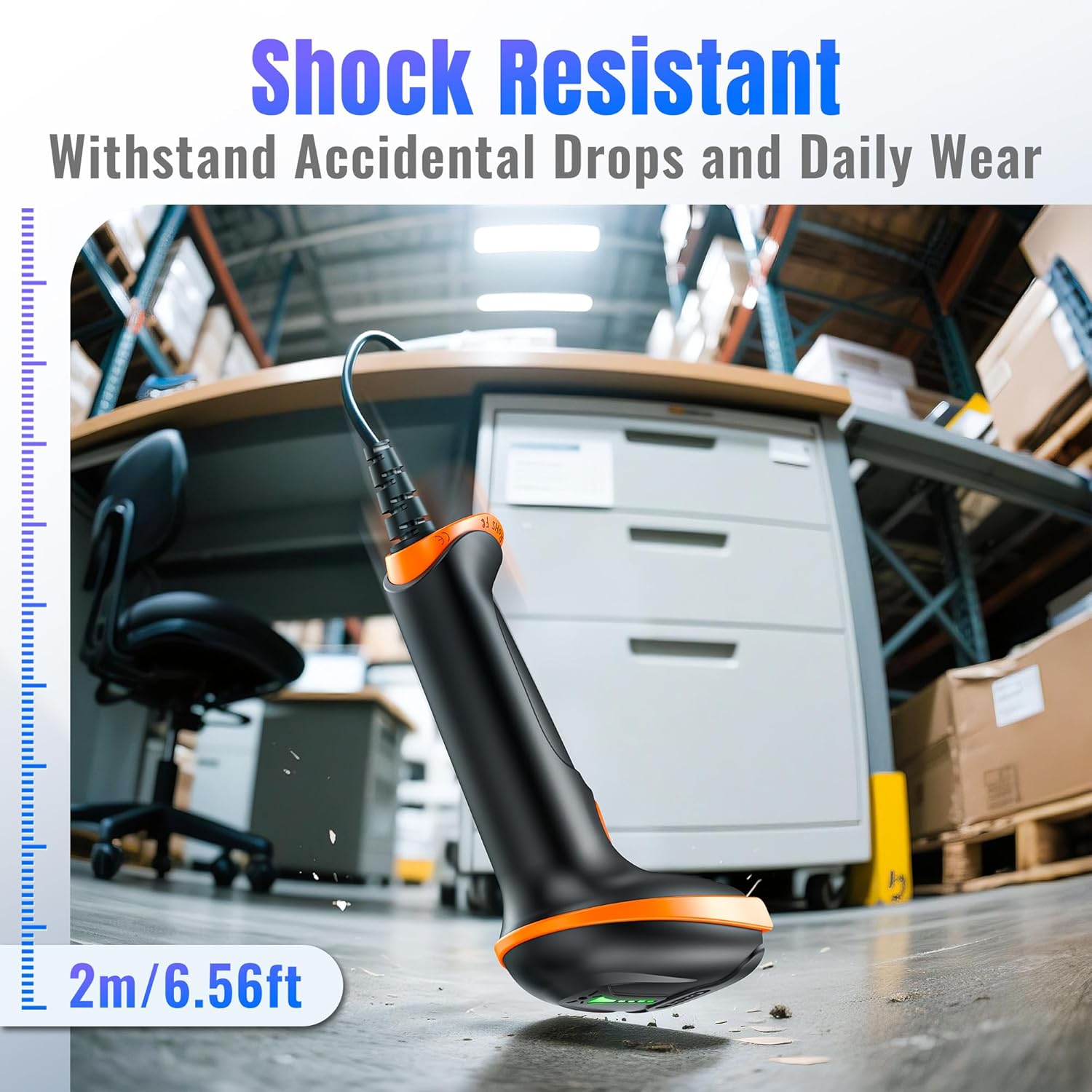
Image: The Tera D5100Y scanner shown in a simulated drop scenario, emphasizing its robust, shock-resistant construction.
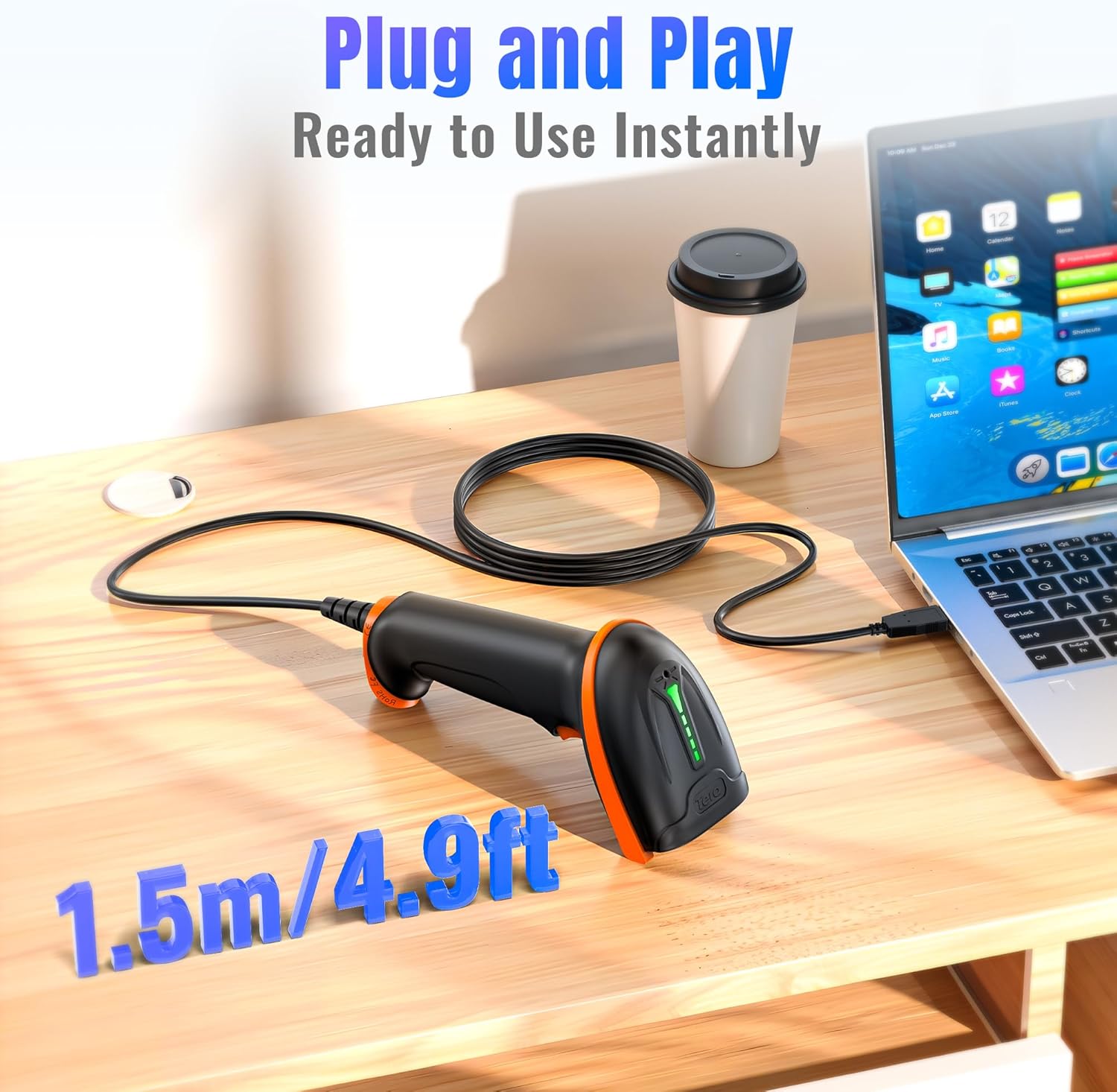
Image: The Tera D5100Y scanner connected to a laptop via its USB cable, demonstrating its simple plug-and-play setup.

Image: The Tera D5100Y scanner with flags of various countries, indicating its support for multiple languages.

Image: The Tera D5100Y scanner actively scanning a QR code on a laptop screen, demonstrating its capability to read both digital and printed 1D/2D/QR codes.
4. Configuración
- Conectar el escáner: Plug the USB cable of the Tera D5100Y scanner into an available USB port on your computer (Desktop or Laptop).
- Reconocimiento del sistema: Your operating system (Windows, Mac OS, Linux, etc.) will automatically detect and install the necessary drivers. This process typically takes a few seconds.
- Listo para usar: Once the system recognizes the device, the scanner is ready for immediate use. No additional software installation is required.
5. Instrucciones de funcionamiento
5.1 Escaneo básico
- Ensure the scanner is connected to your computer.
- Abra una aplicación donde desee que aparezcan los datos escaneados (por ejemplo, el Bloc de notas, Word, Excel, un sistema POS).
- Apunte la ventana del escáner hacia el código de barras que desea escanear.
- Press and hold the trigger button. A red aiming line will appear.
- Align the aiming line across the entire barcode. Once successfully scanned, the scanner will emit a beep (if enabled) and the data will appear in your active application.
5.2 Configuración de sonido
The scanner's beep sound can be adjusted. Refer to the full user manual (PDF) for specific configuration barcodes to turn the sound on or off.
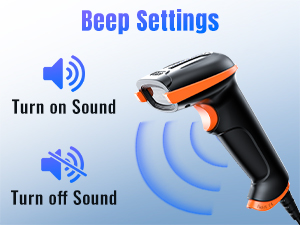
Image: A visual guide illustrating how to enable or disable the scanner's beep sound, enhancing user control over auditory feedback.
5.3 ajustes de idioma
To ensure correct character output, the scanner's language setting must match your computer's keyboard language. The default language is English. Consult the full user manual (PDF) for instructions on changing the scanner's language by scanning specific configuration barcodes.

Image: A graphic depicting a globe surrounded by various national flags, symbolizing the scanner's extensive multi-language support.
5.4 Data Editing (Prefix/Suffix)
The scanner supports adding prefixes or suffixes to scanned data, and hiding certain characters. These advanced settings are configured by scanning specific barcodes found in the comprehensive user manual (PDF).
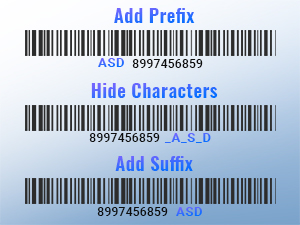
Imagen: Examples of barcodes with added prefixes, illustrating the scanner's capability to customize data output.
5.5 Modos de carga
The Tera D5100Y scanner supports two primary upload modes:
- Modo de carga instantánea: Los datos escaneados se transmiten inmediatamente al dispositivo conectado.
- Modo de almacenamiento: Scanned data is stored internally in the scanner's memory and can be uploaded later in a batch.
Configuration barcodes for switching between these modes are available in the full user manual (PDF).
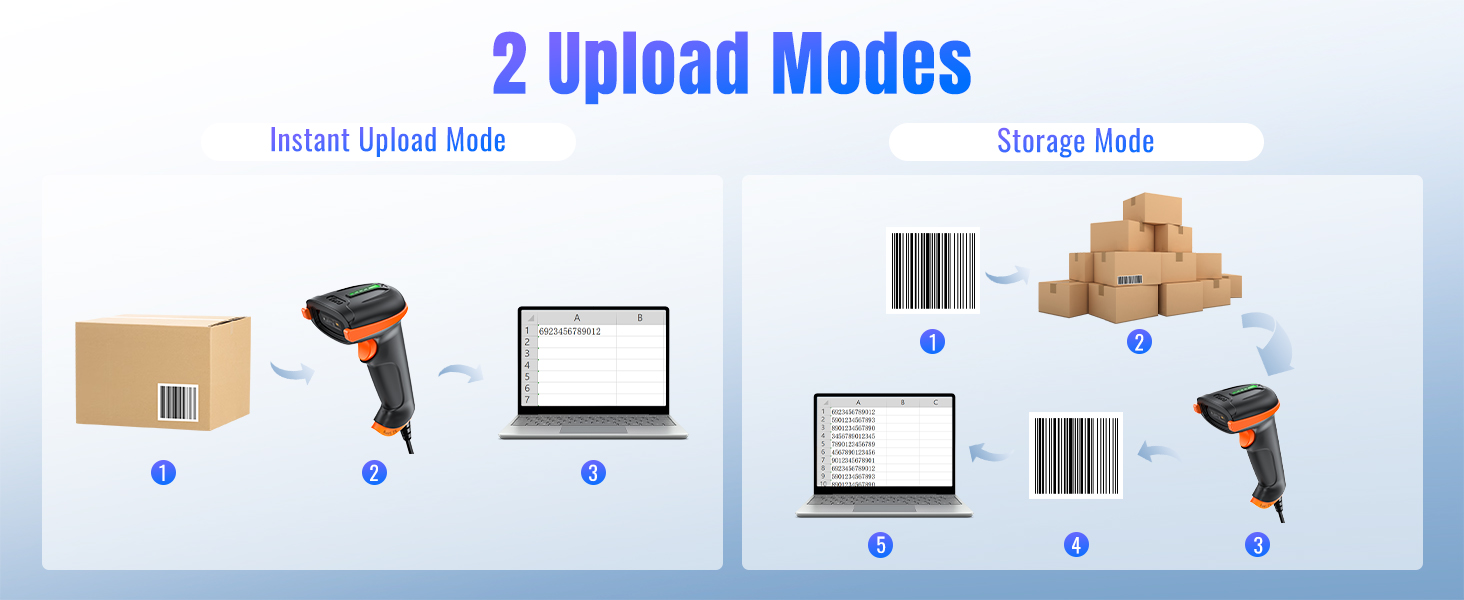
Image: A diagram illustrating the two data upload modes: Instant Upload, where data is sent immediately, and Storage Mode, where data is saved for later batch transfer.
6. Mantenimiento
- Limpieza: Utilice un paño suave y seco para limpiar el exterior del escáner. Para la ventana de escaneo, utilice un paño sin pelusa ligeramente seco.ampLimpie con un limpiador suave y no abrasivo. Evite productos químicos agresivos o materiales abrasivos.
- Almacenamiento: Guarde el escáner en un lugar fresco y seco, alejado de la luz solar directa y de temperaturas extremas.
- Cuidado de cables: Evite doblar o torcer excesivamente el cable USB para evitar daños internos.
7. Solución de problemas
If you encounter issues with your Tera D5100Y scanner, please refer to the following common problems and solutions:
- El escáner no responde:
- Asegúrese de que el cable USB esté conectado de forma segura tanto al escáner como a la computadora.
- Intente conectar el escáner a un puerto USB diferente.
- Reinicie su computadora.
- No se pueden escanear códigos de barras:
- Asegúrese de que el código de barras esté limpio, sin daños y claramente visible.
- Ajuste la distancia y el ángulo entre el escáner y el código de barras.
- Verify that the scanner is configured for the correct barcode symbology (refer to the PDF manual for configuration barcodes).
- Check the scanner's decoding ability for challenging barcodes.
- Incorrect Characters or Output:
- Ensure the scanner's language setting matches your computer's keyboard language.
- Verify that the cursor is in an active input field in your application.
- If experiencing random character issues (e.g., lower case becoming upper case, numbers becoming symbols), this might indicate a firmware issue or an incorrect HID keyboard mode setting. Refer to the full PDF manual for factory reset options or alternative USB-COM mode configurations.
- Sin sonido de pitido:
- Check the sound settings as described in Section 5.2 or the PDF manual to ensure the beep is enabled.
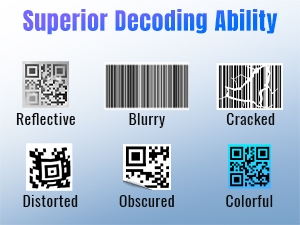
Image: A display of various barcode conditions, such as reflective, blurry, cracked, distorted, obscured, and colorful, demonstrating the scanner's advanced decoding capabilities.
For advanced troubleshooting or specific configuration settings, please refer to the comprehensive Tera D5100Y User Manual (PDF).
8. Especificaciones
| Característica | Especificación |
|---|---|
| Número de modelo | D5100y |
| Dimensiones del producto | 2.5" de profundidad x 3.9" de ancho x 6.5" de alto (6.35 cm de profundidad x 9.9 cm de ancho x 16.5 cm de alto) |
| Peso del artículo | 9.1 onzas (257.98 gramos) |
| Fuente de poder | USB con cable |
| Tecnología de conectividad | Cable USB |
| Dispositivos compatibles | Computadora de escritorio, computadora portátil |
| Tipos de códigos de barras (1D) | UPC-A, UPC-E, EAN-8, EAN-13, Code 128, Code 39, Code 93, Code 11, Interleaved 2 of 5, Matrix 2 of 5, Standard 2 of 5, Coda bar, MSI Plessey, GS1, China Post, Databar(RSS), Korea, NEC2 of 5, etc. |
| Tipos de códigos de barras (2D) | Código QR, Data Matrix, PDF417, Código Azteca, Maxicode |
| Clasificación de durabilidad | IP54 (a prueba de polvo y salpicaduras) |
| Resistencia a caídas | Hasta 6.56 pies (2 metros) |
9. Garantía y soporte
Tera products are manufactured to high-quality standards and are backed by a manufacturer's warranty. For specific warranty details, terms, and conditions, please refer to the documentation included with your product or visit the official Tera websitio.
For further assistance, technical support, or to download the complete user manual, please visit the official Tera support resources. The full user manual contains detailed configuration barcodes and advanced settings not covered in this condensed guide.
You can access the official PDF user manual here: Tera D5100Y User Manual (PDF)
10. Información de seguridad
- No exponga el escáner a temperaturas extremas, humedad o sustancias corrosivas.
- Evite la exposición directa de los ojos a la fuente de luz del escáner.
- Do not attempt to disassemble or modify the scanner. This will void the warranty and could cause damage or injury.
- Mantenga el dispositivo alejado de campos magnéticos fuertes.