
1. Producto terminadoview
The SIIG JU-DK0L11-S1 is a versatile USB 3.0 Dual Monitor Docking Station designed to expand your laptop or desktop's connectivity and display capabilities. It supports up to two 1080p@60Hz Full HD video displays via two HDMI ports, along with multiple USB ports, Gigabit Ethernet, and a 3.5mm audio jack. This docking station is compatible with both Windows and macOS operating systems, including Mac M1/M2/M3 Pro&Max.
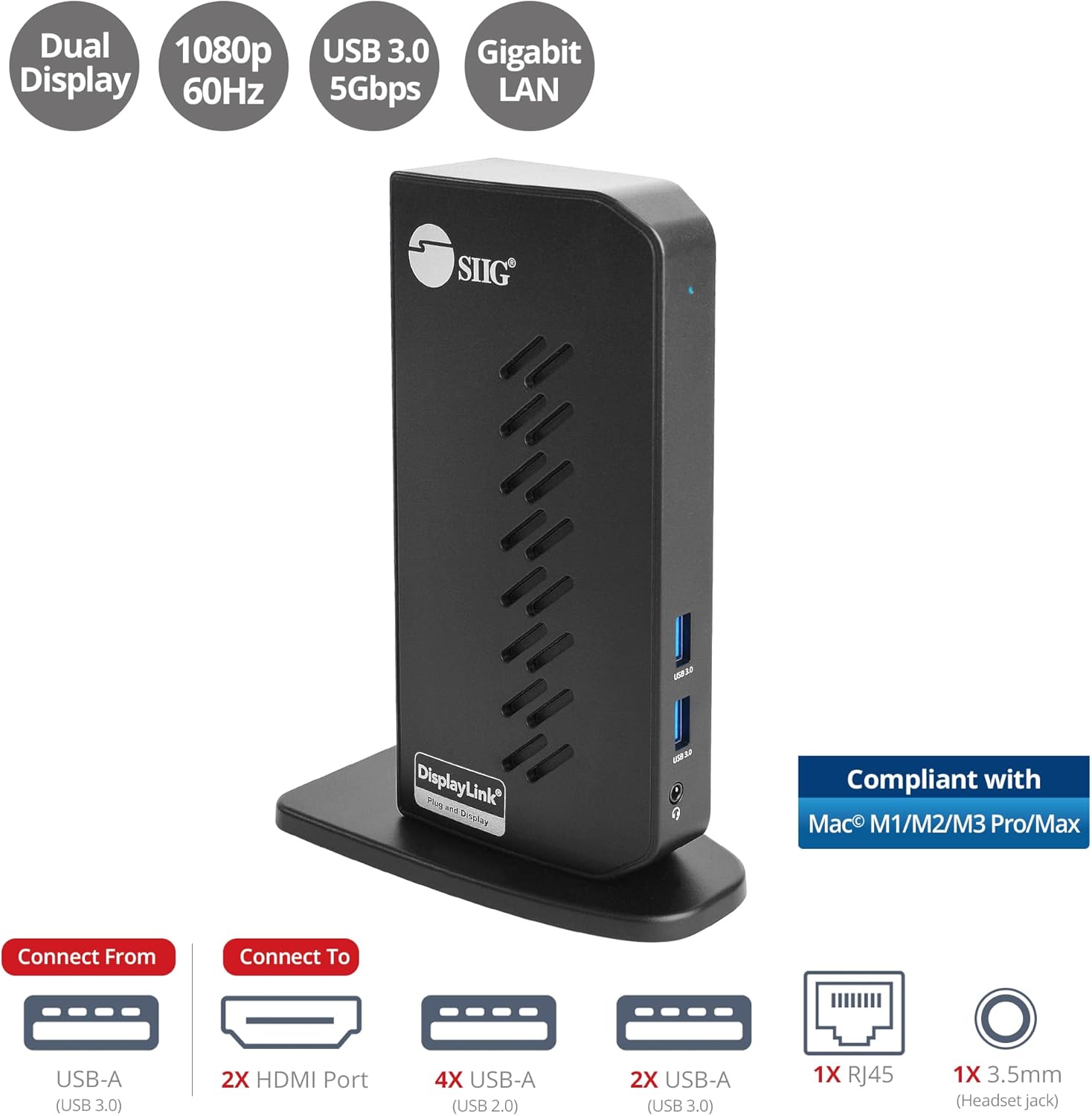
Image 1.1: The SIIG JU-DK0L11-S1 Dual Monitor Docking Station, showcasing its compact vertical design and various connectivity options.
2. Contenido del paquete
Verifique que todos los elementos estén presentes en el paquete antes de continuar con la instalación.
- SIIG JU-DK0L11-S1 Dual Head Full HD HDMI Video Docking Station
- Adaptador de corriente (12 V/2 A)
- USB 3.0 Type-A to Type-B Cable
- Driver CD (Drivers can also be downloaded from the official SIIG websitio)
- Manual de usuario

Image 2.1: All components included in the SIIG JU-DK0L11-S1 docking station package, including the docking station, power adapter, USB cable, driver CD, and user manual.
3. Diseño de hardware
Familiarize yourself with the ports and indicators on the docking station.
Panel frontal
- LED de encendido: Indica el estado de energía.
- 2 puertos USB 3.0: For connecting high-speed USB devices (5Gbps, 4.5W/900mA).
- Conector para auriculares de 3.5 mm: For connecting headphones or stereo speakers with microphone input.
Panel trasero
- 4 puertos USB 2.0: For connecting standard USB devices (480Mbps, 5V/900mA).
- Puerto Ethernet Gigabit RJ45: Para conexión de red cableada (10/100/1000Mbps).
- 2x HDMI Outputs: For connecting external displays (up to 1080p@60Hz).
- Puerto USB 3.0 Tipo B: For connecting the docking station to your host computer.
- Conector de alimentación: Para conectar el adaptador de corriente 12V/2A.

Imagen 3.1: Detallada view of the front and rear panels of the docking station, highlighting all available ports and their functions.
4. Instrucciones de configuración
Siga estos pasos para configurar su estación de acoplamiento:
- Install DisplayLink Drivers: Before connecting the docking station, install the necessary DisplayLink drivers on your computer. You can use the included driver CD or download the latest drivers from the official DisplayLink websitiowww.displaylink.com/downloads) or SIIG's support page.
- Conecte la electricidad: Plug the provided 12V/2A power adapter into the docking station's power jack and then into a wall outlet. The Power LED on the front panel should illuminate.
- Conectarse al ordenador host: Use the supplied USB 3.0 Type-A to Type-B cable to connect the docking station's USB 3.0 Type-B port to an available USB 3.0 Type-A port on your laptop or desktop computer.
- Conectar pantallas: Connect your external monitors to the two HDMI output ports on the rear of the docking station using HDMI cables.
- Conectar periféricos: Connect your USB devices (keyboard, mouse, printer, flash drives, etc.) to the available USB 3.0 and USB 2.0 ports. Connect an Ethernet cable to the RJ45 port for a wired network connection. Plug your headset or speakers into the 3.5mm audio jack.
Video 4.1: An official video demonstrating the setup and connectivity of the SIIG JU-DK0L11-S1 Dual Head Full HD HDMI Docking Station, showing how to connect monitors and peripherals.
5. Instrucciones de funcionamiento
Once the docking station is set up, you can configure your display settings and utilize the connected peripherals.
Modos de visualización
The docking station supports three primary display modes:
- Modo espejo: Duplicates your primary display onto the external monitors.
- Modo extendido: Amplía su escritorio a través de múltiples pantallas, lo que permite un mayor espacio de trabajo.
- Modo principal: Designates one of the connected displays as the main display.
Puede configurar estos ajustes a través de la configuración de pantalla de su sistema operativo (por ejemplo, Configuración de pantalla de Windows o Configuración del sistema macOS > Pantallas).

Image 5.1: A typical dual 1080p monitor setup utilizing the SIIG docking station, demonstrating an extended display configuration for enhanced productivity.
Conectividad USB
The docking station provides two USB 3.0 ports for high-speed data transfer (e.g., external hard drives, SSDs) and four USB 2.0 ports for standard peripherals (e.g., keyboard, mouse, printer). Simply plug your devices into the corresponding ports.
Gigabit Ethernet
For a stable and fast internet connection, connect an Ethernet cable from your router or modem to the RJ45 port on the docking station. This provides a more reliable connection than Wi-Fi, supporting 10/100/1000 BASE-T wired networks.

Imagen 5.2: Primer plano view of the Gigabit RJ45 Ethernet port and USB ports, illustrating their use for network and high-speed data transmission.
Conexión de audio
The 3.5mm headset jack allows you to connect headphones, speakers, or a microphone. Ensure your operating system's audio settings are configured to use the docking station's audio output/input.
6. Specifications (Model: JU-DK0L11-S1)
| Marca | SIIG |
| Número de modelo | JU-DK0L11-S1 |
| Interfaz de hardware | 3.5mm Audio, Ethernet, HDMI, USB 1.1, USB 2.0, USB 3.0 |
| Dispositivos compatibles | Desktop or laptop computer with an available USB 3.0 Type-A port. Compatible with Windows® 11/10/8.1/8/7 and macOS® 11 / 10.15 to 10.10. |
| Puertos USB totales | 6 (2 USB 3.0, 4 USB 2.0) |
| Puertos HDMI totales | 2 |
| Resolución máxima | 1080p@60Hz (per display) |
| Velocidad de Ethernet | Gigabit (10/100/1000 Mbps) |
| Vol de entradatage | 100 voltios (CA) |
| Dimensiones del producto (L x An x Al) | 5.31" x 2.87" x 7.36" |
| Peso del artículo | 0.75 libras |

Image 6.1: Physical dimensions of the SIIG JU-DK0L11-S1 docking station, illustrating its compact and space-saving design.
7. Solución de problemas
- Sin salida de pantalla:
- Asegúrese de que la estación de acoplamiento esté encendida y que el LED de encendido esté encendido.
- Verify that the USB 3.0 cable is securely connected between the docking station and your computer.
- Check that HDMI cables are firmly connected to both the docking station and your monitors.
- Confirm that DisplayLink drivers are correctly installed and up to date.
- Intente reiniciar su computadora.
- Dispositivos USB no reconocidos:
- Ensure the docking station is powered and connected to your computer.
- Intente conectar el dispositivo USB a un puerto diferente en la estación de acoplamiento.
- Connect the USB device directly to your computer to rule out device issues.
- Sin conexión de red:
- Verify the Ethernet cable is securely connected to the RJ45 port on the docking station and your network source.
- Verifique la configuración de red de su computadora para asegurarse de que el adaptador Ethernet esté habilitado.
- Confirm that your router/modem is functioning correctly.
- Problemas de audio:
- Ensure your headset/speakers are properly plugged into the 3.5mm jack.
- Check your computer's sound settings to select the docking station as the default audio output/input device.
8. Mantenimiento
To ensure the longevity and optimal performance of your SIIG docking station, follow these maintenance guidelines:
- Mantenga el dispositivo limpio frotándolo con un paño suave y seco. Evite usar limpiadores líquidos o aerosoles.
- Ensure proper ventilation around the docking station to prevent overheating. The vertical design with heat dissipation features aids in this.
- Evite exponer el dispositivo a temperaturas extremas, humedad o luz solar directa.
- Manipule los cables y conectores con cuidado para evitar dañarlos.
9. Garantía y soporte
For warranty information and technical support, please refer to the documentation included with your product or visit the official SIIG website. SIIG is committed to providing reliable products and customer assistance.
For further assistance, you may contact SIIG customer support directly through their websitio o la información de contacto proporcionada en el embalaje de su producto.


