
1. Producto terminadoview
This manual provides instructions for the Carlinkit Wireless CarPlay Adapter, Model B08YYP3VVW. This device enables wireless CarPlay and wired Android Auto functionality, along with screen mirroring, on compatible Android car stereo head units. It supports voice control, navigation, music playback, and phone calls directly from your car's display.
The adapter is designed to enhance your in-car connectivity by integrating your smartphone's features safely onto your vehicle's screen.

Image: The Carlinkit Wireless CarPlay Adapter, a compact black device with a USB cable, shown next to its packaging.
2. Requisitos de compatibilidad
To ensure proper function, your devices must meet the following criteria:
- iPhone: Requires iOS version 7.1 or above for wireless CarPlay, wired CarPlay, and wired screen mirroring.
- Teléfonos Android: Requires Android version 6.0 or above for wired Android Auto and wired screen mirroring.
- Car Radio/Head Unit: Must be an Android system with version 4.4.0 or above. This product is designed for aftermarket Android car radios and is not compatible with original factory car systems that do not have an Android operating system.
Importante: While the product supports most Android market phones and car radios, 100% compatibility with all models cannot be guaranteed. If you are unsure about your car or phone model, please contact customer support.
2.1. How to Check Your Car's Android Version
- On your car's screen, click on "Settings".
- Navigate to "Settings information" or "About the device".
- Locate and verify that the Android version is 4.4.2 or above.

Image: Visual guide on checking the Android version of your car's head unit by navigating through settings.
2.2. How to Check for APK Installation Support
Antes de comprarasing or using the product, ensure your Android head unit can install APK files:
- Download the Autokit APK from http://121.40.123.198:8080/autokit/autokit.apk and attempt to install it.
- Prepare a blank USB disk and place an MP3 file in its root directory.
- Open the installed Autokit App, click "Settings" (usually in the upper left corner), and then select "Detection".
- Verify that all items (Microphone, USB, Decode) show a checkmark (✓), indicating your car supports these functions.
If you cannot install the Autokit APK or if the detection fails, this product may not be compatible with your car.

Image: Steps to download and install the Autokit APK, and how to use the detection feature to check system compatibility.
3. Configuración e instalación
3.1. Wireless CarPlay Connection Method (for iPhone)
- Download the Autokit Apk from http://121.40.123.198:8080/autokit/autokit.apk and install it successfully on your car's system desktop.
- Insert the wireless adapter into the USB port of your car.
- Wait for the Autokit App to search for the product's Bluetooth.
- En tu iPhone, activa el Wi-Fi y el Bluetooth.
- Buscar the product's Bluetooth in your iPhone's Bluetooth settings and select it.
- Enter the password "0000" when prompted, then click "Pairing".
- Una vez conectado, CarPlay se iniciará automáticamente.
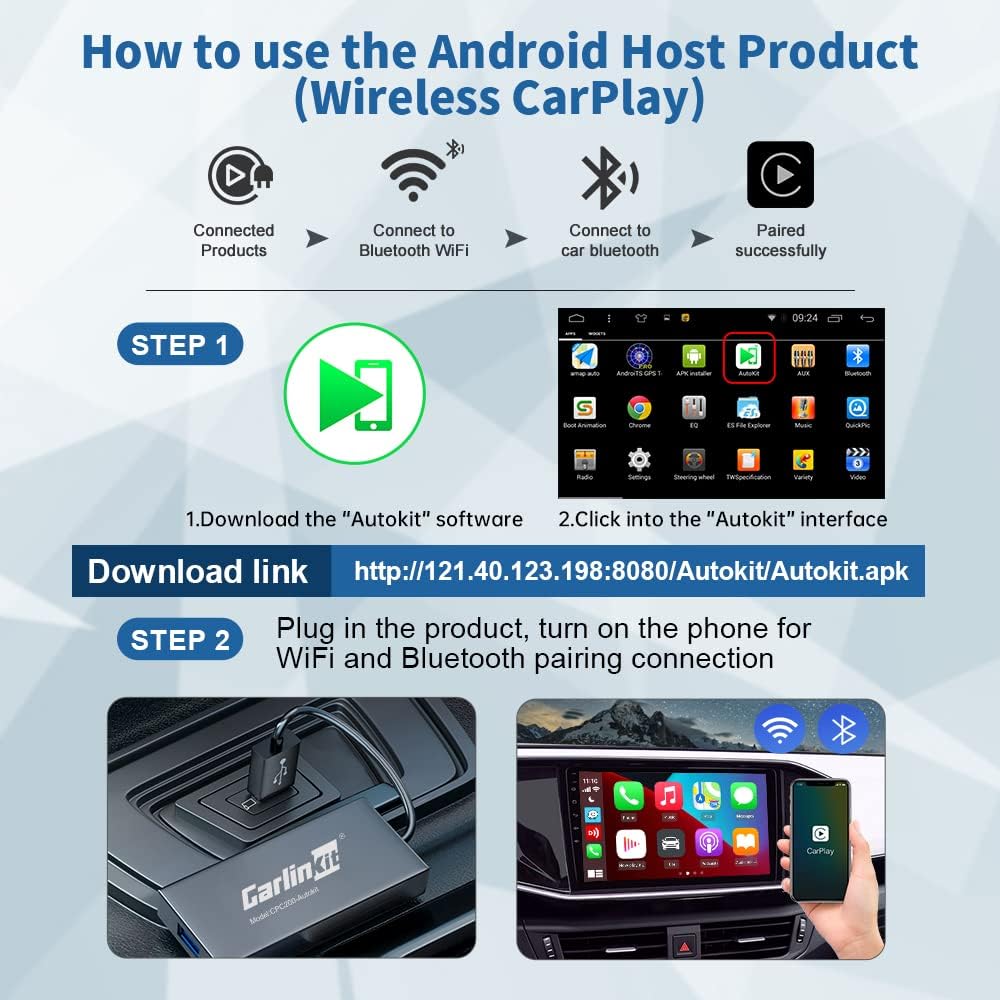
Image: A two-step visual guide for connecting an iPhone to the adapter for wireless CarPlay, showing the Autokit app and the physical connection.
Video: Demonstrates the process of connecting the wireless USB adapter for CarPlay, including checking Android version, installing Autokit APK, and pairing via Bluetooth.
3.2. Wired Android Auto Connection Method (for Android Phones)
- Download the Autokit Apk from http://121.40.123.198:8080/autokit/autokit.apk and install it successfully on your car's system desktop.
- Ensure "USB debugging" is enabled in your Android phone's developer options (refer to your phone's manual for instructions).
- Insert the adapter into the USB port of your car.
- Connect your Android phone to the adapter using a high-quality USB cable.
- Click the Autokit App on the car interface to initiate pairing.
- Android Auto will launch automatically once connected.
Video: A tutorial demonstrating how to install the Autokit app for aftermarket car radios and connect an Android phone for wired Android Auto.
Video: Instructions on how to use wired or wireless USB for Android 4.4.0 systems, covering both CarPlay and Android Auto connections.
4. Instrucciones de funcionamiento
Once connected, the Carlinkit adapter enables various functions through your car's display:
4.1. Wireless CarPlay (for iPhone)
- Navegación: Use GPS navigation apps like Google Maps for real-time directions.
- Música: Access online music apps and play your favorite tracks.
- Llamadas telefónicas: Make and receive calls directly from the car screen.
- Control de voz: Utilize Siri for hands-free commands.
- Pantalla dividida: iOS13 and above supports split-screen functionality for multiple windows.

Image: Online Map display within CarPlay.

Image: Siri Voice Assistant interface in CarPlay.

Image: Music playback interface in CarPlay.
4.2. Wired Android Auto (for Android Phones)
- Access maps, navigation, voice assistant, music, phone calls, and text messages.
- All services and features supported by Android Auto are available directly from your car screen.

Image: Wired Android Auto interface displayed on a car screen.
4.3. Wired Screen Mirroring (for iPhone and Android)
The adapter supports wired screen mirroring, allowing you to display your phone's screen content (such as YouTube, TV news, photos, and HD videos) directly onto your car's head unit.
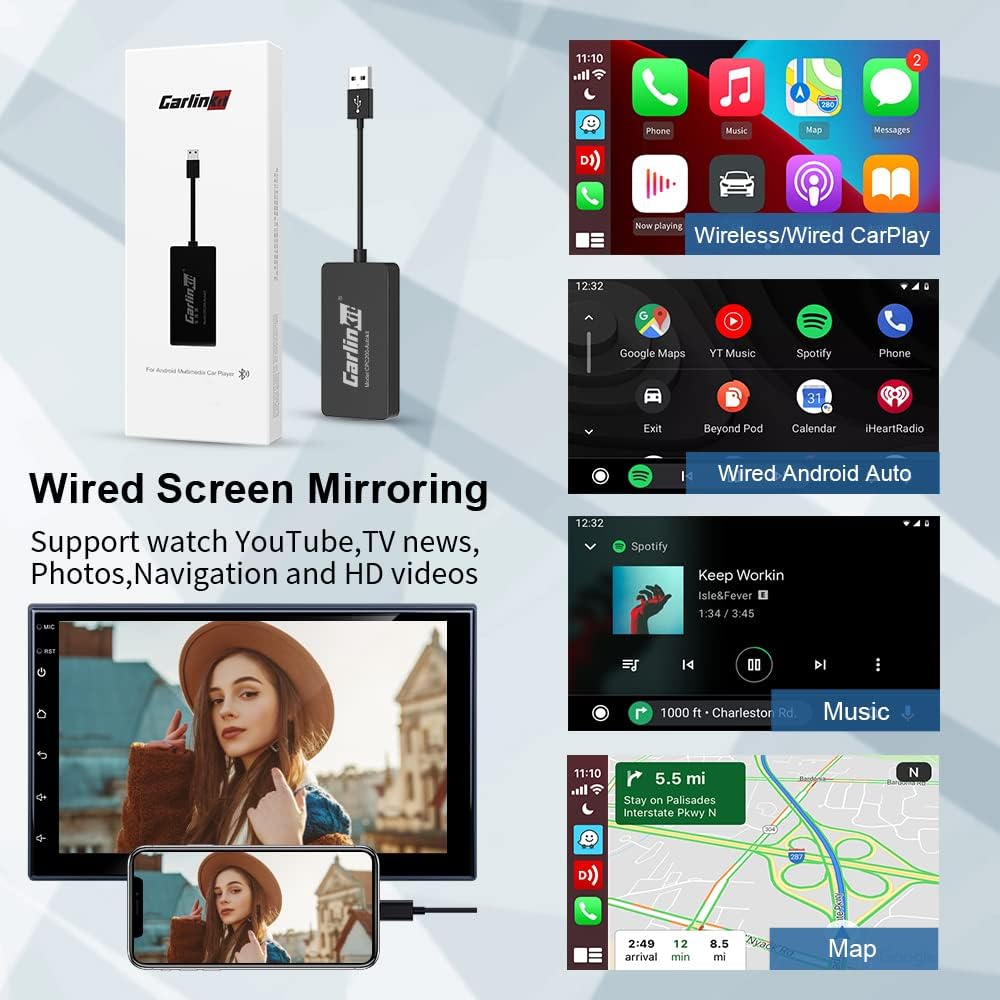
Image: A smartphone screen being mirrored to a car's display, showing video content.

Image: A visual representation of the Autokit APK interface for screen mirroring.
5. Mantenimiento y actualizaciones
5.1. Online Firmware Upgrade
The adapter supports Over-the-Air (OTA) updates for both the dongle and the Autokit app. This allows you to receive the latest system versions and performance improvements.
- Open the Autokit App on your car's display.
- Vaya a "Configuración".
- Select "Check updates" to see if a new version is available.
- Siga las instrucciones en pantalla para descargar e instalar las actualizaciones disponibles.

Image: Autokit app interface showing the "Check updates" option for online upgrades.
6. Solución de problemas
If you encounter issues with the adapter, consider the following:
- Comprobación de compatibilidad: Re-verify that your iPhone (iOS 7.1+), Android phone (Android 6.0+), and Android car radio (Android 4.4.0+) meet the minimum requirements. Ensure your car radio is an aftermarket Android unit, not an original factory system without Android OS.
- Autokit App Installation: Confirm the Autokit APK is correctly installed and that the "Detection" feature shows all items checked.
- Problemas de conexión: For wireless CarPlay, ensure both Wi-Fi and Bluetooth are enabled on your iPhone and correctly paired. For wired connections, use a high-quality USB cable and ensure "USB debugging" is enabled on Android phones.
- Calentamiento excesivo: If the device feels hot, ensure it has adequate ventilation. Prolonged overheating can affect performance.
- Mal funcionamiento general: Refer to the Q&A section on the product page for common issues.
Si los problemas persisten, comuníquese con el servicio de atención al cliente para obtener ayuda.
7. Especificaciones del producto
| Característica | Detalle |
|---|---|
| Marca | Enlace de coche |
| Modelo | B08YYP3VVW |
| Tecnología de conectividad | Bluetooth |
| Estándar de comunicación inalámbrica | Bluetooth |
| Tipo de instalación | instalación USB |
| Tipo de control | Control de voz, aplicación |
| Dispositivos compatibles | iPhone (iOS 7.1+), Android phones (Android 6.0+), Android car stereo head units (Android 4.4.0+) |
| Aplicaciones compatibles | CarPlay, Android Auto, AutoKit, GPS navigation, online music apps, phone calls |
| Interfaz de hardware | USB |
| Tipo de salida de audio | Speaker (Stereo, 4 Channels) |
| Peso del artículo | 0.1 kilogramos |
| Color | Negro |
8. Garantía y soporte
The Carlinkit Wireless CarPlay Adapter comes with a one-year global warranty and permanent technical service support.
If you encounter any issues with the adapter, such as incompatibility with your car or other malfunctions, please do not hesitate to contact us via Amazon email. Our support team is available to assist you with installation and troubleshooting.

Image: Carlinkit customer support information, emphasizing online upgrade and continuous support.