
Unbranded DP-KK99
Unbranded DP-KK99 WiFi Panoramic Security Camera User Manual
Model: DP-KK99
1. Introducción
This manual provides detailed instructions for the installation, operation, and maintenance of your Unbranded DP-KK99 WiFi Panoramic Security Camera. Please read this manual thoroughly before using the product to ensure proper functionality and safety. This camera offers 360-degree panoramic surveillance, motion detection, night vision, and two-way audio communication for comprehensive home monitoring.
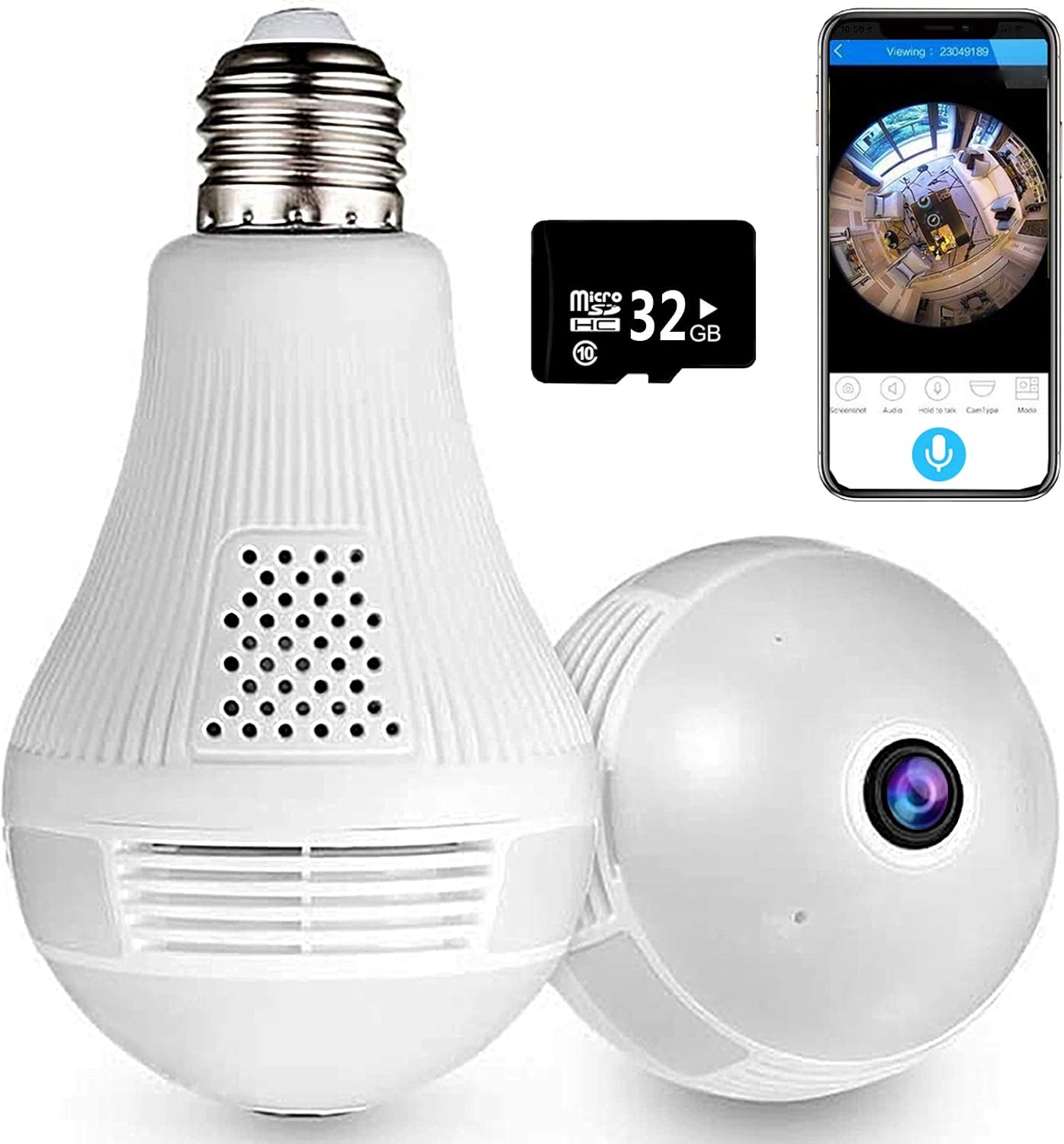
Image 1.1: The Unbranded DP-KK99 WiFi Panoramic Security Camera, showing its bulb-like design, a 32GB Micro SD card, and a smartphone displaying the camera's panoramic view.
2. Contenido del paquete
Por favor, revise el contenido del paquete al recibirlo. Si falta algún artículo o está dañado, contacte con su vendedor.
- Unbranded DP-KK99 WiFi Panoramic Security Camera
- Tarjeta Micro SD de 32 GB (preinstalada o incluida por separado)
- Soporte de montaje
- Manual de usuario (este documento)
3. Guía de configuración
3.1 Instalación
The camera is designed for easy installation into a standard E27 lamp base.
- Asegúrese de que la alimentación esté conectada al E27 lamp base is turned off before installation.
- Screw the camera firmly into the E27 lamp base.
- Encienda la lamp base. The camera will power on and begin its startup sequence.

Image 3.1: Visual guide for screwing the camera into a standard E27 lamp base para instalación.
3.2 Descarga y conexión de la aplicación
The camera operates via the 'iCsee' mobile application.
- Descargar la aplicación: Scan the QR code provided on the product packaging or search for "iCsee" in your smartphone's app store (iOS/Android).
- Registrar una cuenta: Open the iCsee application and register a new account using your email address. Phone numbers are not required for registration.
- Agregar cámara: Tap the '+' icon within the app to add a new device. Follow the on-screen prompts to select "Add Camera."
- Conectarse a Wi-Fi: Enter your 2.4GHz Wi-Fi network password. The camera only supports 2.4GHz Wi-Fi. Ensure the Wi-Fi name and password are spelled correctly.
- Initial Connection Tips: For the first connection, place the camera within 2 meters of your Wi-Fi router.
- Establecer nueva contraseña: Once successfully connected, set a new password for your camera for security.
3.3 Important Connection Notes
- Only 2.4GHz Wi-Fi networks are supported. 5GHz networks are not compatible.
- Ensure your Wi-Fi name and password are entered accurately.
- For initial setup, keep the camera close to your Wi-Fi router (within 2 meters).
4. Instrucciones de funcionamiento
4.1 Remoto Viewing y control
Una vez conectado, puede view vivir footage and control camera functions remotely through the iCsee app.
- Vivir View: Access the camera feed to see a clear, all-round view of your monitored area. The 360-degree fisheye lens provides comprehensive coverage without blind spots.
- Captura: Use the app to capture pictures and record videos directly from the live feed.

Image 4.1: The camera's 360-degree panoramic view eliminates blind spots, providing coverage equivalent to multiple standard cameras.
4.2 Comunicación de audio bidireccional
The camera features a built-in microphone and speaker, enabling two-way audio communication.
- From the iCsee app, you can initiate audio calls and conversations with individuals near the camera.
- The clear microphone ensures effective vocal transmission.

Image 4.2: The camera supports two-way intercom/audio, allowing remote communication with family members.
4.3 Detección de movimiento y alertas
The camera is equipped with a motion detection function to enhance security.
- When abnormal motion is detected, the camera will send an alert message directly to your mobile phone via the iCsee app.
- This feature helps keep your home or office secure by notifying you of unusual activity.

Image 4.3: The camera supports motion detection, sending alarm notifications to your smartphone upon detecting activity.
4.4 Visión nocturna
The camera provides excellent night vision capabilities for monitoring in low-light or dark conditions.
- It features built-in infrared night vision and white light full-color night vision dual mode.
- This dual mode ensures clear visibility and security around the clock.
4.5 Función de luz
The integrated light can be controlled via the app.
- You can set the light to turn on automatically in the dark, manually control it, or schedule it to turn on at specific times.
4.6 Opciones de almacenamiento
La cámara admite almacenamiento local y en la nube para las fotos grabadas.tage.
- Tarjeta micro SD: Vivir viewing and recording are supported directly to the included 32GB Micro SD card.
- Almacenamiento en la nube: Cloud storage options may be available through the iCsee app for additional backup and accessibility.

Image 4.4: The camera supports both Micro SD card and cloud storage for recording and viewEn.
5. Especificaciones
| Característica | Detalle |
|---|---|
| Número de modelo | DP-KK99 |
| Tecnología de conectividad | Inalámbrico (Wi-Fi) |
| Protocolo de conectividad | Wi-Fi (solo 2.4 GHz) |
| Dispositivos compatibles | Teléfono inteligente (iOS/Android) |
| Fuente de poder | AC/DC (E27 Lamp Base) |
| Tipo de montaje | Montaje en el techo |
| Factor de forma | Cúpula |
| Color | Blanco |
| Dimensiones del artículo (largo x ancho x alto) | 6.5 x 3.94 x 3.54 pulgadas |
| Peso del artículo | 7.8 onzas |
| Características especiales | Motion Sensor, Night Vision (Infrared & Full-Color), Two-Way Audio |
| Uso en interiores y exteriores | Interior |
| Formato de captura de video | MPEG-4 |
| Calificación de protección internacional | IP67 |
6. Solución de problemas
Si tiene problemas con su cámara, consulte las siguientes soluciones comunes:
- Error de conexión:
- Asegúrese de que su red Wi-Fi sea de 2.4 GHz. La cámara no es compatible con Wi-Fi de 5 GHz.
- Verify that the Wi-Fi name (SSID) and password are entered correctly in the iCsee app.
- During initial setup, ensure the camera is within 2 meters of your Wi-Fi router.
- Restablecimiento de la cámara: If connection fails, insert a thimble or small pin into the reset hole on the camera. Press and hold for 10 seconds until you hear a prompt or see an indicator light change. Wait 2 minutes for the camera to restart, then attempt to reconnect.
- Hotspot Mode Activation: If you need to activate hotspot mode, insert a thimble into the reset hole and click 3 times. Then, search for a Wi-Fi network starting with "camera" on your phone. The default password for this hotspot is 1234567890.
- No Picture/Offline: Check the power supply to the E27 lamp base. Ensure the camera is securely screwed in and receiving power. Verify your Wi-Fi connection is stable.
- Mala calidad de imagen: Ensure the camera lens is clean and free from dust or obstructions. Check your internet connection speed.
- La tarjeta SD no graba: Ensure the 32GB Micro SD card is properly inserted. Format the SD card through the app if necessary.
7. Mantenimiento
- Limpieza: Limpie suavemente la lente y el cuerpo de la cámara con un paño suave y seco. No utilice productos químicos agresivos ni limpiadores abrasivos.
- Colocación: Ensure the camera is installed in a dry, indoor environment. Avoid direct exposure to water or extreme temperatures.
- Actualizaciones de firmware: Periodically check the iCsee app for available firmware updates to ensure optimal performance and security.
8. Garantía y soporte
Specific warranty details for this Unbranded product are not provided in this manual. For warranty information, technical support, or service inquiries, please contact your original retailer or the seller directly. Keep your purchase receipt as proof of purchase.
Ask a question about this manual
Ask about setup, troubleshooting, compatibility, parts, safety, or missing instructions. Manuals+ will review the question and use this page’s manual context to help answer it.