
Introducción
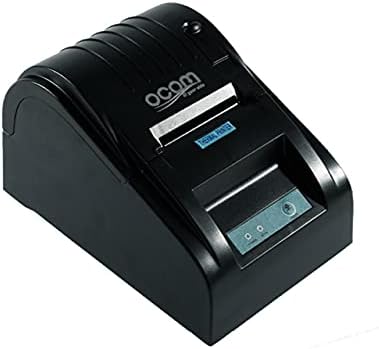
This image shows the OCOM OCPP-585A-U-B Thermal Receipt Printer from a slightly elevated front-right angle. The printer is black with a sleek, compact design. The paper output slot is visible at the top, and the control panel with 'POWER' and 'MODE' indicators is located on the front.
This manual provides detailed instructions for the OCOM OCPP-585A-U-B Thermal Receipt Printer. Please read this manual carefully before using the printer to ensure proper operation and longevity.
Guía de configuración
1. Desembalaje
Carefully remove the printer and all accessories from the packaging. Verify that all components are present: printer unit, power adapter, USB cable, and a roll of thermal paper.
2. Carga de papel térmico
- Abra la cubierta del papel presionando el botón de apertura de cubierta (generalmente ubicado en el costado o en el frente).
- Insert the thermal paper roll into the paper compartment, ensuring the printing side of the paper faces the print head. The paper should feed smoothly from the bottom of the roll.
- Pull out a small length of paper beyond the paper exit slot.
- Cierre la cubierta del papel firmemente hasta que encaje en su lugar.
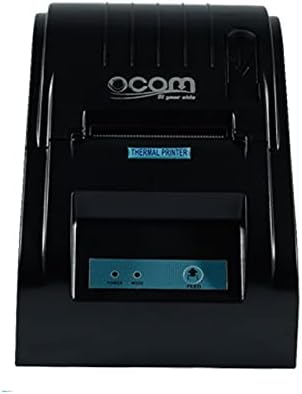
This image displays the OCOM OCPP-585A-U-B Thermal Receipt Printer from a direct top-down perspective. The paper compartment is visible, showing a thermal paper roll correctly inserted. The 'THERMAL PRINTER' label and the control panel with 'POWER' and 'MODE' indicators are clearly visible.
3. Conexión de la impresora
- Connect the power adapter to the printer's power input port and then plug it into a power outlet.
- Connect the USB cable to the printer's USB port and the other end to your computer or POS system.
- Presione el botón de encendido para encender la impresora. El indicador de encendido debería encenderse.
Instrucciones de funcionamiento
Impresión básica
Once connected and powered on, the printer is ready to receive print commands from your connected device. Ensure the correct printer driver is installed on your computer/POS system.
- Abra el documento o aplicación desde el que desea imprimir.
- Select 'Print' from the file menú.
- Choose 'OCOM OCPP-585A-U-B' as your printer.
- Adjust print settings if necessary (e.g., paper size, print quality).
- Haga clic en "Imprimir".
Self-Test Print
To perform a self-test print, ensure the printer is off. Hold down the 'FEED' button (if available, or a combination of buttons as per specific model) while turning on the printer. Release the button once printing begins. This will print a configuration page, confirming basic printer functionality.
Mantenimiento
Limpieza del cabezal de impresión
Regular cleaning of the print head ensures optimal print quality and extends printer life.
- Apague la impresora y desconecte el cable de alimentación.
- Abra la cubierta de papel.
- Utilice un hisopo de algodón suavementeampened with isopropyl alcohol to gently wipe the thermal print head (the dark strip inside the printer).
- Deje que el cabezal de impresión se seque completamente antes de cerrar la cubierta y encender la impresora.
Cleaning the Paper Path
Retire el polvo o los residuos de papel de la ruta del papel utilizando un cepillo suave o aire comprimido.
Solución de problemas
| Problema | Posible causa | Solución |
|---|---|---|
| La impresora no se enciende | Power cable loose; Power outlet faulty | Verifique las conexiones eléctricas; Pruebe con una toma de corriente diferente |
| No hay salida de impresión | Paper loaded incorrectly; Out of paper; Driver not installed/selected | Reload paper correctly; Replace paper roll; Install/select correct printer driver |
| Impresión tenue o en blanco | Thermal paper loaded upside down; Print head dirty; Paper quality issue | Flip paper roll; Clean print head; Try new thermal paper |
| Impresora fuera de línea | USB cable disconnected; Printer driver issue | Reconnect USB cable; Reinstall printer driver |
Presupuesto
| Característica | Detalle |
|---|---|
| Primera fecha disponible | 2021 de junio de 20 |
| Fabricante | OCOM |
| ASIN | B097LSGP62 |
| Número de modelo del artículo | OCPP-585-U-B |
| Nombre de marca | OCOM |
| Tecnología de conectividad | USB |
| Tecnología de impresora | Térmico |
| Color | Negro |
| Nombre del modelo | OCPP 585 U B |
| Medios impresos | Etiquetas |
| Tipo de escáner | Recibo |
Garantía y soporte
This OCOM printer typically comes with a standard manufacturer's warranty. Please refer to the warranty card included with your product for specific terms and conditions, or visit the official OCOM websitio para obtener información detallada sobre la garantía.
For technical support, driver downloads, or further assistance, please visit the OCOM official support website or contact their customer service. Keep your model number (OCPP-585A-U-B) and purchase details ready when seeking support.