
Introducción
This manual provides essential information for setting up, operating, maintaining, and troubleshooting your HP 2022 14-inch HD Laptop. Please read this guide thoroughly to ensure proper use and to maximize the performance and longevity of your device.
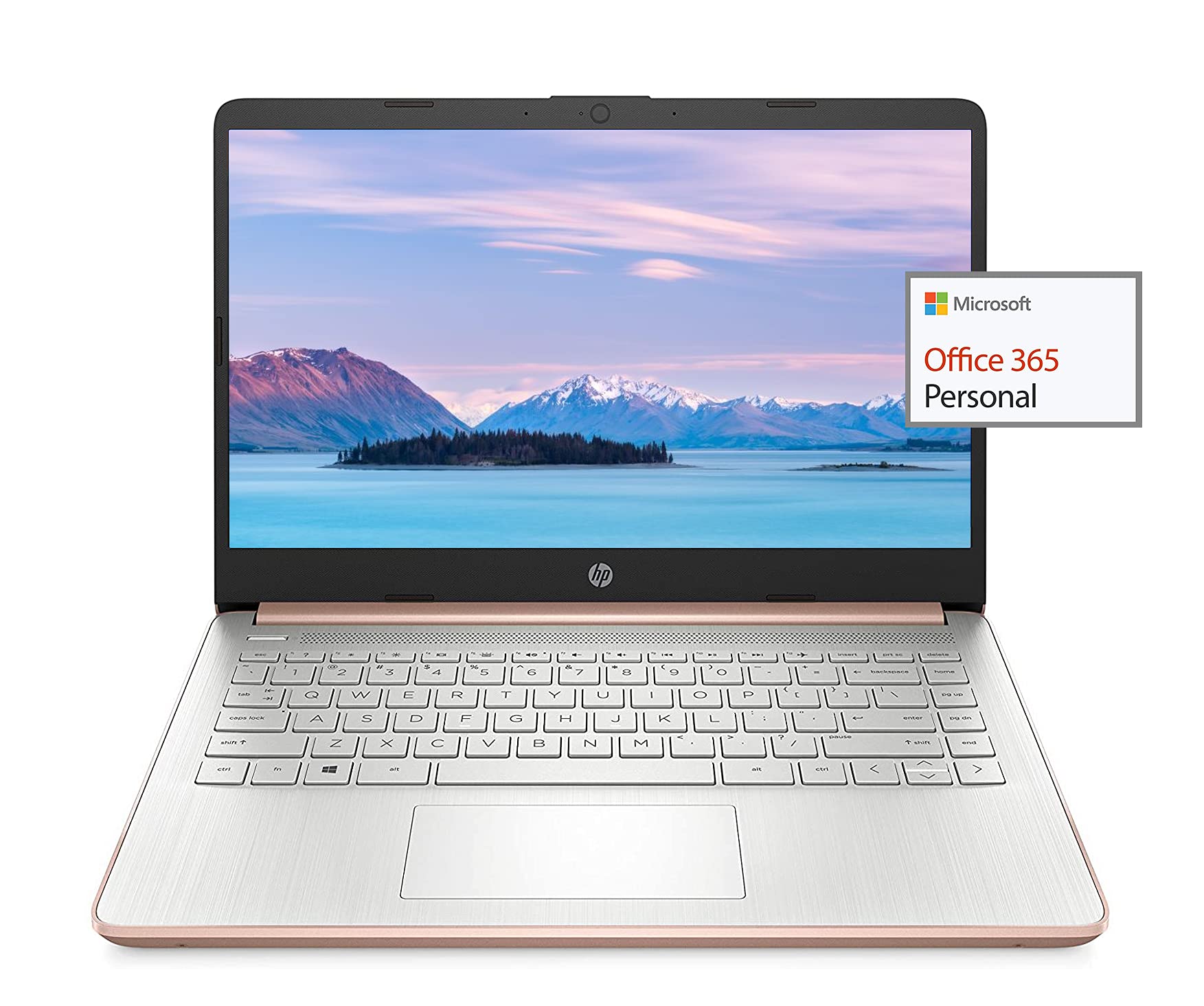
Image: The HP 14-inch HD Laptop, showcasing su elegante diseño.
Configuración
1. Encendido inicial
Connect the power adapter to the laptop and a power outlet. Open the laptop lid. The laptop should power on automatically or by pressing the power button, typically located on the keyboard deck.
2. Configuración del sistema operativo
Follow the on-screen prompts to complete the Windows 10 setup. This includes selecting your region, connecting to a Wi-Fi network, and creating a user account.
3. Activating Microsoft Office 365
Your laptop includes a 1-year subscription to Microsoft Office 365. To activate:
- Launch any Office application (e.g., Word, Excel).
- Sign in with your Microsoft account. If you do not have one, create a new account.
- Click "Activate Office" and follow the subsequent prompts.
- Complete steps 1, 2, and 3 as instructed.
- Click "Refresh" once Office is ready.
- Open a document and accept the license agreement to finalize activation.

Image: The HP laptop displaying Microsoft Office 365 applications.
4. Switching Out of Windows 10 S Mode
Windows 10 in S mode is designed for security and performance, exclusively running apps from the Microsoft Store. If you need to install apps from outside the Microsoft Store, you can switch out of S mode. This is a one-way switch and cannot be undone.
- Ir a Ajustes > Actualización y seguridad > Activación.
- En la sección "Cambiar a Windows 10 Home" o "Cambiar a Windows 10 Pro", seleccione Ir a la tienda.
- En el Desactivar el modo S (or similar) page that appears in the Microsoft Store, click the Conseguir botón.
- After confirming, you will be able to install apps from outside the Microsoft Store.
5. Conexión de periféricos
Su computadora portátil cuenta con varios puertos para conectar dispositivos externos:
- USB Type-A & Type-C: For connecting USB devices like external drives, mice, and keyboards.
- HDMI: Para conectar a pantallas o proyectores externos.
- Conector combinado de auriculares y micrófono: Para entrada/salida de audio.
- Lector de tarjetas multimedia: Para insertar tarjetas SD.

Imagen: Lateral view of the HP laptop, highlighting the SuperSpeed USB Type-A, USB Type-C, HDMI 1.4b, and headphone/microphone combo ports.

Imagen: Lado opuesto view of the HP laptop, showing the media card reader slot.
Instrucciones de funcionamiento
1. Administración de energía
- Encendido: Presione el botón de encendido.
- Modo de sueño: Cierre la tapa o presione brevemente el botón de encendido.
- Cerrar: Vaya a Inicio > Energía > Apagar.
- Reanudar: Vaya a Inicio > Energía > Reiniciar.
2. Uso de la pantalla
The laptop features a 14-inch HD (1366 x 768) display with a micro-edge bezel design and WLED-backlit BrightView technology. Adjust brightness using the function keys (F2/F3) or through Windows display settings.

Image: The HP laptop display showcasing its micro-edge bezel and HD resolution.
3. Teclado y panel táctil
The standard keyboard provides comfortable typing. The integrated touchpad supports multi-touch gestures for navigation. Refer to Windows settings for customizing touchpad sensitivity and gestures.
4. Webcámara y audio
The HP True Vision 720p HD camera with integrated dual array digital microphones is suitable for video calls. The laptop features HP custom-tuned dual speakers for clear audio output.

Image: The HP laptop showing the webcam in use and highlighting the dual speaker setup.
5. Conectividad inalámbrica
- Wi-Fi 5 (1x1): Connect to wireless networks for internet access. Manage Wi-Fi connections via the network icon in the taskbar.
- Bluetooth 5.0: Pair with Bluetooth-enabled devices such as headphones, speakers, or mice. Access Bluetooth settings via Windows Settings > Devices > Bluetooth & other devices.
Mantenimiento
1. Cuidado de la batería
The laptop's battery provides up to 10.5 hours of video playback and up to 9 hours of wireless streaming. To prolong battery life:
- Evite temperaturas extremas.
- No descargue completamente la batería con frecuencia.
- Utilize HP Fast Charge for quick recharging.
- Ajuste la configuración de energía en Windows para optimizar el uso de la batería.
2. Gestión del almacenamiento
Your laptop is equipped with 256GB SSD and 64GB eMMC storage. Regularly manage your files to ensure sufficient free space. Use Disk Cleanup and Storage Sense features in Windows to remove unnecessary files.
3. Limpieza de la computadora portátil
- Utilice un paño suave y sin pelusa ligeramente seco.ampLimpiar con agua o con un limpiador de pantalla.
- Para el teclado y el chasis, utilice un paño suave. Evite productos químicos agresivos.
- Asegúrese de que la computadora portátil esté apagada y desenchufada antes de limpiarla.
4. Actualizaciones de software
Keep your operating system and drivers updated. Windows Update automatically handles system updates. Check the HP support website for driver updates specific to your model.
Solución de problemas
Problemas comunes y soluciones:
- La computadora portátil no se enciende: Asegúrese de que el adaptador de corriente esté bien conectado y que la batería tenga suficiente carga. Pruebe con otra toma de corriente.
- Problemas de visualización: Check display cable connections if using an external monitor. Adjust brightness settings.
- Sin sonido: Verify volume levels, check audio output device settings in Windows, and ensure headphones are properly connected.
- Problemas de conectividad Wi-Fi: Restart your router and laptop. Check Wi-Fi settings and ensure airplane mode is off.
- Rendimiento lento: Cierre las aplicaciones innecesarias. Compruebe si hay procesos en segundo plano. Asegúrese de que haya suficiente espacio de almacenamiento libre.
Para obtener una solución de problemas más detallada o problemas persistentes, consulte el soporte de HP. websitio o comuníquese con el servicio de atención al cliente de HP.
Presupuesto
| Característica | Especificación |
|---|---|
| Marca | HP |
| Nombre del modelo | HP 2022 |
| Tamaño de pantalla | 14 pulgadas |
| Procesador | AMD 3020e (2 Cores, 4 Threads, 1.2GHz Base, 2.6GHz Max Boost) |
| RAM | 8 GB DDR4 |
| Almacenamiento | 256GB SSD + 64GB eMMC (Total 320 GB) |
| Gráficos | Gráficos AMD Radeon integrados |
| Sistema operativo | Windows 10 Home in S mode (upgradeable) |
| Conectividad | Wi-Fi 5 (1x1), Bluetooth 5.0 |
| Puertos | USB Type-A, USB Type-C, HDMI 1.4b, Headphone/Microphone Combo, Media Card Reader |
| Webleva | HP True Vision 720p HD Camera |
| Duración de la batería (en espera) | Hasta 10.5 horas (reproducción de vídeo) |
| Peso | 3.24 libras |
| Dimensiones (largo x ancho x grosor) | 8.86" de largo x 12.76" de ancho x 0.71" de grosor |

Imagen: Más alláview of the HP 14 laptop's key features including AMD 3020e processor, battery life, Windows 10 S mode, HP Fast Charge, and Wi-Fi 5 & Bluetooth 5.0.
Garantía y soporte
Your HP laptop comes with a standard manufacturer's warranty. Please refer to the warranty documentation included with your purchase for specific terms and conditions. For technical support, driver downloads, and service information, visit the official HP support websitio o comuníquese directamente con el servicio de atención al cliente de HP.
Para mayor protección, considere comprarasing extended protection plans from your retailer.