
1. Introducción
Welcome to your new HAOVM 10-inch Android 11 Tablet. This manual provides essential information to help you set up, operate, maintain, and troubleshoot your device. Please read it carefully to ensure optimal performance and longevity of your tablet.

Image: The HAOVM 10-inch Android 11 Tablet, showcasing su elegante diseño y pantalla.
2. Primeros pasos (Configuración)
2.1 Carga de la tableta
Before first use, ensure your tablet is fully charged.
- Conecte el cable USB tipo C al puerto de carga de la tableta.
- Conecte el otro extremo del cable a un adaptador de corriente compatible y enchúfelo a una toma de pared.
- The battery icon on the screen will indicate the charging status.
2.2 Encendido y apagado
- Para encender: Press and hold the Power Button (located on the side) until the HAOVM logo appears on the screen.
- Para apagar: Press and hold the Power Button until a power options menu appears. Select "Power off" and confirm.
2.3 Configuración inicial
Al encenderlo por primera vez, se le guiará a través del proceso de configuración inicial:
- Seleccione su idioma preferido
- Conéctese a una red Wi-Fi para acceder a Internet.
- Inicia sesión con tu cuenta de Google o crea una nueva.
- Follow the remaining prompts to complete the setup.

Image: Close-up of the tablet's USB Type-C port, highlighting its modern connectivity.
3. Operación de su tableta
3.1 Pantalla y navegación
The HAOVM tablet features a vibrant 10.1-inch IPS FHD display with a resolution of 1920x1200 pixels, providing clear and crisp visuals. The capacitive touchscreen allows for smooth and responsive navigation.
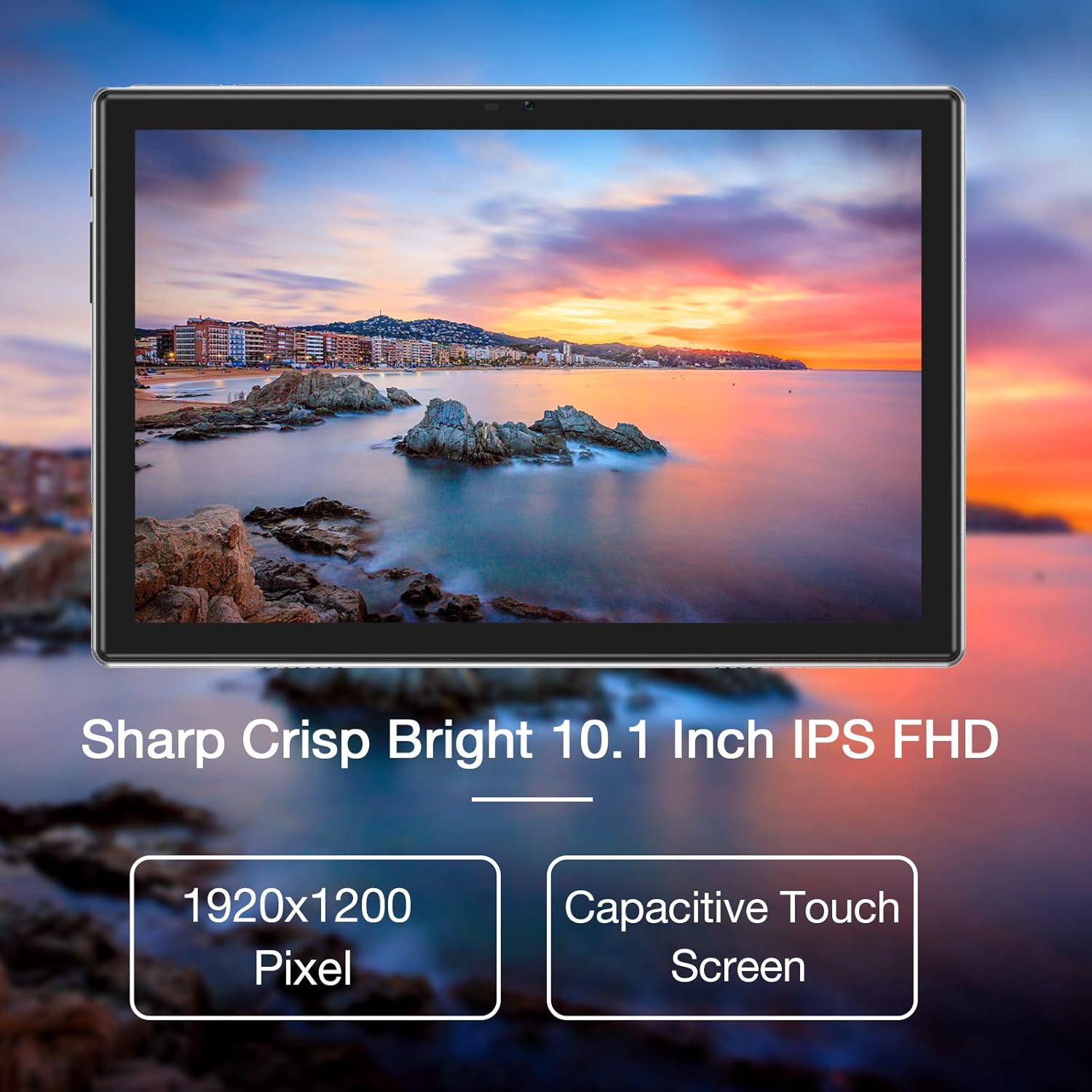
Image: The tablet's 10.1-inch IPS FHD display showcasing its sharp and bright visual quality.
3.2 Conectividad
Su tableta ofrece opciones de conectividad sólidas:
- Wifi: Supports 5G WiFi (802.11ac) for high-speed internet access. To connect, go to Configuración > Red e Internet > Wi-Fi, seleccione su red e ingrese la contraseña.
- Bluetooth: Equipped with Bluetooth 5.0 for connecting to wireless headphones, speakers, and other compatible devices. Enable it via Configuración> Dispositivos conectados> Preferencias de conexión> Bluetooth.
3.3 Cámaras
Capture moments and make video calls with the tablet's dual cameras:
- Cámara frontal: 5 Megapixels, ideal for video conferencing and selfies.
- Cámara trasera: 13 Megapixels, suitable for taking photos and recording videos.

Image: Illustration showing the tablet's 5.0MP front camera and 13.0MP back camera capabilities.
3.4 Almacenamiento y rendimiento
The tablet is designed for efficient multitasking and ampalmacenamiento de archivos:
- RAM: 3GB of RAM ensures smooth operation and efficient multitasking.
- Almacenamiento interno: 64GB of internal storage for your apps, photos, and files.
- Almacenamiento expandible: Storage can be expanded up to 128GB using a microSD card (not included).
- Procesador: Powered by a 1.6 GHz Octa-Core processor, providing fast and fluid performance for various applications.

Image: Diagram illustrating the tablet's powerful internal configuration, including the Octa-Core CPU, 3GB RAM, and 64GB storage.
3.5 Funcionalidad GPS
The integrated GPS system allows for accurate navigation and location-based services, making it a useful tool for travel and exploration.

Image: The tablet being used for navigation, demonstrating its GPS capabilities and long-lasting 6000mAh battery.
4. Mantenimiento
4.1 Limpieza
- Utilice un paño suave que no suelte pelusa para limpiar suavemente la pantalla y el cuerpo de la tableta.
- Avoid using abrasive cleaners, alcohol, or chemical solvents, as they may damage the surface.
4.2 Cuidado de la batería
- Para prolongar la vida útil de la batería, evite exponer la tableta a temperaturas extremas (calor o frío).
- Do not frequently allow the battery to fully discharge to 0%.
- Si va a guardar la tableta durante un período prolongado, cárguela hasta aproximadamente el 50 % antes de apagarla.
4.3 Actualizaciones de software
- Regularly check for system updates to ensure your tablet has the latest features, performance improvements, and security patches.
- You can usually find update options in Configuración > Sistema > Actualización del sistema.
5. Solución de problemas
5.1 Problemas comunes y soluciones
| Problema | Solución |
|---|---|
| La tableta no se enciende | Ensure the battery is charged. Connect to a power source for at least 30 minutes. Press and hold the power button for 10-15 seconds to force a restart. |
| Problemas de conexión wifi | Restart the tablet and your Wi-Fi router. Go to Wi-Fi settings, forget the network, and then reconnect. Ensure you are within range of the Wi-Fi signal. |
| Las aplicaciones se bloquean o se congelan | Cierre la aplicación y vuelva a abrirla. Borre la caché y los datos de la aplicación. Configuración > Aplicaciones > [Nombre de la aplicación] > Almacenamiento > Borrar caché/Borrar datos. Ensure sufficient storage space is available. |
| Rendimiento lento | Close unused background apps. Clear system cache (if option available). Uninstall unnecessary apps. If issues persist, consider a factory reset (backup all data first). |
| La pantalla no responde | Restart the tablet by holding the power button. If unresponsive, let the battery drain completely and then recharge and power on. |
6. Especificaciones
6.1 Especificaciones técnicas
| Característica | Detalle |
|---|---|
| Marca | HAOVM |
| Número de modelo | Tablet (HP20) |
| Sistema operativo | Androide 11 |
| Procesador | Octa-Core a 1.6 GHz |
| RAM | 3 GB |
| Almacenamiento interno | 64 GB |
| Almacenamiento expandible | Hasta 128GB (MicroSD) |
| Tamaño de pantalla | 10.1 pulgadas |
| Resolución de pantalla | 1920 x 1200 píxeles (FHD IPS) |
| Cámara frontal | 5 MP |
| Cámara trasera | 13 MP |
| Conectividad | Wi-Fi (802.11ac), Bluetooth 5.0, GPS |
| Interfaz | USB tipo C |
| Batería | 6000 mAh |
| Dimensiones (L x An x Al) | 27.2 x 18 x 6.1 cm |
| Peso | 5 gramos |
7. Garantía y soporte
7.1 Información de garantía
Your HAOVM tablet comes with a limited warranty. Please refer to the warranty card or documentation included in the product packaging for specific terms, conditions, and duration of the warranty. Keep your proof of purchase for warranty claims.
7.2 Atención al cliente
For technical assistance, troubleshooting beyond this manual, or service inquiries, please contact HAOVM customer support. You can typically find contact information on the official HAOVM websitio o a través del minorista donde compró el producto.