
Introducción
This manual provides essential instructions for setting up, operating, maintaining, and troubleshooting your Nyko 86158 Core Wireless Controller for Xbox One. Please read this manual thoroughly before use to ensure optimal performance and longevity of your device.
Contenido del paquete
Verifique que todos los artículos enumerados a continuación estén incluidos en su paquete:
- Nyko 86158 Core Wireless Controller
- Receptor inalámbrico USB
- Cable de carga USB
- Manual de usuario (este documento)
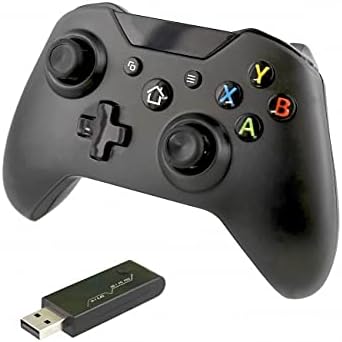
Image: Nyko 86158 Core Wireless Controller shown alongside its USB wireless receiver dongle. This illustrates the main components included in the package.

Imagen: Primer plano view of the USB wireless receiver dongle. This dongle is essential for establishing a wireless connection between the controller and the Xbox One console or PC.

Image: The USB charging cable provided with the controller. This cable is used to recharge the controller's internal battery.
Disposición del controlador
Familiarize yourself with the buttons and features of your Nyko Core Wireless Controller.
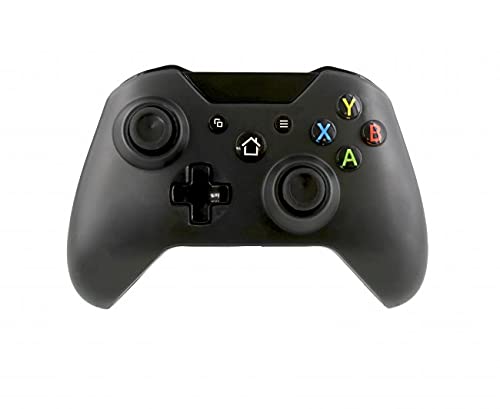
Imagen: Frente view of the Nyko 86158 Core Wireless Controller, showing the two analog sticks, D-pad, A/B/X/Y buttons, View button, Menu button, Xbox button, and Share button.
- Joystick analógico izquierdo: Para movimiento y control de cámara.
- Joystick analógico derecho: Para controlar y apuntar la cámara.
- Almohadilla direccional: Entrada direccional para navegación de menú y acciones específicas del juego.
- Botones A/B/X/Y: Botones de acción principal.
- View Botón: Accesses additional in-game information or menus.
- Botón de menú: Opens game menus or system options.
- Botón Xbox: Powers on the controller, accesses the Xbox Guide, or returns to the home screen.
- Botón de compartir: Captures screenshots or video clips (functionality may vary by console/game).

Imagen: Arriba view of the Nyko 86158 Core Wireless Controller, highlighting the Left and Right Bumpers (LB, RB), Left and Right Triggers (LT, RT), and the micro-USB charging port located at the front.
- Left Bumper (LB) / Right Bumper (RB): Botones de hombro para diversas acciones dentro del juego.
- Left Trigger (LT) / Right Trigger (RT): Analog triggers for precise input, often used for acceleration or aiming.
- Puerto Micro-USB: Used for charging the controller.

Imagen: Parte posterior view of the Nyko 86158 Core Wireless Controller, showing the battery compartment cover. This is where the batteries are inserted or the rechargeable battery pack is housed.
Instrucciones de instalación
1. Encendido del controlador
The Nyko 86158 Core Wireless Controller requires batteries to operate wirelessly. It is compatible with standard AA batteries or a rechargeable battery pack (sold separately).
- Localice el compartimento de la batería en la parte posterior del controlador.
- Presione la pestaña hacia abajo y deslice la tapa de la batería hacia afuera.
- Insert two (2) AA batteries, ensuring correct polarity (+/-). If using a rechargeable pack, insert it as directed by the pack's instructions.
- Vuelva a colocar la tapa de la batería.
2. Conexión a Xbox One
To connect your wireless controller to an Xbox One console:
- Insert the USB Wireless Receiver Dongle into an available USB port on your Xbox One console.
- Enciende tu consola Xbox One.
- Mantenga pulsado el Botón Xbox on the controller until it powers on. The Xbox button will flash.
- The controller will automatically attempt to pair with the USB receiver. Once connected, the Xbox button on the controller will glow solid.
- If the controller does not connect automatically, press the small pairing button on the USB receiver dongle, then press and hold the Botón Xbox on the controller until it pairs.
3. Connecting to PC (Optional)
The controller can also be used with a PC. Ensure your PC has an available USB port for the wireless receiver.
- Insert the USB Wireless Receiver Dongle into an available USB port on your PC.
- The PC should automatically install the necessary drivers. This may take a few moments.
- Mantenga pulsado el Botón Xbox on the controller until it powers on.
- The controller will connect to the receiver. The Xbox button will glow solid once connected.
Instrucciones de funcionamiento
Encender/Apagar
- Encender: Mantenga pulsado el Botón Xbox until the controller vibrates and the light turns on.
- Apagar: Mantenga pulsado el Botón Xbox for 5-10 seconds until the controller powers down. The controller will also automatically turn off after a period of inactivity to conserve battery life.
Carga del controlador
If using a rechargeable battery pack (not included) or if the controller has a built-in rechargeable battery:
- Connect the small end of the USB Charging Cable to the micro-USB port on the front of the controller.
- Connect the larger end of the USB Charging Cable to an available USB port on your Xbox One console or a USB wall adapter (5V, 1A recommended).
- The indicator light on the controller (usually the Xbox button) will show charging status (e.g., flashing while charging, solid when fully charged).
- Desconecte el cable una vez completada la carga.
Mantenimiento
- Limpieza: Utilice un paño suave y seco para limpiar el mando. No utilice productos químicos agresivos ni materiales abrasivos.
- Almacenamiento: Guarde el controlador en un lugar fresco y seco, alejado de la luz solar directa y de temperaturas extremas.
- Cuidado de la batería: If not using the controller for an extended period, remove the AA batteries to prevent leakage.
- Evite las gotas: Proteja el controlador de caídas e impactos que puedan dañar los componentes internos.
Solución de problemas
El controlador no se enciende
- Asegúrese de que las baterías estén insertadas correctamente con la polaridad correcta.
- Replace old batteries with new ones, or fully charge the rechargeable battery pack.
Controller Not Connecting to Xbox One/PC
- Ensure the USB Wireless Receiver Dongle is securely plugged into an active USB port.
- Pruebe con un puerto USB diferente.
- Asegúrese de que el controlador esté encendido.
- Re-attempt the pairing process: press the pairing button on the dongle, then press and hold the Xbox button on the controller.
- Restart your Xbox One console or PC.
Retraso de entrada o desconexiones
- Ensure the controller is within range of the USB receiver (typically up to 30 feet/9 meters).
- Minimiza la interferencia de otros dispositivos inalámbricos (por ejemplo, enrutadores Wi-Fi, teléfonos inalámbricos).
- Asegúrese de que el controlador tenga suficiente carga de batería.
Presupuesto
| Marca | Nyko |
| Número de modelo | 86158 |
| Dispositivos compatibles | Xbox One, PC |
| Tipo de controlador | Controlador de juegos inalámbrico |
| Tecnología de conectividad | Wireless (2.4GHz via USB dongle) |
| Fuente de poder | Batteries (AA or rechargeable pack) |
| Dimensiones (L x An x Al) | 8.3 x 18.4 x 15.2 cm (aproximadamente 3.27 x 7.24 x 5.98 pulgadas) |
| Código Postal | 743840861584 |
| ASIN | B09BD8813T |
Garantía y soporte
For warranty information or technical support, please refer to the documentation included with your purchase or visit the official Nyko webSitio. Conserve su comprobante de compra para reclamaciones de garantía.