
Introducción
Thank you for choosing the BUFFBEE Alarm Clock with Wireless Charging Station. This device combines a digital alarm clock with a versatile wireless charging stand, designed to charge your iPhone, Apple Watch, and AirPods simultaneously. It features a dimmable LED display, adjustable volume, and multiple safety protections to ensure efficient and secure charging. Please read this manual carefully before use to ensure proper operation and to maximize the lifespan of your product.
¿Qué hay en la caja?
Al abrir su paquete, verifique que todos los siguientes elementos estén incluidos:
- BUFFBEE Alarm Clock with Wireless Charging Station
- Cable de carga USB-C
- Adaptador de corriente
- Manual de usuario (este documento)
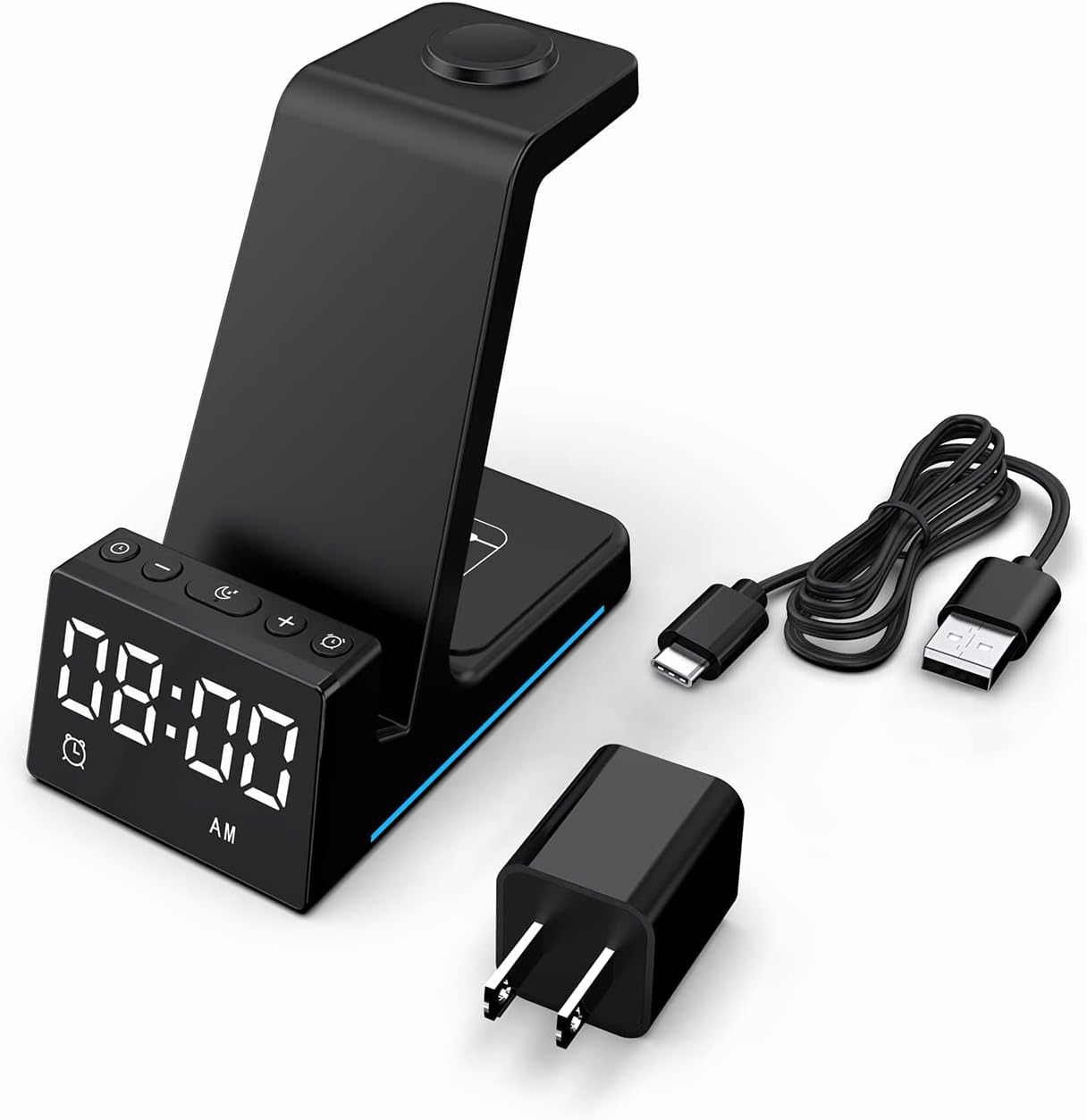
Imagen: Todos los componentes incluidos en el embalaje del producto.
Producto terminadoview
The BUFFBEE Alarm Clock with Wireless Charging Station is designed for convenience and efficiency. It features dedicated charging areas for your smartphone, Apple Watch, and AirPods, alongside a clear digital clock display.
Características principales:
- Reloj despertador digital: Features adjustable brightness and volume, with 12/24 hour format options.
- Wireless Phone Charging: Supports 15W, 10W, 7.5W, and 5W output for various wireless charging enabled smartphones.
- Carga del Apple Watch: Dedicated magnetic charging spot for Apple Watch Series 2-7, SE.
- Carga de AirPods: Wireless charging pad for AirPods 2 (with wireless charging case), AirPods 3, and AirPods Pro.
- Protecciones de seguridad: Built-in overcharge, overvoltage, overheat, and overcurrent protection.

Image: The charging station with devices in place, highlighting its multi-device capability.

Image: Diagram illustrating the internal safety features and charging coils.
Configuración
Follow these steps to set up your BUFFBEE Alarm Clock with Wireless Charging Station:
- Conecte la electricidad: Insert the USB-C end of the charging cable into the port on the back of the charging station. Plug the other end of the cable into the provided power adapter, then plug the adapter into a wall outlet. The digital display will light up, indicating power is connected.
- Dispositivos de ubicación:
- Teléfono inteligente: Place your wireless charging enabled smartphone vertically or horizontally on the main charging stand. Ensure it is centered for optimal charging.
- Reloj de Apple: Place your Apple Watch on the magnetic charging disc at the top of the stand.
- AirPods: Place your AirPods (with wireless charging case) on the flat charging pad at the base of the unit.
- Verificar carga: A blue indicator light will briefly illuminate when a device is correctly placed and charging. Your device's screen will also show a charging icon.
Video: Official product video demonstrating the setup and charging capabilities of the BUFFBEE Alarm Clock with Wireless Charging Station for iPhone, Apple Watch, and AirPods.

Image: Universal compatibility chart for different devices and charging wattages.
Instrucciones de funcionamiento
Ajuste de la hora
- Mantenga pulsado el Hora establecida (normalmente marcado con un icono de reloj) durante 3 segundos. Los dígitos de la hora empezarán a parpadear.
- Utilice el + y - Botones para ajustar la hora.
- Presione el Hora establecida Presione el botón nuevamente para cambiar al ajuste de minutos. Los dígitos de los minutos parpadearán.
- Utilice el + y - Botones para ajustar los minutos.
- Presione el Hora establecida Presione el botón una vez más para confirmar y salir del modo de configuración de la hora.
- Para cambiar entre el formato de 12 horas y 24 horas, presione brevemente la tecla Hora establecida Botón cuando no esté en modo de configuración.
Configuración de la alarma
- Mantenga pulsado el Set de alarmas button (usually marked with an alarm clock icon) for 3 seconds. The alarm hour digits will flash.
- Utilice el + y - Botones para ajustar la hora de la alarma.
- Presione el Set de alarmas button again to switch to alarm minute adjustment. The alarm minute digits will flash.
- Utilice el + y - Botones para ajustar los minutos de la alarma.
- Presione el Set de alarmas Presione el botón una vez más para confirmar y salir del modo de configuración de alarma.
- Para activar o desactivar la alarma, presione brevemente la tecla Set de alarmas Botón. Un icono de alarma aparecerá/desaparecerá en la pantalla.
- When the alarm sounds, press any button to activate the snooze function (typically 9 minutes). To turn off the alarm completely, press and hold the Set de alarmas botón.

Imagen: Más alláview of the digital alarm clock features.
Ajuste del brillo de la pantalla
The LED display has multiple brightness levels to suit your preference, especially for nighttime use.
- Presione el Brillo button (usually marked with a sun icon) repeatedly to cycle through the available brightness levels (e.g., 100%, 40%, 3%, 1%, 0% off).
- Select the desired brightness level. The '0% off' setting turns the display completely off for undisturbed sleep.

Image: Visual representation of the 5-level adjustable brightness settings.
Ajustar el volumen de la alarma
The alarm volume can be adjusted to your preferred level.
- While the alarm is sounding, or during alarm setting mode, press the Volumen button (usually marked with a speaker icon) to cycle through the available volume levels.
- Seleccione el volumen deseado.

Image: Illustration of the 3-level adjustable volume feature.
Mantenimiento
To ensure the longevity and optimal performance of your charging station, follow these maintenance guidelines:
- Limpieza: Disconnect the power before cleaning. Use a soft, dry cloth to wipe the surface. Do not use abrasive cleaners, solvents, or chemical sprays.
- Evite los líquidos: Mantenga el dispositivo alejado del agua y otros líquidos. No lo utilice con las manos mojadas.
- Temperatura: Store and operate the device in a dry environment at room temperature. Avoid extreme heat or cold.
- Manejo: Manipule el dispositivo con cuidado. Evite dejarlo caer o someterlo a impactos fuertes.
- Fuente de alimentación: Only use the provided power adapter and cable. Using unauthorized power sources may damage the device and void the warranty.
Solución de problemas
If you encounter any issues with your BUFFBEE Alarm Clock with Wireless Charging Station, please refer to the following troubleshooting guide:
| Problema | Posible causa | Solución |
|---|---|---|
| El dispositivo no se enciende. | El cable de alimentación no está conectado correctamente; el adaptador de corriente está defectuoso; el tomacorriente de pared no funciona. | Ensure the USB-C cable is securely connected to both the station and the power adapter. Try a different wall outlet. Verify the power adapter is functioning. |
| Smartphone/AirPods not charging wirelessly. | Device not placed correctly; Device not wireless charging compatible; Phone case too thick; Foreign objects on charging pad. | Reposition the device to ensure it is centered on the charging pad. Remove any thick phone cases or metallic objects. Confirm your device supports Qi wireless charging. |
| Apple Watch no carga. | Watch not placed correctly; Watch charger not making contact; Watch model not supported. | Ensure the Apple Watch is securely placed on the magnetic charging disc. Remove any watch cases that might obstruct contact. This charger supports Apple Watch Series 2-7, SE. |
| La carga es lenta o intermitente. | Using a non-original power adapter/cable; Device overheating; Multiple devices charging simultaneously. | Use the provided power adapter and cable. Ensure the device is in a well-ventilated area. Charging multiple devices may slightly reduce individual charging speeds. |
| Alarm clock display is too bright/dim. | Es necesario ajustar la configuración del brillo. | Presione el Brillo button to cycle through the 5 brightness levels, including 'off'. |
| Alarm is not sounding or is too quiet/loud. | Alarm not set or deactivated; Volume level too low/high. | Verify the alarm is activated (alarm icon visible). Adjust the alarm volume using the Volumen botón. |
Presupuesto
| Característica | Detalle |
|---|---|
| Dimensiones del producto | 6.3 x 1.5 x 3.5 pulgadas |
| Peso del artículo | 15.8 onzas |
| Marca | bufé |
| Tipo de conector | Inalámbrico |
| Dispositivos compatibles | Cellular Phones, Apple Watch, AirPods (with wireless charging case) |
| Modelos de teléfonos compatibles | Samsung Galaxy S10 series, iPhone 8 and newer, other Qi-enabled phones |
| Característica especial | Adjustable, Fast Charging, Wireless Charger, Wireless Charging |
| Vol de entradatage | 9 voltios |
| Puertos USB totales | 1 (para entrada de energía) |
| Quétage | 15 watts (max output) |
| Especificación cumplida | Qi |
| Fuente de poder | AC Adapter (Battery Powered refers to internal clock battery backup, not main power) |
Garantía y soporte
Your BUFFBEE Alarm Clock with Wireless Charging Station comes with a standard manufacturer's warranty. For specific warranty details, including duration and coverage, please refer to the warranty card included in your product packaging or contact BUFFBEE customer support directly.
If you require technical assistance, have questions about product operation, or need to report a defect, please reach out to BUFFBEE customer service through the contact information provided on the product packaging or the official BUFFBEE webSitio. Tenga a mano el modelo de su producto y la fecha de compra al contactar con el servicio de asistencia.