
1. Introducción
This manual provides instructions for the Gamrombo 2.4GHz Wireless Controller, designed for use with Xbox 360, Xbox 360 Slim consoles, and Windows 7/8/10/11 personal computers. Please read this manual thoroughly before using the product to ensure proper operation and to prevent damage.

Image 1.1: Gamrombo Wireless Controller for Xbox 360 and PC. This image displays the front view of the black wireless controller, highlighting its buttons and ergonomic shape.
2. Contenido del paquete
Por favor, compruebe el contenido del paquete al desembalarlo:
- 1 x Gamrombo Wireless Controller
- 1 receptor USB de 2.4 GHz.
- 1 x Manual de instrucciones
- Note: AA batteries are required for controller operation and are not included.
3. Características del producto
- Compatibilidad multiplataforma: Compatible with Xbox 360, Xbox 360 Slim consoles, and Windows 7/8/10/11 PCs. (Note: Not compatible with Xbox One, Xbox One X, Xbox One S, or Xbox Series X consoles.)
- Tecnología inalámbrica de 2.4 GHz: Provides a stable connection up to 32 feet (approximately 10 meters). Supports up to four controllers simultaneously on one console.
- Retroalimentación de vibración: Built-in dual motors offer a realistic gaming experience through vibration effects.
- Diseño ergonómico: Streamlined and compact design for comfortable extended gameplay sessions.
- Alta sensibilidad: Enhanced responsiveness to minimize input lag, providing accurate and sensitive control.
- Controles precisos: Features an 8-way D-pad, precise thumbsticks, and pressure-point triggers for accurate input.

Image 3.1: Controller with internal dual motors. This image illustrates the controller with a transparent overlay highlighting the location of the dual vibration motors inside the grips.

Imagen 3.2: Lateral view of the controller demonstrating its ergonomic shape. The image shows the contoured grips designed for comfortable handling.
4. Configuración y conexión
Follow these steps to connect your Gamrombo Wireless Controller to your Xbox 360 console or PC:
- Inserte las baterías: Open the battery compartment on the back of the controller and insert two (2) AA batteries, ensuring correct polarity.
- Conecte el receptor USB: Insert the 2.4GHz USB receiver into an available USB port on your Xbox 360 console or PC.
- Receiver Identification: After the USB receiver is inserted, its indicator light will turn on, signifying successful identification. Short press the button on the USB receiver; the indicator light will flash, entering pairing mode.
- Emparejamiento del controlador: With the controller powered off, long press the "Home" button (the central Xbox Guide button) on the wireless controller for 3 seconds. The four LED lights around the Guide button will flash rapidly, indicating the controller is in pairing mode.
- Confirmación de conexión: Once the connection is successful, the corresponding channel light on the controller will remain solid, and the receiver's indicator light will also remain solid.

Image 4.1: Connection steps for the wireless controller. This image illustrates the process of inserting the USB dongle into an Xbox 360 or PC and then pairing the controller by pressing the Home button.
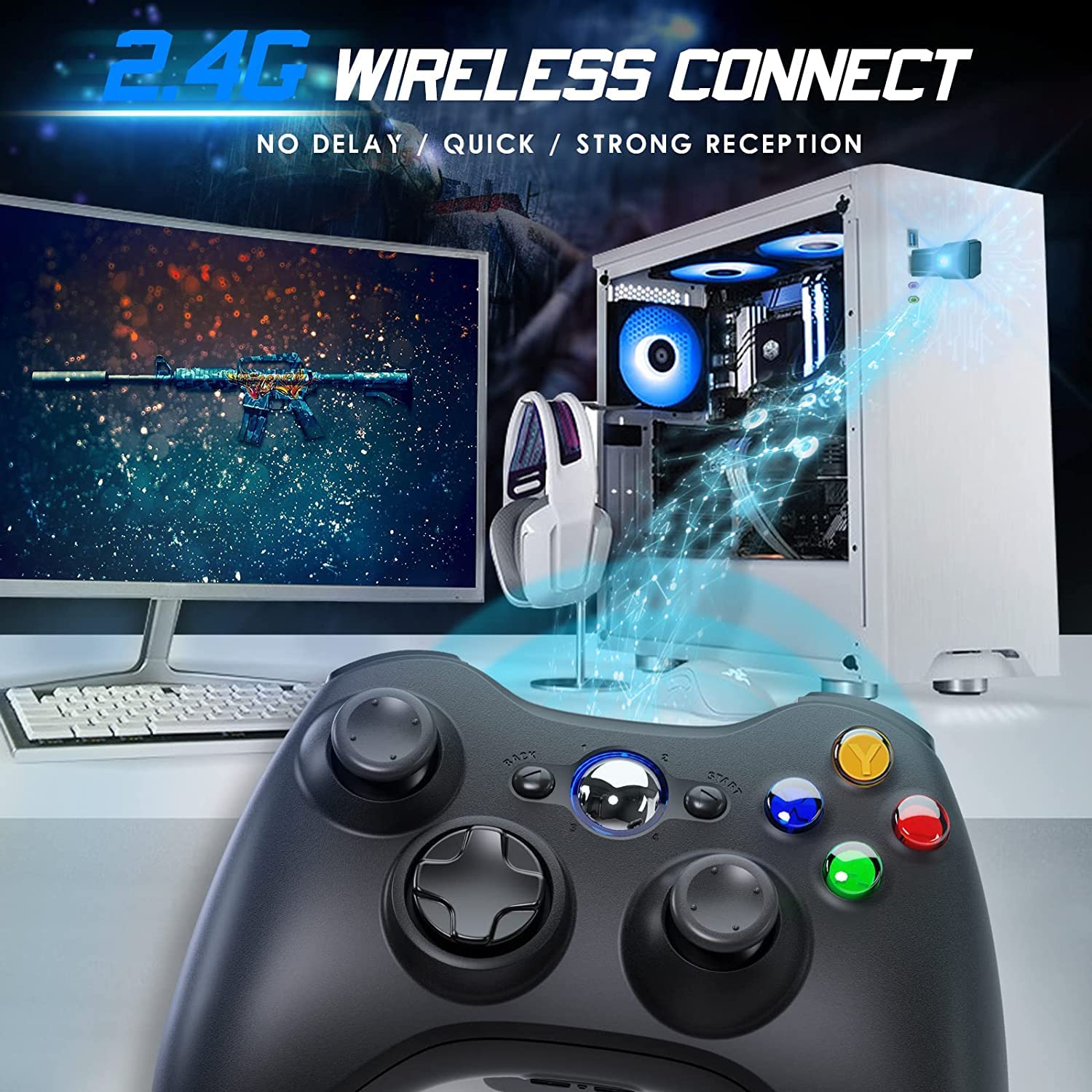
Image 4.2: Wireless controller in use with a PC. This image shows the controller on a desk in front of a computer monitor, with a visual representation of the 2.4GHz wireless connection.
5. Instrucciones de funcionamiento
- Encendido/apagado: Press and hold the "Home" button for 3 seconds to power on or power off the controller.
- Botón de guía: The central "Home" button (Guide button) allows access to the Xbox Guide on Xbox 360, or specific game menus on PC, depending on the game and system configuration. It can also be used to power on or off the console.
- Controladores múltiples: Up to four wireless controllers can be connected to a single console or PC simultaneously. Each controller will be assigned a quadrant light around the Guide button (1, 2, 3, or 4) to indicate its player number.
- Indicador de batería: The controller's LED lights may flash to indicate low battery power. Replace batteries when this occurs.
6. Mantenimiento
- Limpieza: Utilice un paño suave y seco para limpiar el mando. No utilice limpiadores líquidos ni disolventes.
- Almacenamiento: Store the controller in a dry place away from extreme temperatures and direct sunlight. If storing for an extended period, remove the batteries to prevent leakage.
- Evite las gotas: Proteja el controlador de caídas e impactos que puedan dañar los componentes internos.
7. Solución de problemas
- El controlador no se conecta:
- Ensure the USB receiver is securely plugged into the console or PC.
- Verify that the controller has fresh AA batteries installed correctly.
- Repeat the pairing process (Section 4, steps 3 and 4).
- Intente conectar el receptor USB a un puerto USB diferente.
- If using with PC, ensure necessary drivers are installed (Windows typically installs these automatically).
- Botones o joysticks que no responden:
- Verifique los niveles de la batería y reemplácela si está baja.
- Ensure the controller is within the 32-foot wireless range of the receiver.
- Restart the console/PC and re-pair the controller.
- La vibración no funciona:
- Asegúrese de que el juego admita la respuesta de vibración.
- Verifique la configuración del juego para asegurarse de que la vibración esté habilitada.
- Verificar los niveles de batería.
8. Especificaciones
| Número de modelo | Xbox 360 |
| Marca | gamrombo |
| Conectividad | 2.4GHz inalámbrica |
| alcance inalámbrico | Hasta 32 pies (aprox. 10 metros) |
| Compatibilidad | Xbox 360, Xbox 360 Slim, Windows 7/8/10/11 |
| Fuente de poder | 2 pilas AA (no incluidas) |
| Dimensiones del producto | 6.1 x 4.4 x 2.4 pulgadas |
| Peso del artículo | 9.6 onzas |
9. Información de seguridad
- No intente desmontar ni modificar el controlador.
- Mantenga el controlador alejado del agua y otros líquidos.
- Avoid exposing the controller to extreme heat or cold.
- Deshazte de las baterías de acuerdo a las regulaciones locales.
- Si el producto está dañado, suspenda su uso inmediatamente.
10. Garantía y soporte
For warranty information or technical support, please refer to the documentation included with your purchase or contact Gamrombo customer service directly. Contact details are typically available on the manufacturer's official websitio.