
Dragonwar GSPS4-BU
Dragonwar Dragon Shock 4 Wireless Controller User Manual
Model: GSPS4-BU
1. Introducción
Thank you for choosing the Dragonwar Dragon Shock 4 Wireless Controller. This manual provides detailed instructions to help you set up, operate, and maintain your controller for optimal performance across PlayStation 4, PC, and mobile devices. Please read this manual thoroughly before use.
2. Contenido del paquete
Asegúrese de que todos los artículos estén presentes en el paquete:
- Dragonwar Dragon Shock 4 Wireless Controller
- Cable de carga USB
- Manual de usuario
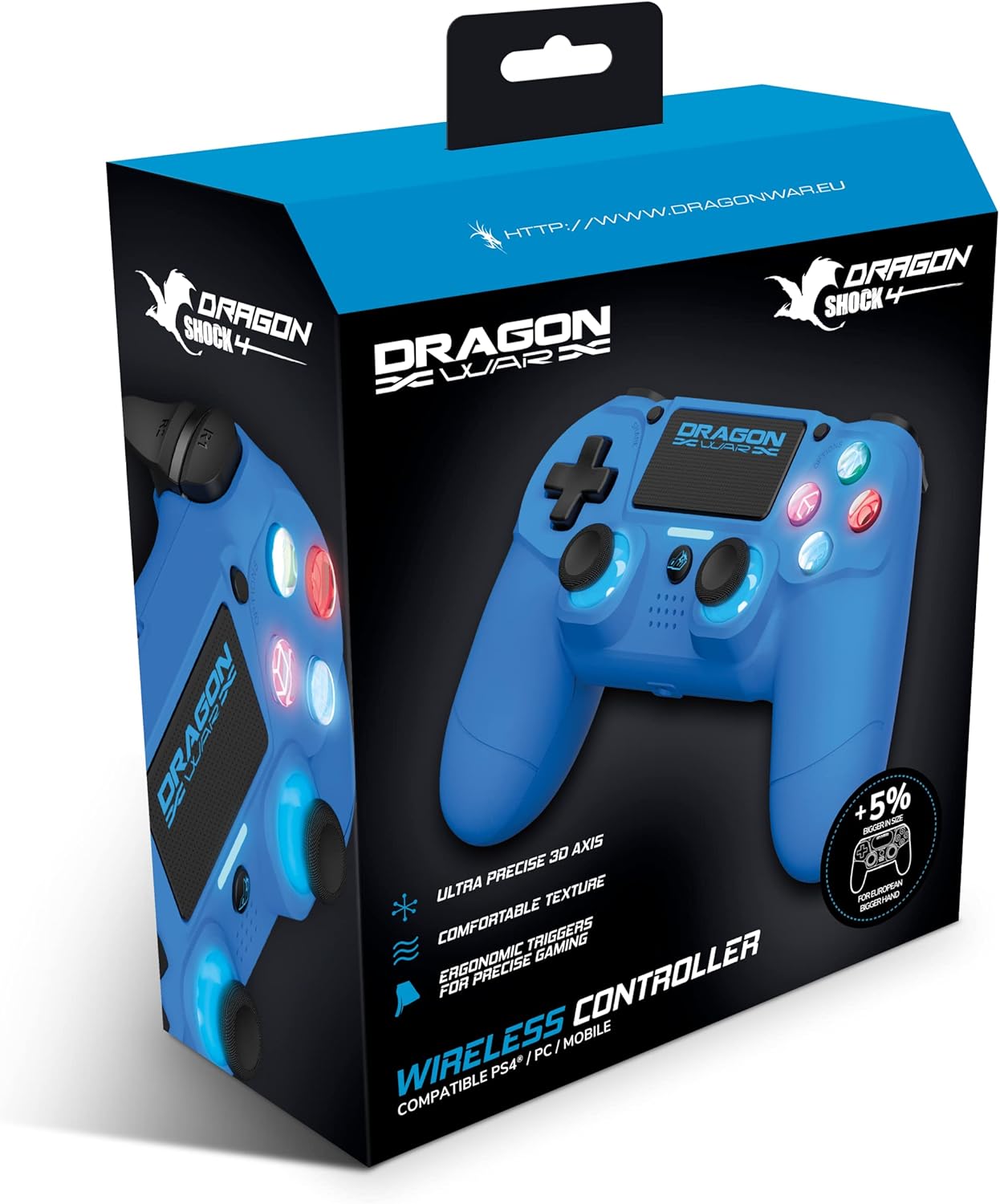
Image: The Dragonwar Dragon Shock 4 Wireless Controller packaging, showing the blue controller inside a blue and black box with product features listed.
3. Controlador sobreview
Familiarize yourself with the various buttons and features of your Dragon Shock 4 controller:

Image: A detailed diagram of the Dragonwar Dragon Shock 4 Wireless Controller, highlighting and numbering its various buttons and components for easy identification.
- Left Joystick / L3 Button: Used for movement and as a clickable button.
- Botón de inicio: Enciende/apaga el controlador y accede a los menús del sistema.
- 3.5mm Jack Play & Chat: For connecting a headset for audio and voice chat.
- Right Joystick / R3 Button: Used for camera control, aiming, and as a clickable button.
- Button (Cross): Botón de acción.
- Button (Circle): Botón de acción.
- Button (Triangle): Botón de acción.
- Button (Square): Botón de acción.
- Botón de opciones: Accede a las opciones del juego o del sistema.
- Panel táctil: Superficie de entrada multitáctil.
- Botón de compartir: Para compartir contenido de juego.
- Up Button (D-Pad): Entrada direccional.
- Right Button (D-Pad): Entrada direccional.
- Left Button (D-Pad): Entrada direccional.
- Down Button (D-Pad): Entrada direccional.
- Botón R1: Botón del hombro derecho.
- Botón R2: Botón de disparo derecho.
- Botón L1: Botón del hombro izquierdo.
- Botón L2: Botón de disparo izquierdo.
- Puerto de carga: Puerto USB para cargar el controlador.
4. Configuración
4.1 Carga inicial
Before first use, fully charge the controller. Connect the supplied USB charging cable to the controller's charging port (20) and the other end to a powered USB port (e.g., PS4 console, PC, or USB wall adapter). The light bar will indicate charging status and turn off when fully charged.
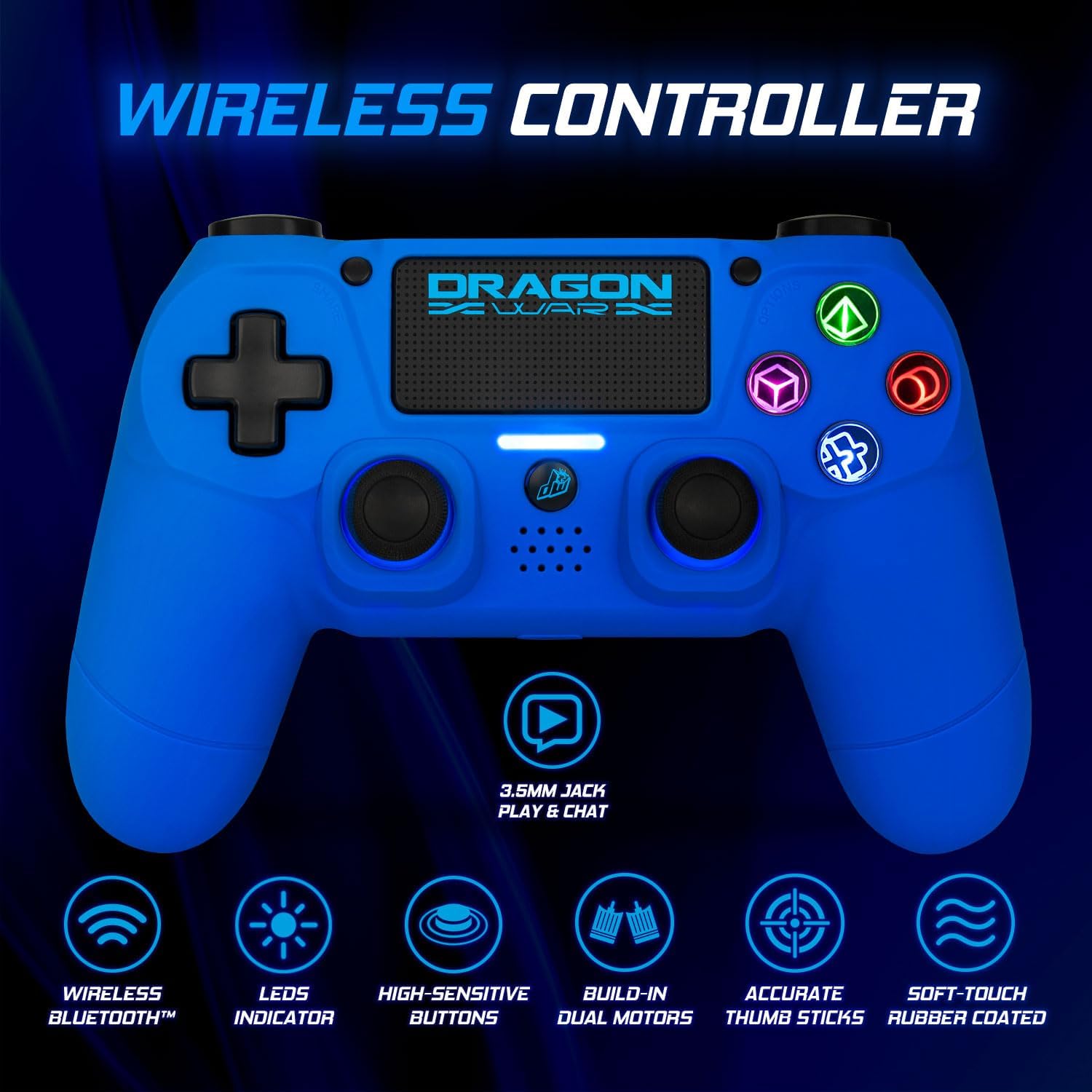
Image: The Dragonwar Dragon Shock 4 Wireless Controller displayed with text indicating "Long Battery Life" and a 500mAh battery, along with play time and charging time details.
4.2 Emparejamiento con PlayStation 4
- Asegúrese de que su consola PS4 esté encendida.
- Conecte el controlador a la consola PS4 mediante el cable de carga USB.
- Presione el Botón de inicio (2) on the controller.
- The controller will pair with the PS4. Once paired, you can disconnect the USB cable for wireless play.
- To pair additional controllers, repeat the process.
4.3 Conexión a PC (Windows)
El controlador se puede conectar a un PC mediante Bluetooth o un cable USB.
4.3.1 Conexión Bluetooth
- Asegúrese de que su PC tenga Bluetooth habilitado.
- En su PC, vaya a Configuración > Dispositivos > Bluetooth y otros dispositivos.
- Mantenga pulsado el Botón Compartir (11) y el Botón de inicio (2) on the controller simultaneously until the light bar starts flashing rapidly. This indicates pairing mode.
- On your PC, click "Add Bluetooth or other device" and select "Bluetooth".
- Seleccione el controlador de la lista de dispositivos disponibles (puede aparecer como "Controlador inalámbrico" o similar).
- Siga las instrucciones en pantalla para completar el emparejamiento.
4.3.2 conexiones cableadas
- Conecte el controlador a su PC mediante el cable de carga USB.
- La PC debería detectar e instalar automáticamente los controladores necesarios.
4.4 Conexión a dispositivos móviles
- Asegúrese de que Bluetooth esté habilitado en su dispositivo móvil.
- Mantenga pulsado el Botón Compartir (11) y el Botón de inicio (2) on the controller simultaneously until the light bar starts flashing rapidly.
- On your mobile device, go to Bluetooth settings and scan for new devices.
- Seleccione el controlador de la lista de dispositivos disponibles.
- Siga las instrucciones en pantalla para completar el emparejamiento.
5. Instrucciones de funcionamiento
5.1 Encendido y apagado
- Para encender: Presione el Botón de inicio (2). The controller will attempt to connect to the last paired device.
- Para apagar: Sostener el Botón de inicio (2) for approximately 10 seconds until the light bar turns off. The controller will also power off automatically after a period of inactivity.
5.2 Uso del panel táctil
The touch pad (10) supports multi-touch input, allowing for various gestures depending on the game or application. Refer to specific game instructions for touch pad functionality.
5.3 Conexión de auriculares
Connect a standard 3.5mm headset to the 3.5mm Jack Play & Chat (3) for in-game audio and voice communication.

Imagen: Un primer plano view of the 3.5mm stereo audio jack located on the Dragonwar Dragon Shock 4 Wireless Controller, indicating its function for play and chat.
5.4 Función de vibración
The controller features dual vibration motors for enhanced haptic feedback during gameplay. This function is automatically enabled when supported by the game.
5.5 Precision Analog Sticks
The controller is equipped with high-precision analog sticks (1, 4) designed for accurate movement and aiming.

Image: A close-up of the Dragonwar Dragon Shock 4 Wireless Controller's analog sticks, emphasizing their precision for improved gaming accuracy and speed.
6. Mantenimiento
6.1 Limpieza
Para limpiar el controlador, utilice un paño suave y seco. Para la suciedad difícil, utilice un paño ligeramente seco.ampEnjuague el paño con agua. No utilice productos químicos agresivos, disolventes ni limpiadores abrasivos, ya que pueden dañar el acabado y los componentes internos del controlador.
6.2 Almacenamiento
Guarde el mando en un lugar fresco y seco, alejado de la luz solar directa y de temperaturas extremas. Evite colocar objetos pesados sobre el mando para evitar dañar los botones o joysticks.
7. Solución de problemas
- El controlador no se enciende: Asegúrate de que el mando esté completamente cargado. Conéctalo a una fuente de alimentación mediante el cable USB.
- El controlador no se conecta/empareja:
- For PS4: Try connecting with the USB cable first to re-establish the connection.
- For PC/Mobile: Ensure Bluetooth is enabled on your device and the controller is in pairing mode (flashing light bar). Remove previous pairings from your device's Bluetooth list and try again.
- Reset the controller: Locate the small reset button on the back of the controller (often a small hole near the L2 button). Use a thin object (like a paperclip) to press and hold the button for 3-5 seconds. Then, attempt to pair again.
- Los botones o joysticks no responden:
- Asegúrese de que el controlador esté conectado correctamente.
- Restart the controller and the connected device (PS4, PC, mobile).
- Pruebe el controlador con otro juego o aplicación para determinar si el problema es específico de un programa.
- Retraso de entrada o desconexión:
- Ensure there are no obstructions or strong interference sources (e.g., Wi-Fi routers, other Bluetooth devices) between the controller and the connected device.
- Acérquese al dispositivo conectado.
- Asegúrese de que el controlador esté completamente cargado.
8. Especificaciones
| Marca | guerra de dragones |
| Número de modelo | GSPS4-BU |
| Color | Azul |
| Tecnología de conectividad | Bluetooth |
| Dispositivos compatibles | PlayStation 4, Windows, Mobile |
| Tipo de controlador | Mando para juegos |
| Fuente de poder | Alimentado por batería (500 mAh) |
| Dimensiones (L x An x Al) | 17.5 x 20 x 8 cm |
| Características especiales | Ergonomic Design, Wireless, Dual Vibration, 3.5mm Audio Jack, Touch Pad |
| Número de botones | 16 |
9. Garantía y soporte
9.1 Información de garantía
This Dragonwar product comes with a Garantía del fabricante de 2 años A partir de la fecha de compra. Esta garantía cubre defectos de materiales y mano de obra en condiciones normales de uso. No cubre daños causados por mal uso, accidentes, modificaciones no autorizadas ni desgaste normal. Conserve su comprobante de compra para reclamaciones de garantía.
9.2 Atención al cliente
For technical assistance, troubleshooting, or warranty inquiries, please visit the official Dragonwar website or contact their customer support service. Contact details can typically be found on the product packaging or the official brand websitio.
Ask a question about this manual
Ask about setup, troubleshooting, compatibility, parts, safety, or missing instructions. Manuals+ will review the question and use this page’s manual context to help answer it.