
1. Introducción
Thank you for choosing the Baseus Orange Dot Wireless Presenter. This device is designed to enhance your presentations with its RF2.4GHz wireless technology, integrated laser pointer, and versatile USB/Type-C receiver. This manual provides detailed instructions for setup, operation, maintenance, and troubleshooting to ensure optimal performance.
2. Contenido del paquete
Antes de continuar, verifique que todos los artículos estén presentes en su paquete:
- Baseus Orange Dot Wireless Presenter
- USB/Type-C Dual Receiver
- AAA Battery (for battery version)
- Manual de usuario (este documento)

Imagen: Contents of the package include the wireless presenter, a USB/Type-C receiver, and an AAA battery.
3. Instrucciones de configuración
3.1 Instalación de la batería
If your presenter is the battery-powered version, follow these steps:
- Open the battery compartment cover located at the rear of the presenter.
- Inserte una batería AAA, asegurándose de que los terminales positivo (+) y negativo (-) estén alineados correctamente con las marcas dentro del compartimiento.
- Cierre bien la tapa del compartimento de la batería.
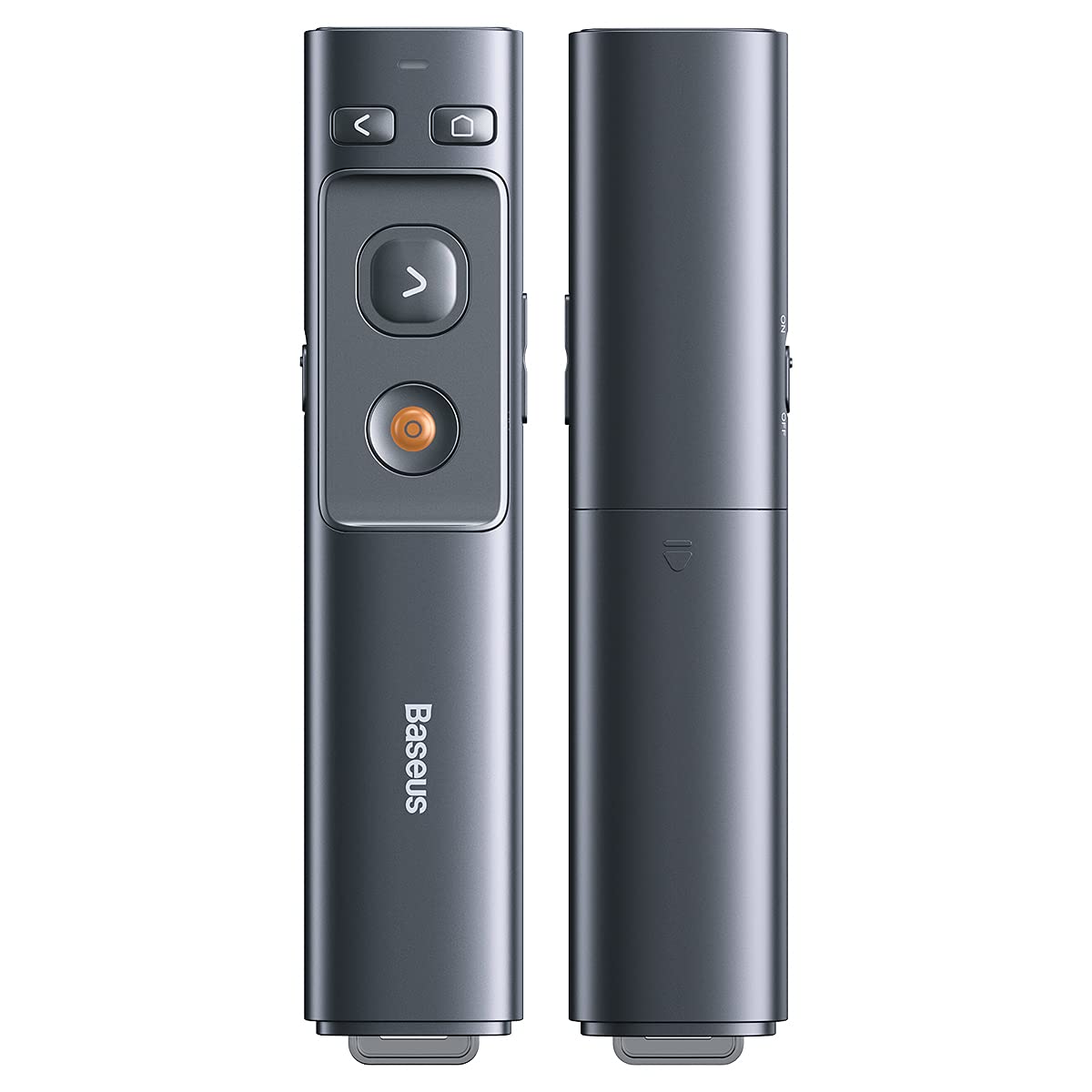
Imagen: Insert one AAA battery into the designated compartment. Ensure correct polarity.
3.2 Conexión del receptor
The presenter features a dual USB/Type-C receiver for broad compatibility.
- Locate the receiver stored magnetically within the presenter's body. Gently pull it out.
- Plug the receiver into an available USB-A or Type-C port on your computer or laptop. The system will automatically detect and install the necessary drivers. No additional software installation is required.

Imagen: The dual USB/Type-C receiver connects to your computer for wireless operation.

Imagen: The receiver can be stored magnetically within the presenter body when not in use.
4. Instrucciones de funcionamiento
Familiarize yourself with the presenter's buttons for effective control during your presentation.

Imagen: Control buttons for page navigation, laser activation, and volume adjustment.
4.1 Encendido y apagado
The presenter typically powers on automatically when the receiver is connected and a button is pressed. To conserve battery, ensure the receiver is disconnected when not in use.
4.2 Presentation Control
- Page Up Button (<): Press to move to the previous slide or page.
- Page Down Button (>): Press to move to the next slide or page.
- Full Screen/Black Screen Button: Press to toggle between full-screen mode and black screen mode in presentation software.
4.3 Función del puntero láser
Press and hold the dedicated laser button (usually a red dot icon) to activate the red laser pointer. Release the button to turn off the laser.

Imagen: The laser pointer function highlights content on a display.
4.4 Control de volumen
Use the designated volume buttons (if present) to adjust the audio output of your computer during a presentation.
5. Mantenimiento
Proper care ensures the longevity of your Baseus Orange Dot Wireless Presenter.
- Limpieza: Use a soft, dry cloth to clean the surface of the presenter. Avoid using harsh chemicals or abrasive materials.
- Almacenamiento: When not in use, store the presenter and its receiver in a dry, cool place. Always store the receiver inside the presenter's magnetic compartment to prevent loss.
- Cuidado de la batería: For battery-powered versions, remove the AAA battery if the presenter will not be used for an extended period to prevent leakage.
6. Solución de problemas
If you encounter issues with your presenter, refer to the following common problems and solutions:
- Presenter is unresponsive:
- Ensure the receiver is securely plugged into a USB-A or Type-C port on your computer.
- For battery versions, check if the AAA battery is inserted correctly and has sufficient charge. Replace if necessary.
- Intente conectar el receptor a un puerto USB diferente en su computadora.
- Reinicie su computadora.
- Laser pointer is not working:
- Ensure the presenter has power (battery charged/inserted).
- Confirm you are pressing and holding the correct laser activation button.
- Slides are not advancing/going back:
- Verify that your presentation software (e.g., PowerPoint, Keynote) is active and in presentation mode.
- Ensure the receiver is properly connected and recognized by your computer.
7. Especificaciones
| Característica | Detalle |
|---|---|
| Marca | Baseus |
| Nombre del modelo | Presentador inalámbrico Orange Dot |
| Número de modelo | LFZ_OrangeDotPresenter |
| Conectividad | Radiofrecuencia inalámbrica de 2.4 GHz |
| Tipo de receptor | USB-A / Type-C Dual Interface |
| Tipo de láser | Láser rojo |
| Distancia del laser | Hasta 100 metros |
| Distancia del control remoto | Hasta 100 metros |
| Fuente de poder | 1 x AAA Battery (for battery version) |
| Peso del artículo | 60 gramos |
| Dimensiones del paquete | 19.5 x 7 x 1.9 cm |
| País natal | Porcelana |
8. Garantía y soporte
Los productos Baseus están diseñados para brindar confiabilidad y rendimiento. Para obtener información sobre la garantía, consulte la tarjeta de garantía incluida con su compra o visite el sitio web oficial de Baseus. website. For technical support or further assistance, please contact Baseus customer service through their official channels.